
How-To Guide - Admins
How to configure reputation and review settings
Point your best sessions at Google, Trustpilot, and Thumbtack: set the star threshold, cooldown, and platform links, then read the reputation report.
Updated August 7, 2026
Overview
Use this guide to point your happiest families toward public reviews: set which star ratings trigger the external review prompt, add your Google, Trustpilot, and Thumbtack links, and read the resulting reputation report.
Before you start
- You have public review page URLs for the platforms you want to use (Google, Trustpilot, and/or Thumbtack).
- Session feedback collection is already gathering star ratings from students (on by default for every company).
Why this matters
Every company collects session feedback by default — students get a quick 1-5 star rating request with an optional comment about 30-35 minutes after a session ends, no setup required. What's configurable is what happens with a great rating: out of the box, only a perfect 5-star rating prompts the student to also leave a public review on one of your connected platforms. You can lower that bar to 4+ or 3+ stars from the Rating Threshold dropdown if you'd rather cast a wider net.
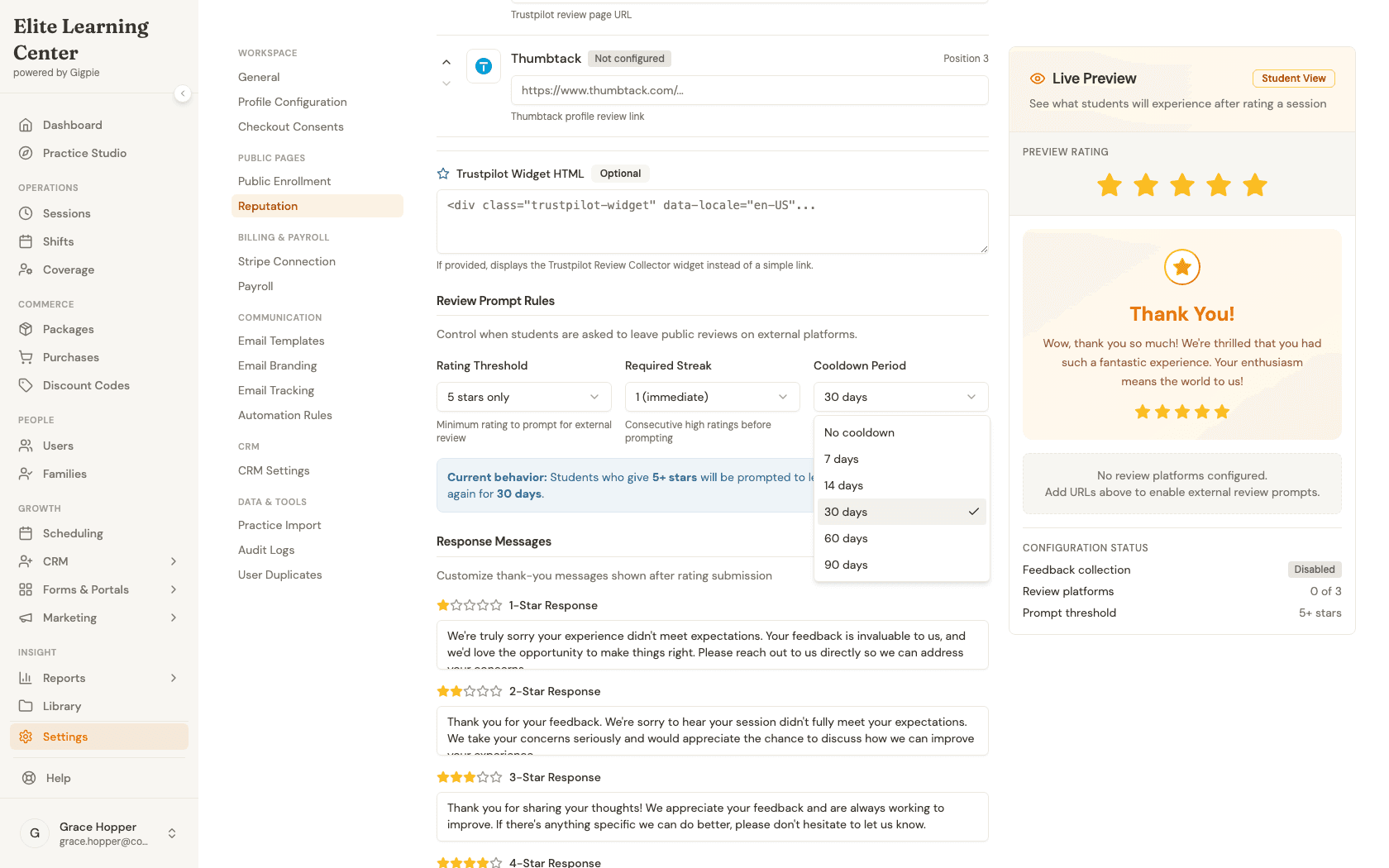
The external review prompt only fires once you've added at least one platform URL — Google, Trustpilot, and Thumbtack are the three supported platforms, and you can reorder which one is offered first. A Required Streak and Cooldown Period keep the prompt from feeling spammy: by default a single high rating is enough to trigger it (no streak required), and the same student won't be asked again for 30 days.
There's a second, separate mechanism worth knowing about even though it isn't configured from this page: any rating below 4 stars automatically emails your company's admins with the student, coach, session, and comment — on by default for every company, no setup required. Combined with the review-prompt threshold above, that means your best sessions get funneled toward public reviews while your worst ones get flagged internally instead of posted publicly.
Tips
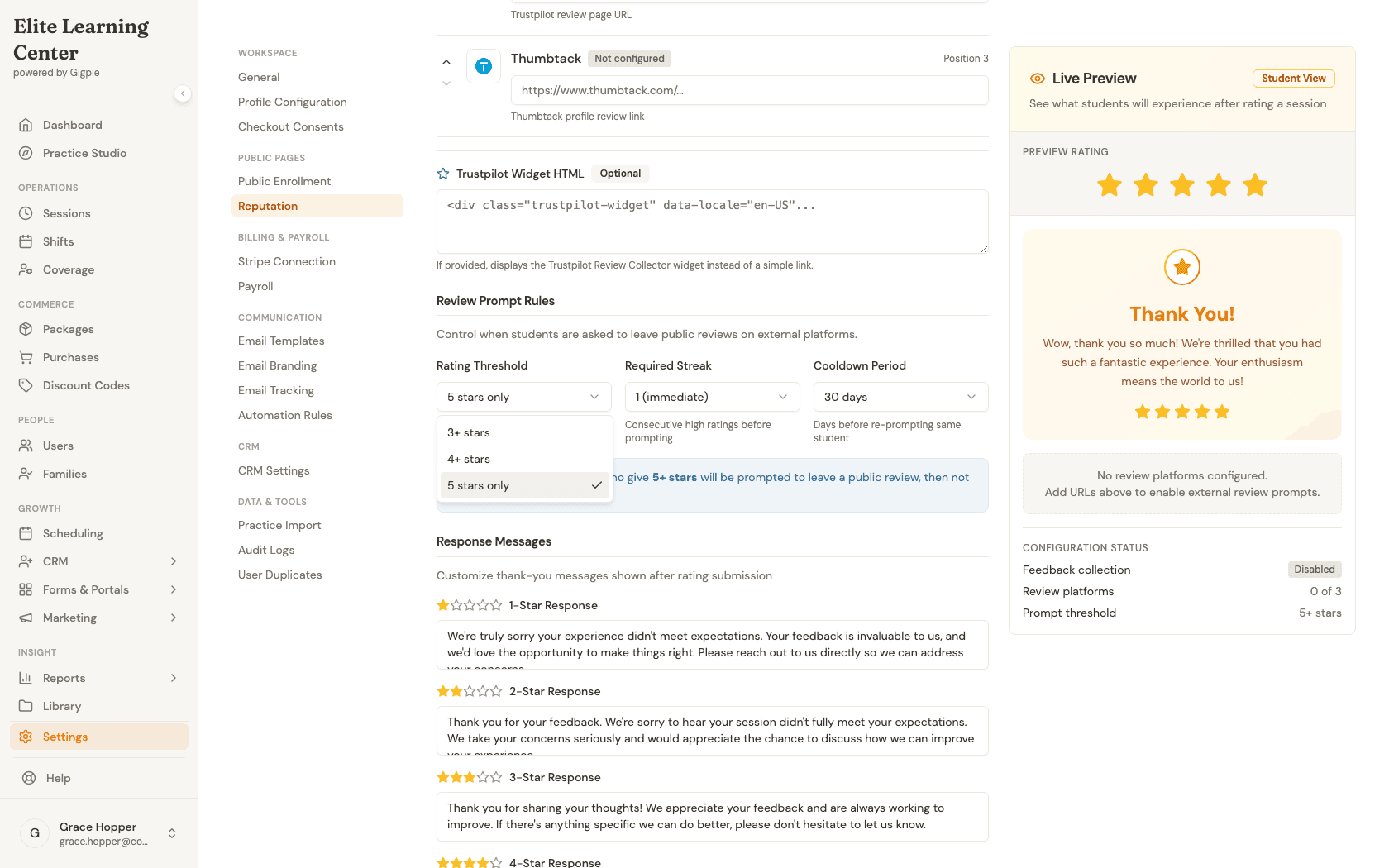
- The Rating Threshold dropdown only has three options — 3+, 4+, or 5 stars only. There's no way to prompt below 3 stars.
- Trustpilot links get auto-converted: paste a
trustpilot.com/review/...URL and it's stored as theevaluate/...link format Trustpilot expects for direct review submission. - If you have Trustpilot's review-collector widget code, paste it into the Trustpilot Widget HTML box — it replaces the plain link with an embedded widget.
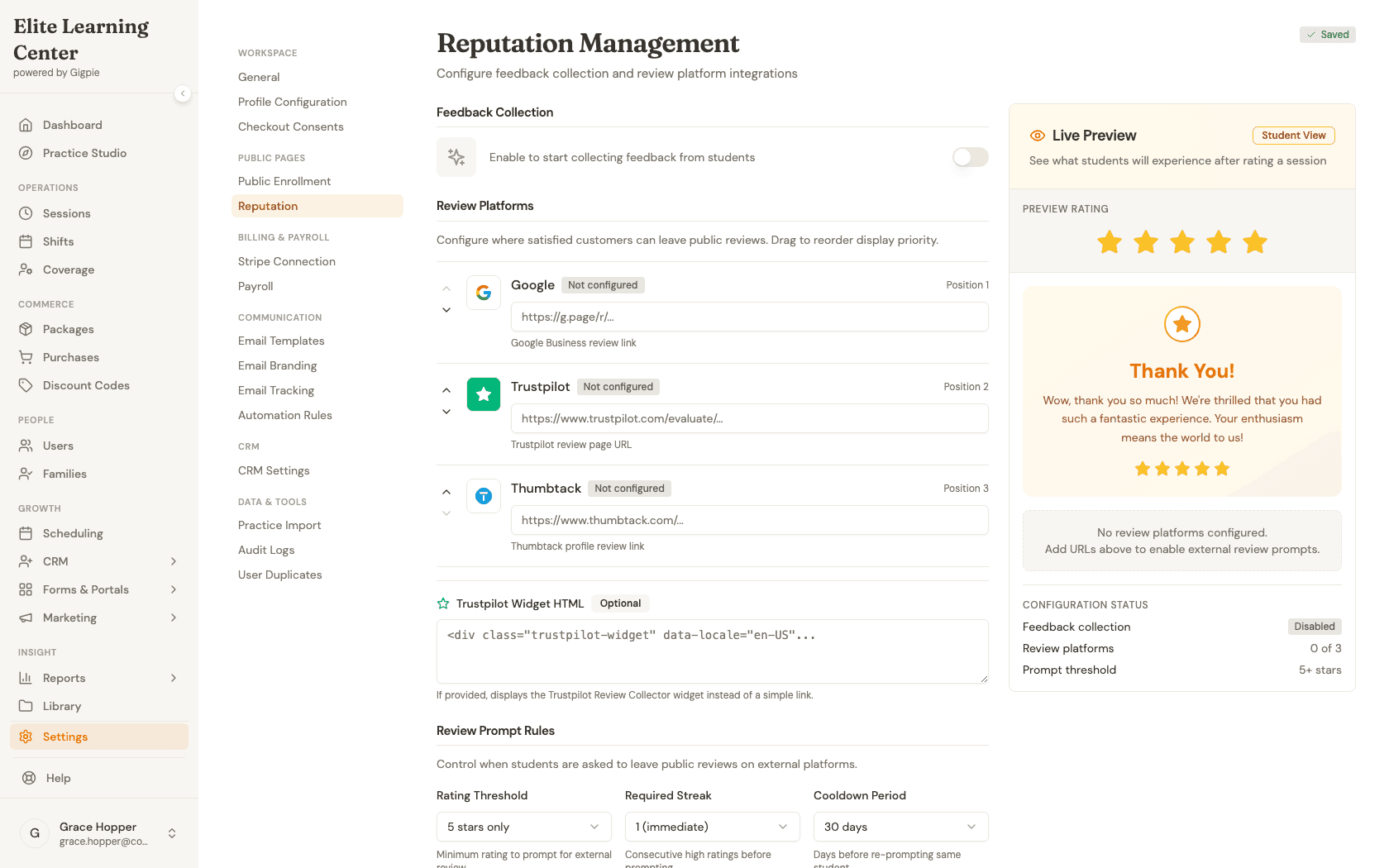
- The Live Preview panel on the right updates as you edit, so you can see exactly what a student will see after they submit a rating.
- This page autosaves — there's no Save button. Changes take effect about 2 seconds after you stop typing, shown by the status pill at the top right.
Steps
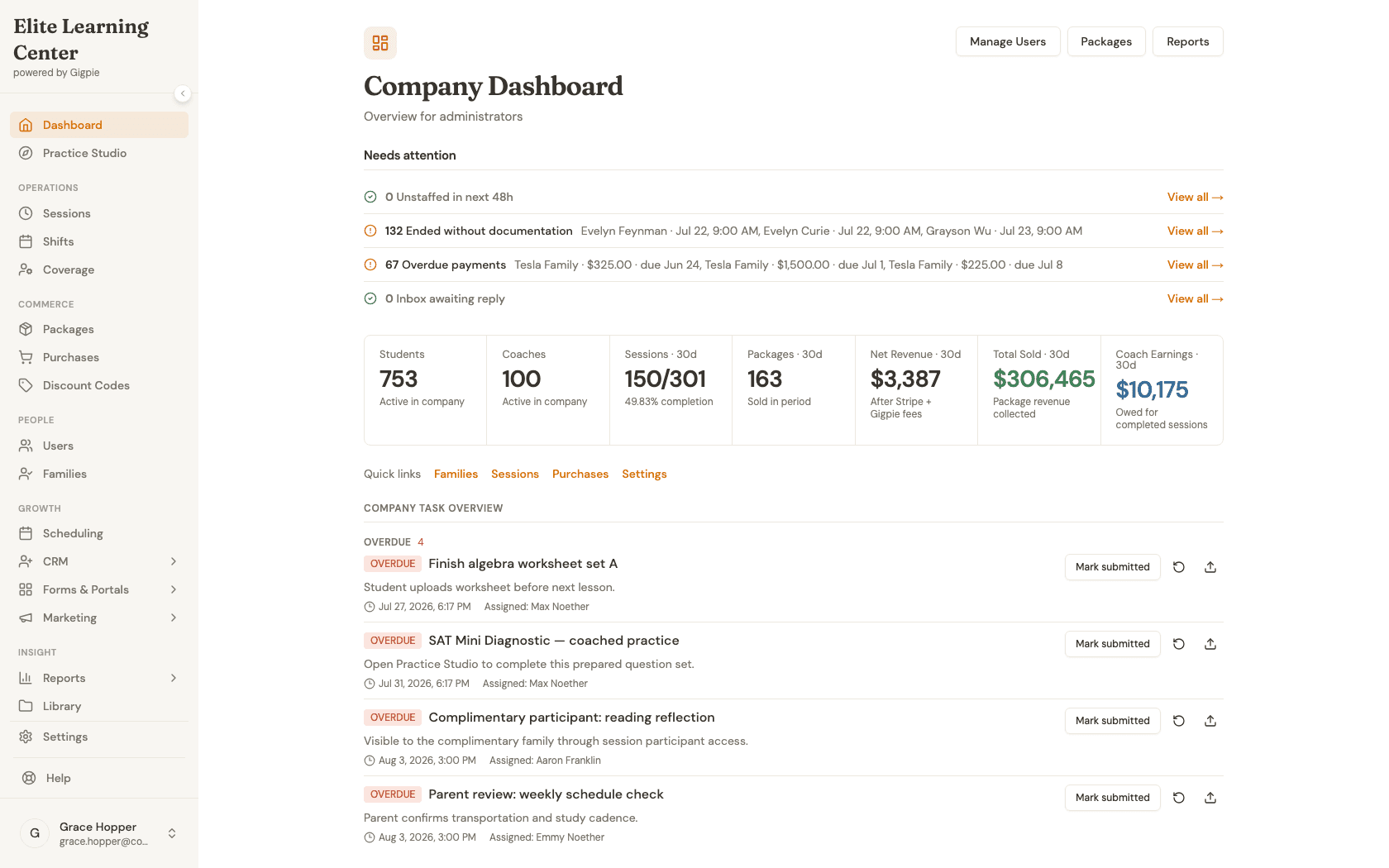
- 1Go to login
Sign in as an admin
Use your admin account credentials to access the dashboard.
- 2
Navigate to Reputation settings
Click Settings in the sidebar, then Reputation under Public Pages. Add your Google, Trustpilot, and Thumbtack review links in the Review Platforms section — each one shows a "Configured" badge once it has a URL.
- 3
Set the Rating Threshold
Open the Rating Threshold dropdown to choose which star ratings trigger the external review prompt — 3+ stars, 4+ stars, or 5 stars only (the default).
- 4
Set the Cooldown Period
Open the Cooldown Period dropdown to control how long to wait before prompting the same student again — from no cooldown up to 90 days.
- 5
Read the reputation report
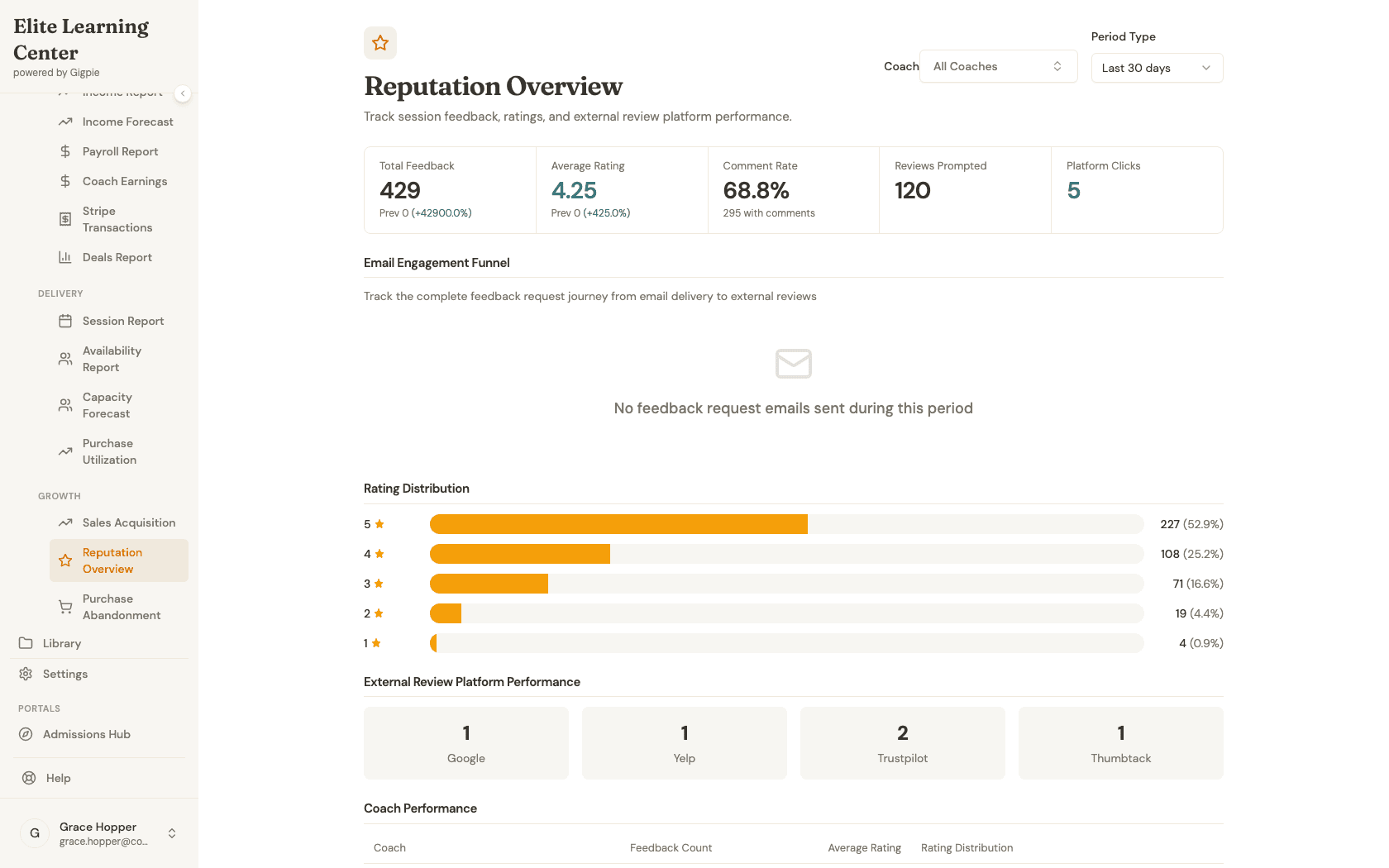
Go to Reports > Reputation Overview to see total feedback, average rating, comment rate, the star rating distribution, and how many clicks each review platform has gotten.
What you'll accomplish
- You know which star ratings trigger the external review prompt, and can change the threshold.
- You can add and reorder your Google, Trustpilot, and Thumbtack review links.
- You understand the cooldown that keeps the same student from being asked to review twice too soon.
- You can read total feedback, average rating, rating distribution, and platform-click counts on the reputation report.
Related Guides
- How to add a family and set up students as an admin - Every completed session for a family feeds the same feedback pipeline
- CRM & Marketing Automation - How automated rules like the feedback request and negative-feedback alert work under the hood