
How-To Guide - Admins
How to send a broadcast email campaign
Open a draft campaign, pick your audience, preview the email, send yourself a test, and launch — a one-off broadcast to your parents, coaches, or students.
Updated August 7, 2026
Overview
Use this guide to send a one-off broadcast email: open a draft campaign, pick your audience, preview what recipients will see, send yourself a test, and launch.
Before you start
- You have a draft campaign with subject and content, or you're ready to write one.
- You have a segment built for the audience you want to reach (or you'll use one of the built-in ones like all parents).
Why this matters
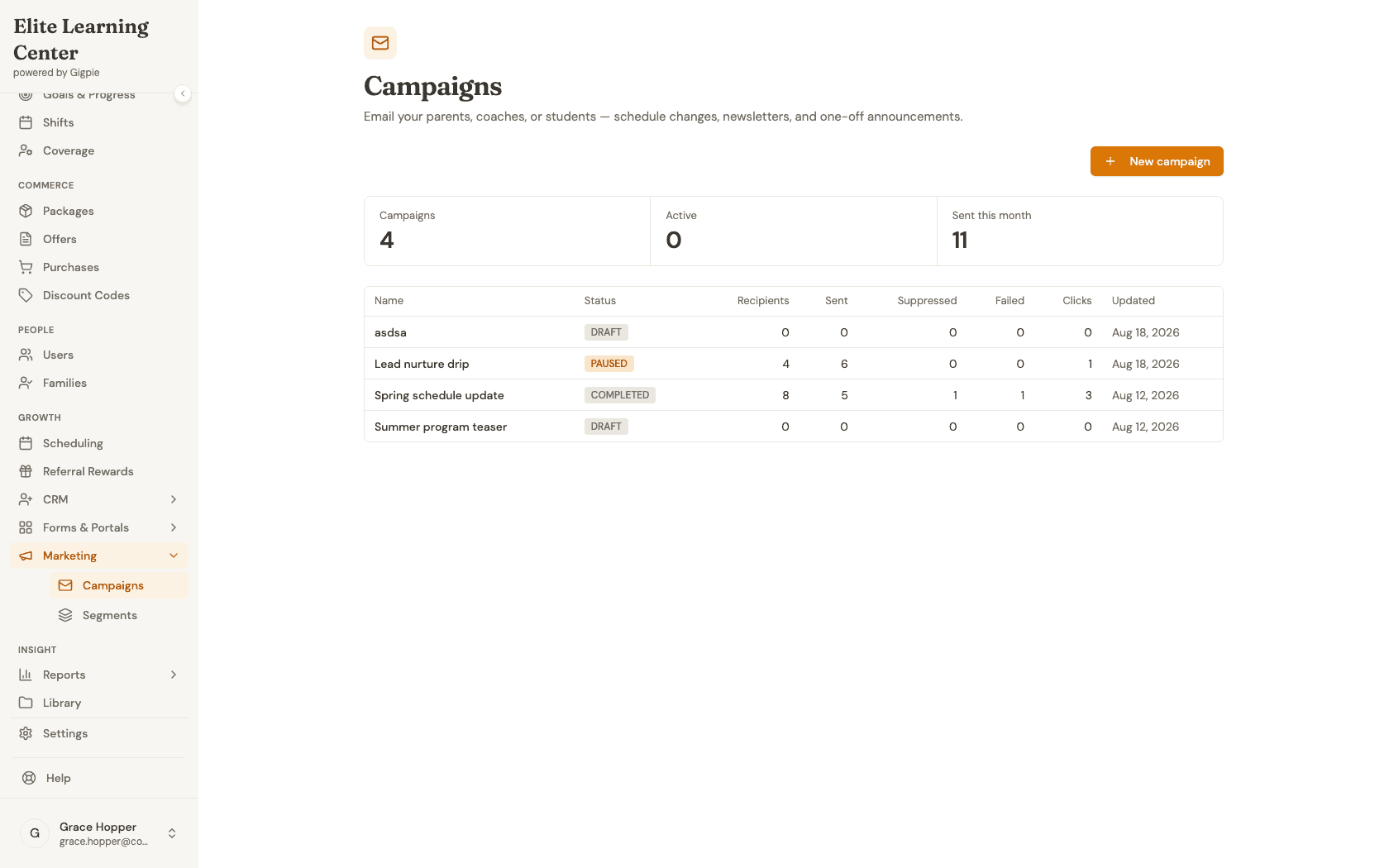
A campaign in Gigpie is either a one-off Broadcast (what this guide covers) or a multi-step Journey automation — the Campaigns list shows both kinds side by side, along with every status a campaign can be in: DRAFT while you're still writing it, ACTIVE or PAUSED once a journey is running, and COMPLETED once a broadcast has gone out. A draft stays fully editable — subject, content blocks, and audience — right up until you launch it.
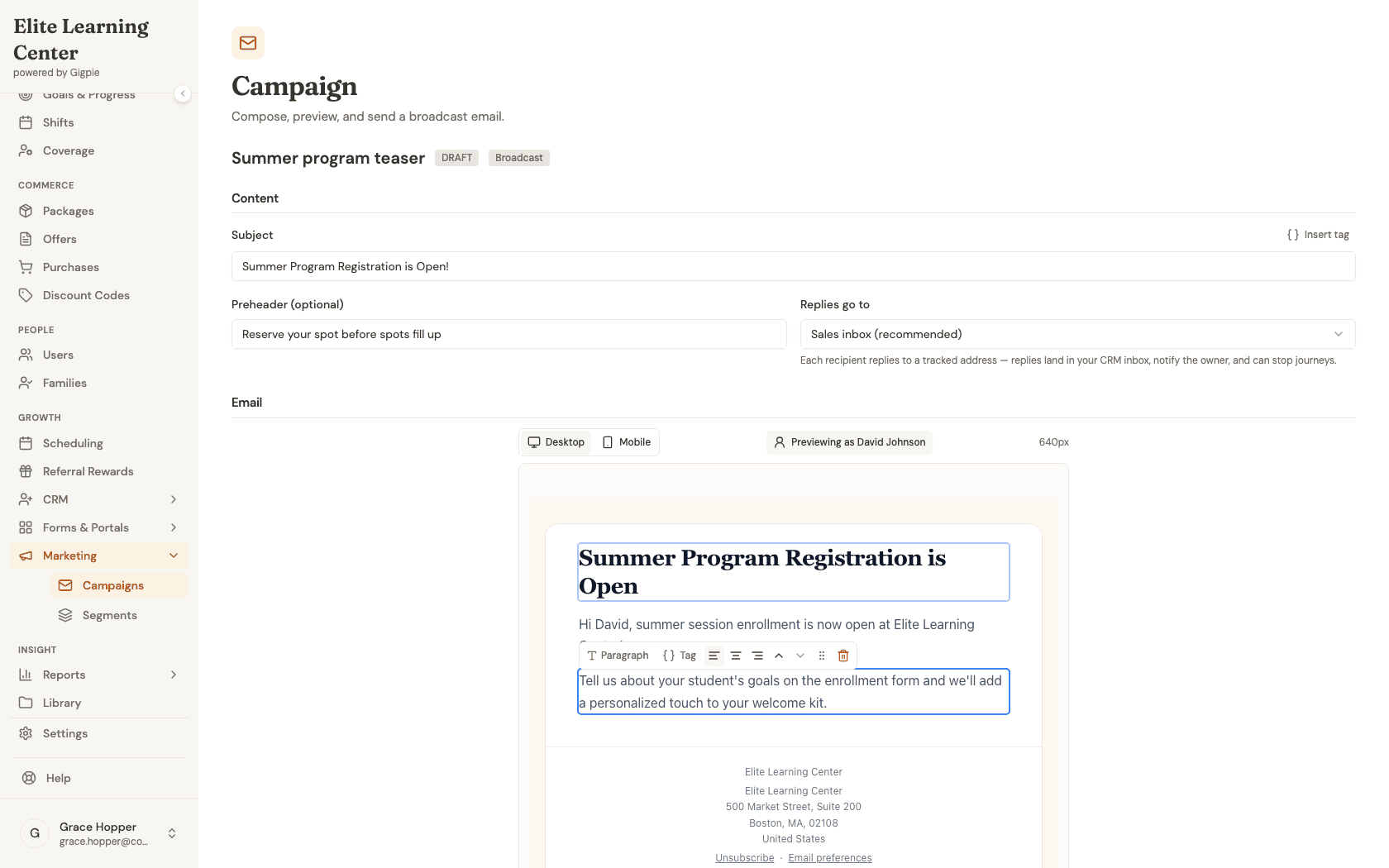
The Live Preview panel renders your actual in-progress content, not a cached version, so what you see is what a recipient gets: same subject, same blocks, same footer with your company's address and an unsubscribe link. Before you commit to a real send, "Send test" saves your draft and emails up to three of your own addresses so you can proofread it as a real inbox would show it — genuinely useful since it renders through the same compile pipeline as the real send, catching broken merge tags or formatting issues before they reach a parent's inbox.
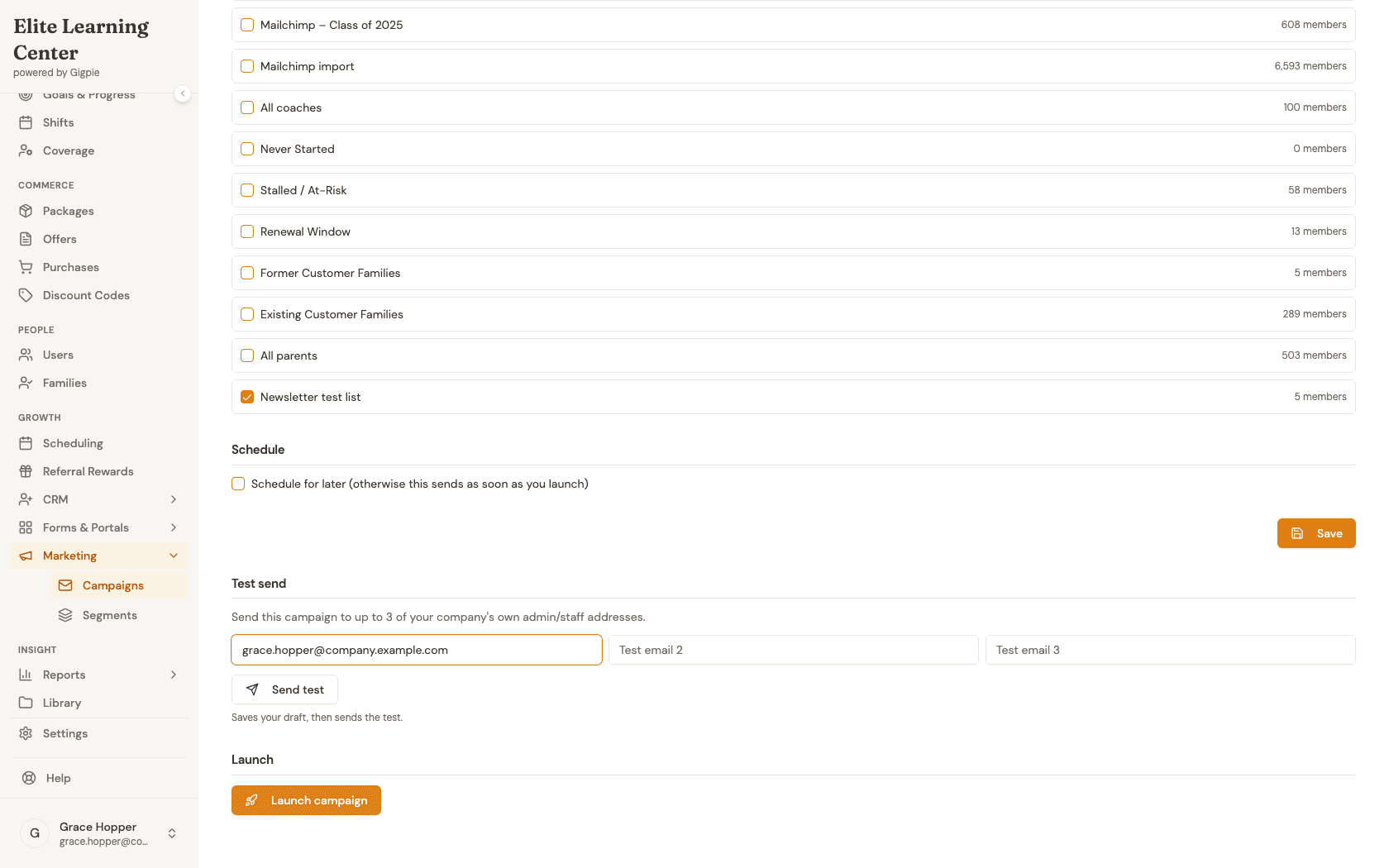
Launch is the one irreversible step: it freezes the audience list at that moment and starts sending right away, unless you've checked "Schedule for later." There's no draft-then-approve step after that — review the audience and content carefully before you click it.
Tips
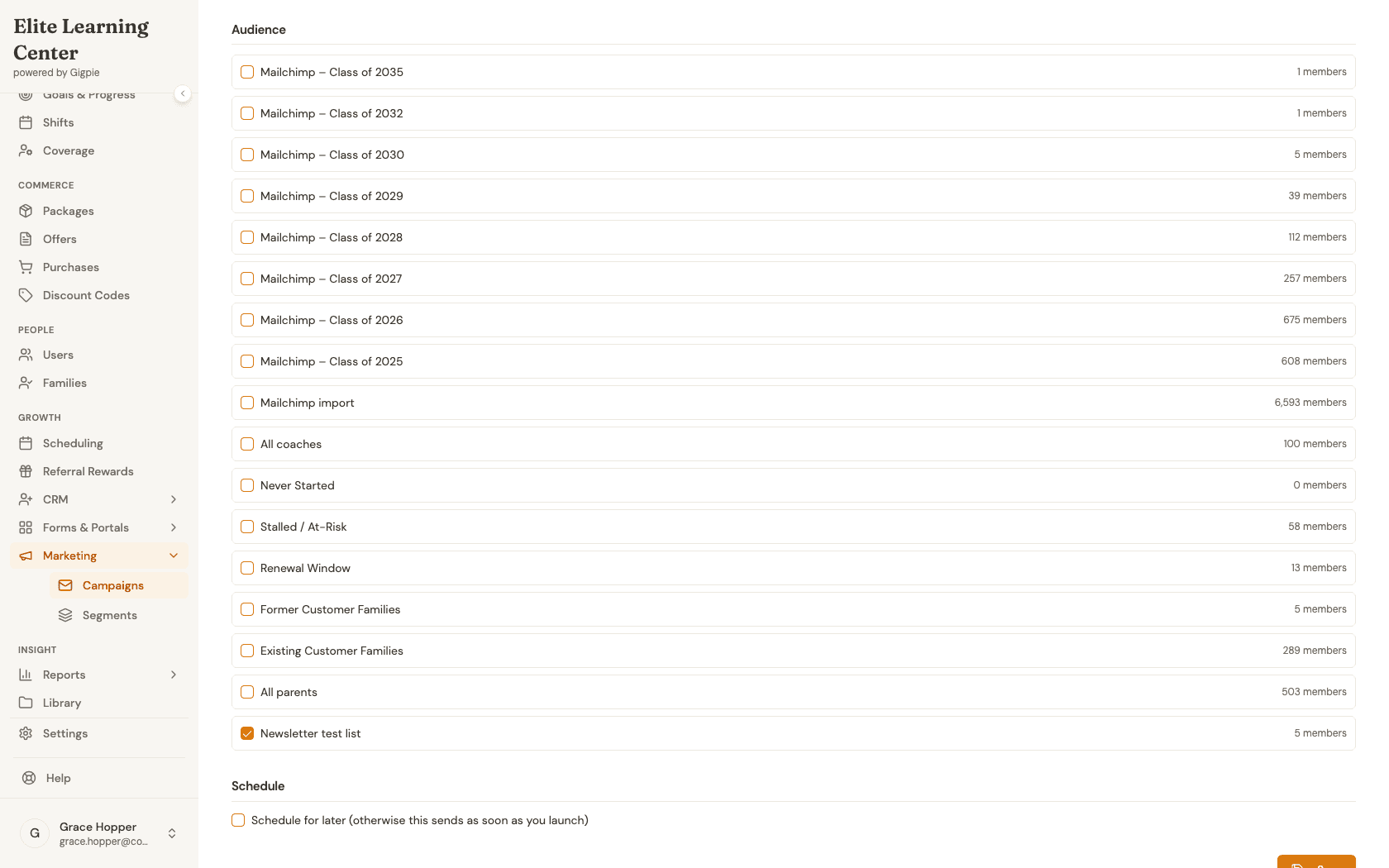
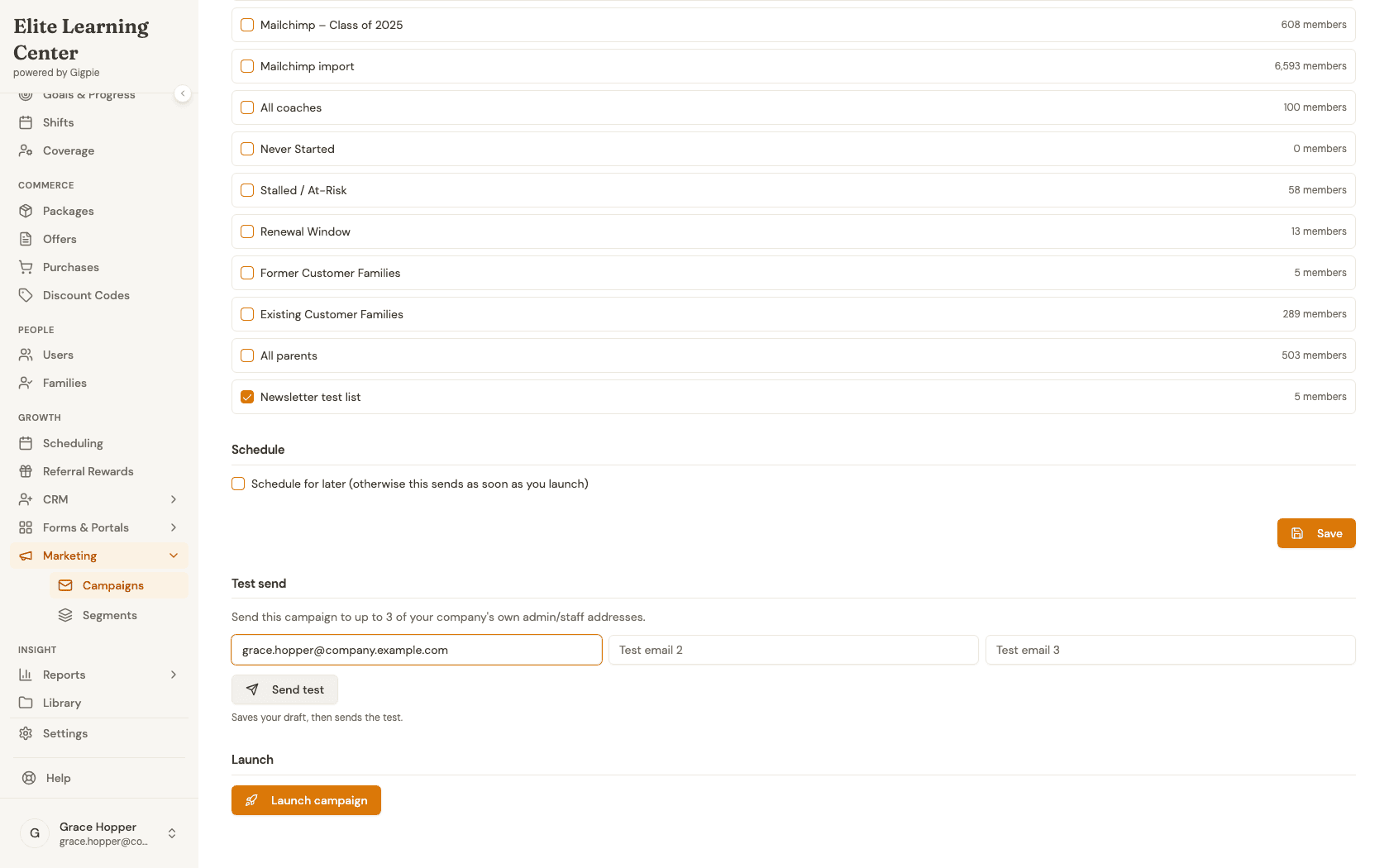
- Audience segments show live member counts right on the checkbox row — a quick sanity check that you're about to reach the right number of people before you launch.
- You can select more than one segment; the campaign sends to the union of everyone in any selected segment.
- "Send test" only delivers to your own company's admin/staff addresses, not real recipients — it's meant for proofreading, not a partial real send.
- Merge tags like
{{first_name}}and{{company_name}}show as literal placeholders in the preview and in test sends — they only resolve to real values for the actual recipient at send time. - If you need this to go out at a specific time instead of immediately, check "Schedule for later" before you launch — otherwise launching sends right away.
Steps
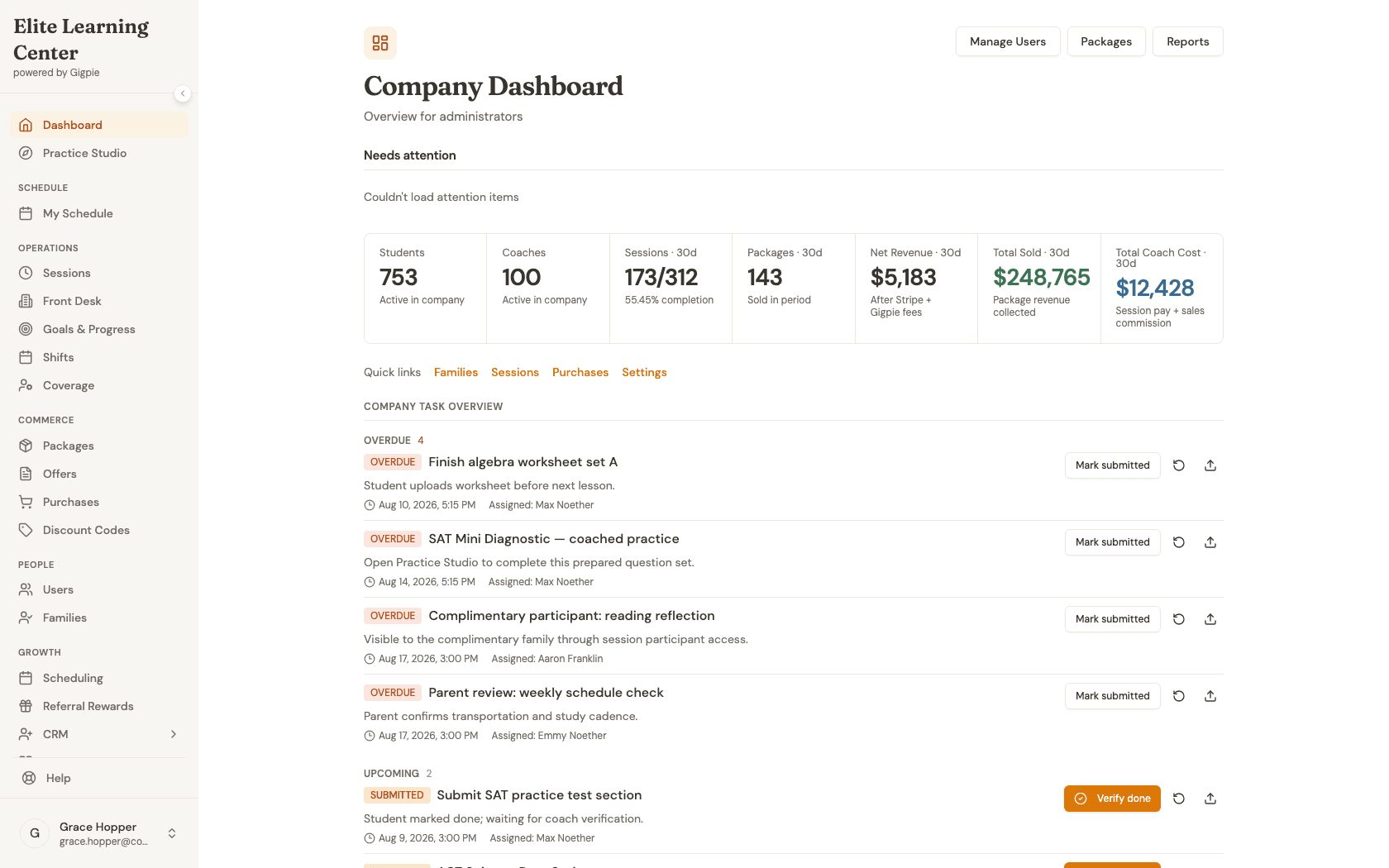
- 1Go to login
Sign in as an admin
Use your admin account credentials to access the dashboard.
- 2
Navigate to Campaigns
Expand Marketing in the sidebar, then click Campaigns to see every campaign and its status.
- 3
Open the draft campaign
Click a draft campaign's name to open the composer. Edit the subject, preheader, and content blocks on the left — the Live Preview on the right updates as you type.
- 4
Select the audience
Scroll down to Audience and check which segment(s) should receive this campaign — each row shows its current member count.
- 5
Preview a test send
Enter your own email in one of the Test send fields, then click Send test to get a real copy in your inbox before you launch.
- 6
Review before launching
Once the content and audience look right, click Launch campaign. This freezes the audience and starts sending immediately unless you scheduled it for later.
What you'll accomplish
- You can open a draft campaign and read its content and live preview together.
- You can pick which segment(s) receive the campaign.
- You can send a test copy to your own inbox before committing to a real send.
- You know Launch is the point of no return — it freezes the audience and starts sending immediately unless scheduled.
Related Guides
- How to work leads in the CRM pipeline - The same contacts you email here often start as leads in the pipeline
- CRM & Marketing Automation - How broadcasts, journeys, and segments fit together