
How-To Guide - Admins
How to work leads in the CRM pipeline
Triage new leads on the Kanban pipeline board, open a lead's full activity history, and start a reply from the compose bar — all without leaving the CRM.
Updated August 6, 2026
Overview
Use this guide to triage new leads: read the pipeline board, open a lead's detail page to see its full activity history, and start a reply from the compose bar — the day-to-day loop for keeping a lead pipeline moving.
Before you start
- You have at least one lead in a pipeline (from a webhook, a form, an inbound call/text, or manual entry).
- You have email or SMS set up if you plan to send from the compose bar.
Why this matters
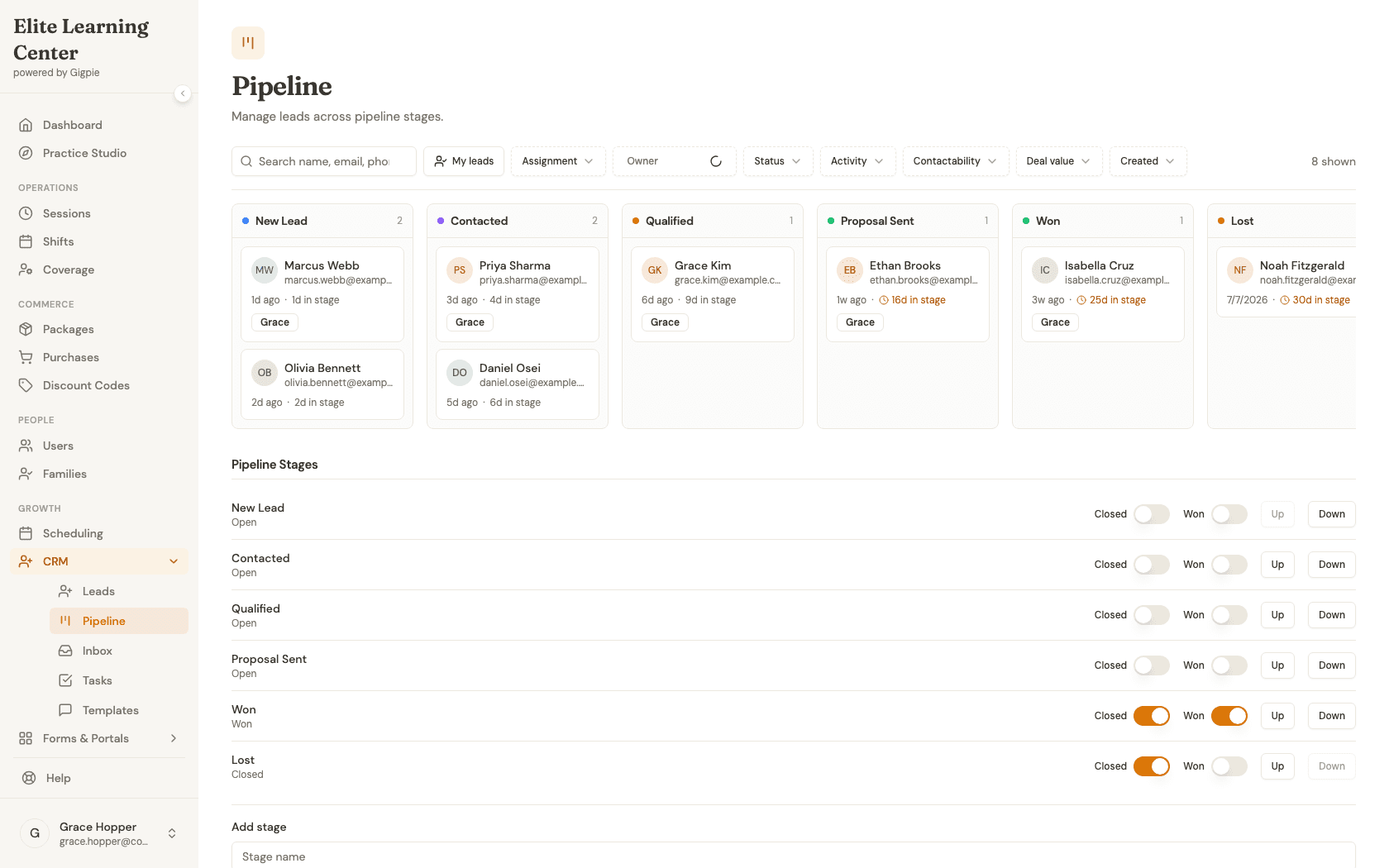
The Pipeline board groups every lead in a pipeline into columns by stage — New Lead, Contacted, Qualified, Proposal Sent, Won, Lost — with real filtering, per-lead task counts, and time-in-stage shown right on the card. A card that's been sitting in "Contacted" for two weeks is easy to spot before it goes cold.
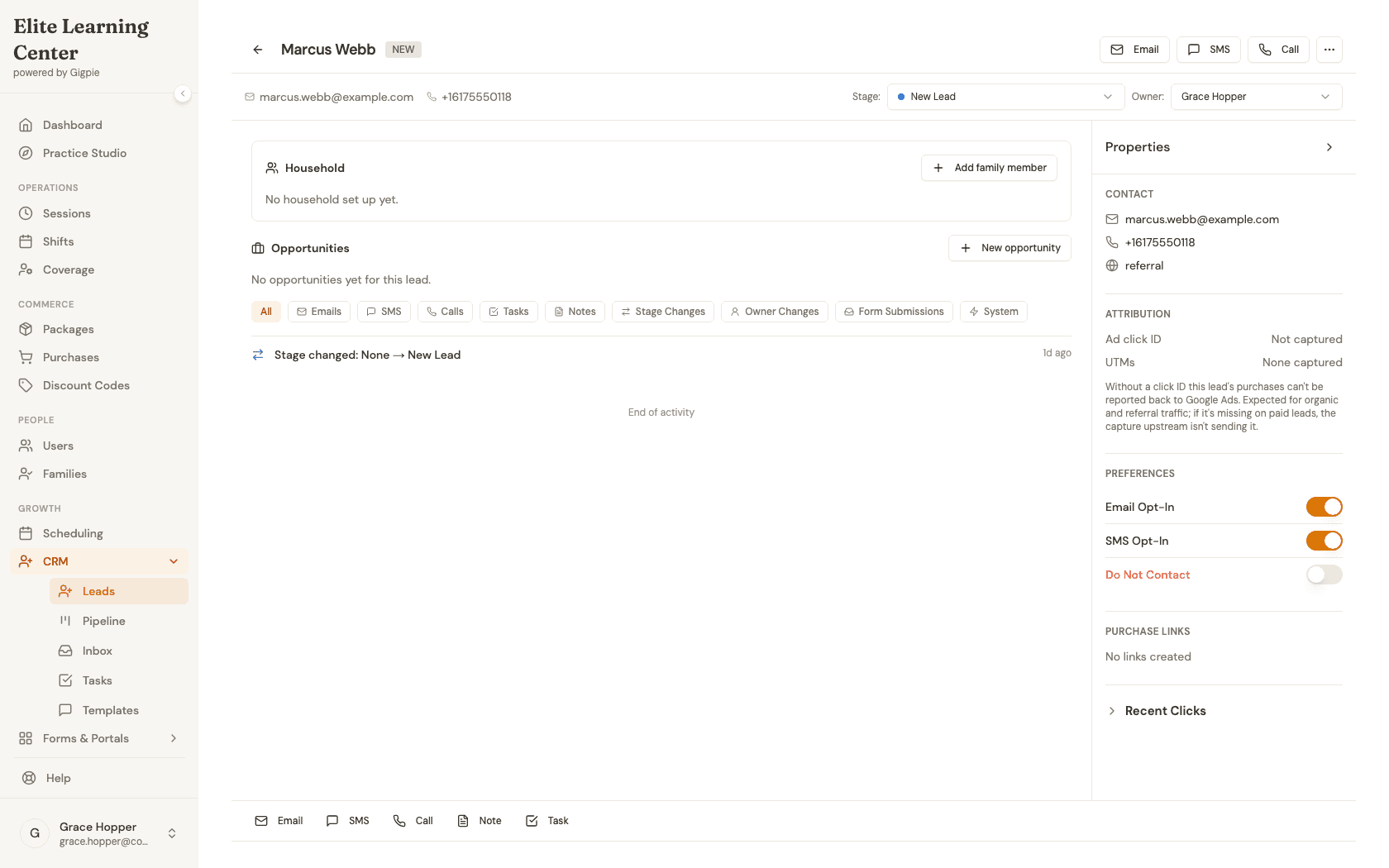
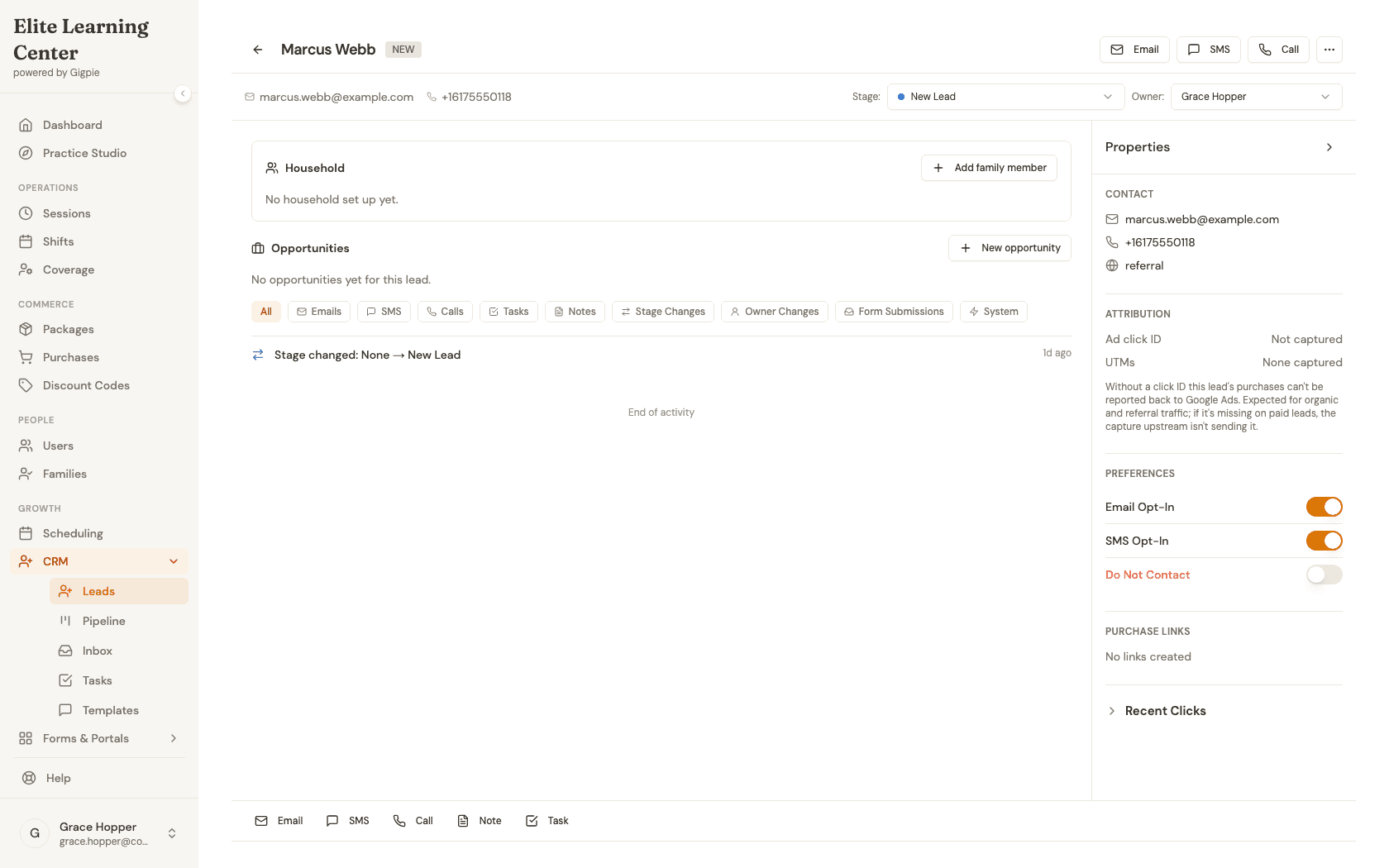
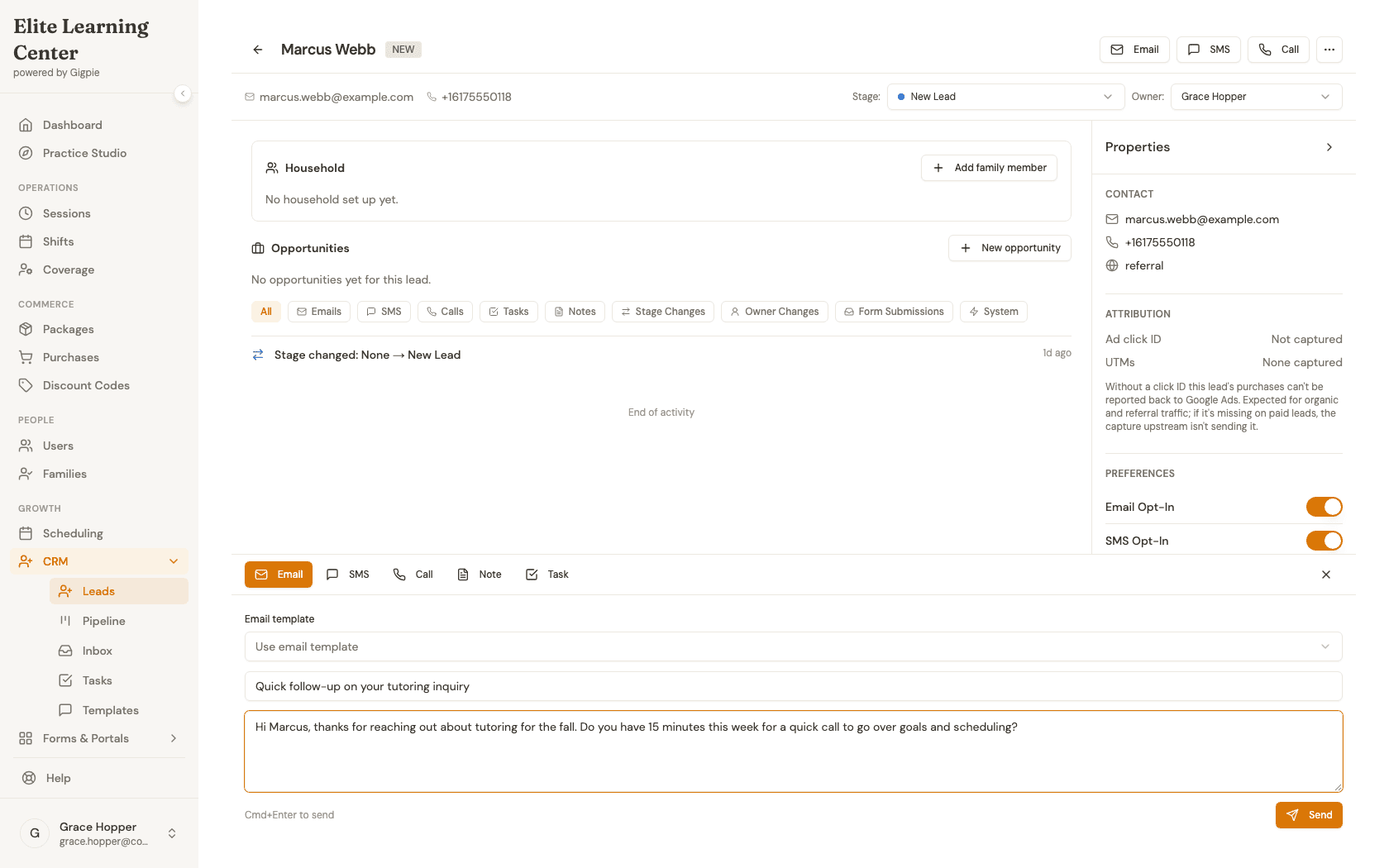
Opening a lead takes you to its full record: household and opportunity links, a unified activity stream that mixes emails, SMS, calls, tasks, notes, and stage/owner changes in one timeline, and a properties panel with contact info and ad-attribution data. The same compose bar at the bottom handles email, SMS, calls, internal notes, and tasks, so you never have to leave the lead to follow up.
Cards can also be dragged from one stage column to another to move a lead forward — useful once you're ready to update a lead's stage after a real conversation, since it's a permanent change to that lead's record.
Tips
- Use the filter bar (My leads, Assignment, Owner, Status, Activity, Contactability, Deal value, Created) to narrow the board before you start working through it.
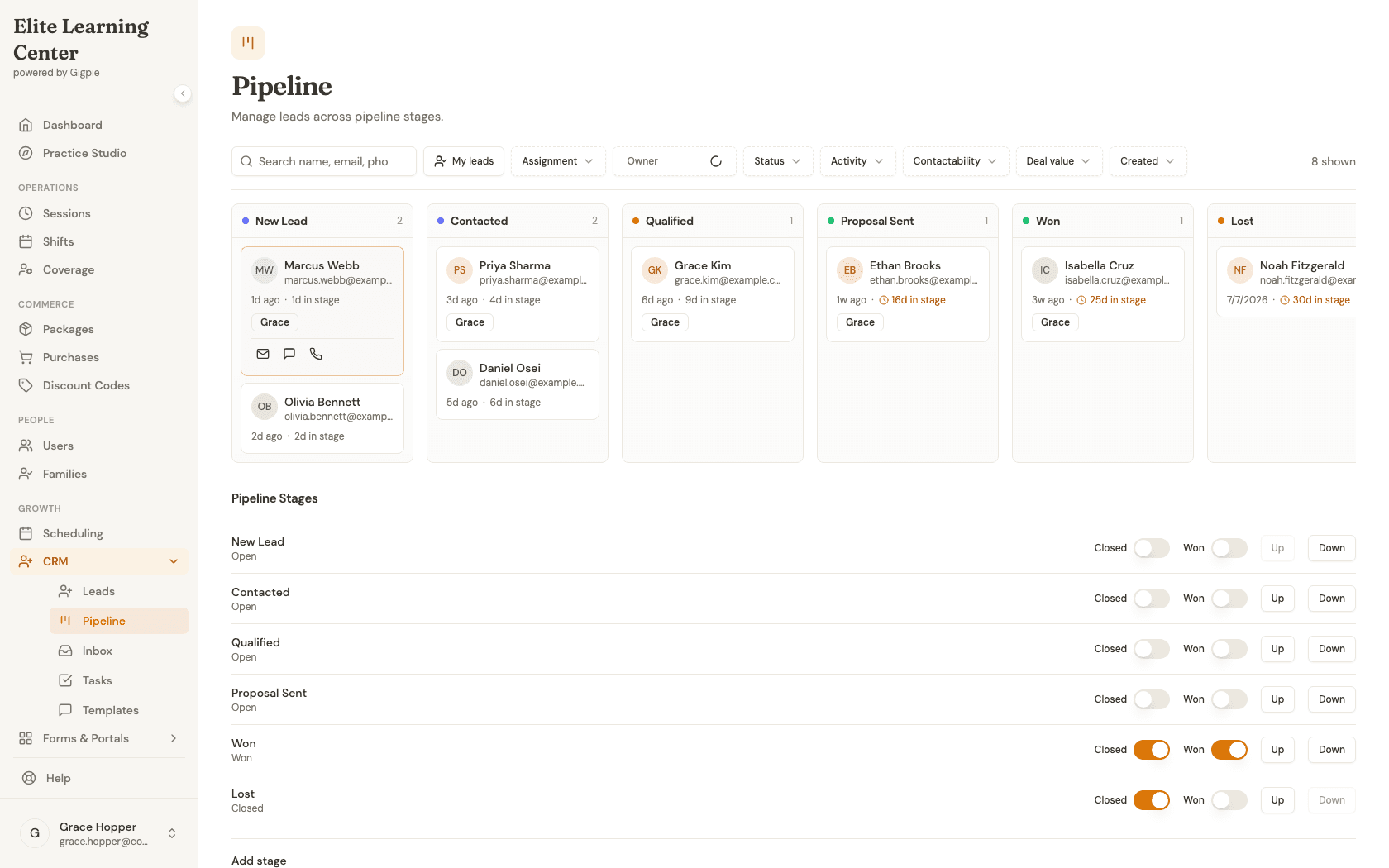
- Hover a card to reveal quick-action icons for email, SMS, and call — handy for a fast touch without opening the full lead.
- The "Ad click ID" and "UTMs" fields in the Properties panel tell you whether a lead's original source can be reported back to Google Ads — missing on paid traffic usually means the capture upstream isn't sending it.
- The compose bar's Note and Task tabs work the same way as Email and SMS — they're the fastest way to leave a reminder for yourself or a teammate on a specific lead.
Steps
- 1Go to login
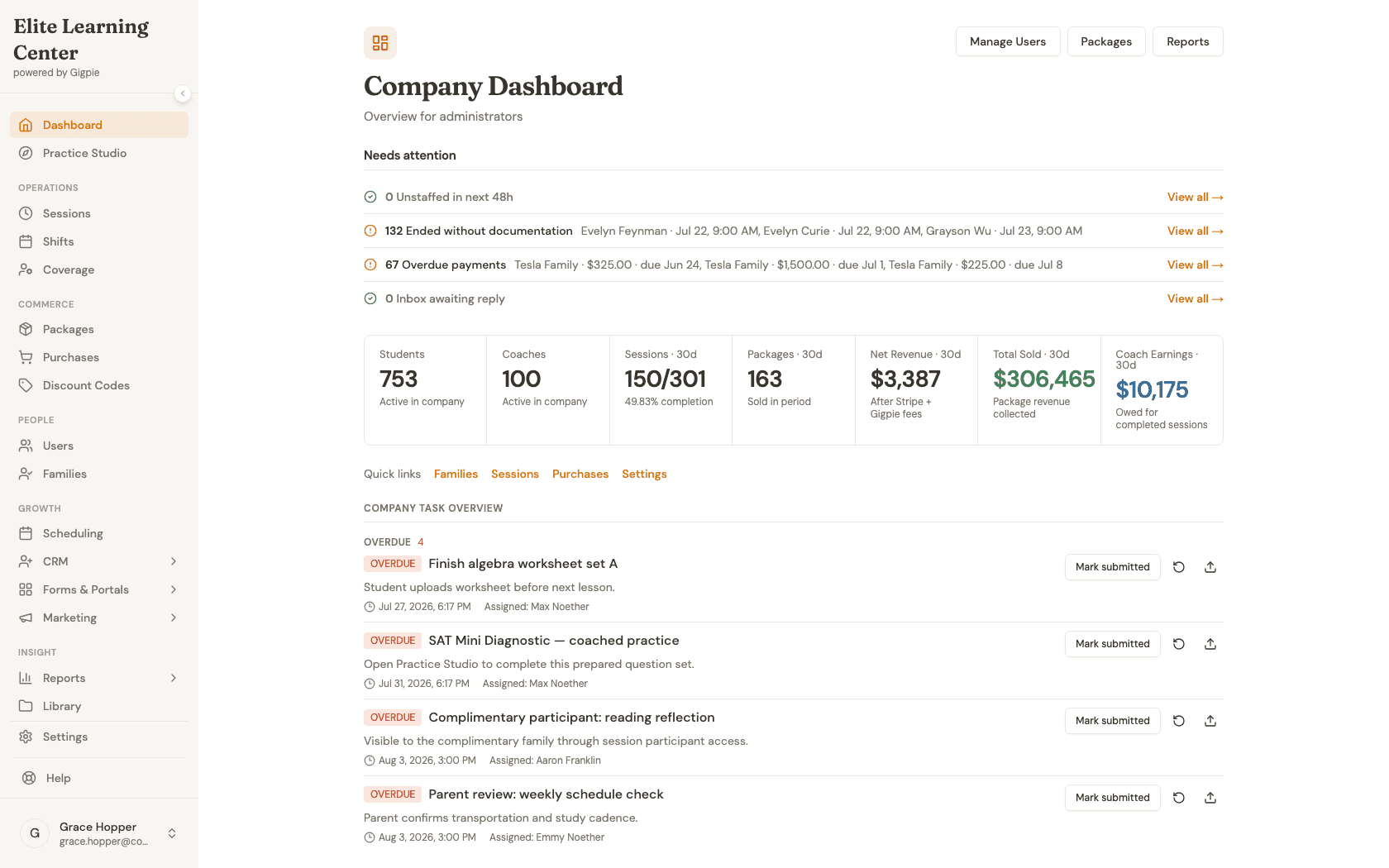
Sign in as an admin
Use your admin account credentials to access the dashboard.
- 2
Open the CRM pipeline
Expand CRM in the sidebar, then click Pipeline to open the Kanban board.
- 3
Read a lead card
Hover a card to see its quick-action icons for email, SMS, and call, along with its owner and time-in-stage.
- 4
Open the lead's detail page
Click a lead's name to open its full detail page.
- 5
Review activity and properties
Scroll the activity stream to see every email, call, note, and stage change for this lead, and check the Properties panel for contact info and attribution.
- 6
Start a reply from the compose bar
Click Email in the compose bar at the bottom of the page, then fill in a subject and message.
- 7
Review before sending
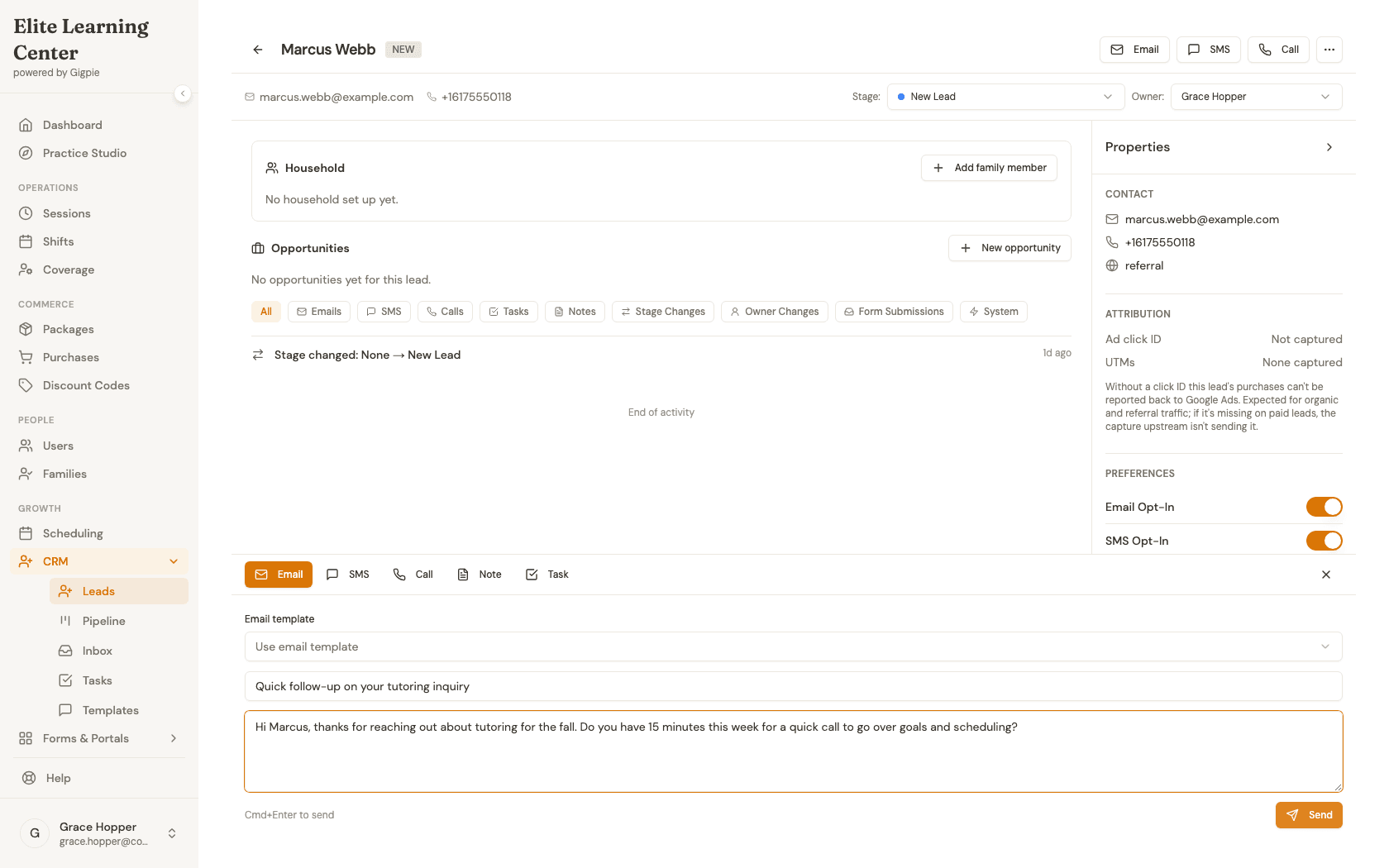
Review the subject and message, then click Send to email the lead.
What you'll accomplish
- You can read a lead's stage, owner, and time-in-stage directly from its Kanban card.
- You can open any lead to see its full activity stream and contact properties.
- You know how to start a reply from the compose bar without leaving the lead's page.
Related Guides
- How to add a family and set up students as an admin - Turn a won lead into a family
- CRM & Marketing Automation - How the pipeline, inbox, and campaigns work together