
How-To Guide - Admins
How to create a price-locked customer offer as an admin
Build a one-family offer with a locked price and payment schedule, then share its offer link so they can review and accept without touching your admin tools.
Updated August 11, 2026
Overview
Use this guide when a family needs a price or payment schedule that doesn't match your standard packages — a negotiated discount, a payment plan, or a one-time deal you don't want showing up anywhere public. A customer offer is a family-specific package agreement: choose a family, choose a package, set the price and terms, and Gigpie generates a tokenized offer link that only that family can use to check out.
Before you start
- The family already exists in Family Management, and the package you're offering is active, not archived, and marked publicly shared — those are the only packages an offer can be built on.
- You know the price you want to lock in and how the family should pay, in full or across installments.
- You have a way to reach the family directly — email, text, or however you normally talk to them. Gigpie does not send the offer for you.
Why this matters
A discount code defines a discount rule and may be reusable or restricted to a family, person, lead, or package. An offer locks the complete agreement for one family: package, price, payment schedule, recipient, note, and expiration. That difference matters most when you're negotiating case by case (a returning family, a sibling discount, a retention save) and you don't want the terms drifting if you change your list prices later. The offer snapshots the package name, description, and price when you create it, so even if you edit that package afterward, the family's offer still honors exactly what they were shown.
The other thing worth knowing up front: creating an offer and sending it are two different steps, and Gigpie only ever does the first one for you. Marking an offer "sent" updates its status in your Offers list — it does not email or text the family. Getting the link in front of them is on you.
Tips
- Only active, non-archived packages marked publicly shared can have an offer built on them — a package you keep private or have archived can't be offered this way, even to one family.
- Copy the offer link the moment it appears — right when you create the offer, or after clicking "New link" to reissue one. Marking an offer sent doesn't display or re-send the link; if you close that dialog without copying it, regenerating a new link is the only way to see it again, and that invalidates the old one.
- Installments run 2–12 payments, spaced 7–365 days apart — pick whatever cadence matches what you agreed to verbally or over email.
- Set the expiration date to whenever you actually expect an answer. It defaults to 7 days out, but a slower-moving decision deserves more runway; once it expires, the family's link stops working even if they never used it.
- An offer's price can go as low as $0.50 total, and $0.50 per installment — Gigpie won't let a locked-in price accidentally round down to nothing.
Steps
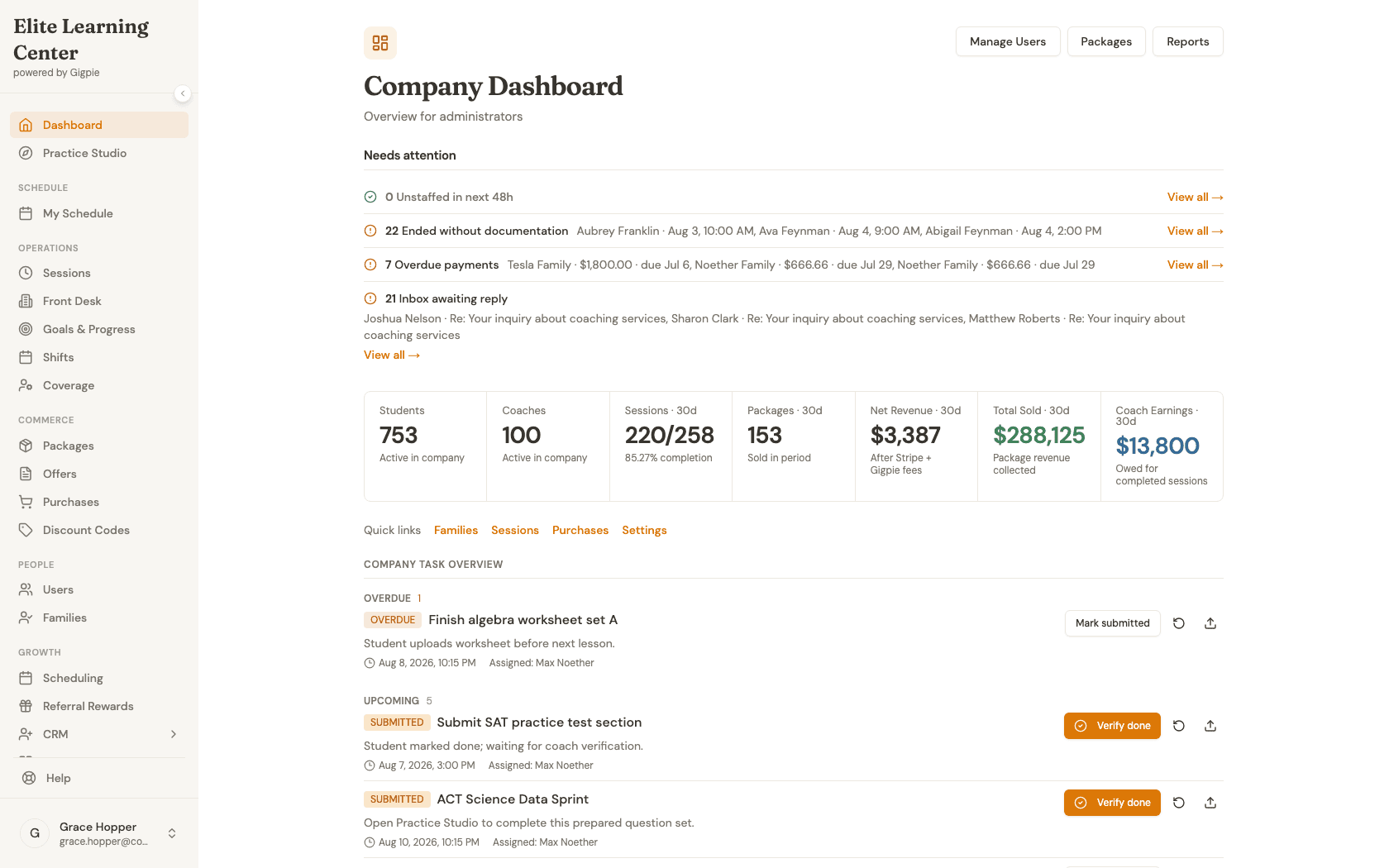
- 1Go to login
Sign in as an admin
Use your admin account credentials to access the dashboard.
- 2
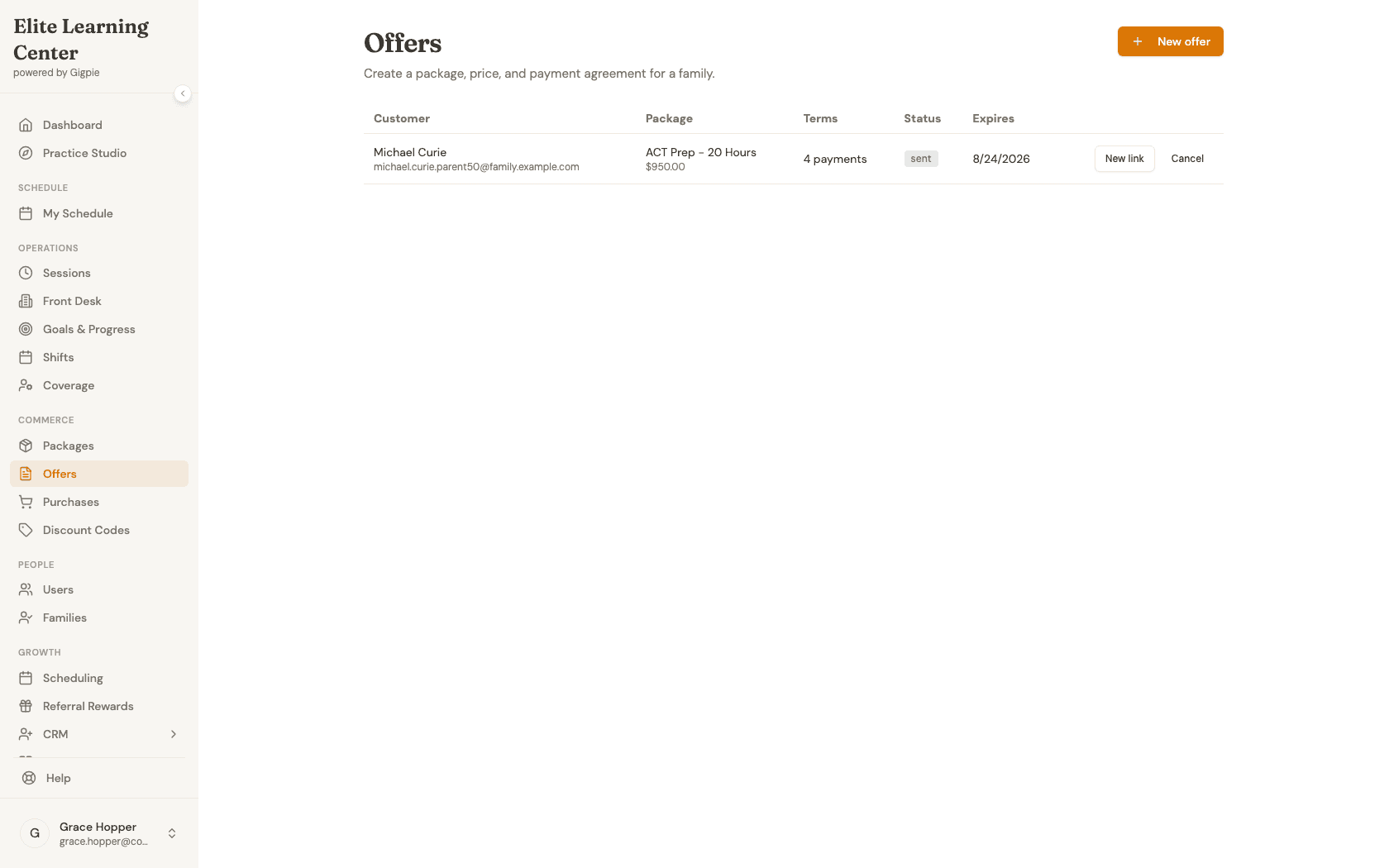
Navigate to Offers
Click Offers in the sidebar, under Commerce, to open the offer workspace.
- 3
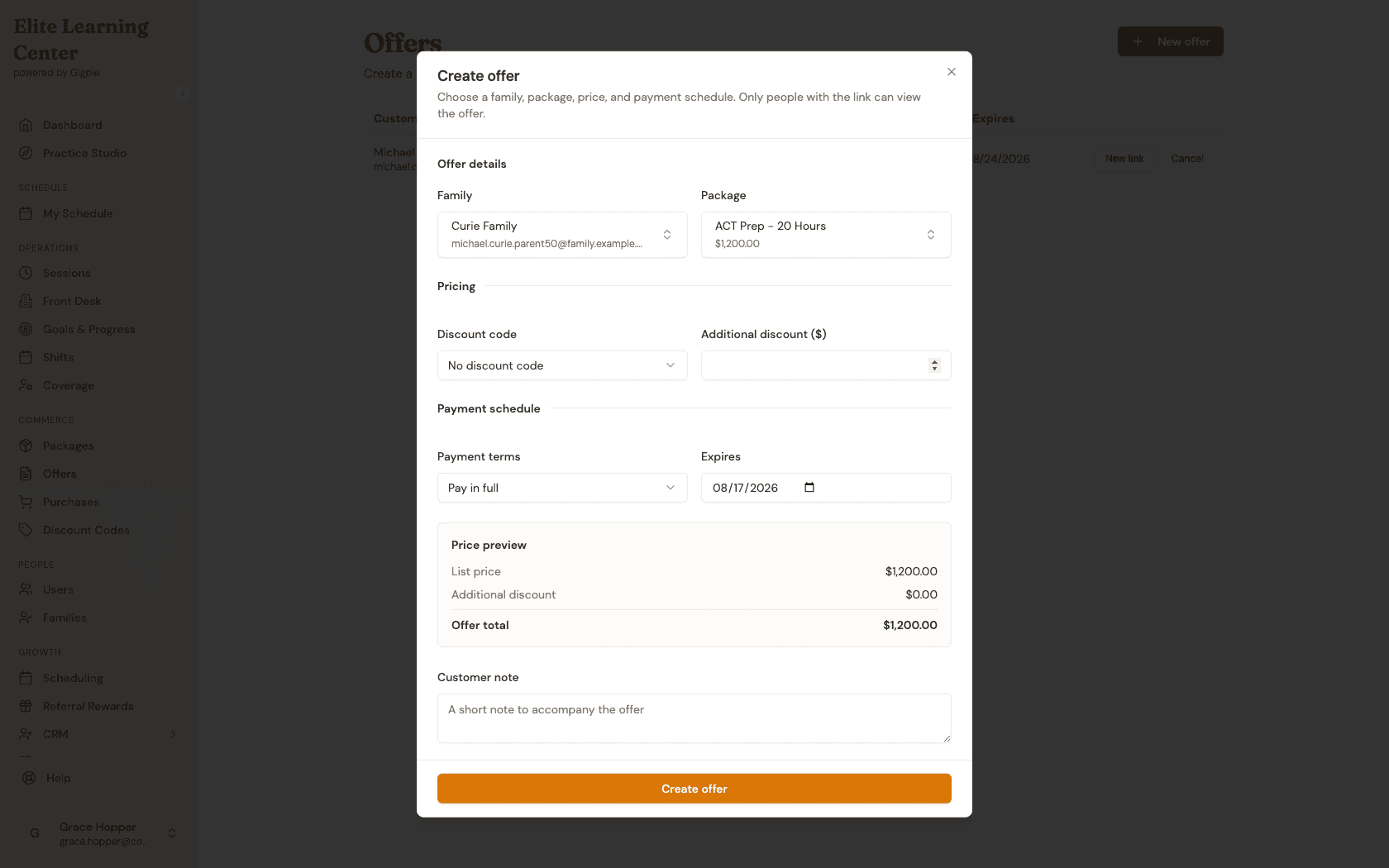
Start a new offer
Click New offer. Choose the family in its typeahead picker; each result includes the parent email so families with the same name are still distinguishable. Choose the package in the package typeahead. Its list price appears immediately.
- 4
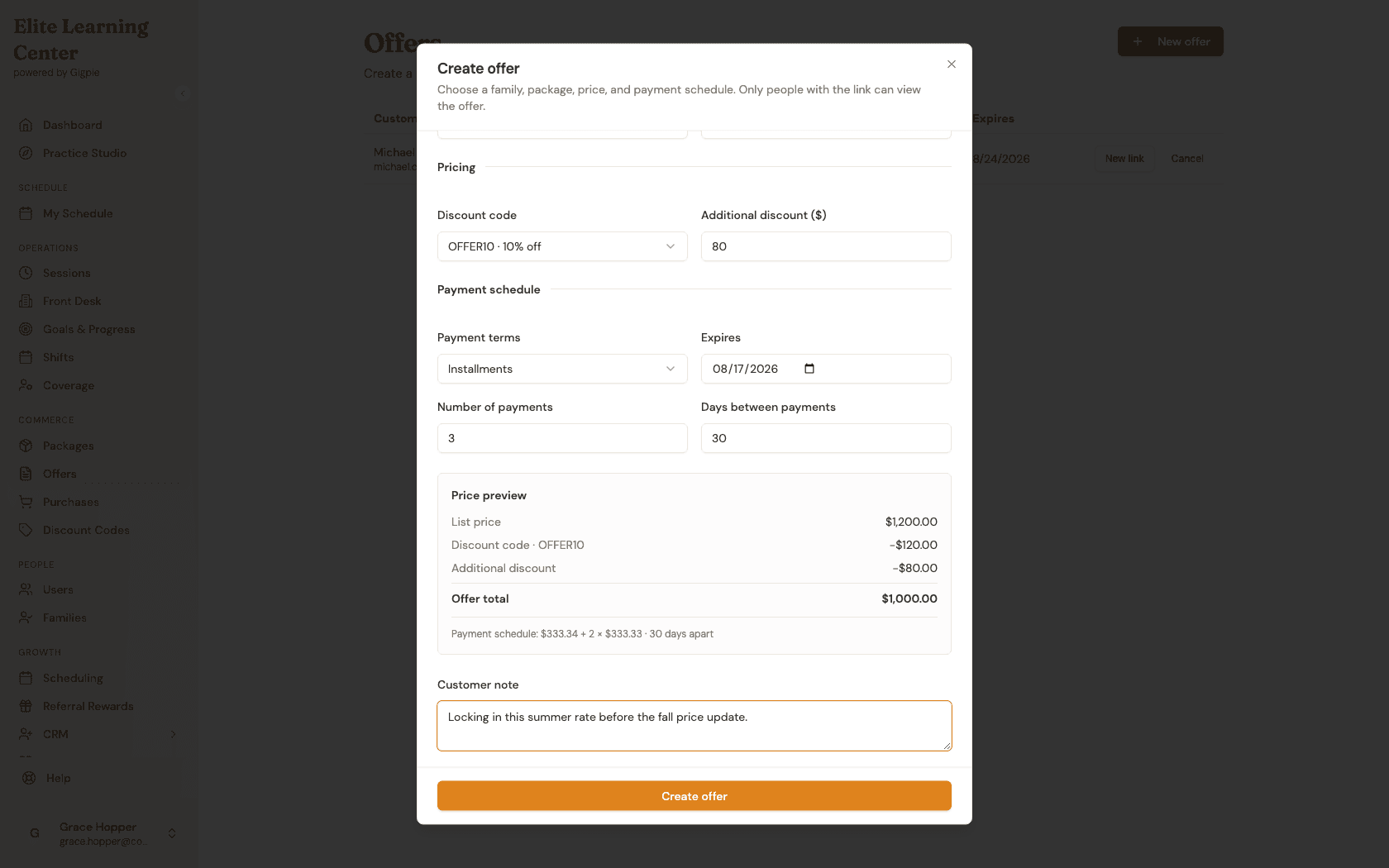
Set the price, terms, and a note
Choose an eligible discount code if one applies, then add any additional dollar discount. The price preview shows the list price minus each deduction and the offer total. Choose Pay in full or Installments; installment offers also show the exact payment split and cadence. Add a note the family will see and confirm the expiration date.
- 5
Review an existing offer's status
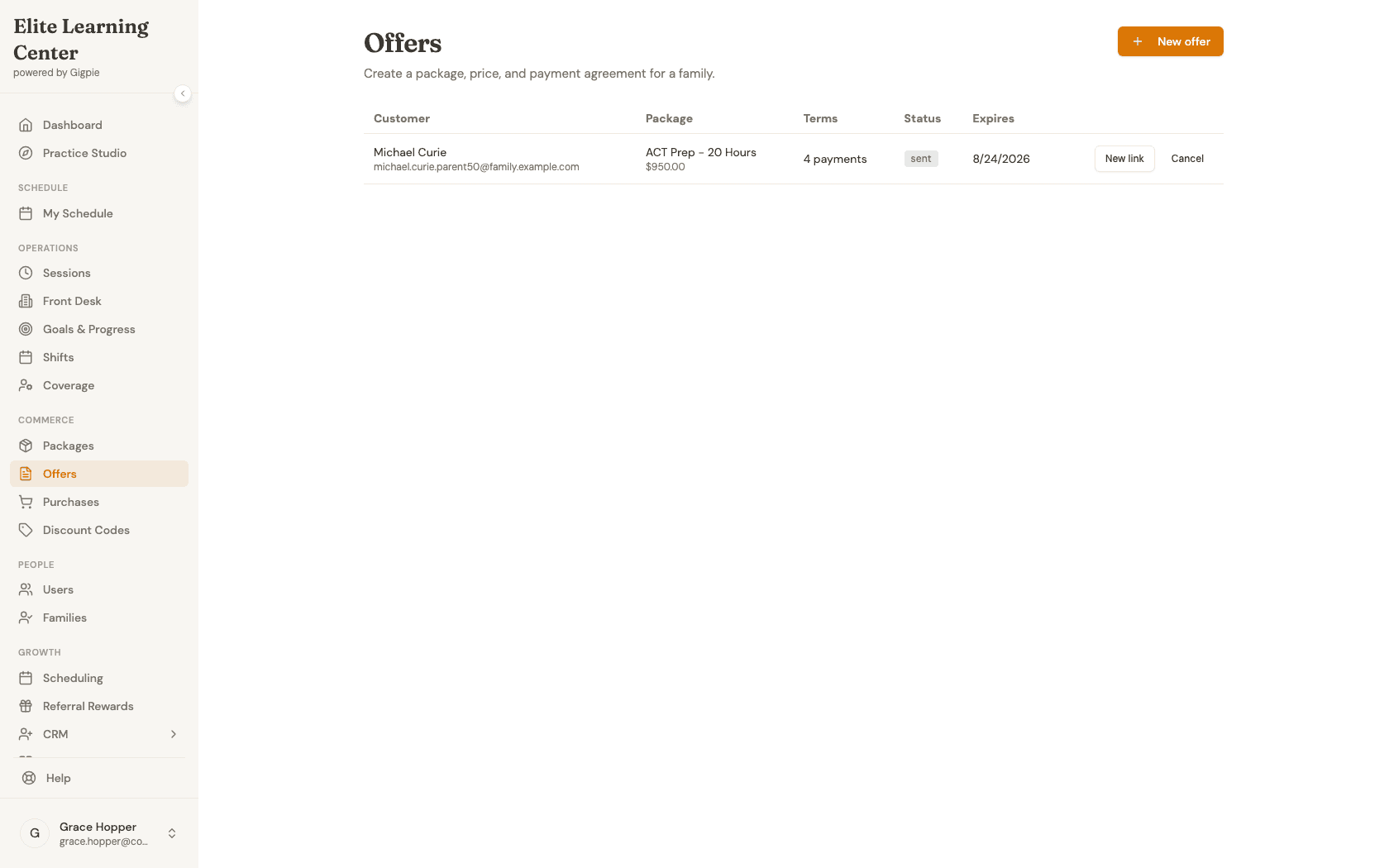
Every offer you create appears in this list with its recipient, package, price, payment terms, status, and expiration date — draft, sent, viewed, accepted, or cancelled. On smaller screens the same information and actions appear in stacked cards.
- 6
Share the link, then mark it sent
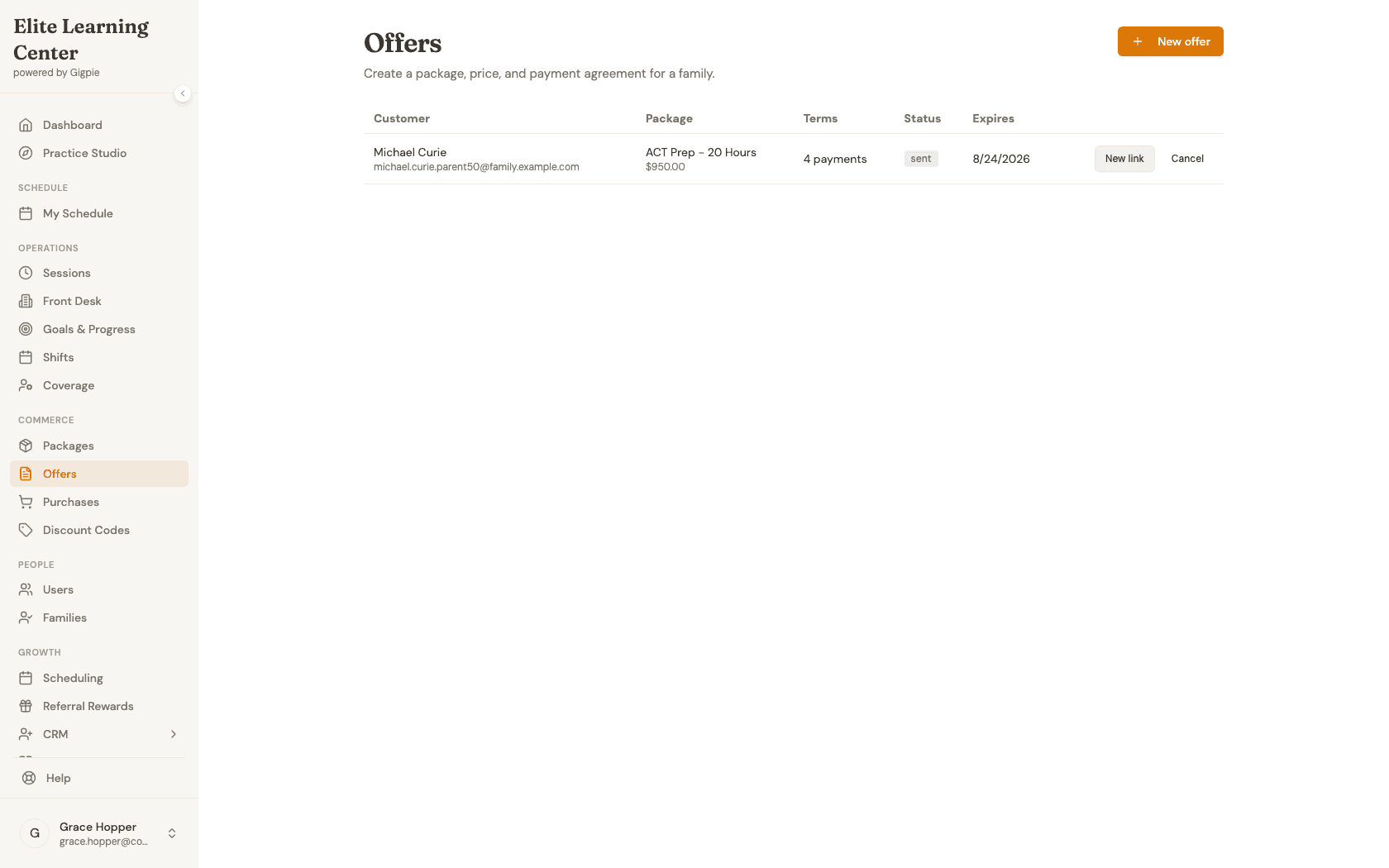
For a fresh, still-draft offer, this same spot in the row reads "Mark sent." Copy the offer link as soon as it appears and send it yourself by text, email, or however you'd normally reach the family. Marking an offer sent only updates its status here; it doesn't resend the link. Cancelling an offer asks for confirmation before invalidating the link.
- 7
What the family sees
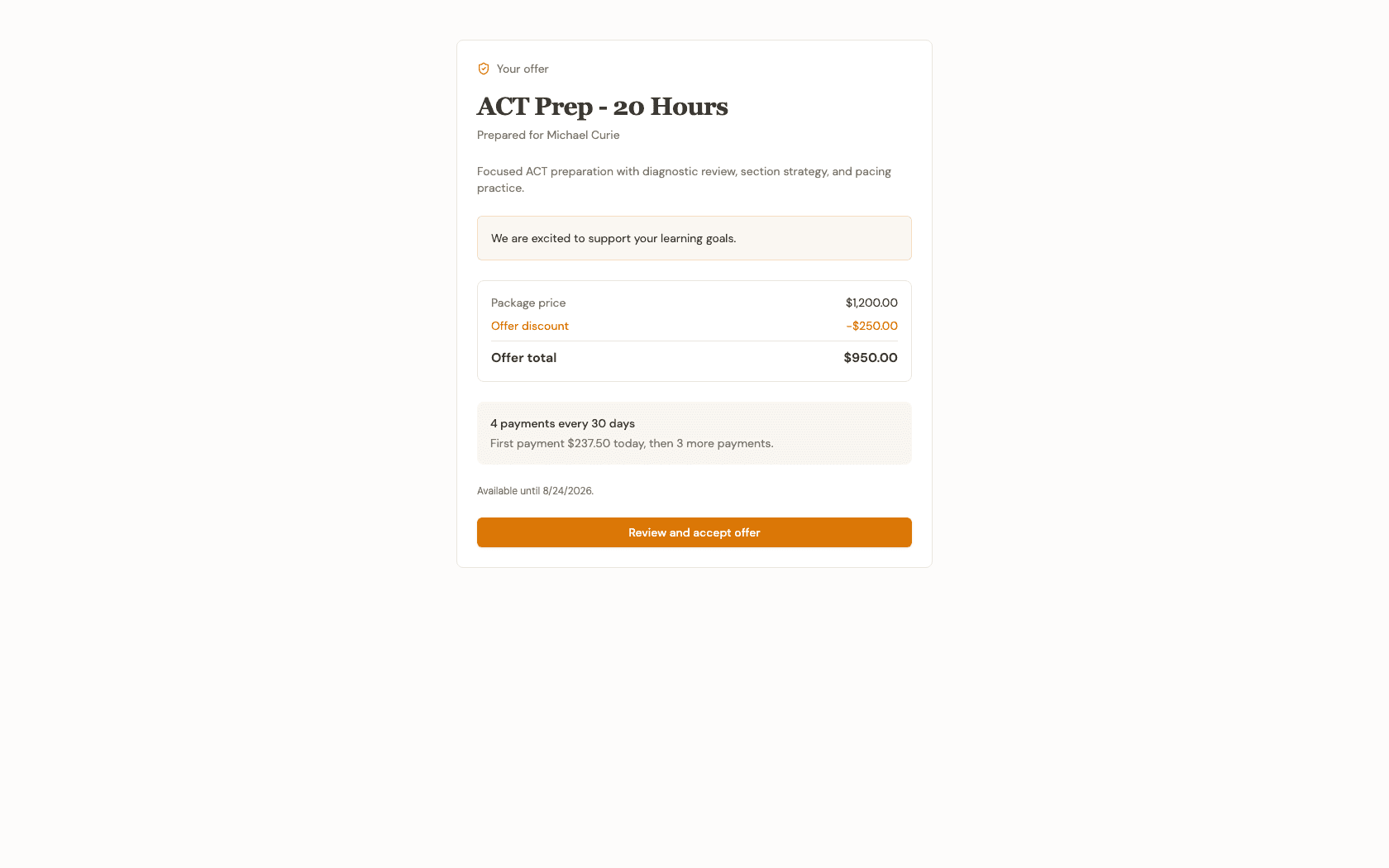
When the family opens their link, they land on a plain page showing the package, the locked price, and the payment schedule you set — no login required, and no one else's link works here. From this page they'd continue to checkout; this guide stops at that read-only preview.
What you'll accomplish
- An offer link is generated, priced and scheduled exactly as you set it — the price stays locked even if the underlying package's list price changes later.
- Only the family you chose can use the link to check out; the checkout step re-validates the recipient before it lets anyone through.
- You can track the offer's status (draft, sent, viewed, accepted, or cancelled) from the Offers list, and reissue the link if it's shared with the wrong person.
Related Guides
- How to add a family and set up students as an admin - Get the family into Gigpie before you build an offer for them
- Billing & Payments - How installments, autopay, and locked pricing behave once a family accepts