
How-To Guide - Students
How to complete a practice assignment
Find an assigned practice set in Practice Studio, open it, work through questions with the shared scratch space, and submit when you're finished.
Updated August 7, 2026
Overview
Use this guide to find an assigned practice set, work through its questions, and submit it when you're done.
Before you start
- Your coach has assigned you a practice set.
Finding what's assigned to you
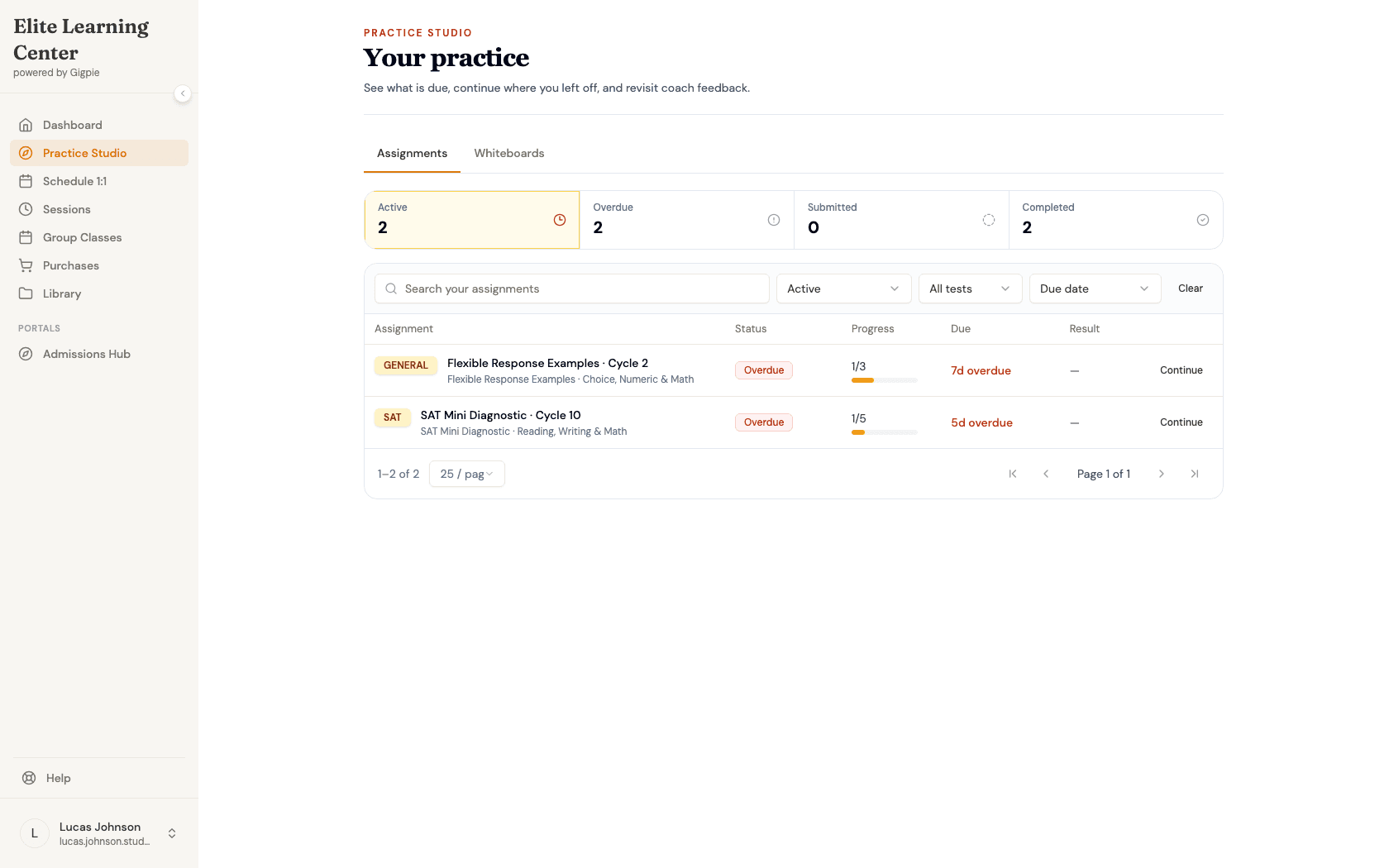
Practice Studio is where every assignment your coach gives you lives — separate from your regular schedule. The Assignments tab defaults to showing what's Active, with a quick count of what's Overdue, Submitted, and Completed above the list. Each row shows the assignment, its status, how many questions you've answered so far, and when it's due.
Working through a set
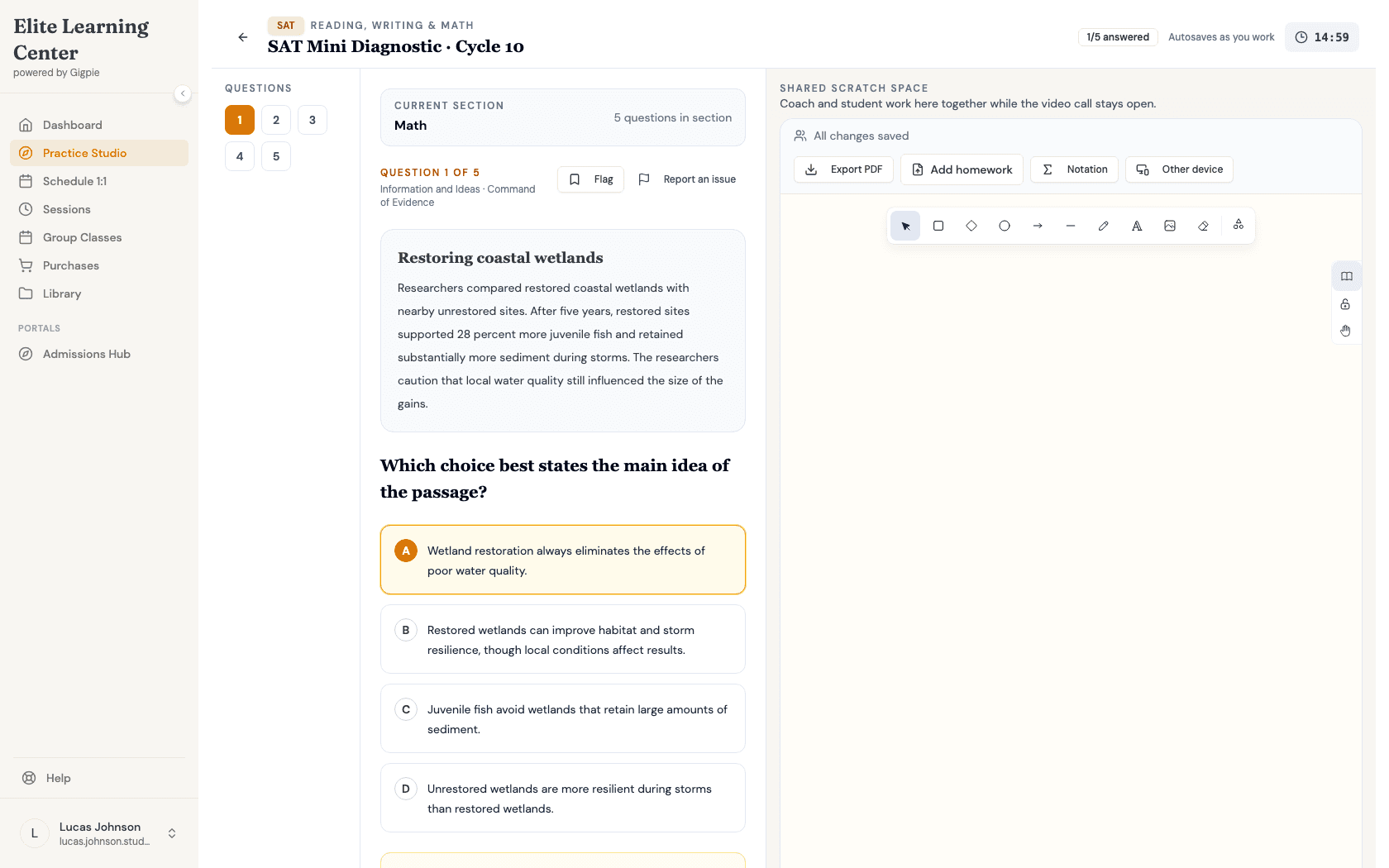
Some assignments are untimed practice; others carry a countdown based on the set's time limit, shown in the top-right corner while you work. A numbered panel on the left lets you jump between questions, and a shared scratch space sits alongside every question — the same whiteboard your coach can open on their side, so you can work things out visually as you go. Hints are available on questions where your coach has allowed them, and if a question itself seems wrong or confusing, "Report an issue" flags it for review without affecting your answer.
Submitting
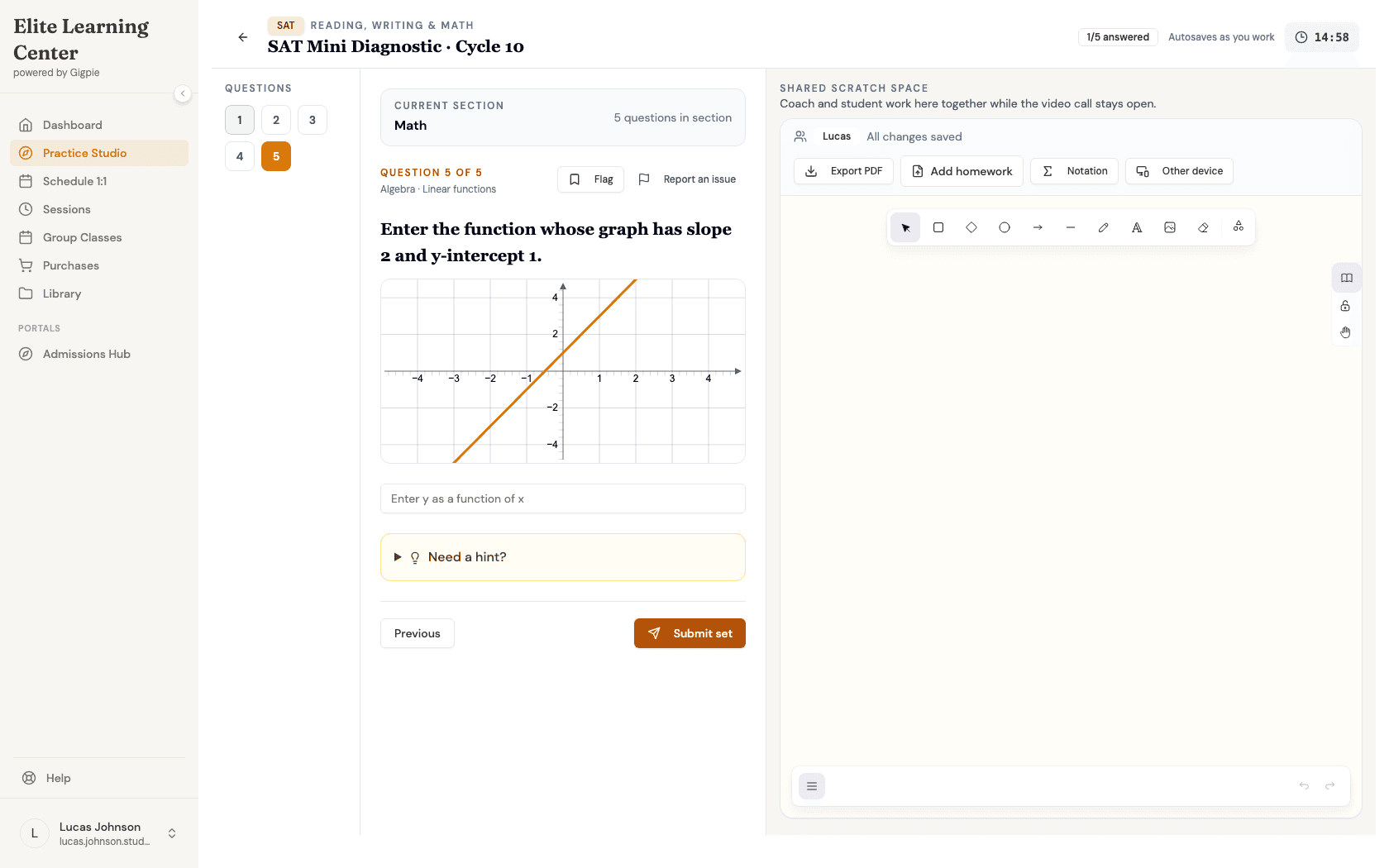
Your answers autosave as you go, so closing the tab mid-set is never a problem — pick up right where you left off next time. Once you reach the last question, a "Submit set" button replaces "Next." Submitting is final — it locks in your answers and, depending on how your coach set the assignment up, may reveal which ones were correct right away or wait until your coach has reviewed your work.
Steps
- 1Go to login
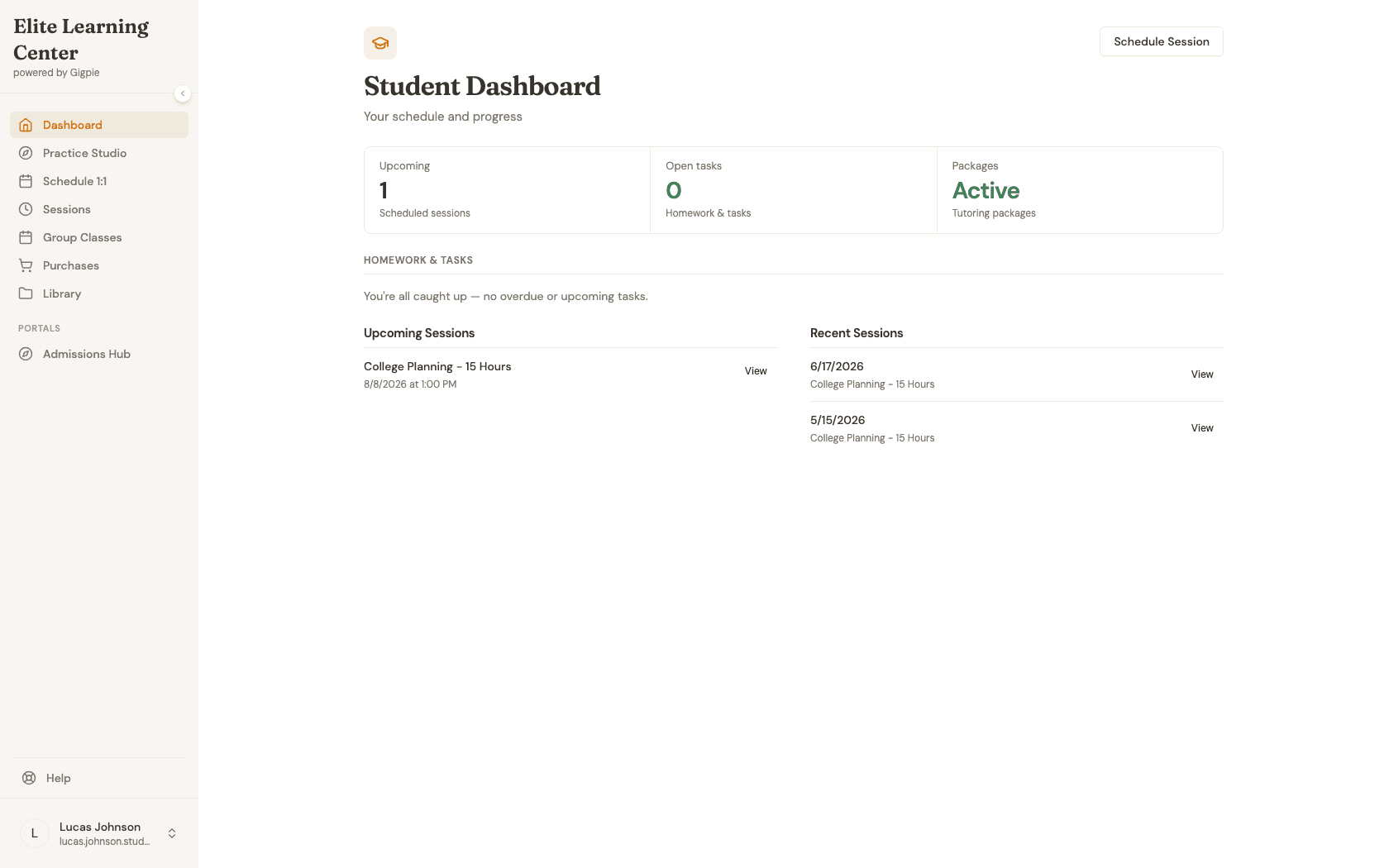
Sign in as a student
Use your student account credentials to access the dashboard.
- 2
See your assigned practice sets
Click Practice Studio in the sidebar. The Assignments tab shows what's active, overdue, submitted, and completed.
- 3
Open the assignment
Click "Continue" on an assignment to open it. This one shows the question navigator on the left, a 15-minute countdown in the top-right corner, and the shared scratch space alongside the question.
- 4
Review your work and submit when ready
Once you've worked through every question, "Submit set" appears in place of "Next" on the last one. Submitting is final, so make sure you're ready before you click it.
What you'll accomplish
- You can find your assigned practice sets and see what's due.
- You can work through a set's questions, using the shared scratch space and hints along the way.
- You know what happens when you submit — and that submitting is final.
Related Guides
- How to review progress notes - Where your family can follow your progress
- How to mark a session complete and add notes - How your coach documents a session alongside your practice work
- Practice Studio - How question authoring, assignments, and review work end to end