
How-To Guide - Coaches
How to mark a session as complete and add progress notes as a coach
Learn how to mark an appointment as completed and add progress notes. Parents will be able to view your feedback about their student's progress.
Updated August 10, 2026
Overview
Use this guide to mark an appointment as complete and add progress notes. You will document what was covered, student performance, and any recommendations for future meetings.
Before you start
- You have completed an appointment with a student.
- The meeting has passed and is ready to be marked complete.
Why progress feedback matters
Detailed feedback helps parents understand what happened during each meeting and track their student's development over time. Quality documentation builds trust and demonstrates the value you're providing. It also helps you remember where you left off for the next appointment, especially if you work with multiple students.
What to include in your feedback
Effective progress notes describe what topics you covered, how the student performed, areas of strength and challenge, and what to focus on next time. Be specific but concise. Instead of "worked on math," write "practiced solving quadratic equations; student struggled with factoring but showed improvement by the end." Parents appreciate concrete details and actionable insights.
Steps
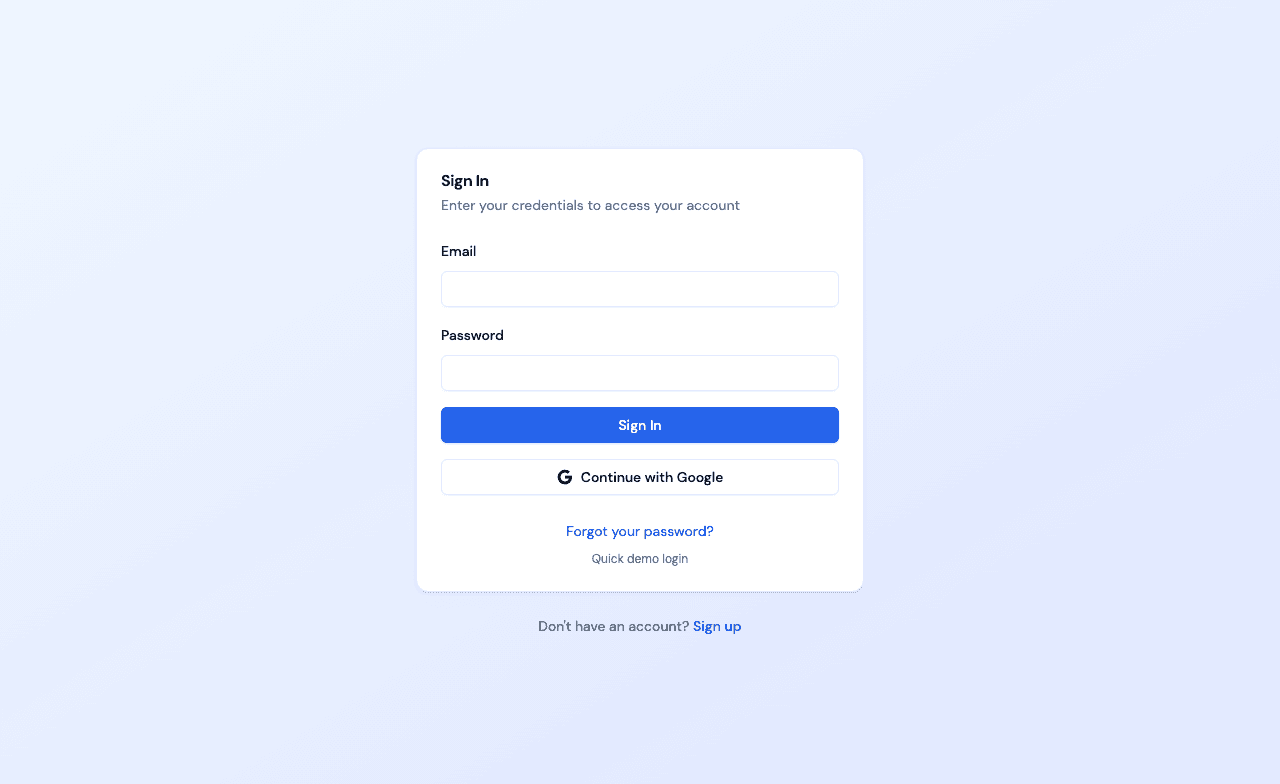
- 1Go to login
Sign in as a coach
Use your coach account credentials to access the dashboard.
- 2
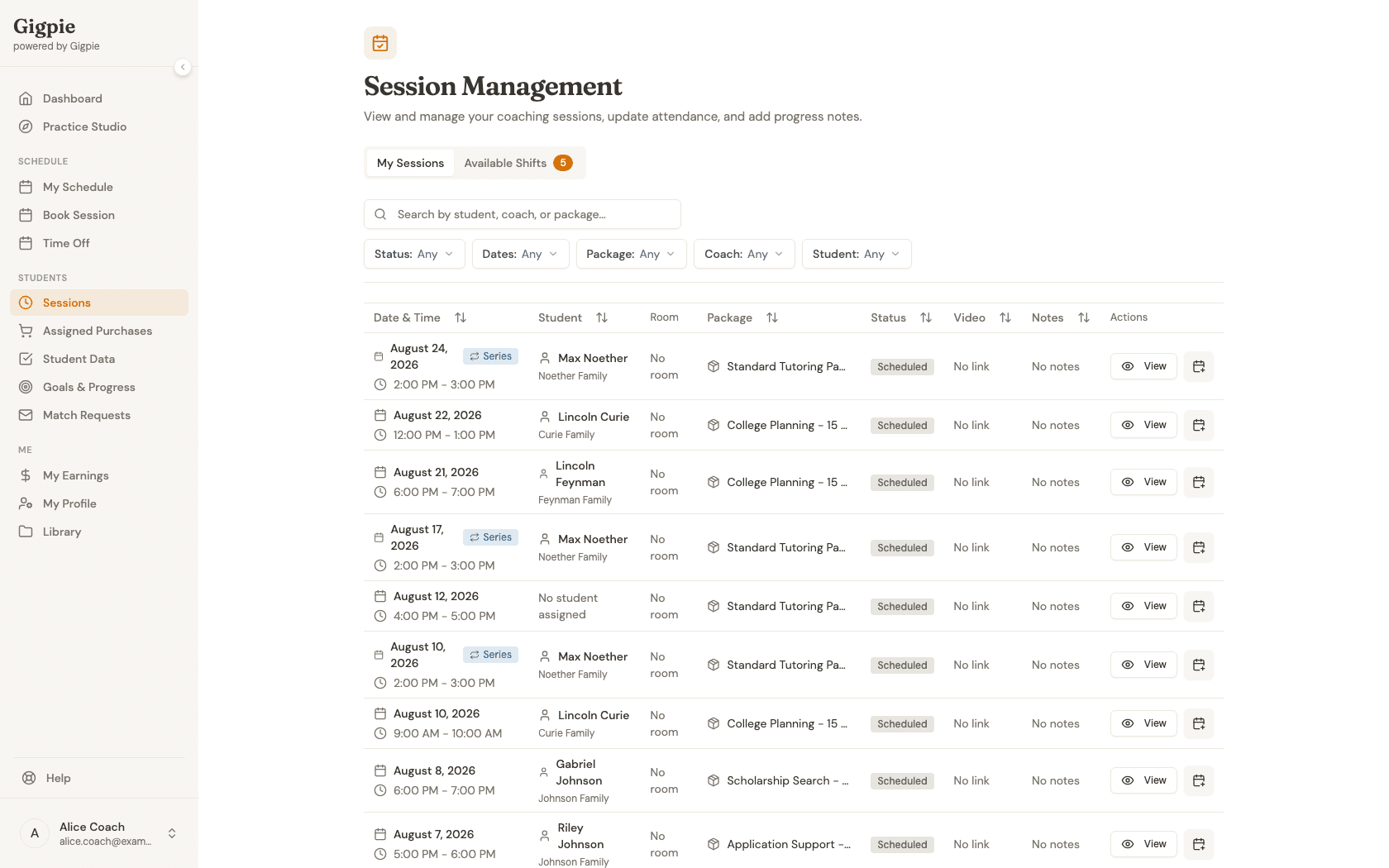
Navigate to Sessions
Go to the Sessions page to view your appointments.
- 3
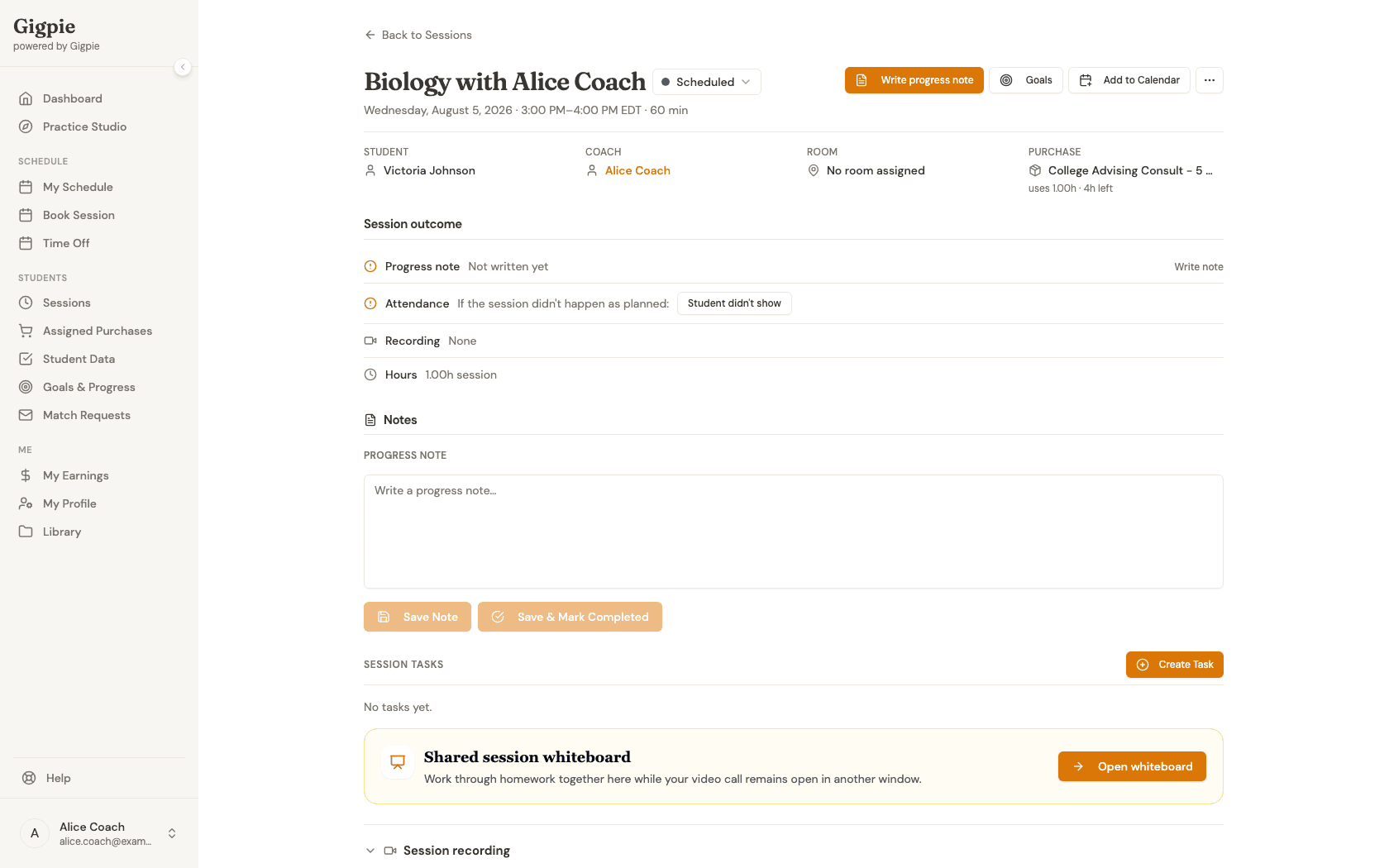
Select the completed appointment
Find the meeting you just completed and click View to open the details.
- 4
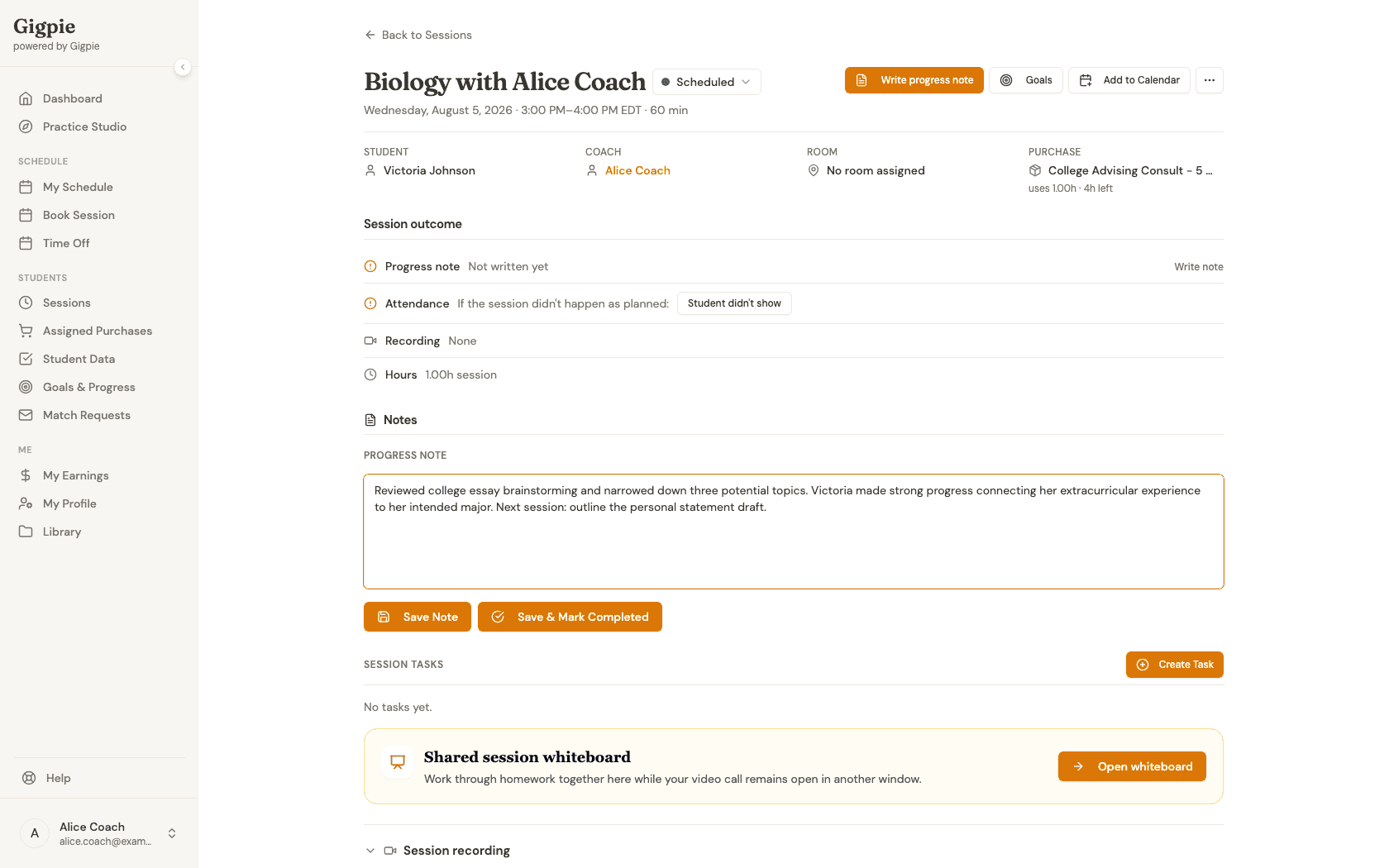
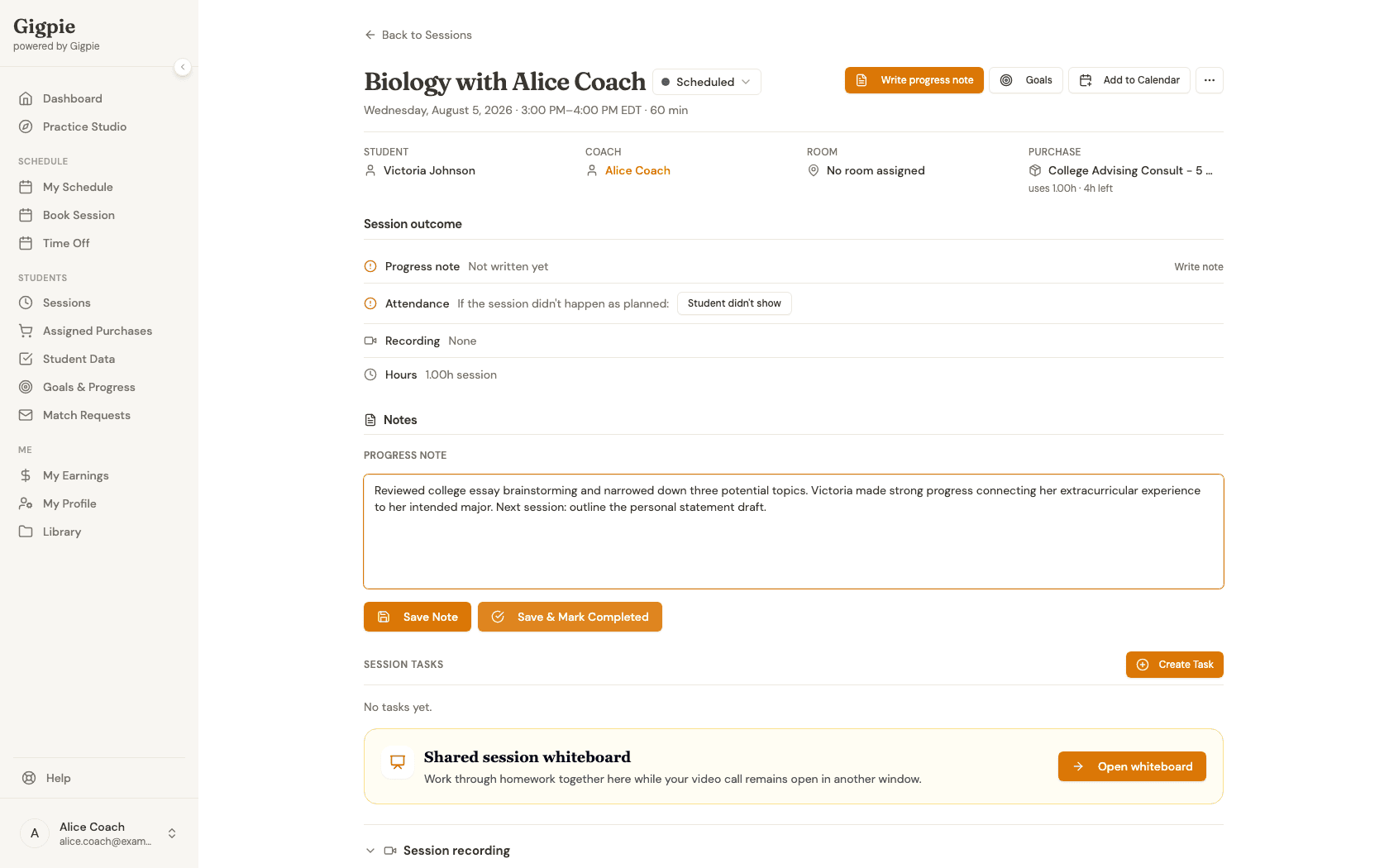
Add progress notes
Enter your feedback for the meeting, including what was covered and any observations about the student's progress.
- 5
Save and mark complete
Click 'Save & Mark Completed' to submit your feedback and mark the appointment as complete. Parents will be able to view this information.
What you'll accomplish
- The appointment is marked as completed.
- Your progress feedback is saved and visible to the parent.
Related Guides
- How to join a session - Access your scheduled appointments
- How to schedule a session - Book new meetings with students
- How to report student no-show - Handle attendance issues
- Parent Portal - Where families see the notes you add