
How-To Guide - Coaches
How to join a meeting as a coach
Learn how to join an upcoming tutoring appointment using the video call link. Access your scheduled meeting on time to connect with your student.
Updated August 10, 2026
Overview
Use this guide to join a scheduled meeting with your student. You will navigate to the appointment details and, once a video link is set, click Join to enter the video call.
Before you start
- You have an upcoming scheduled appointment.
- The meeting has a video conference link set.
- The meeting link is set before you need to join.
Best practices
Joining appointments on time creates a professional experience for students and parents. The join button is available on any upcoming session as soon as its video link is set, so make a habit of opening the session a few minutes early to test your audio and video before the student arrives.
Common issues
If you don't see a join button, the meeting link may not be set yet, or the URL isn't recognized as a video-platform link. Paste any video conference URL (Zoom, Google Meet, Teams, or another platform) into the session's video link field — Gigpie recognizes the link and shows the matching icon, no separate connection required. If you encounter technical issues with the video platform itself, those are separate from the scheduling system and should be resolved with your video conferencing provider.
Steps
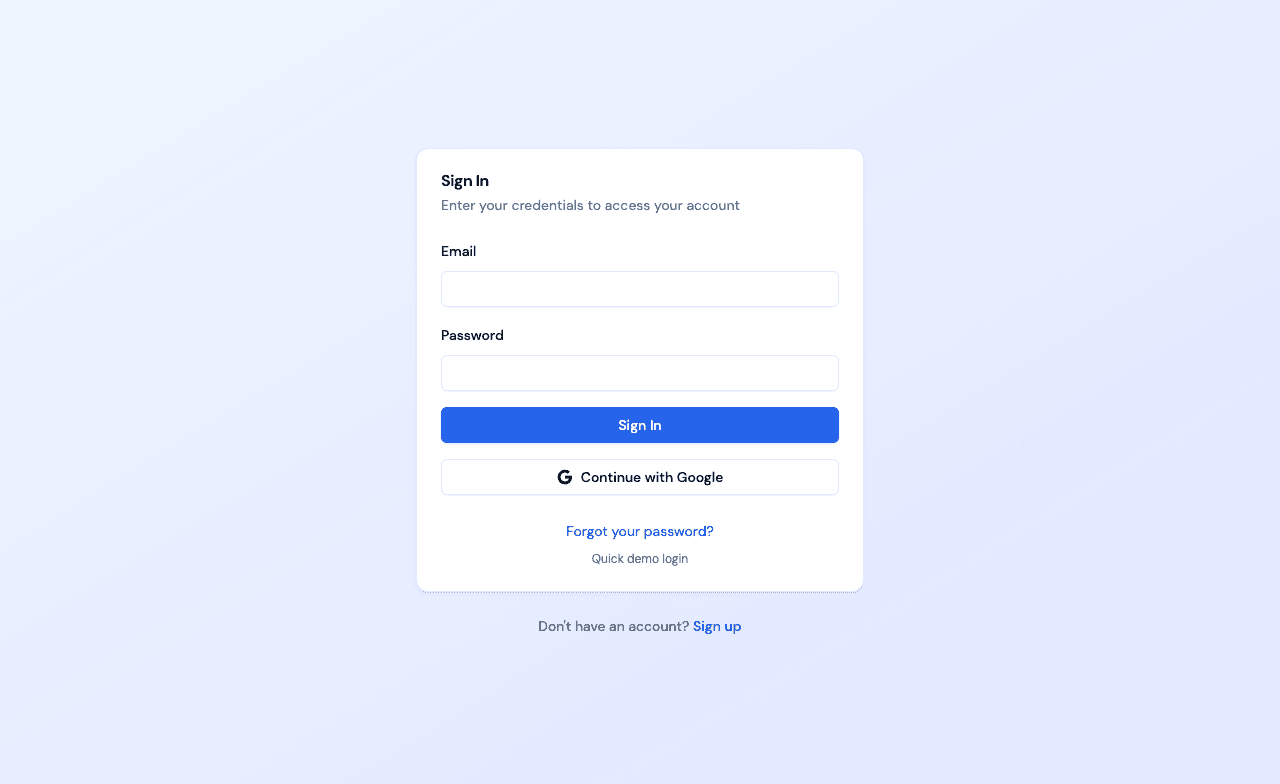
- 1Go to login
Sign in as a coach
Use your coach account credentials to access the dashboard.
- 2
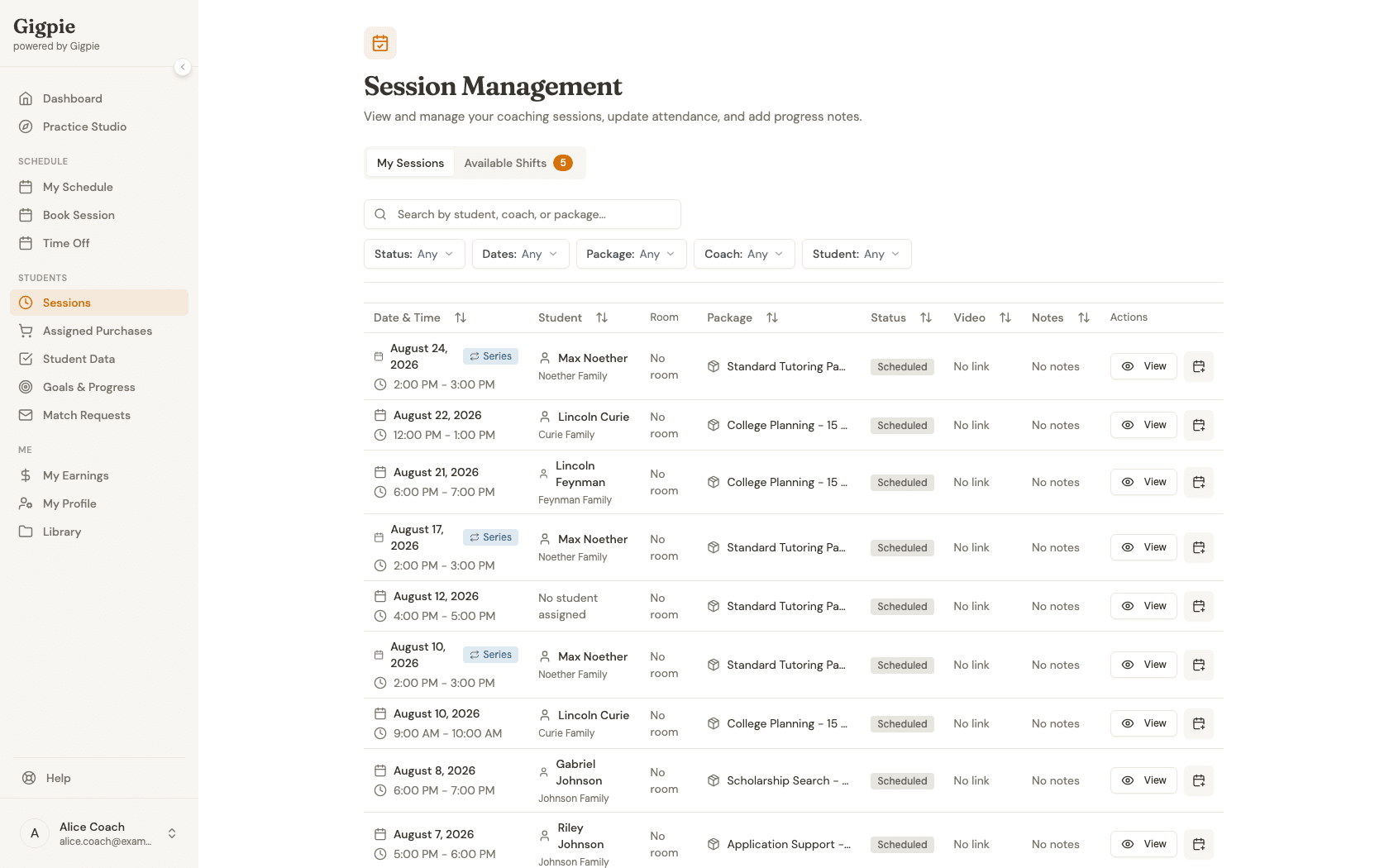
Navigate to Sessions
Go to the Sessions page to view your upcoming appointments.
- 3
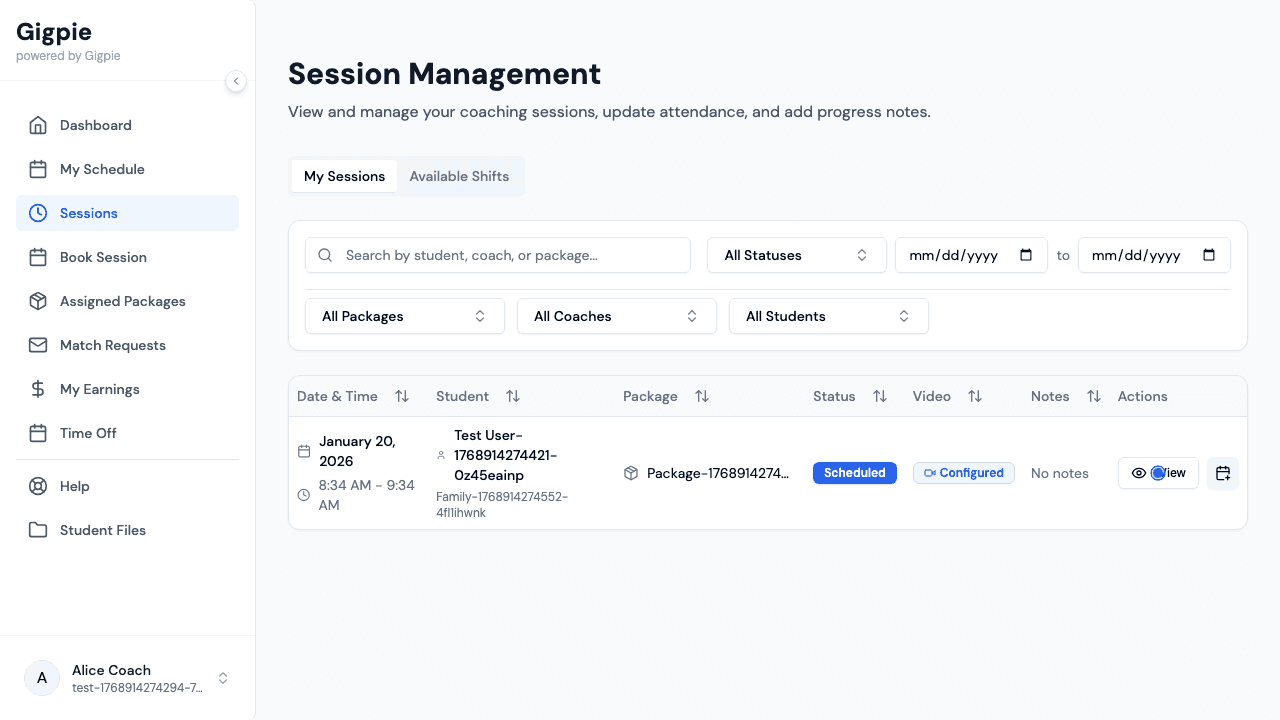
Find the upcoming appointment
Locate the meeting you want to join from the list and click View to open the details.
- 4
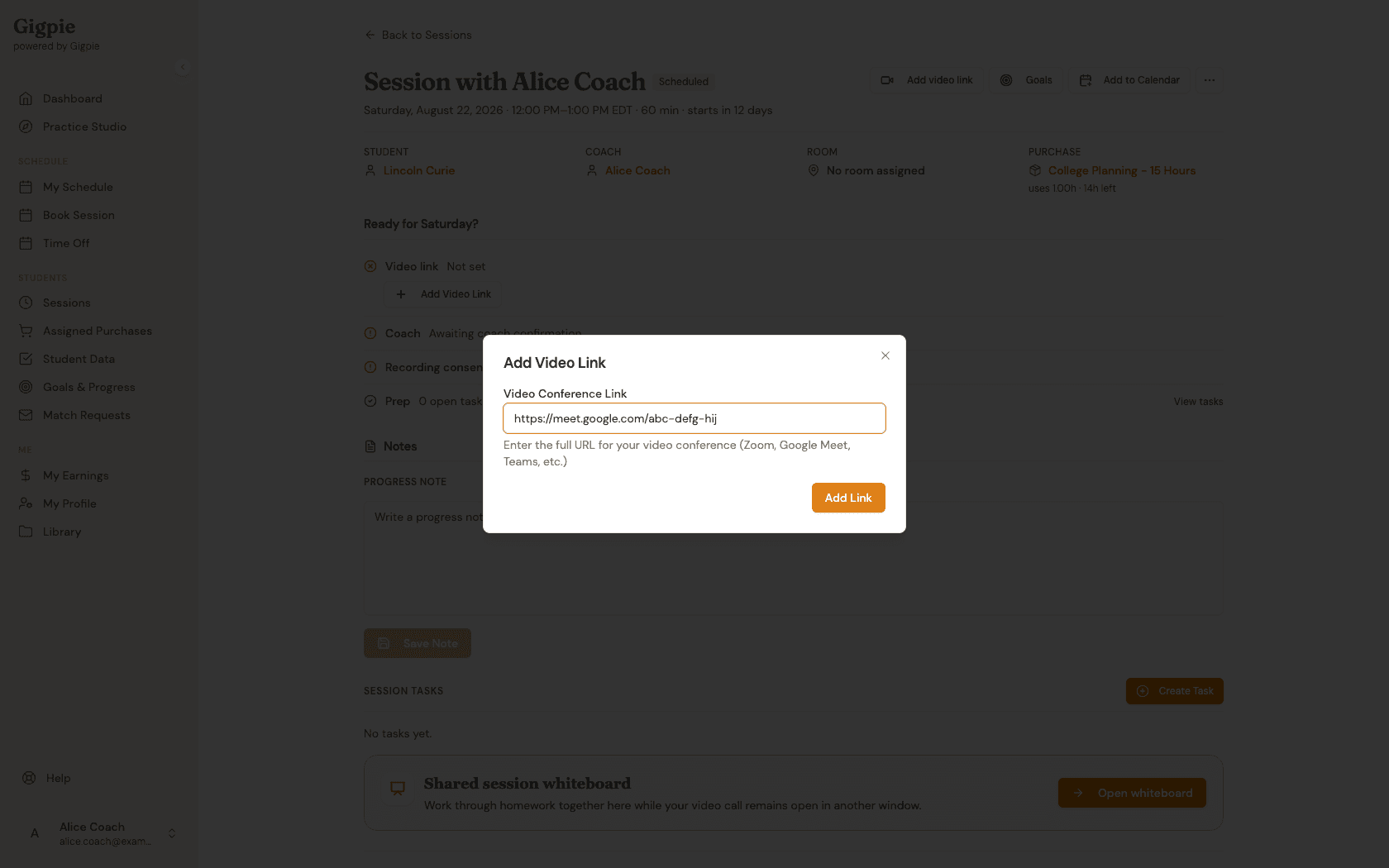
Add a video link to enable Join
If the session doesn't already have a video link, click Add Video Link and paste your meeting URL (Zoom, Google Meet, Teams, or any other platform). Once a link is set, a Join button appears in its place. Click it to open the meeting in a new window.
What you'll accomplish
- You successfully join the video call.
- You can conduct the tutoring meeting with your student.
Related Guides
- How to mark session complete and add notes - Document student progress after the appointment
- How to add or change meeting link - Set up video conference links
- How to report student no-show - Handle when students don't attend
- Video Conferencing - How meeting links work in Gigpie