
How-To Guide - Coaches
How to report a student no-show as a coach
Learn how to report when a student does not attend a scheduled session. This ensures proper billing and session tracking.
Updated August 10, 2026
Overview
Use this guide to report when a student does not show up for a scheduled session. This will update the session status and notify the parent.
Before you start
- You had a scheduled session that the student did not attend.
- The session start time has passed.
When to report a no-show
Report a student as a no-show only after waiting a reasonable amount of time past the scheduled start time. Most coaches wait 10-15 minutes to account for technical issues or running late. If you haven't heard from the parent or student by that point, reporting the no-show is appropriate.
What happens next
When you mark a session as a student no-show, the parent receives a notification and the session status updates in the system. The family's package hours are still deducted and you are still paid for the session, since the time was reserved for the student. If the coach is the one who misses the session instead, the opposite happens: the family isn't charged and the coach isn't paid. This documentation also helps track attendance patterns and address chronic issues if needed.
Steps
- 1Go to login
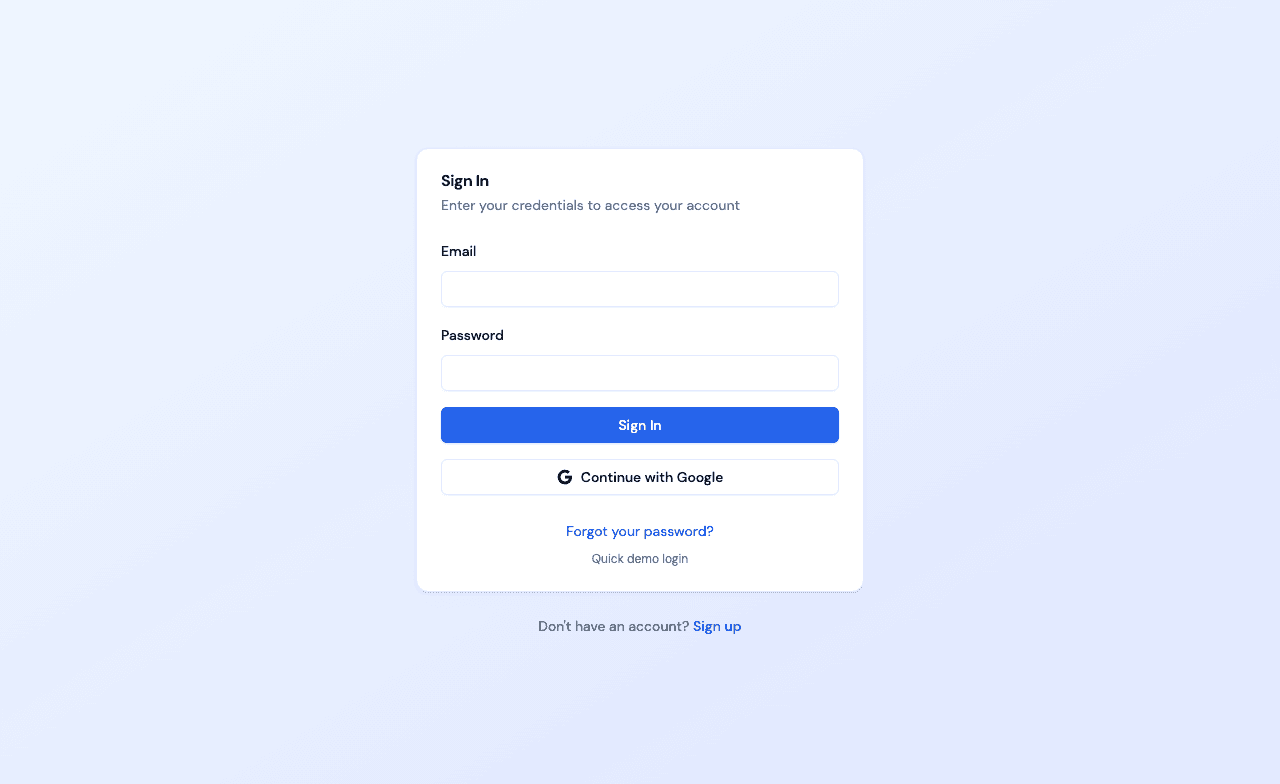
Sign in as a coach
Use your coach account credentials to access the dashboard.
- 2
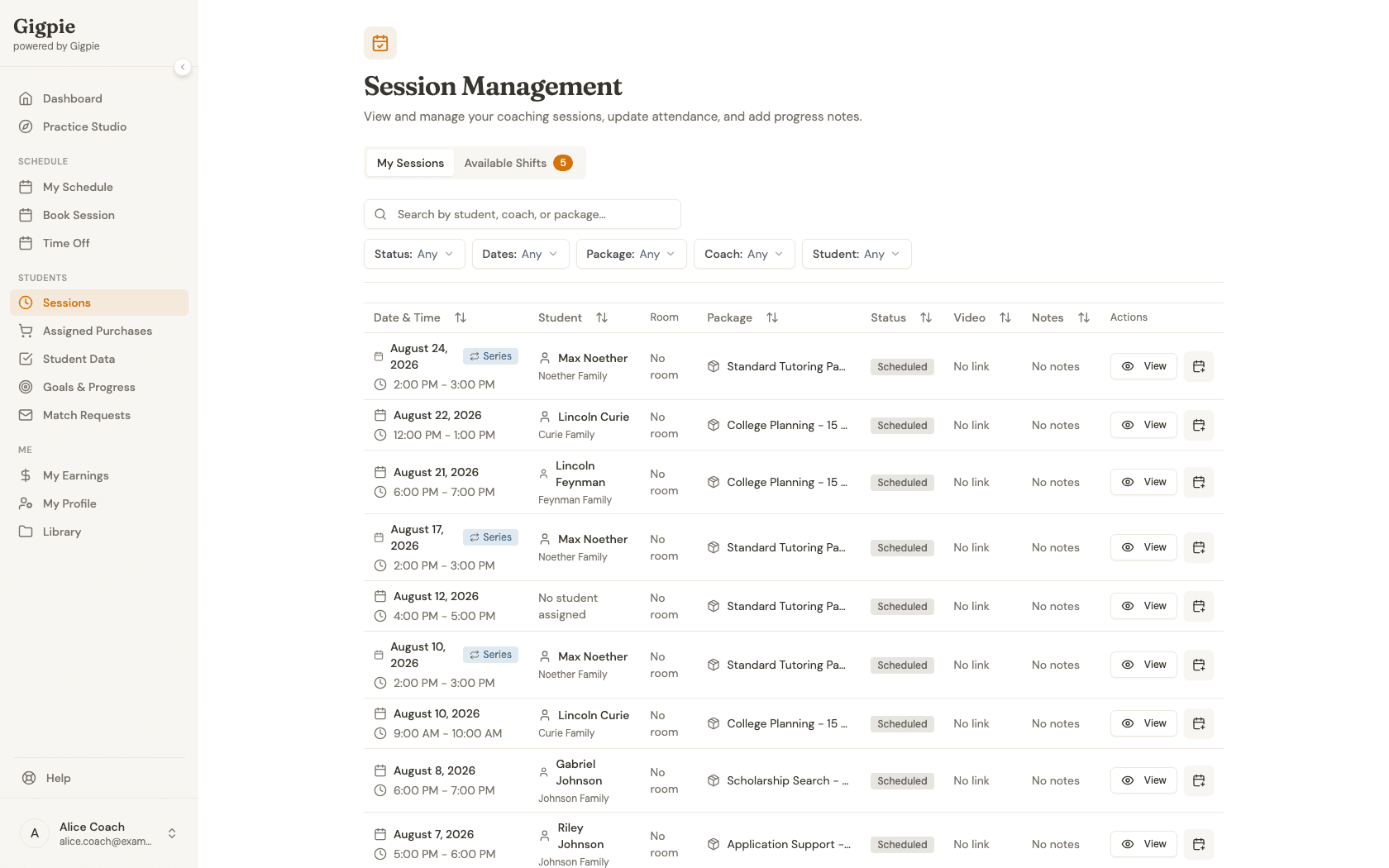
Navigate to Sessions
Go to the Sessions page to view your scheduled sessions.
- 3
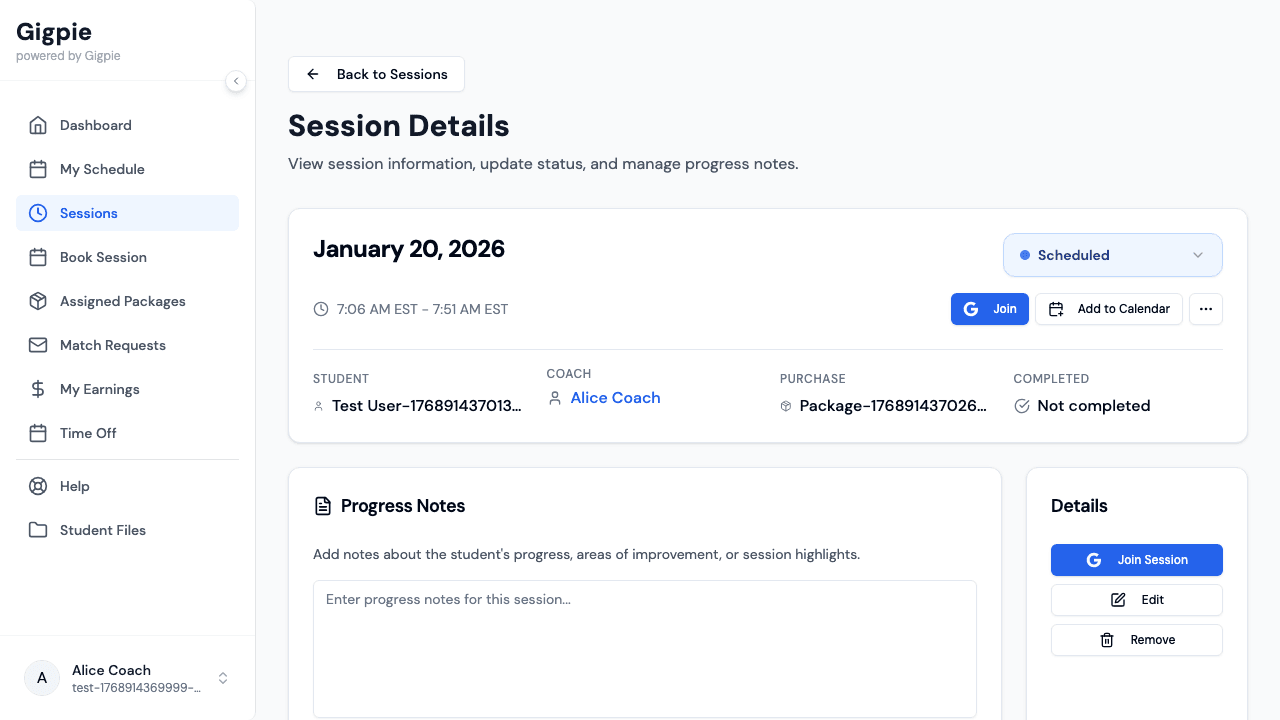
Select the affected session
Find the session where the student did not show up and click View to open the details.
- 4
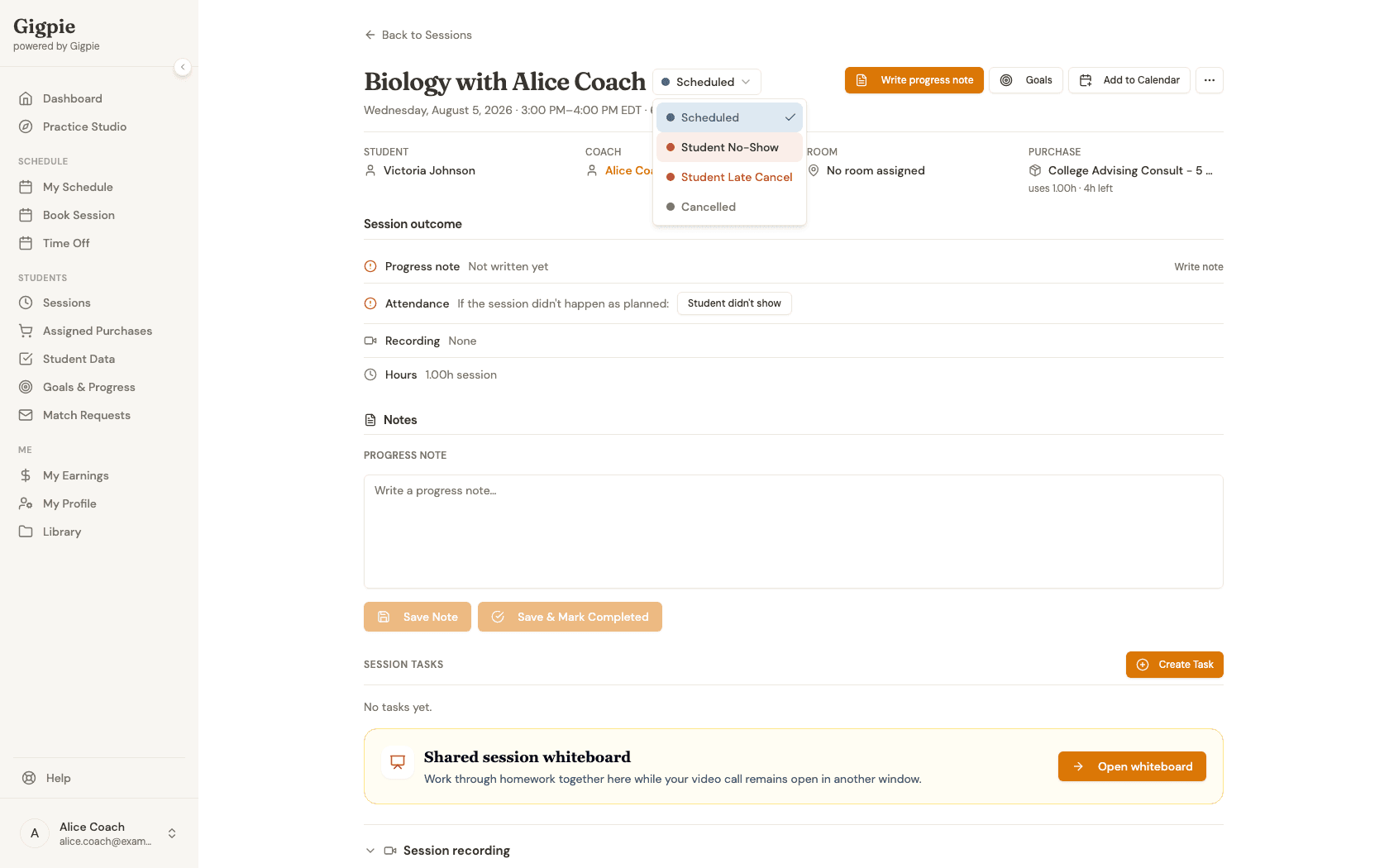
Change status to Student No-Show
Click the status dropdown next to the session title and select 'Student No-Show'. This will update the session record.
What you'll accomplish
- The session is marked as a student no-show.
- The parent is notified of the no-show status.
Related Guides
- How to reschedule or cancel a session - Change session times or cancel
- How to mark session complete and add notes - Complete successful sessions
- How to join a session - Access your scheduled sessions