
How-To Guide - Coaches
How to reschedule or cancel an upcoming appointment as a coach
Learn how to reschedule an appointment to a new time or cancel it completely. The student and parent will be notified of any changes.
Updated August 10, 2026
Overview
Use this guide to reschedule or cancel an upcoming appointment. You will access the booking details and choose to either pick a new time or cancel it.
Before you start
- You have an upcoming scheduled appointment.
- The booking meets the rescheduling or cancellation policy requirements.
When to reschedule vs. cancel
Reschedule an appointment when you or the student needs to change the time but still wants to meet. Cancel when the meeting won't happen at all. Keep in mind that rescheduling maintains continuity for the student, while cancellations may affect your hours and the student's learning momentum.
Policy considerations
Most organizations have cancellation and rescheduling policies that specify minimum notice periods. Check your organization's requirements before making changes. Late cancellations or no-shows can affect your standing as a coach, while rescheduling with adequate notice is usually encouraged when conflicts arise.
Communication tips
When you reschedule or cancel, the family receives an automatic notification. However, sending a personal message explaining the situation and, when rescheduling, proposing alternative times can strengthen your relationship with families and demonstrate professionalism.
Steps
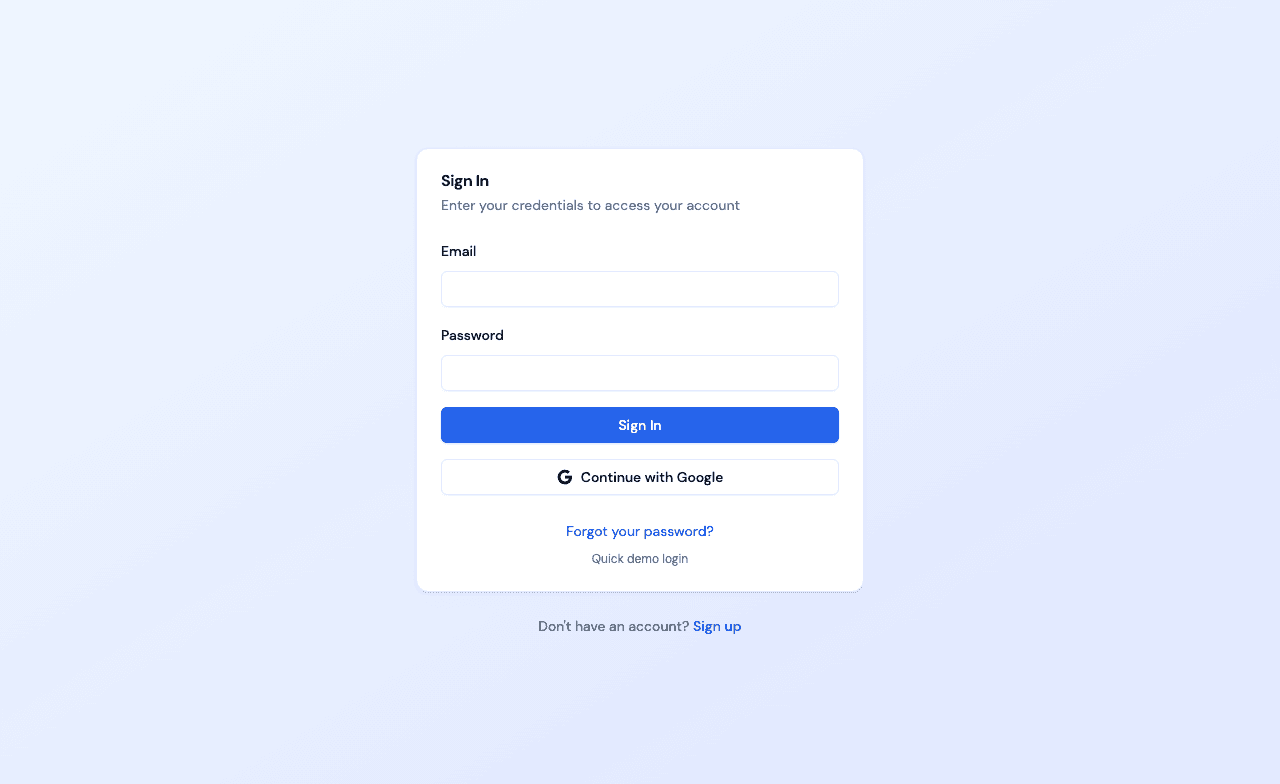
- 1Go to login
Sign in as a coach
Use your coach account credentials to access the dashboard.
- 2
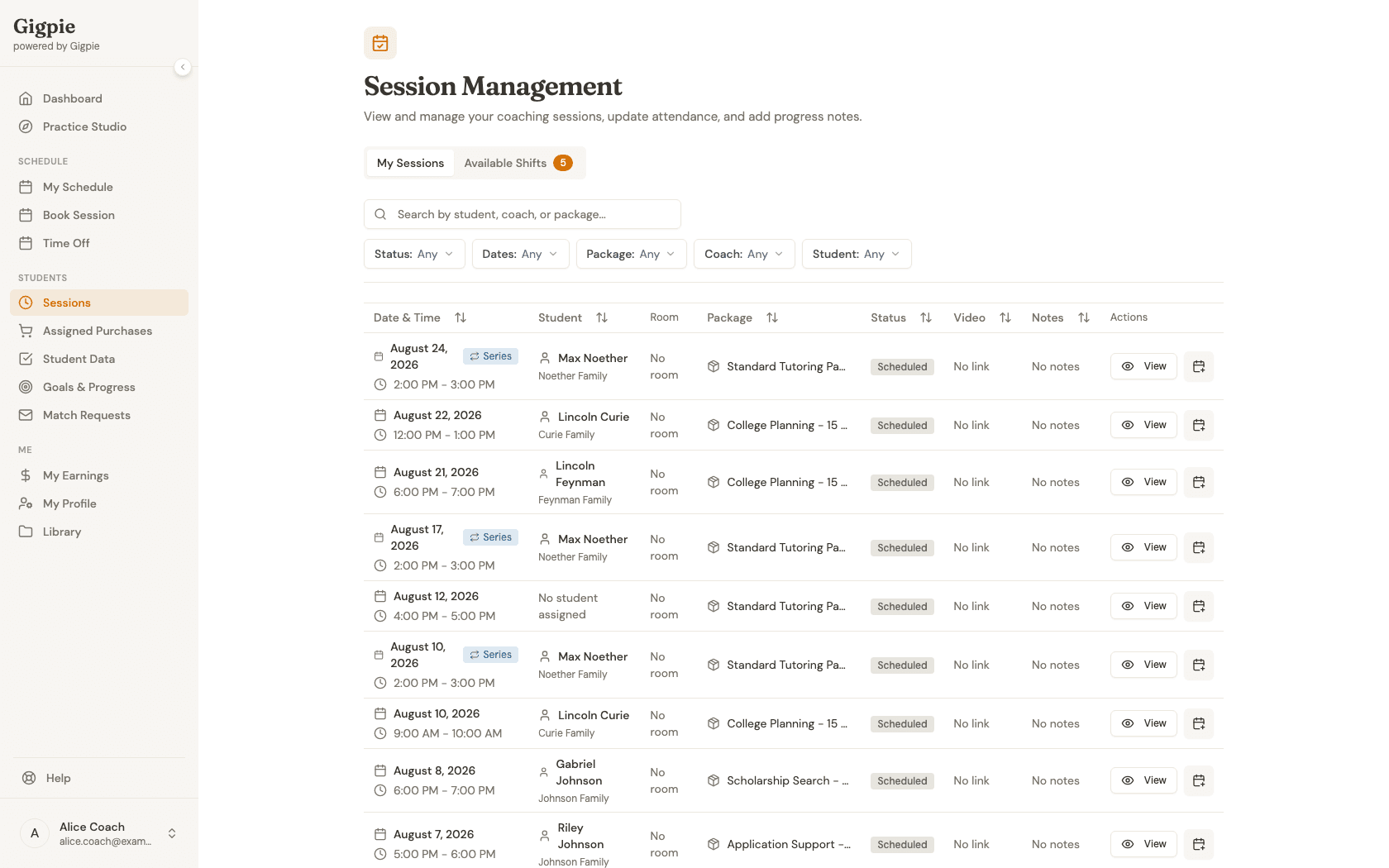
Navigate to Sessions
Go to the Sessions page to view your upcoming scheduled appointments.
- 3
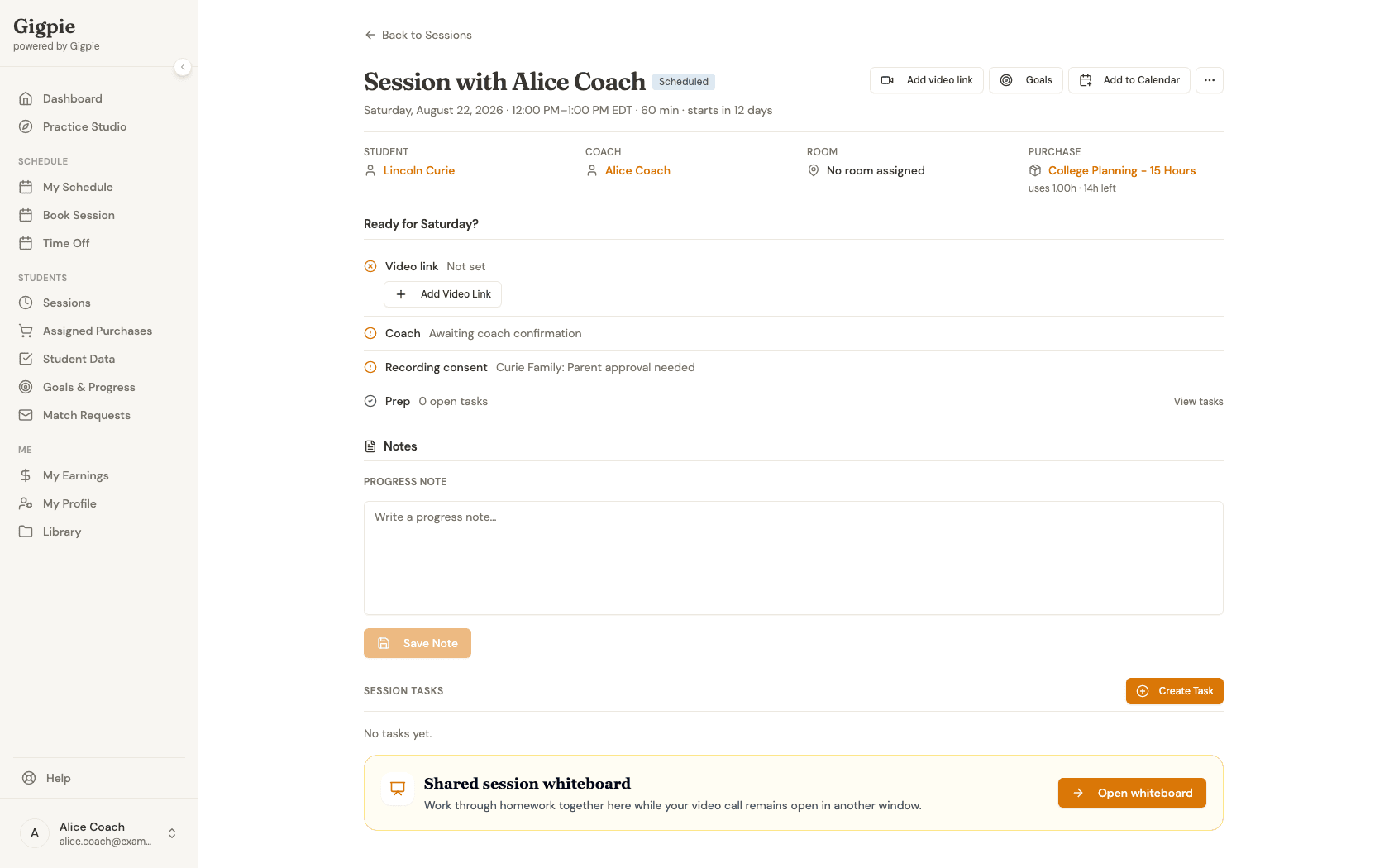
Select the appointment
Find the meeting you want to reschedule or cancel and click View to open the details.
- 4
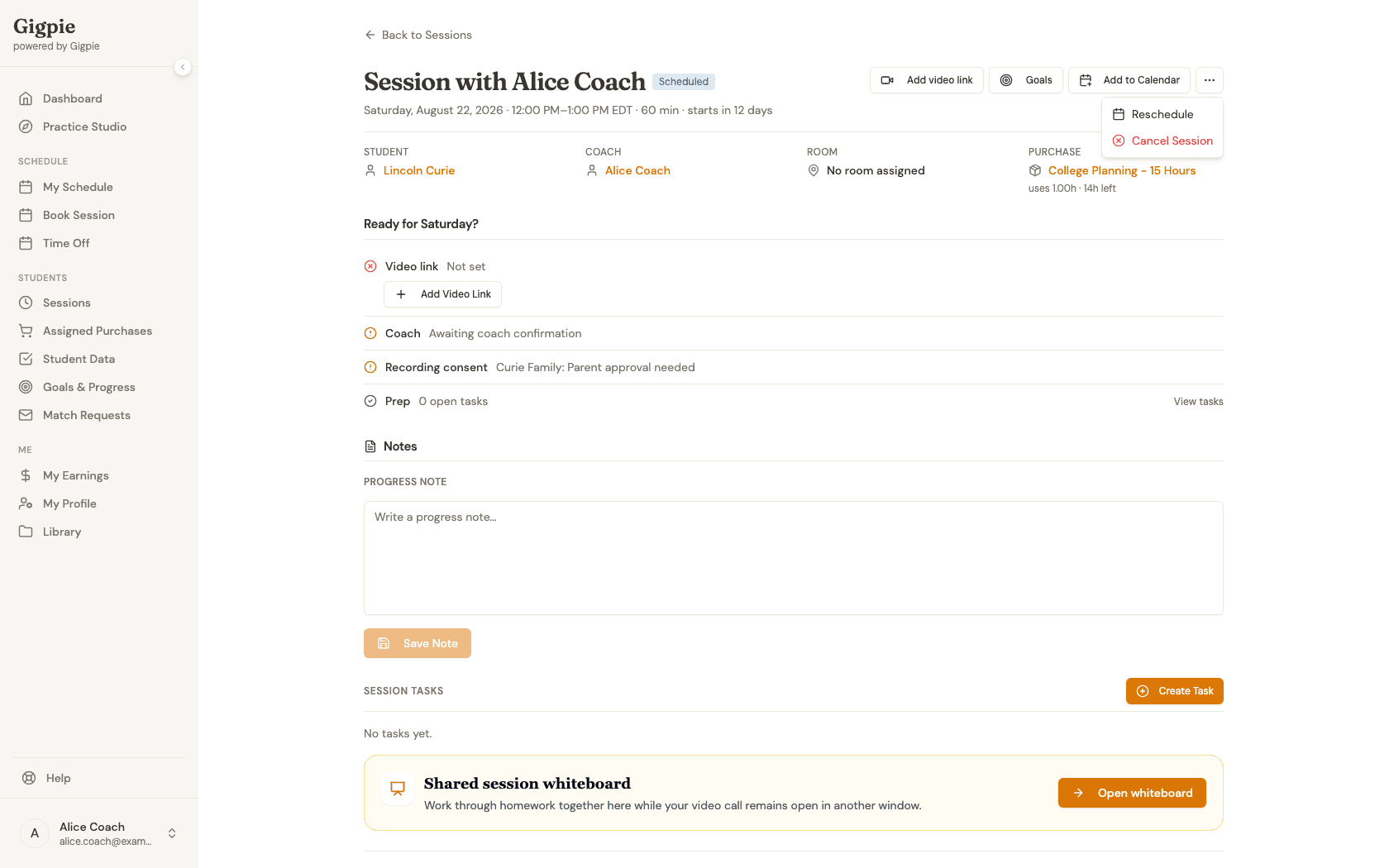
Open appointment actions
Click the Session actions menu (three dots) to see available options for this booking.
- 5
Choose Reschedule or Cancel
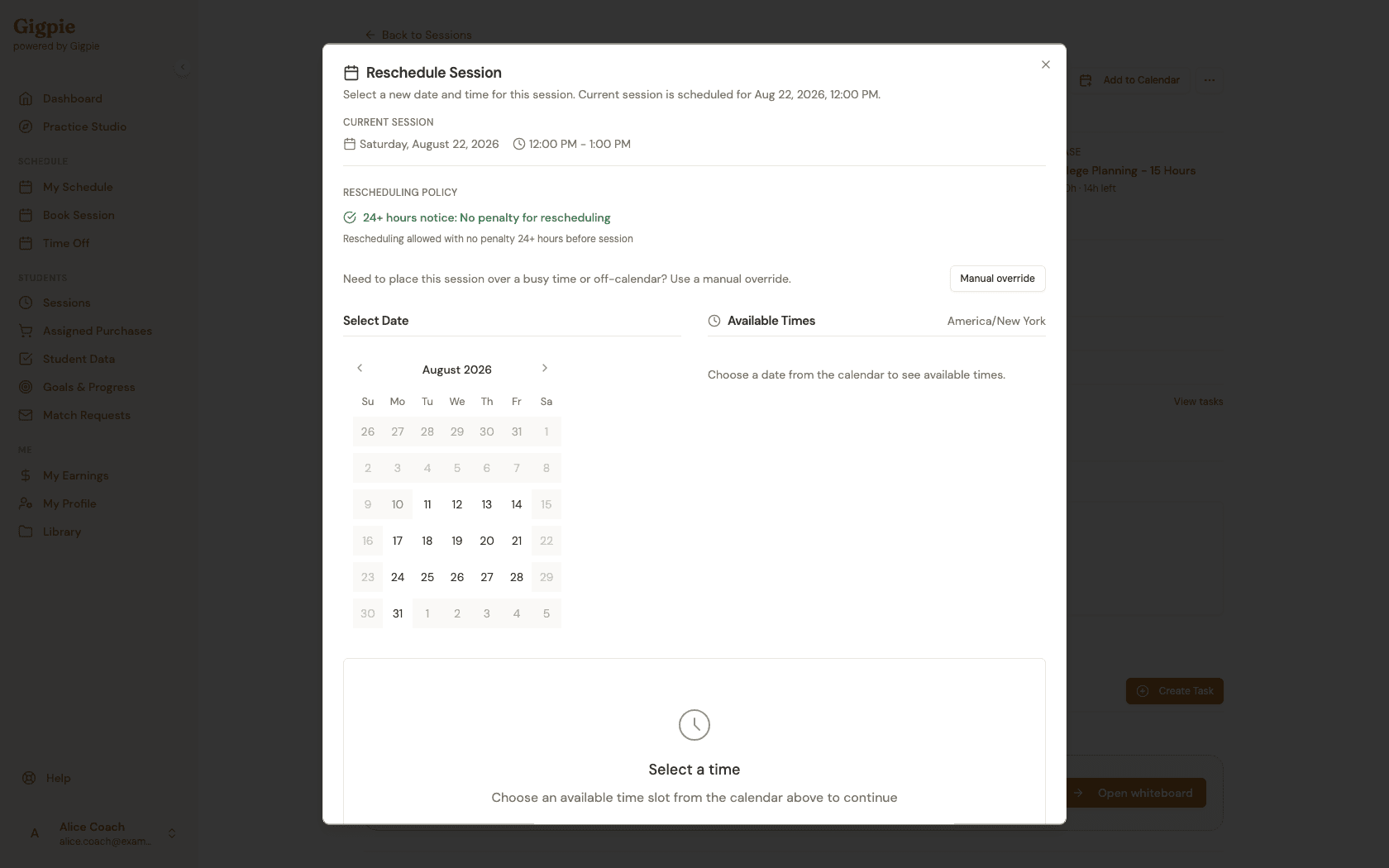
Select Reschedule to pick a new date and time, or Cancel Session to cancel it entirely. Cancel Session opens a similar confirmation dialog that shows the cancellation policy and asks you to confirm.
- 6
Complete the action
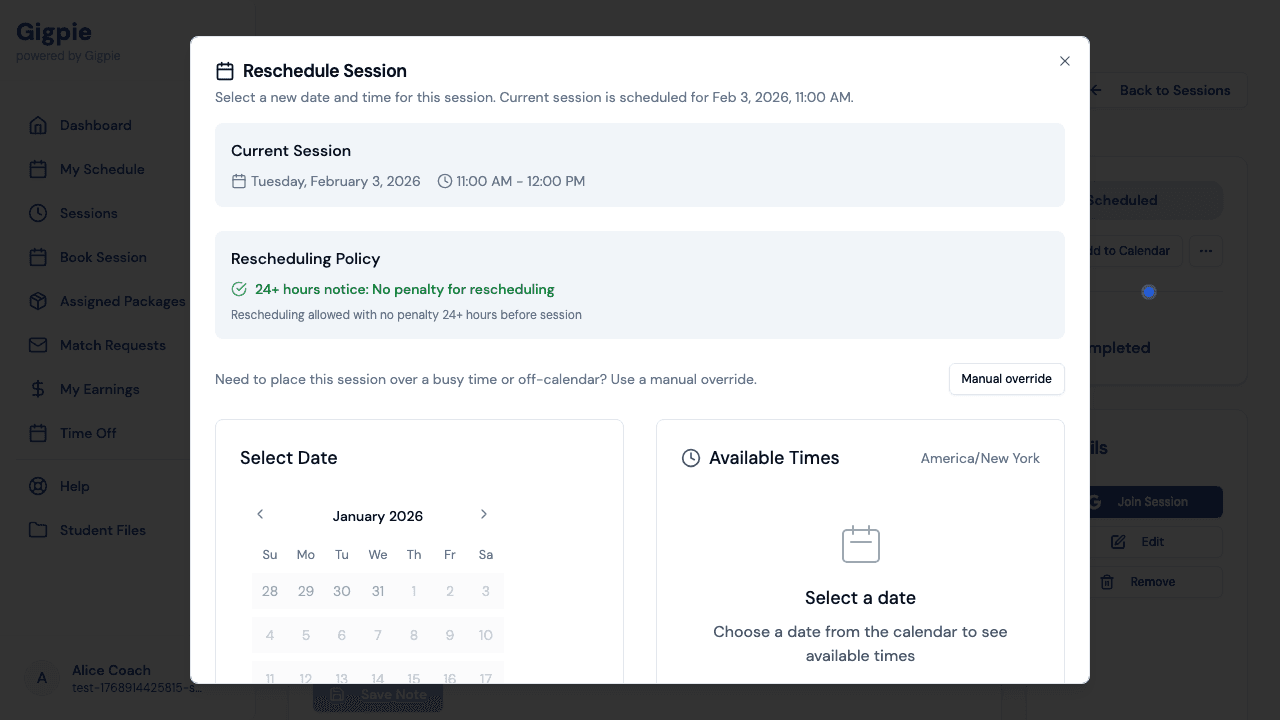
Pick a new date and time, review the details, then click Confirm Reschedule (or Cancel Session, if canceling). The student and parent will be notified of the change.
What you'll accomplish
- The appointment is rescheduled to a new time, or cancelled.
- The student and parent receive notification of the change.
Related Guides
- How to schedule a session - Book new appointments with students
- How to request time off - Schedule planned absences
- How to update calendar availability - Manage your schedule
- Smart Scheduling - How Gigpie's scheduling engine works