
How-To Guide - Coaches
How to add or change the session meeting link as a coach
Learn how to set or update video conference links for your tutoring sessions. Ensure students have the correct meeting URL for online sessions.
Updated August 10, 2026
Overview
Each online session needs a video conference link so students can join. You can add or update the meeting link for any individual session at any time. Most coaches use Zoom, Google Meet, or Microsoft Teams, but any video conferencing platform works as long as you paste a valid URL.
How the link works
Adding a link is as simple as pasting any URL — there's no API call and nothing to verify. Gigpie matches the link's domain (zoom.us, meet.google.com, teams.microsoft.com) purely to show the right icon next to it; anything else still works, it just shows a generic video icon. There's no automatic Zoom link generation.
If you've connected your Google or Microsoft Calendar, a Meet or Teams link can already be created for you as a side effect of the calendar event — but the manual link you set here always wins for that session, and it's the only option if you don't use either calendar integration.
Why this matters
Adding the meeting link before a session ensures students can join on time without confusion. If you need to change your video platform or update a recurring meeting link, you can do so for each session individually. Parents and students see the link in their session details and in email reminders.
Best practices
- Add meeting links as soon as you schedule a session
- Use consistent meeting links for the same family when possible
- Test your video link before the first session with a new student
- Update the link immediately if your video platform changes
- Include waiting room settings to control when participants can join
Steps
- 1
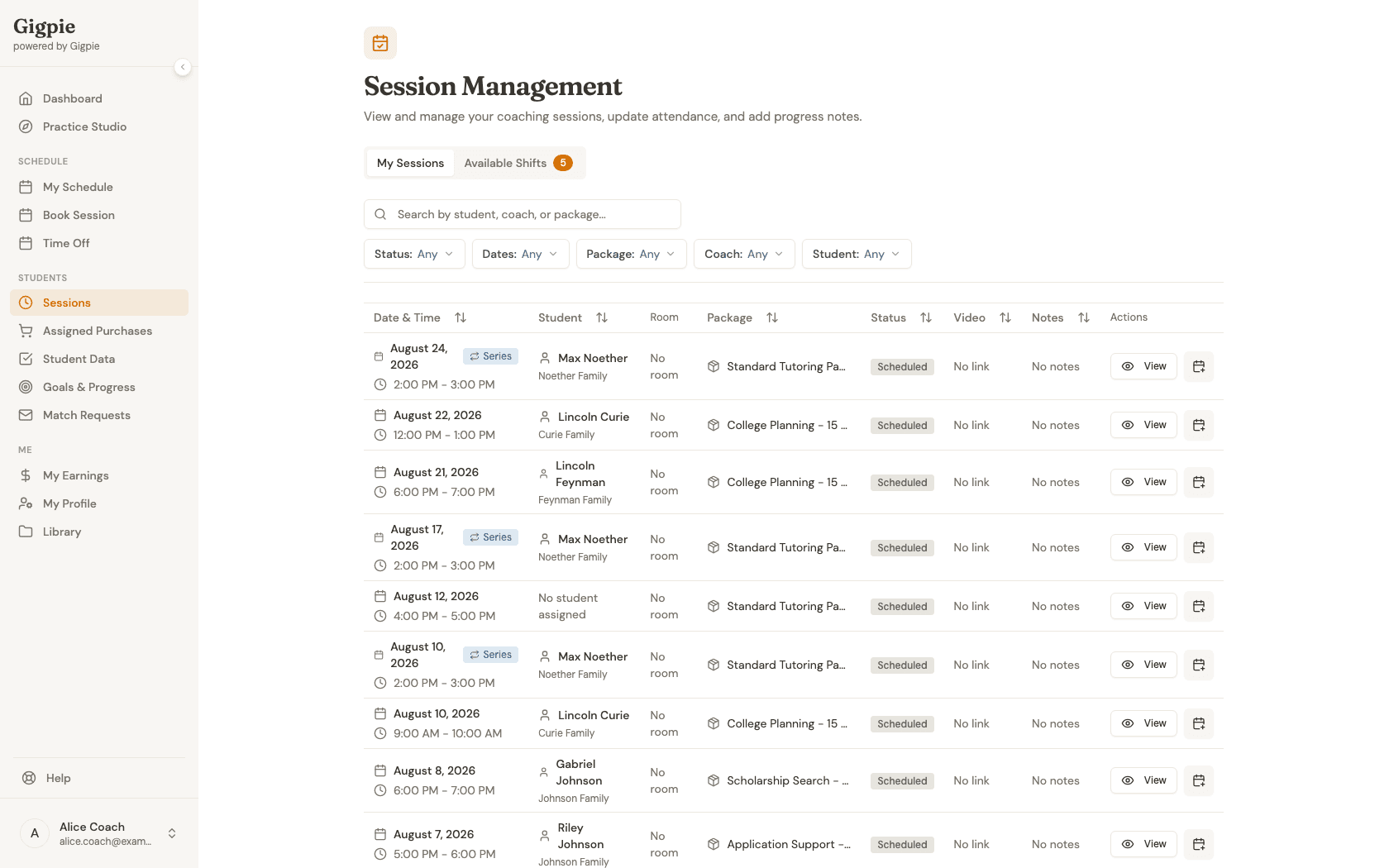
Go to Session List
Click Sessions on the left menu.
- 2
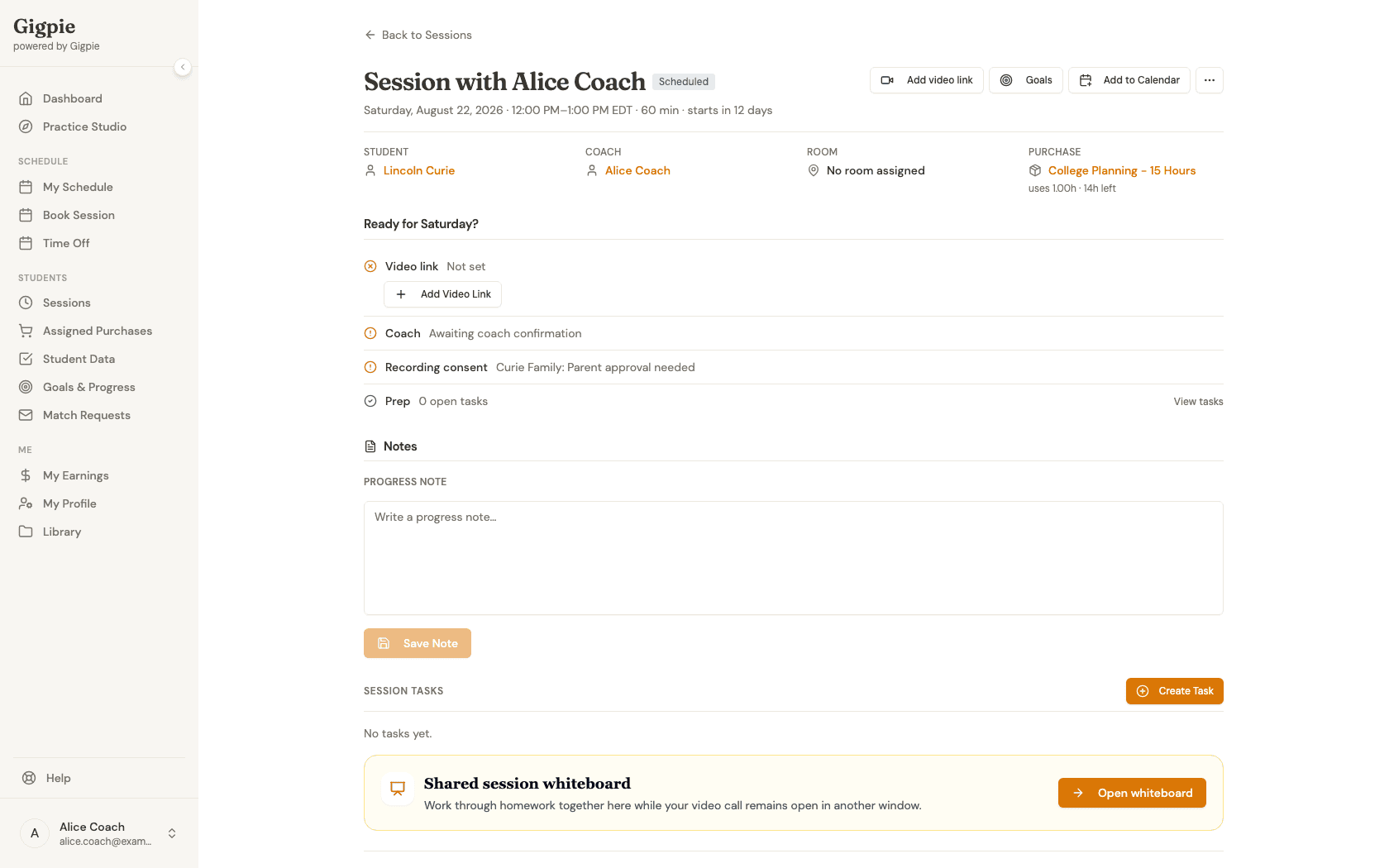
View the session you want to update
Scroll through the list of sessions and open the one you want to edit. The "Ready for [day]?" section at the top shows the video link status alongside coach confirmation and recording consent.
- 3
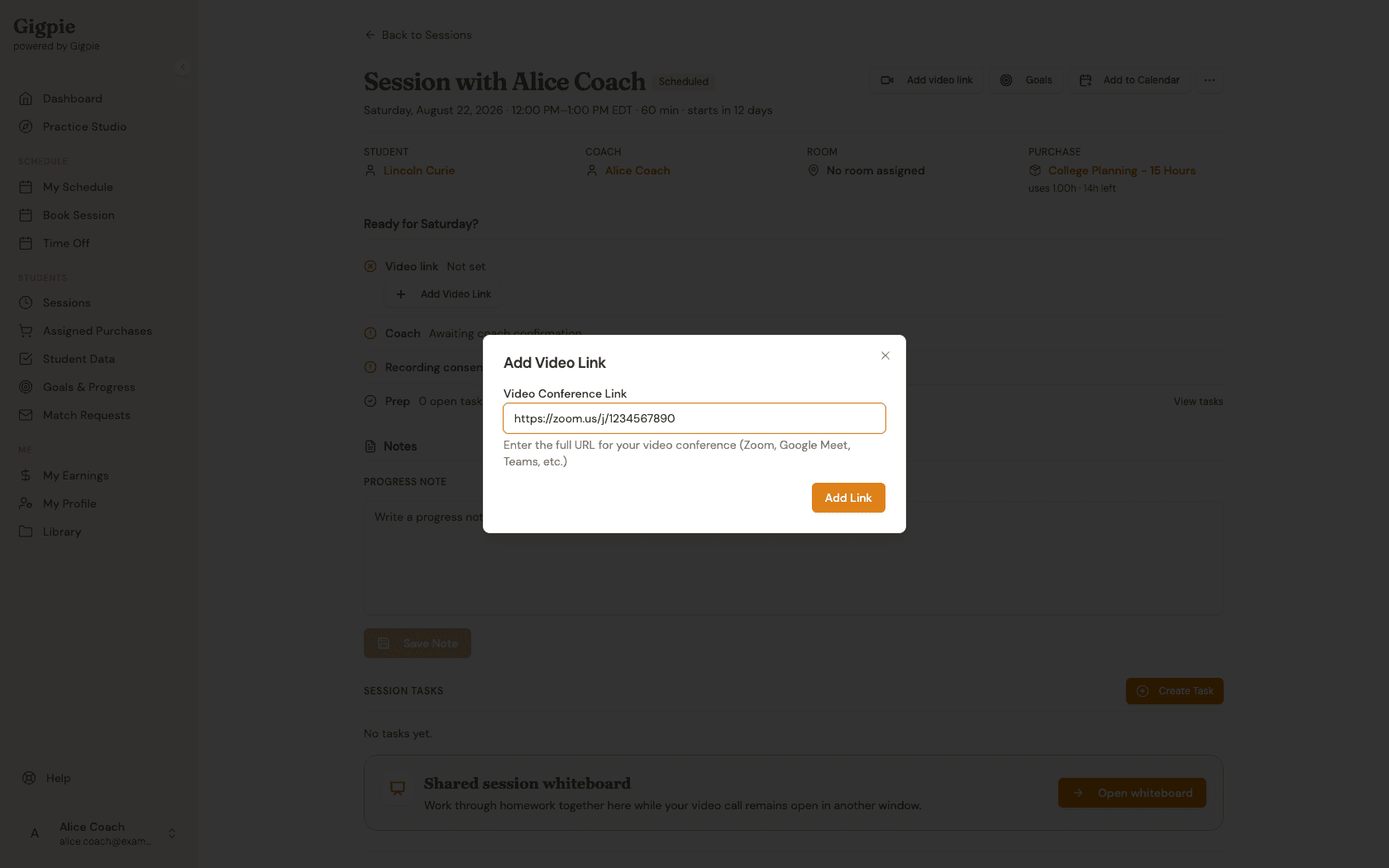
Enter the link
Click Add Video Link, paste your preferred video conference URL, then click Add Link to save it.
- 4
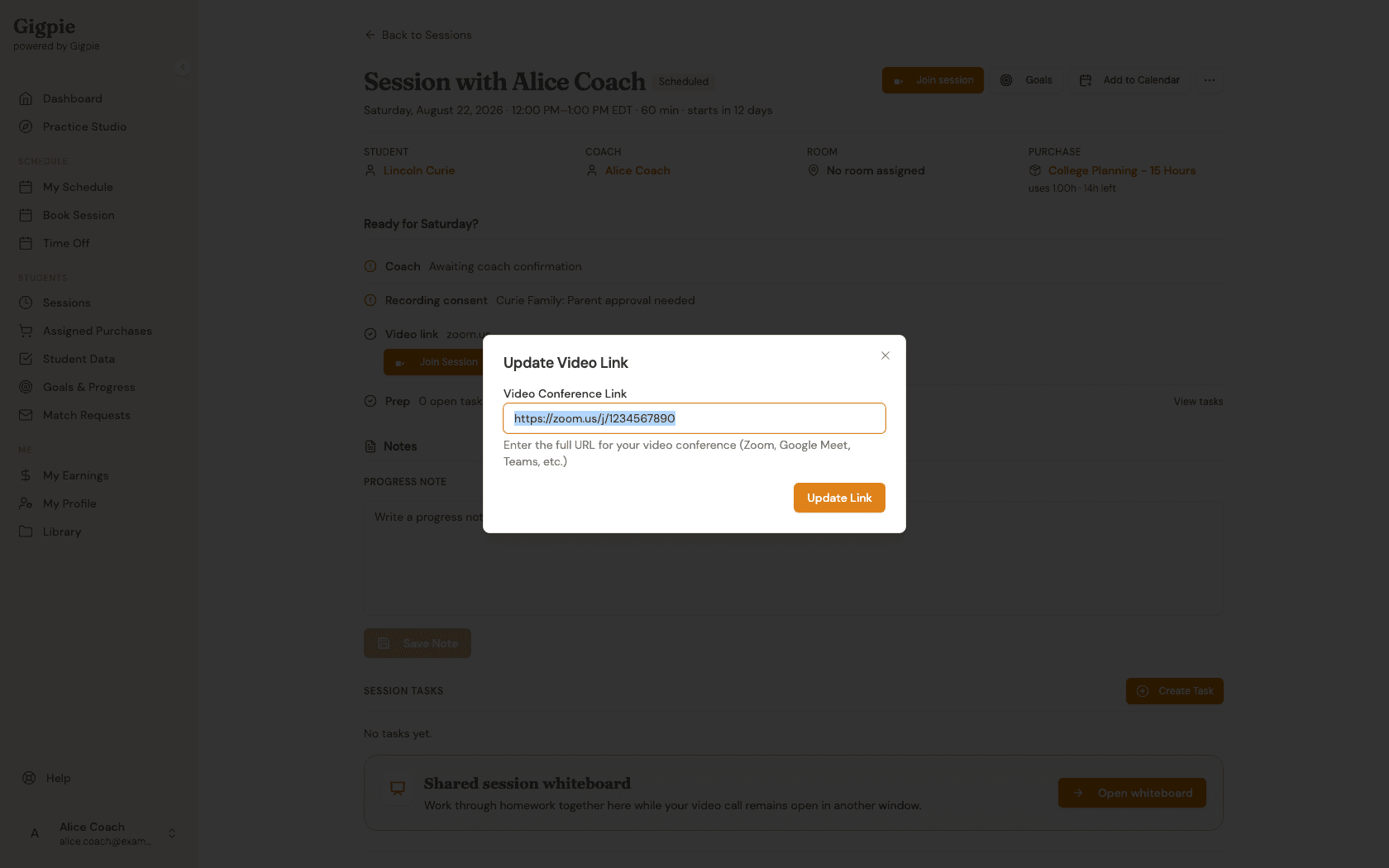
Change an existing link
Once a link is set, the same row shows Join Session, Edit, and Remove instead. Click Edit to open the same dialog pre-filled with the current link, update the URL, and click Update Link to save the change.
Common Questions
Can I use the same meeting link for all my sessions?
Yes, many coaches use a single personal meeting room for all their sessions. This works well if you use platforms like Zoom that support persistent meeting rooms. Students and parents appreciate the consistency of using the same link every time.
What happens if I forget to add a meeting link?
Parents and students won't be able to join the session online without a meeting link. They may contact you asking for the link, which can delay the session start time. It's best to add the link as soon as you schedule the session to avoid any confusion.
Can I change the meeting link after the session is scheduled?
Absolutely. You can update the meeting link at any time before the session begins using the Edit control described above. The updated link becomes visible to parents and students in their session details and email reminders. This is helpful if you need to switch video platforms or create a new meeting room.
Which video conferencing platform should I use?
Gigpie works with any video conferencing platform that provides a URL link. Popular choices include Zoom, Google Meet, Microsoft Teams, and Skype. Choose the platform that works best for you and your students. Some coaches prefer platforms with built-in recording, whiteboards, or screen sharing features.
Will students receive the meeting link automatically?
Yes, once you add or update the meeting link, it appears in the session details that parents and students can view. They also receive the link in automated email reminders sent before the session begins. This ensures everyone has access to the correct link without you needing to send it separately.
Troubleshooting Tips
If students report they can't access your meeting link, verify that the URL is complete and starts with https://. Some video platforms generate very long URLs that can be accidentally truncated when copying. Test the link yourself by opening it in a new browser window before the session starts.
Consider adding meeting link information to your session notes or sending it via the platform messaging system as a backup. This gives families multiple ways to access the link if they have trouble finding it in the session details.
Related Guides
- How to connect your Google Calendar - Sync your calendar and optionally get an auto-created Meet link
- How to join a session - Start your tutoring sessions
- How to schedule a session - Book new sessions with students
- Video Conferencing - Every way Gigpie handles meeting links