
How-To Guide - Coaches
How to connect your Google Calendar as a coach
Learn how to connect your Google Calendar so your tutoring sessions automatically appear on it, and Gigpie checks it for conflicts when new sessions are booked.
Updated August 6, 2026
Overview
Use this guide to connect your Google Calendar. Once connected, your tutoring sessions push to it automatically, and Gigpie reads it to check for conflicts whenever someone books a new session.
Before you start
- You are logged in as a coach.
- You have a Google account with Google Calendar enabled.
Steps
- 1Go to login
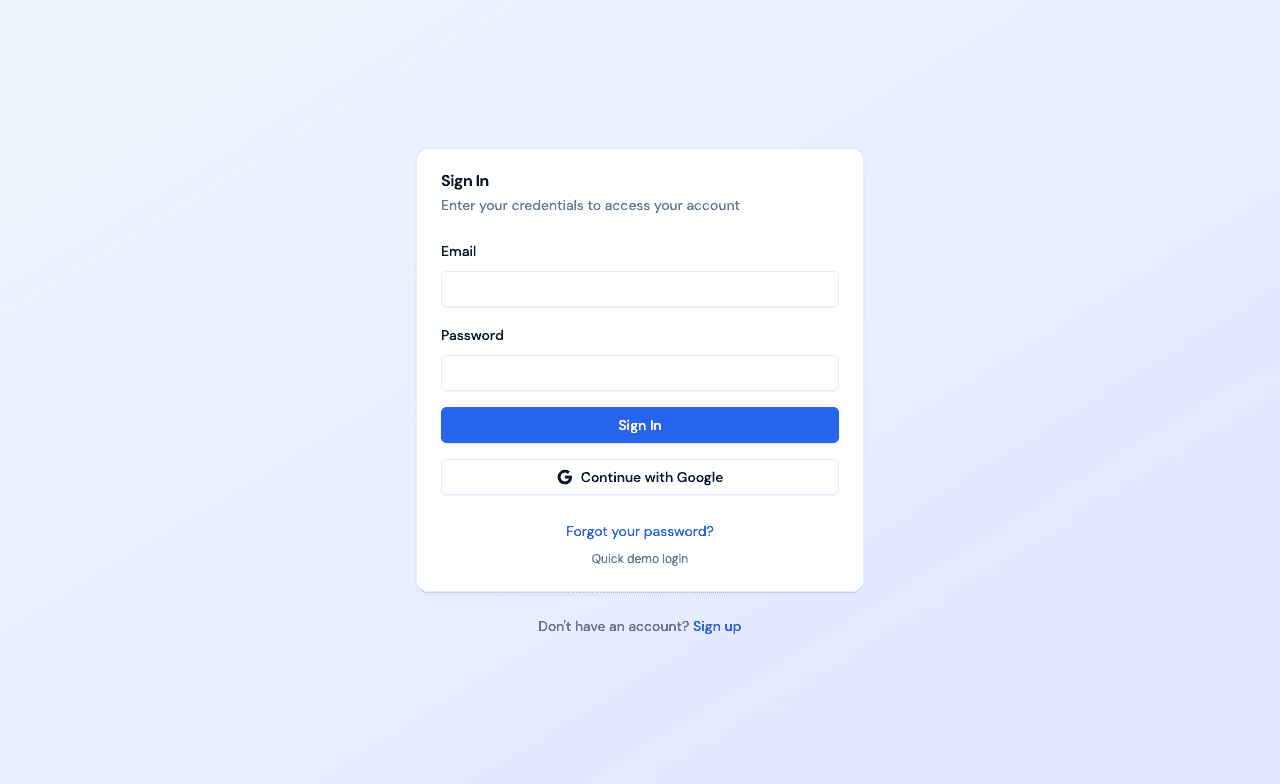
Sign in as a coach
Use your coach account credentials to access the dashboard.
- 2Go to Preferences
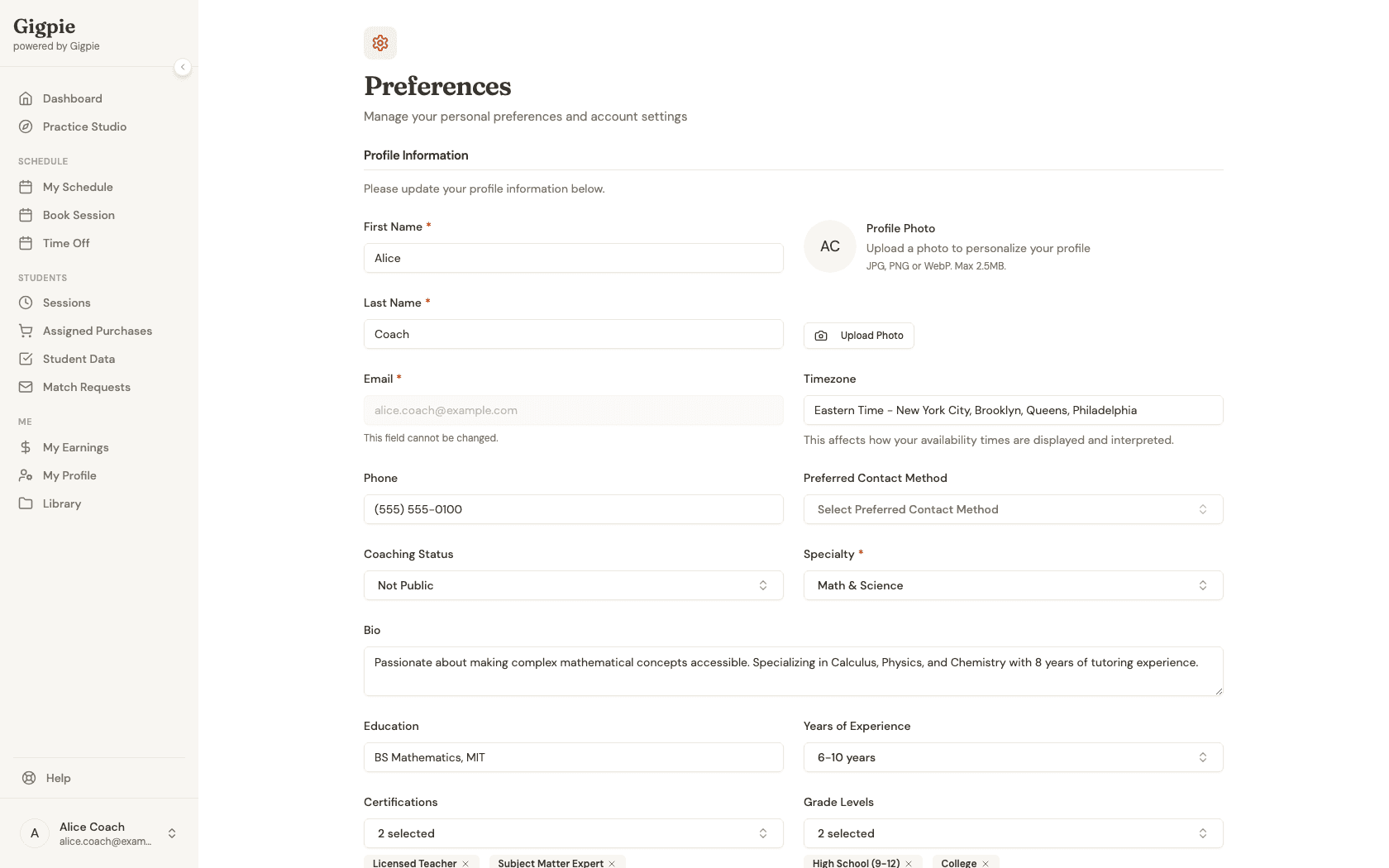
Open Preferences
Click on your profile in the sidebar, then select Preferences to access your settings.
- 3
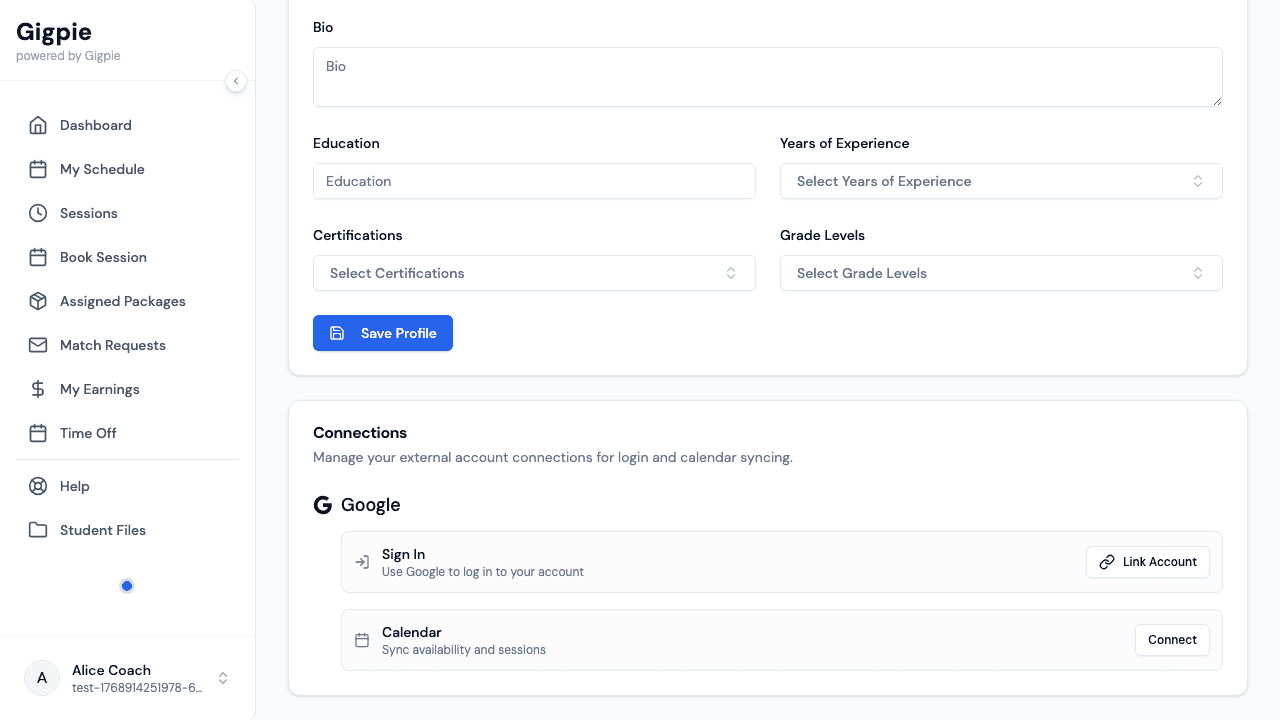
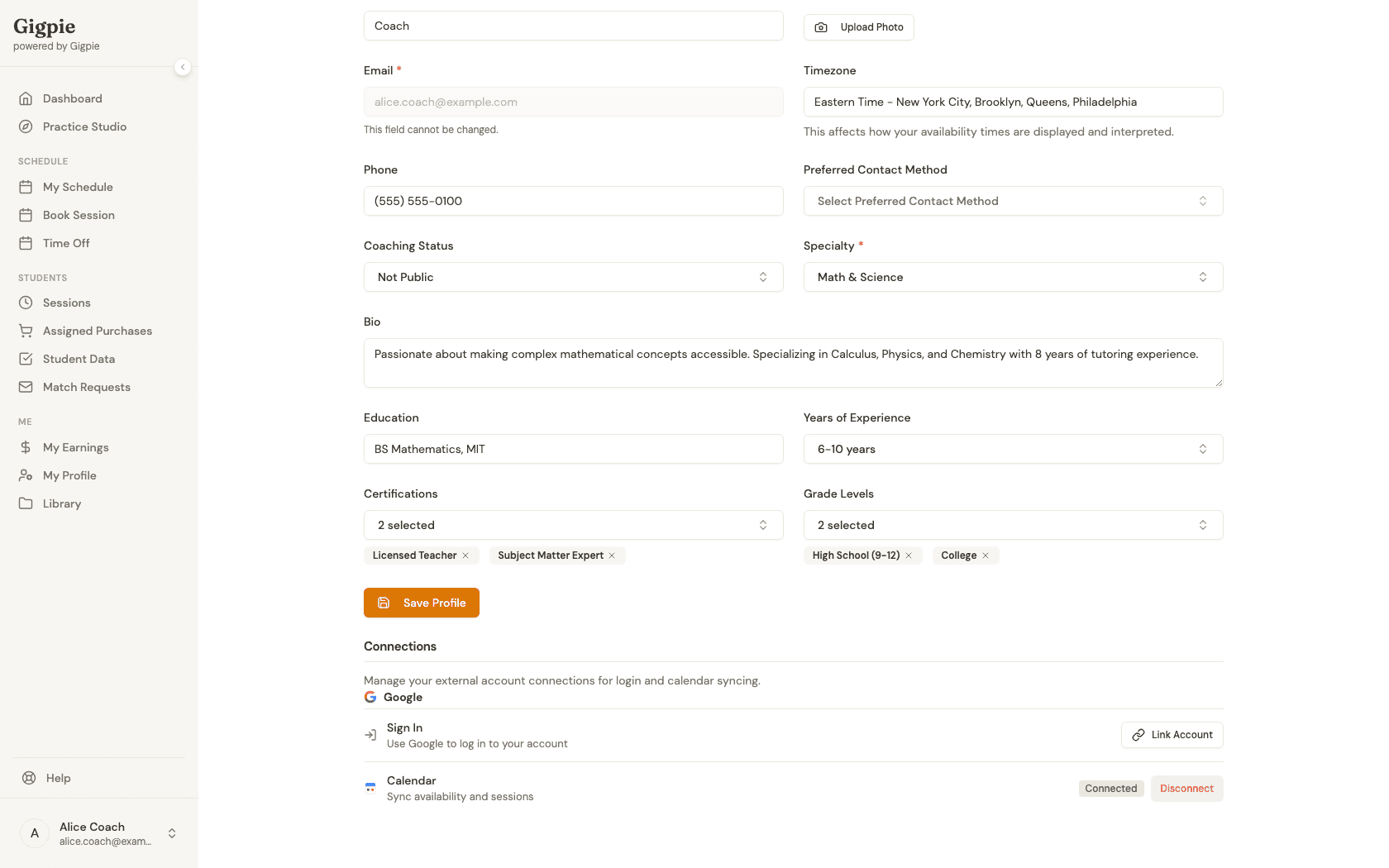
Find the Connections section
Scroll down to the Connections section of your settings, where Google Calendar is listed alongside any other supported providers for your company.
- 4
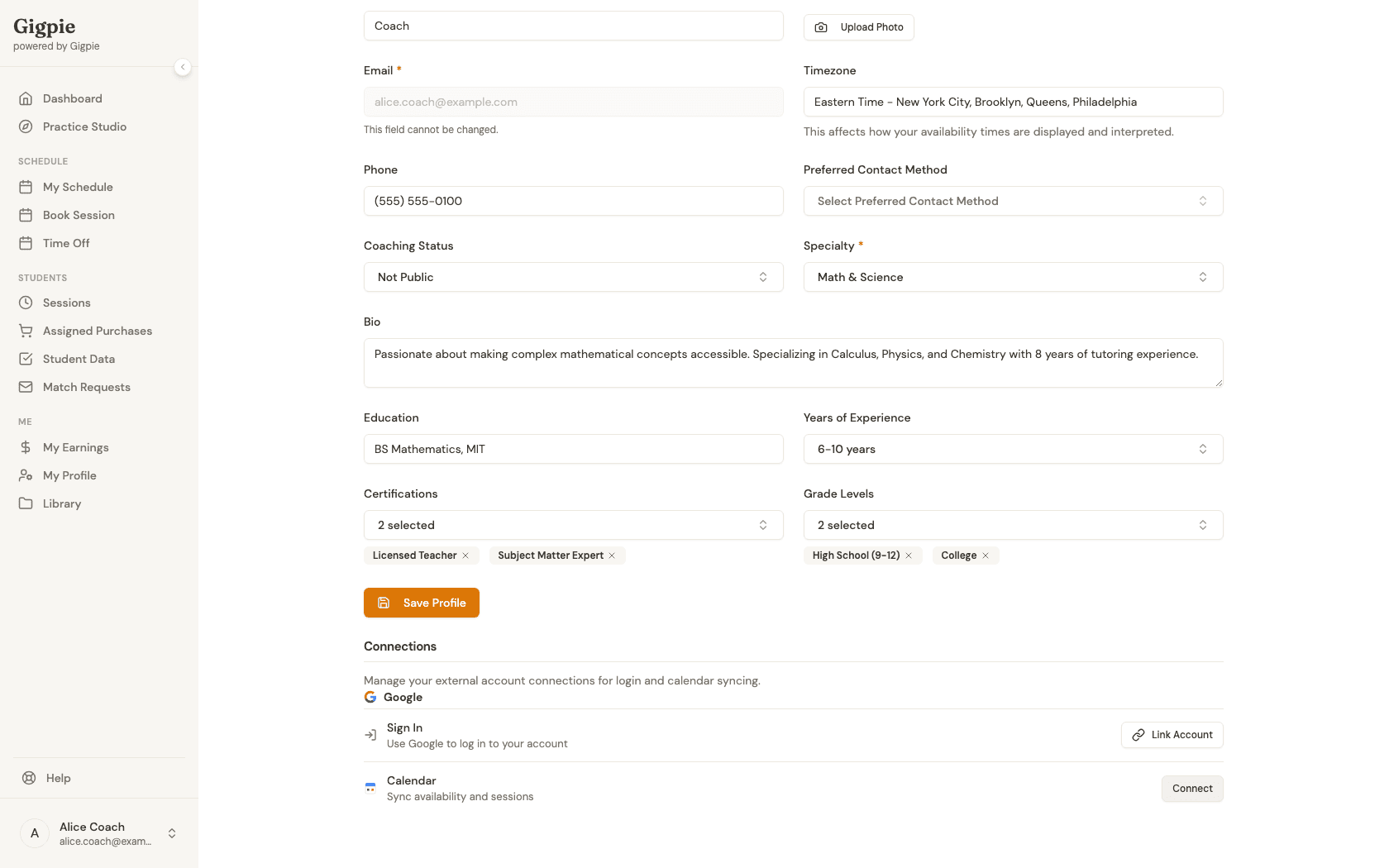
Click Connect
Click Connect next to Google Calendar to begin the authorization process. You'll be taken to Google's own sign-in and consent screen to grant access.
- 5
Confirm the connection
Once you approve access on Google's consent screen, you're redirected back to Preferences with Google Calendar showing as Connected. From here you can disconnect it at any time.
What you'll accomplish
- Your Google Calendar is connected to the platform.
- Sessions automatically appear on your Google Calendar.
- Gigpie checks your Google Calendar for conflicts when new sessions are booked.
What Gets Synced
Once connected, every Gigpie tutoring session pushes to your Google Calendar as an event — including the session title, student name, duration, and meeting link if you've added one. This means you can see your teaching schedule alongside your personal appointments in one place.
Gigpie also reads your Google Calendar at the moment someone tries to book a new session with you, checking it for conflicts against whatever is on your calendar at that instant. If you have a personal appointment blocked off on Google Calendar, a new booking that overlaps it gets flagged. This is a point-in-time check made at booking time, not a continuous background sync — an event you add directly in Google Calendar afterward won't retroactively affect a session that was already booked.
Managing Calendar Permissions
When you authorize the connection, you grant Gigpie permission to read your calendar events and create new events for your tutoring sessions. The platform only accesses calendar data necessary for scheduling and does not read the contents of your personal appointments or share your calendar information with anyone else.
You can disconnect your Google Calendar at any time from the same Preferences page where you connected it. Disconnecting stops future syncing but does not delete events that were already created. If you reconnect later, syncing resumes from that point forward.
Troubleshooting Common Issues
If a session isn't appearing on your Google Calendar, refresh both Gigpie and Google Calendar — the event is pushed at the moment the session is created or changed, so a missing event usually means the push failed rather than a delay.
Make sure you're connecting the correct Google account, especially if you have multiple accounts. The calendar integration connects to whichever Google account you use during the authorization step. If you need to switch to a different Google account, disconnect the current connection and reconnect using your preferred account.
Some coaches report issues if they use Google Workspace accounts with restricted permissions. Check with your organization's IT administrator to ensure your account has permission to integrate with third-party applications. Most personal Google accounts and standard Workspace accounts work without any special configuration.
Related Guides
- How to update calendar availability - Manage your scheduling availability
- How to schedule a session - Book sessions with students
- How to add or change meeting link - Set video conference links
- Integrations - Every calendar and video tool Gigpie connects with