
How-To Guide - Admins
How to manage coverage and open shifts as an admin
Spot sessions that still need a coach, check for shift claims awaiting approval, and open a coverage request when a coach needs time off — without a single phone call.
Updated August 10, 2026
Overview
Use this guide to run the coverage side of the shift marketplace: see which sessions still need a coach, check for shift claims awaiting your approval, and open a coverage request when a coach needs time off — the admin half of a two-sided system that replaces phone-tag with a real queue.
Before you start
- You have at least one coach on your roster.
Why this matters
Sessions can be marked "needs coach" instead of assigned to someone specific — an open shift that any qualified coach can claim from their own Available Shifts tab. On your side, Shifts is where those claims land for approval once a coach picks one up, and Coverage is where you manage the other direction: when a coach requests time off (or you need to flag one as unavailable yourself), Coverage shows every session that request affects and lets you assign — or bulk-assign — a substitute coach to each one.
Both screens are real queues, not calendars you scan by eye. Shifts shows exactly the claims waiting on your decision; Coverage shows exactly which sessions in an unavailability window are covered and which still need someone. A coach's time-off request is what typically starts a coverage request, but you can also open one yourself — useful when a coach calls in sick and can't submit the request themselves.
Tips
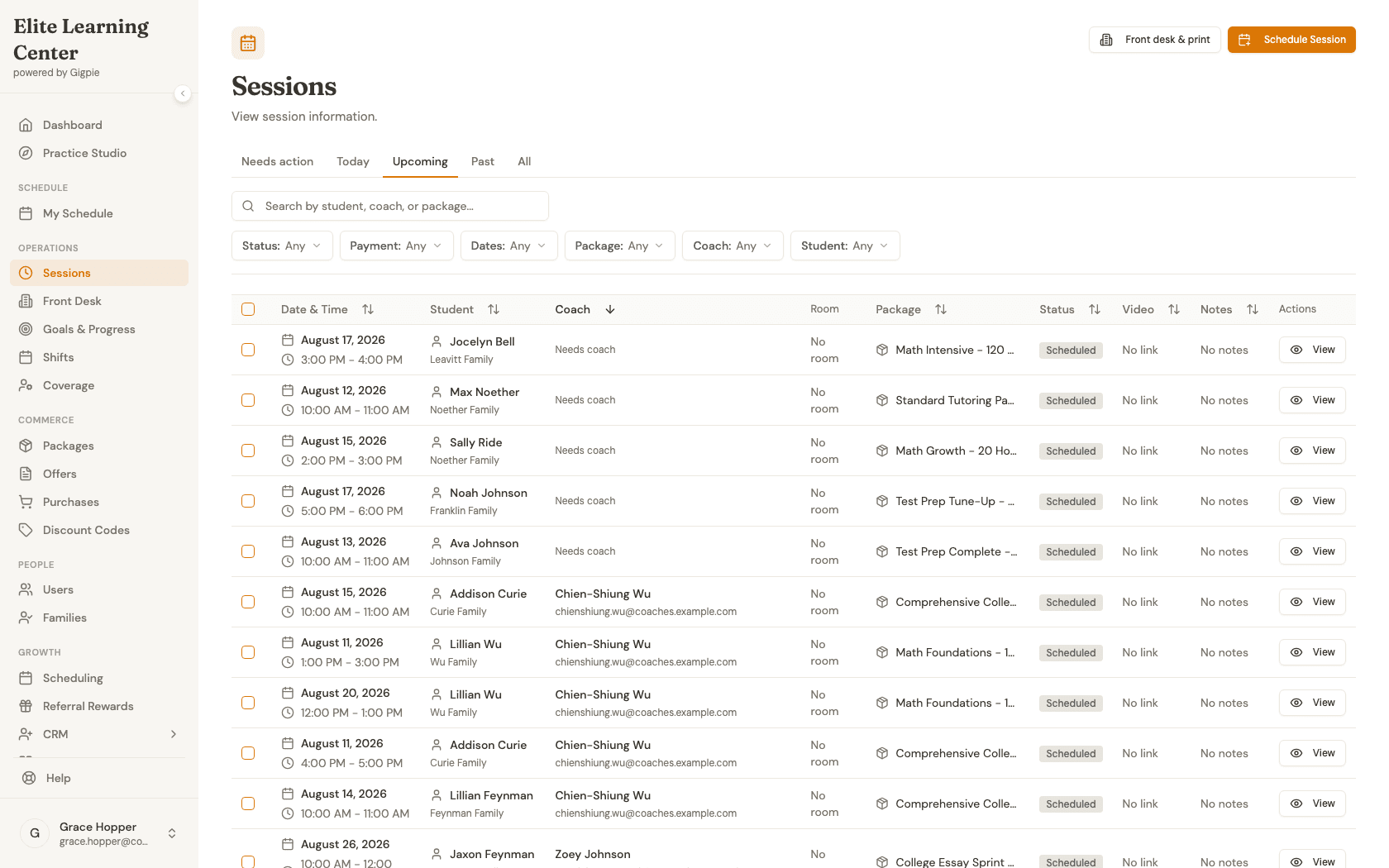
- The Sessions table's "Coach" column header is sortable — click it twice (once for ascending, once for descending) to bring every session still missing a coach to the top of the list, regardless of how many sessions you have scheduled.
- Coverage's "Bulk Assign All Uncovered Sessions" button (visible once a request has uncovered sessions) assigns one substitute to every open session in that coach's unavailability window in a single action, instead of one-by-one.
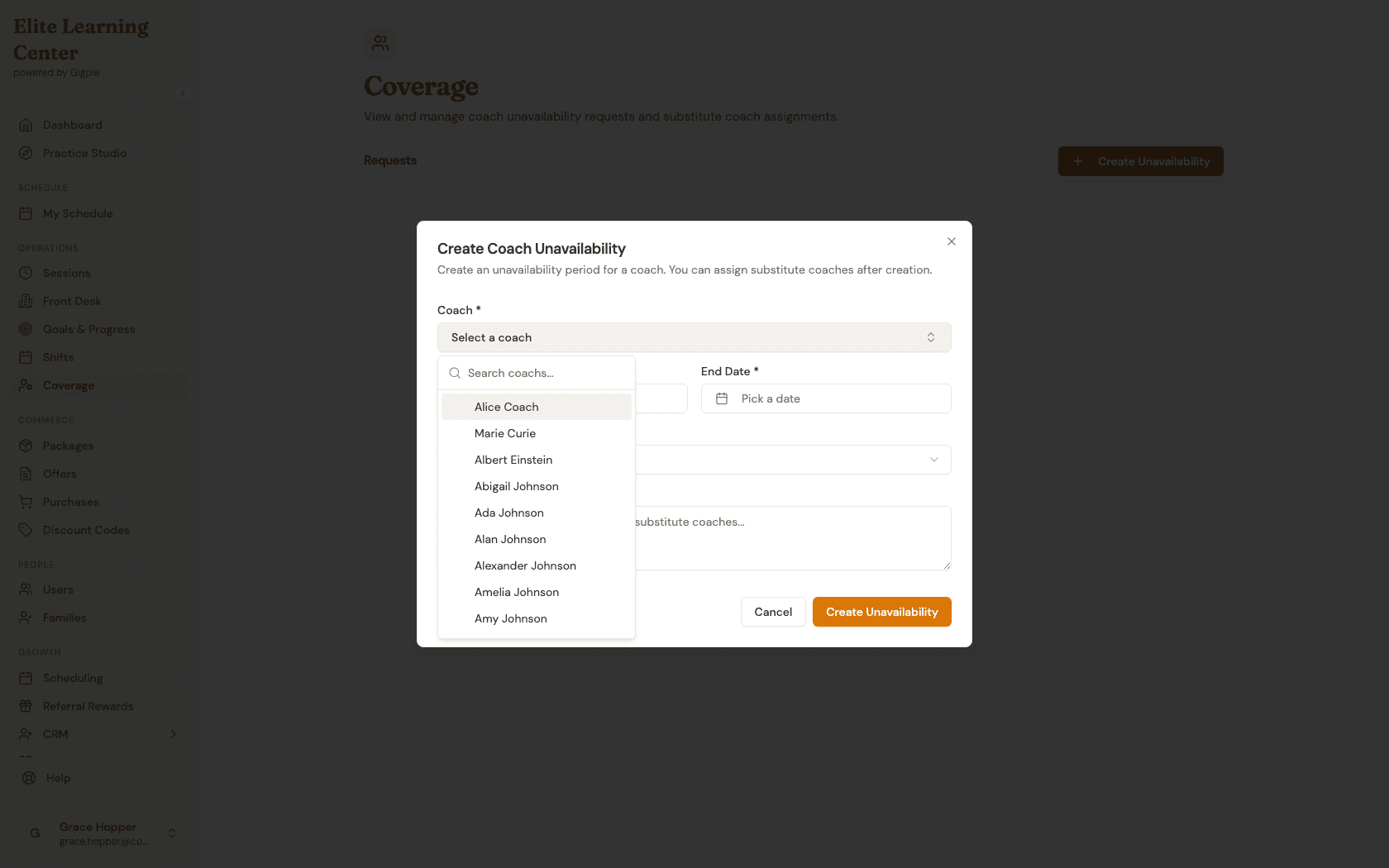
- The coach picker in a coverage assignment shows each candidate's conflict status (Available vs. Has Conflict) right in the list, so you're not guessing who's actually free.
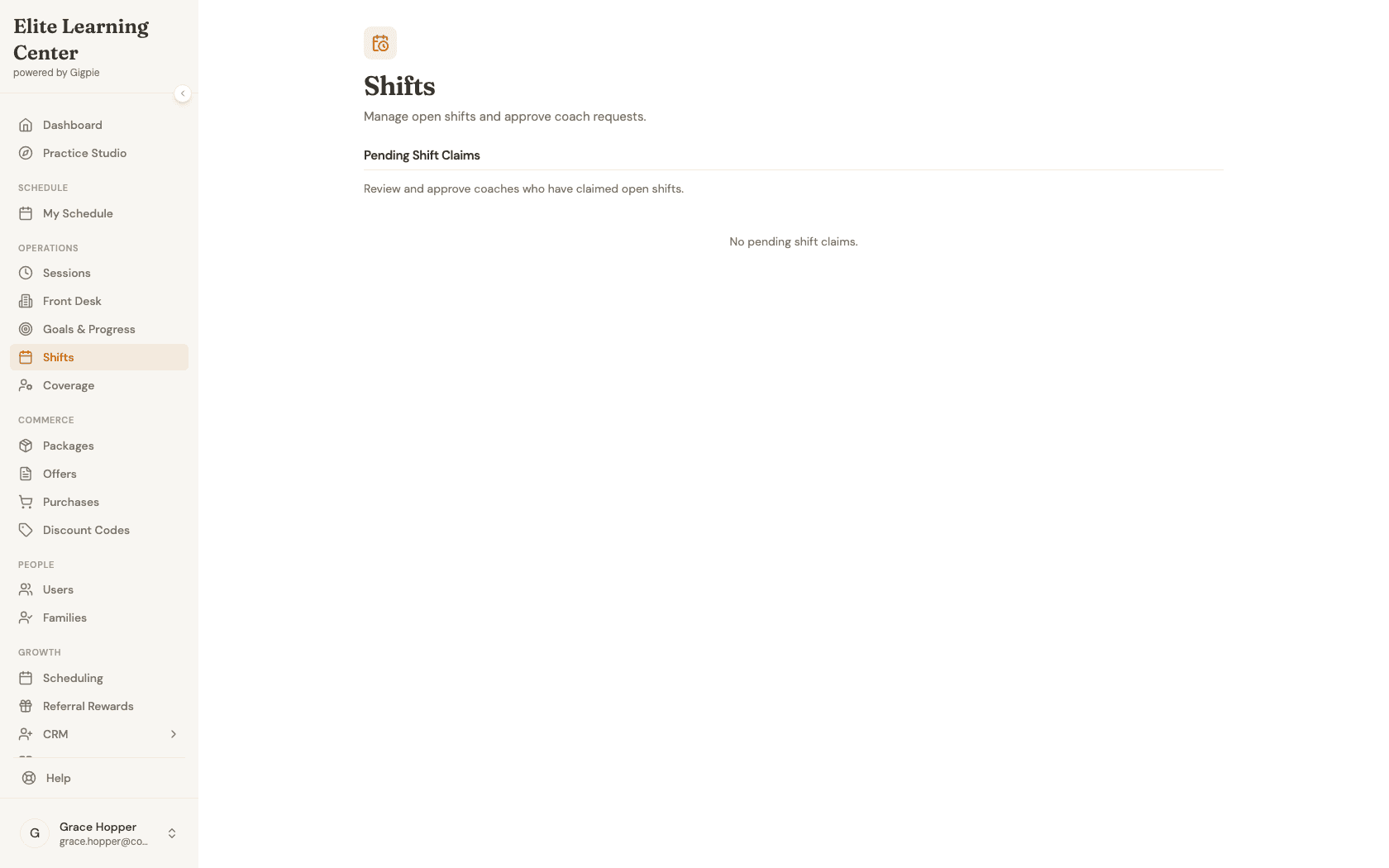
- A claimed shift only shows up in "Pending Shift Claims" after a coach claims it from their side — if Shifts is empty, it means nobody has claimed an open shift yet, not that the feature is broken.
Steps
- 1Go to login
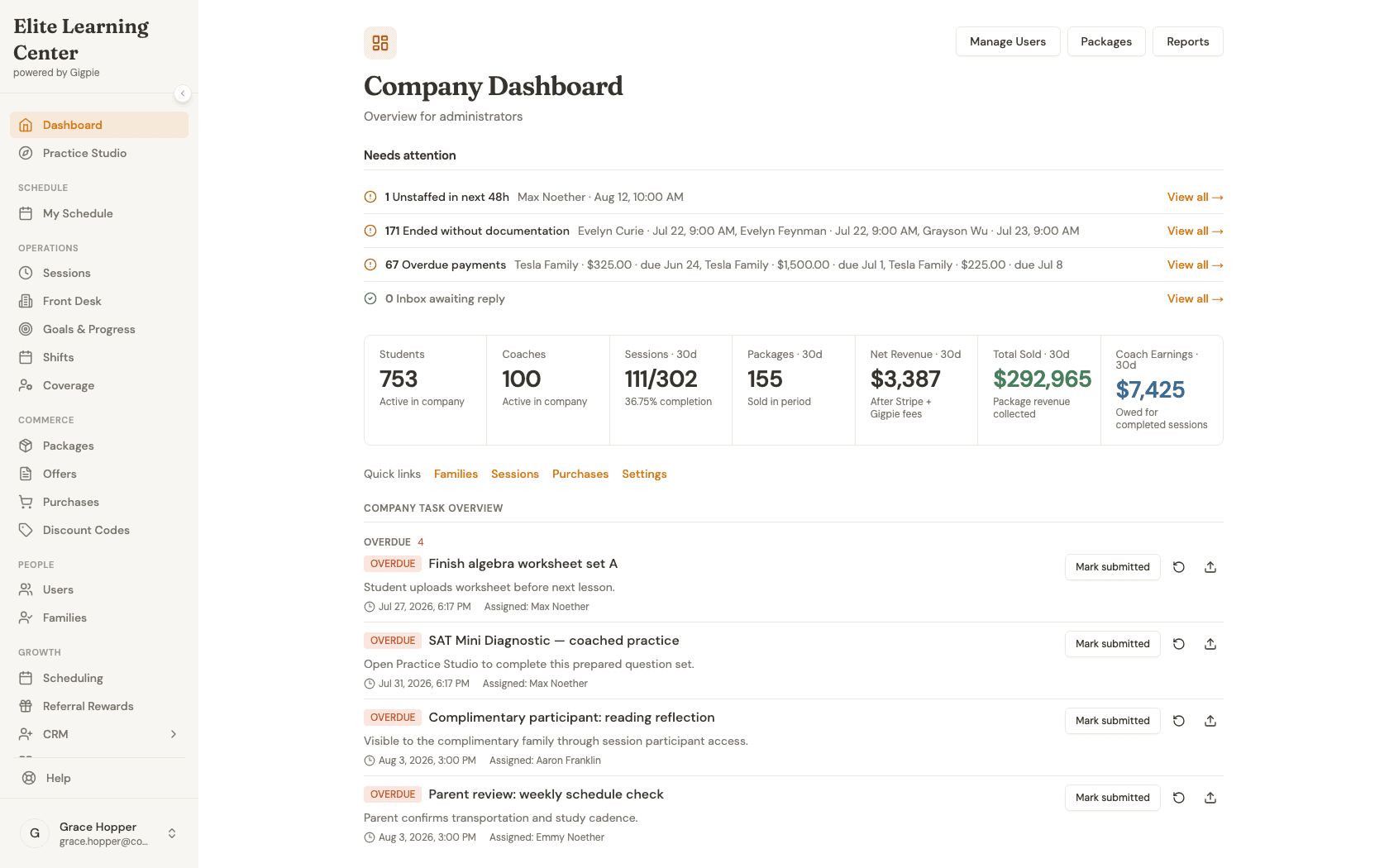
Sign in as an admin
Use your admin account credentials to access the dashboard.
- 2
See which sessions still need a coach
Open Sessions, switch to the Upcoming tab, and click the Coach column header twice to sort unassigned sessions to the top.
- 3
Check pending shift claims
Click Shifts in the sidebar to see any coach claims on open shifts awaiting your approval.
- 4
Open Coverage
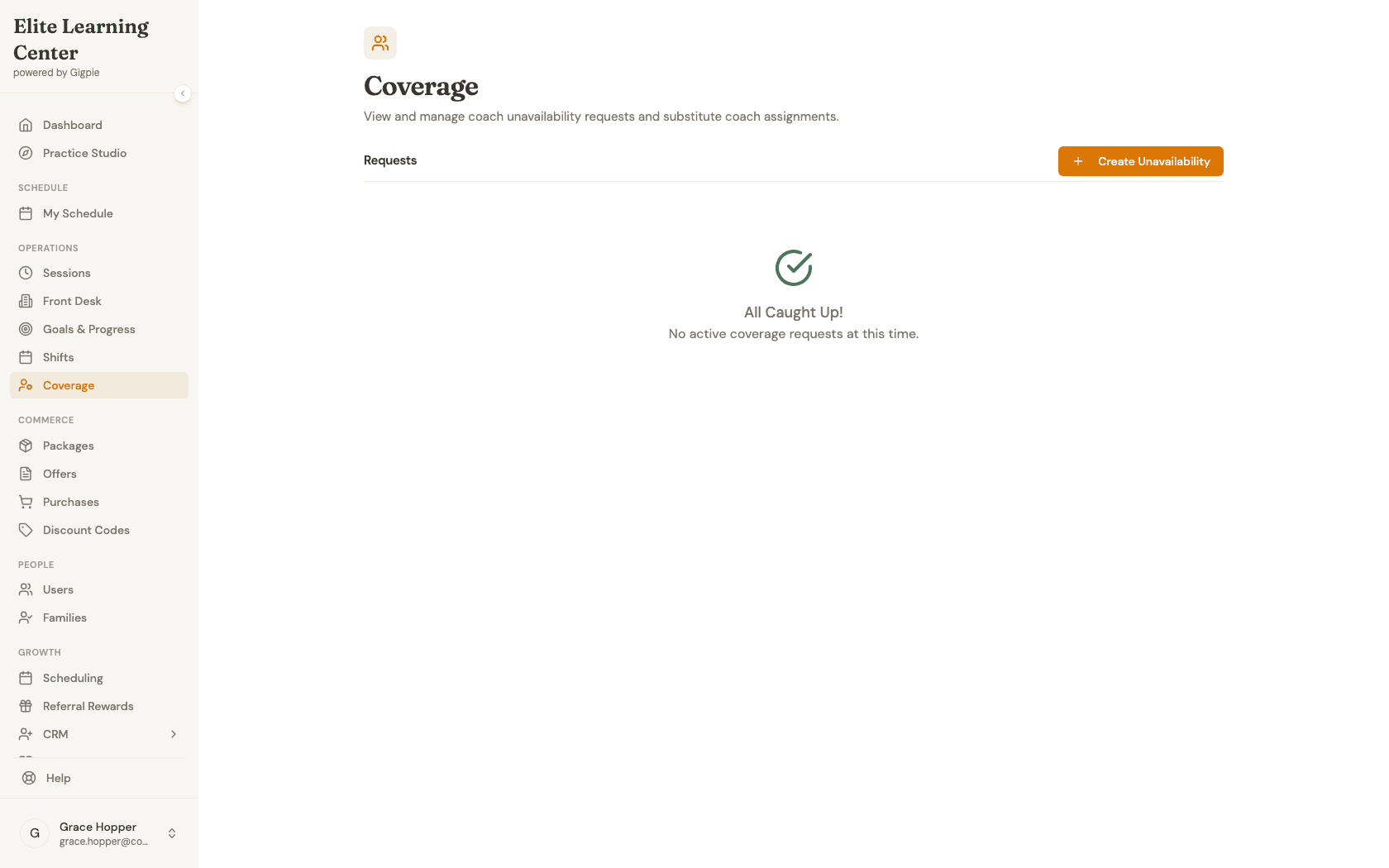
Click Coverage in the sidebar to see active coach unavailability requests and their coverage status.
- 5
Start a coverage request
Click "Create Unavailability" and pick the coach who needs time off from the coach picker.
- 6
Set the coach, dates, and reason
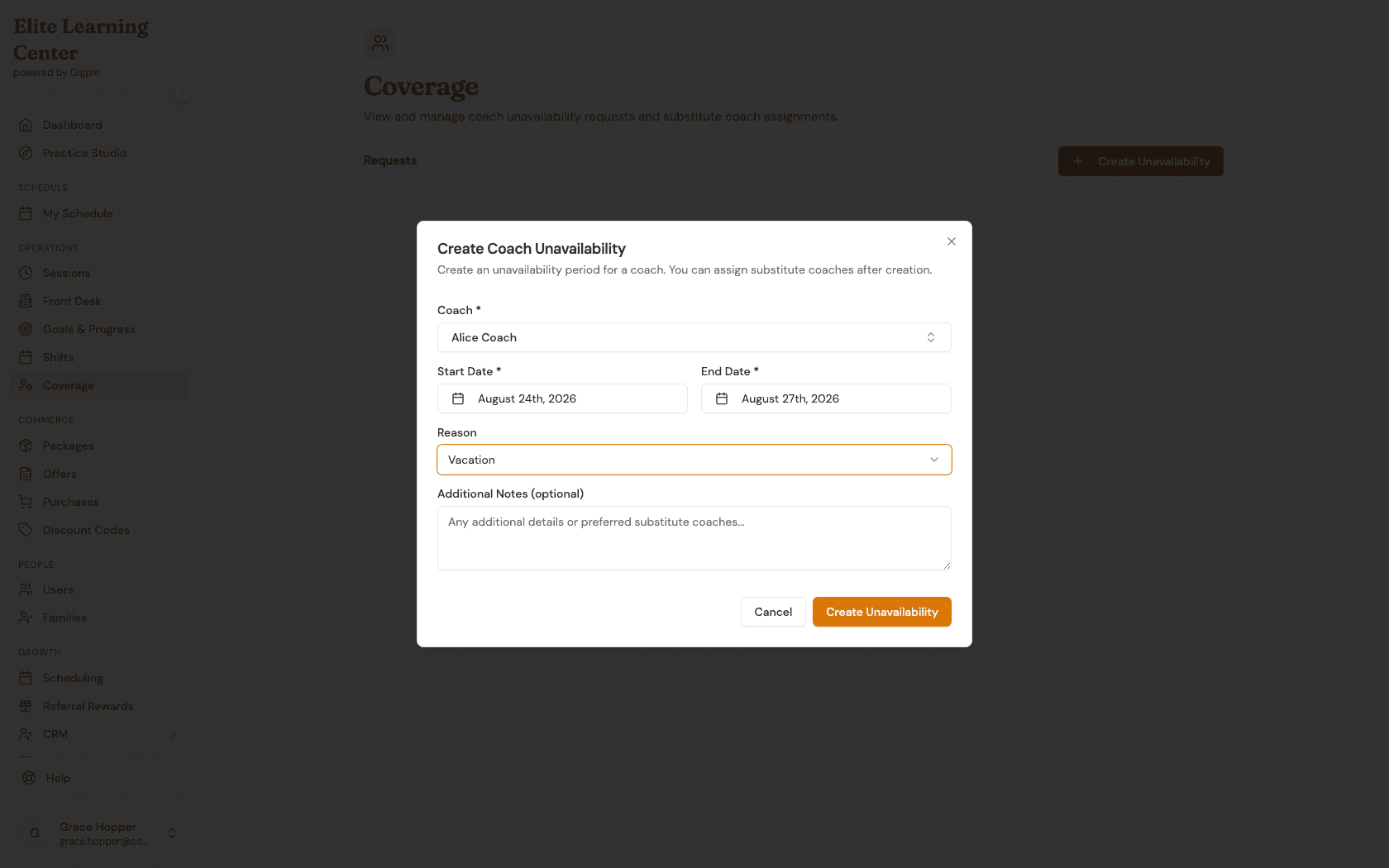
With the coach selected, pick the start and end dates for the unavailability window and choose a reason.
- 7
Review and hover Create Unavailability
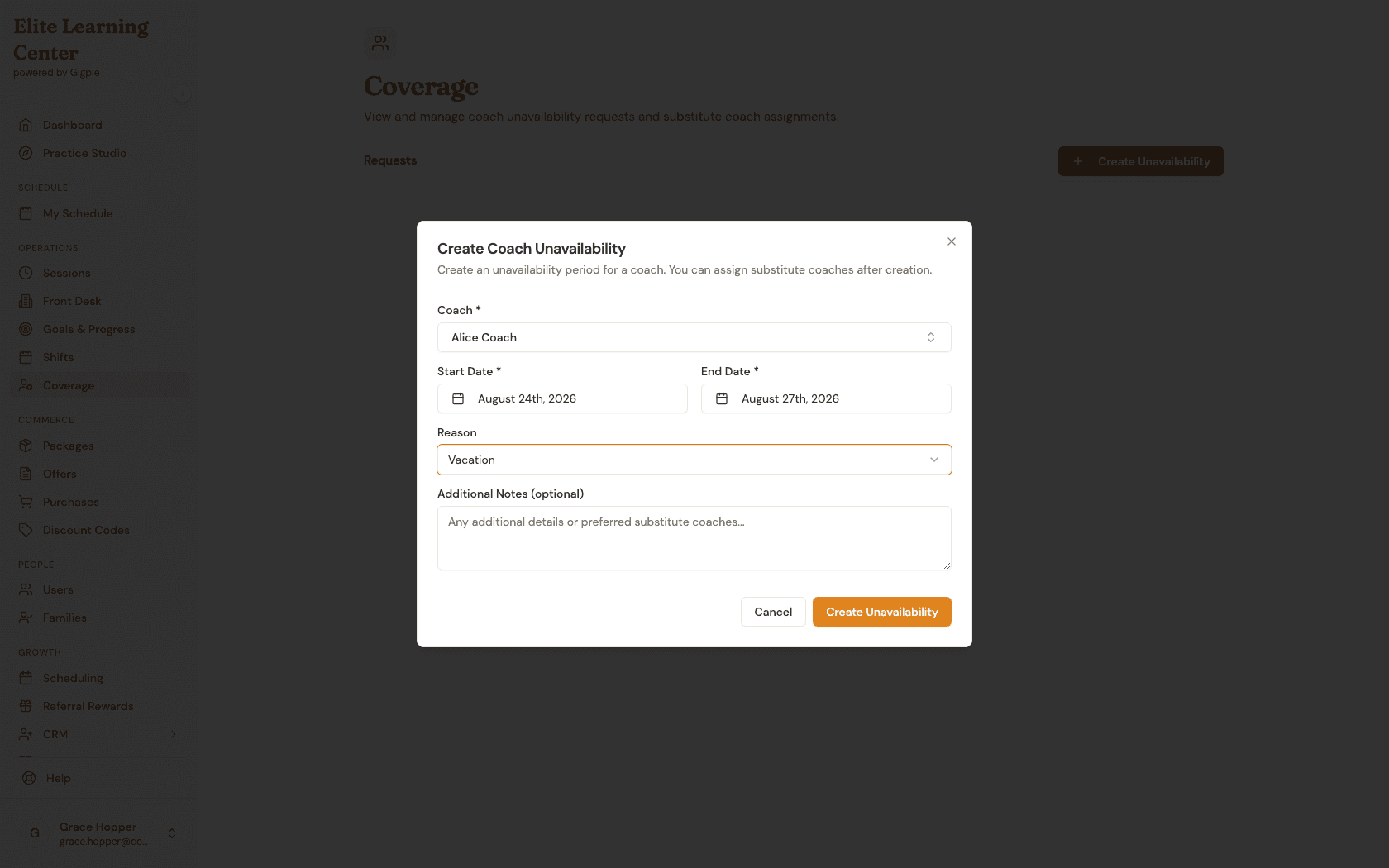
Review the details, then click "Create Unavailability" to open the request — you'll be able to assign substitute coaches to each affected session next.
What you'll accomplish
- You know how to find every upcoming session that still needs a coach assigned.
- You can check Shifts for coach claims awaiting your approval.
- You can start a coverage request for a coach's time off, picking a substitute and a reason.
Related Guides
- How to claim available shifts from the marketplace - The coach side of the same open-shift marketplace
- How to request time off as a coach - What starts most coverage requests
- Scheduling - How availability, recurring series, and open-shift coverage fit together