
How-To Guide - Coaches
How to author, build, and assign a practice set in Practice Studio
Write a practice question, package it into a set, and assign it to a student with the right delivery mode and due date.
Updated August 7, 2026
Overview
Practice Studio is where coaches write practice questions, group them into sets, and assign that work to a student — all without leaving Gigpie. Coaches can write and submit new content, and every coach can immediately assign anything already published to the company library.
Coaches author, company reviewers approve
New questions and sets you create start as your own private draft. From there you can keep refining them or submit them for company review — but only a company admin or staff reviewer can publish a submission into the shared library. That split keeps the company's practice library consistent while still letting every coach contribute. Your private drafts stay visible only to you until you submit them; nobody else on the team sees a draft in progress.
Choosing what to assign
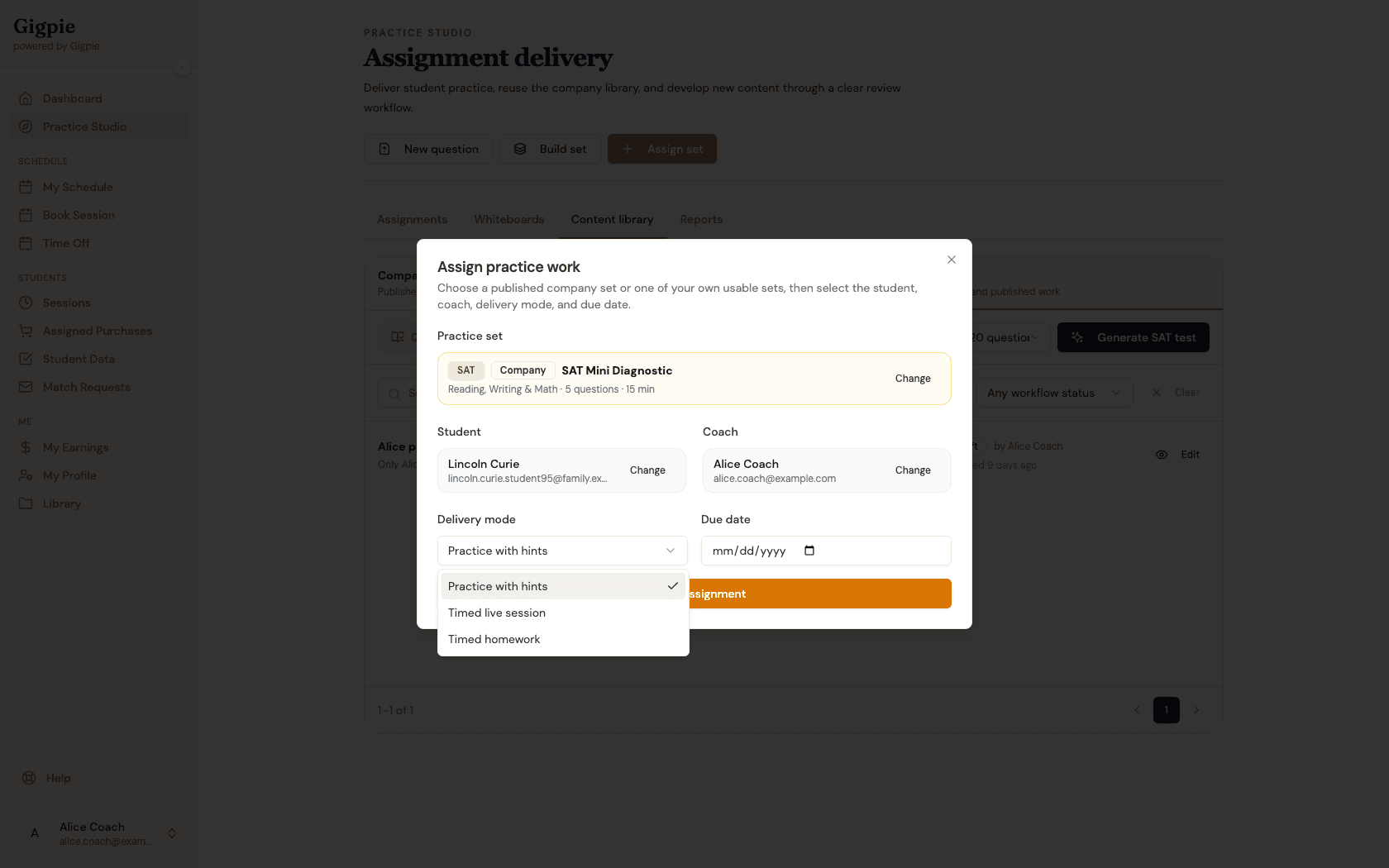
The assign dialog searches both the published company library and your own usable sets, so you don't have to leave the flow to go find something. Three delivery modes control how the work behaves for the student:
- Practice with hints — untimed, hints available, good for first exposure to a topic
- Timed live session — timed practice meant to run during a coached session
- Timed homework — timed independent work with a due date, for practice between sessions
Steps
- 1
Open Practice Studio
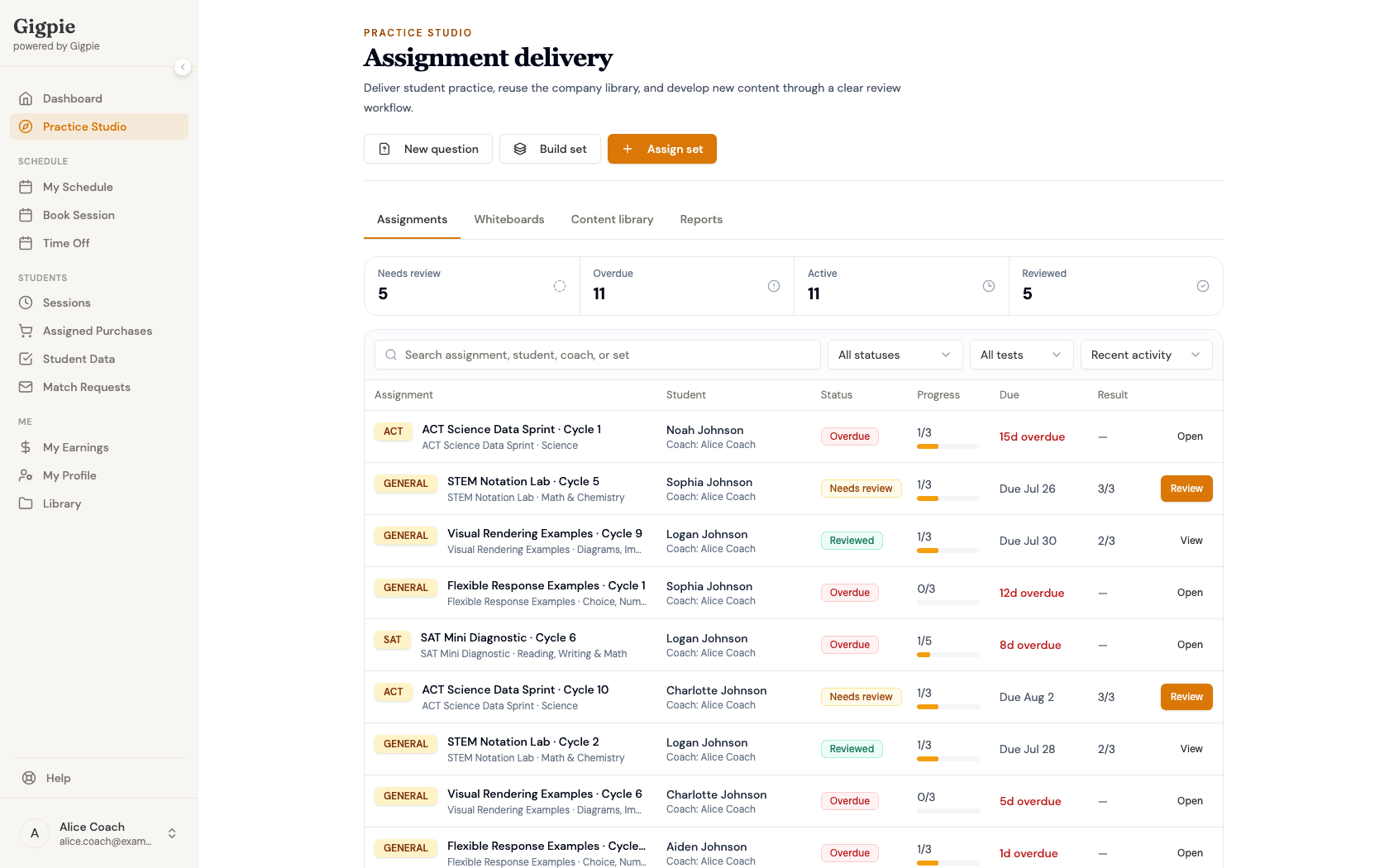
Click Practice Studio in the navigation menu. The Assignments tab shows your queue at a glance, including how many attempts are waiting on your review.
- 2
Browse the content library
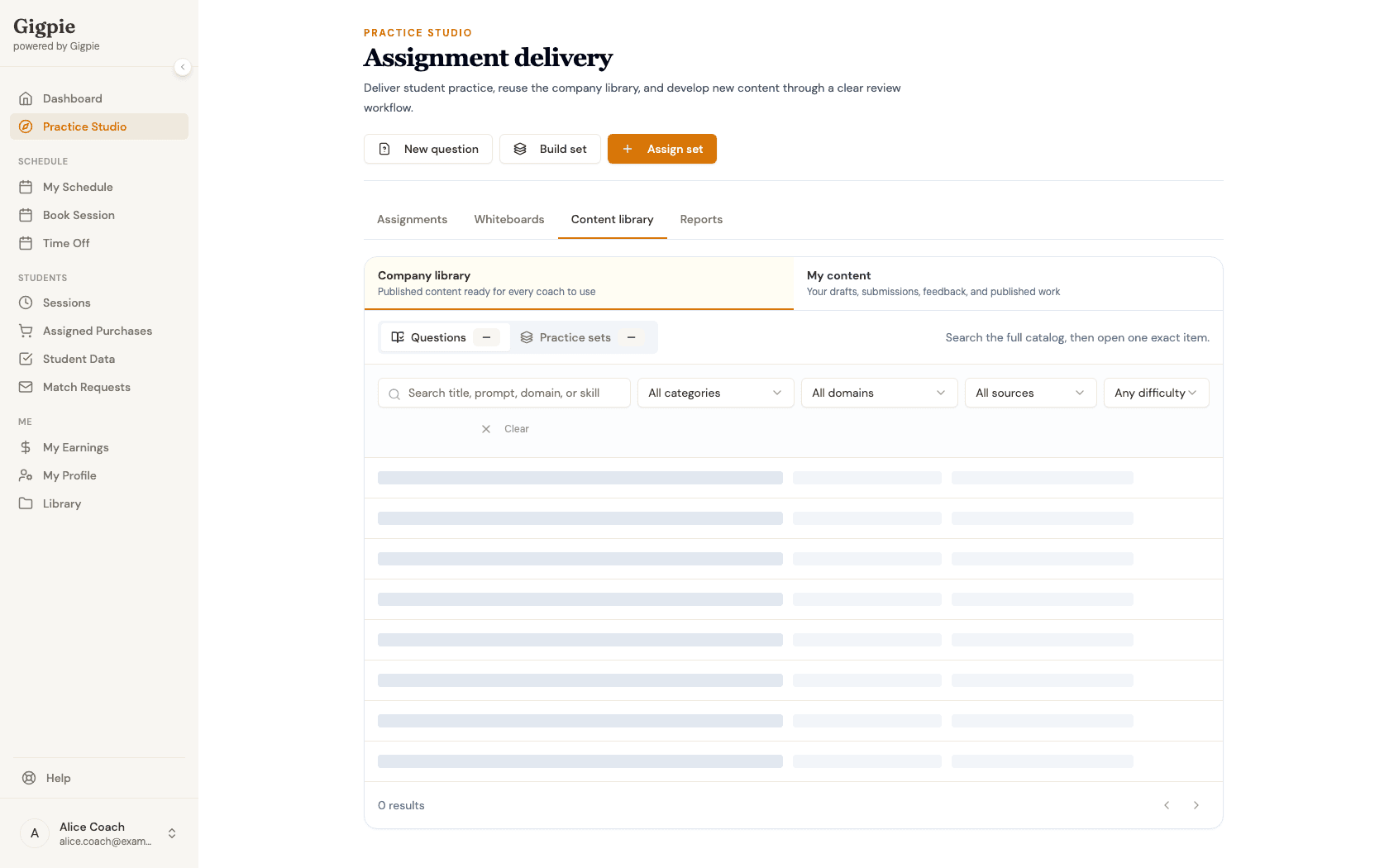
Switch to the Content library tab to see what's already available. It opens on the Company library — every question and set a reviewer has published, ready for any coach to reuse or assign as-is.
- 3
Author a new question
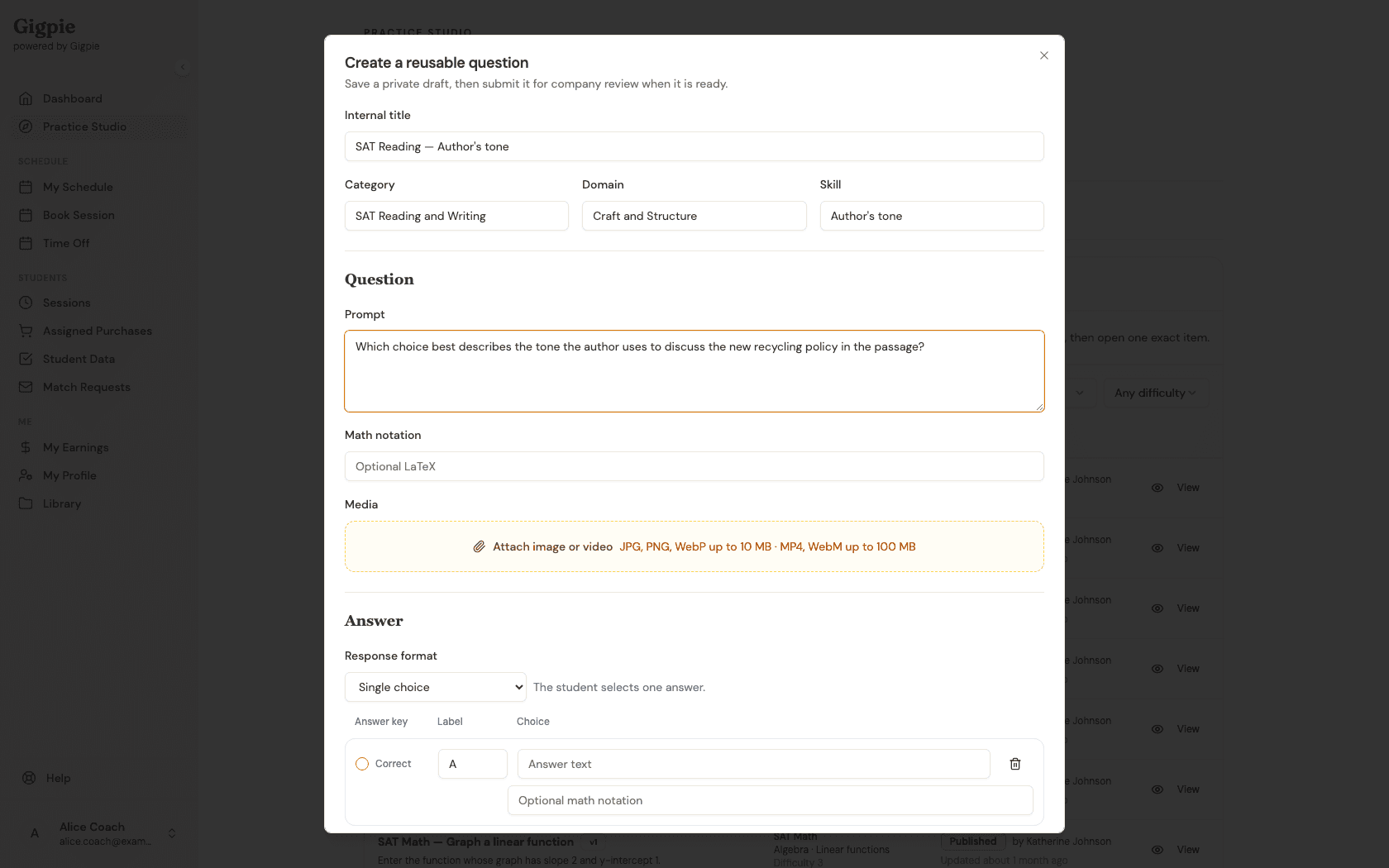
Click New question to open the authoring form. Give it an internal title, category, domain, and skill, then write the prompt and set up the answer key. Since you're not a reviewer, this saves as your own private draft rather than going straight into the company library.
- 4
Build a set and submit it for review
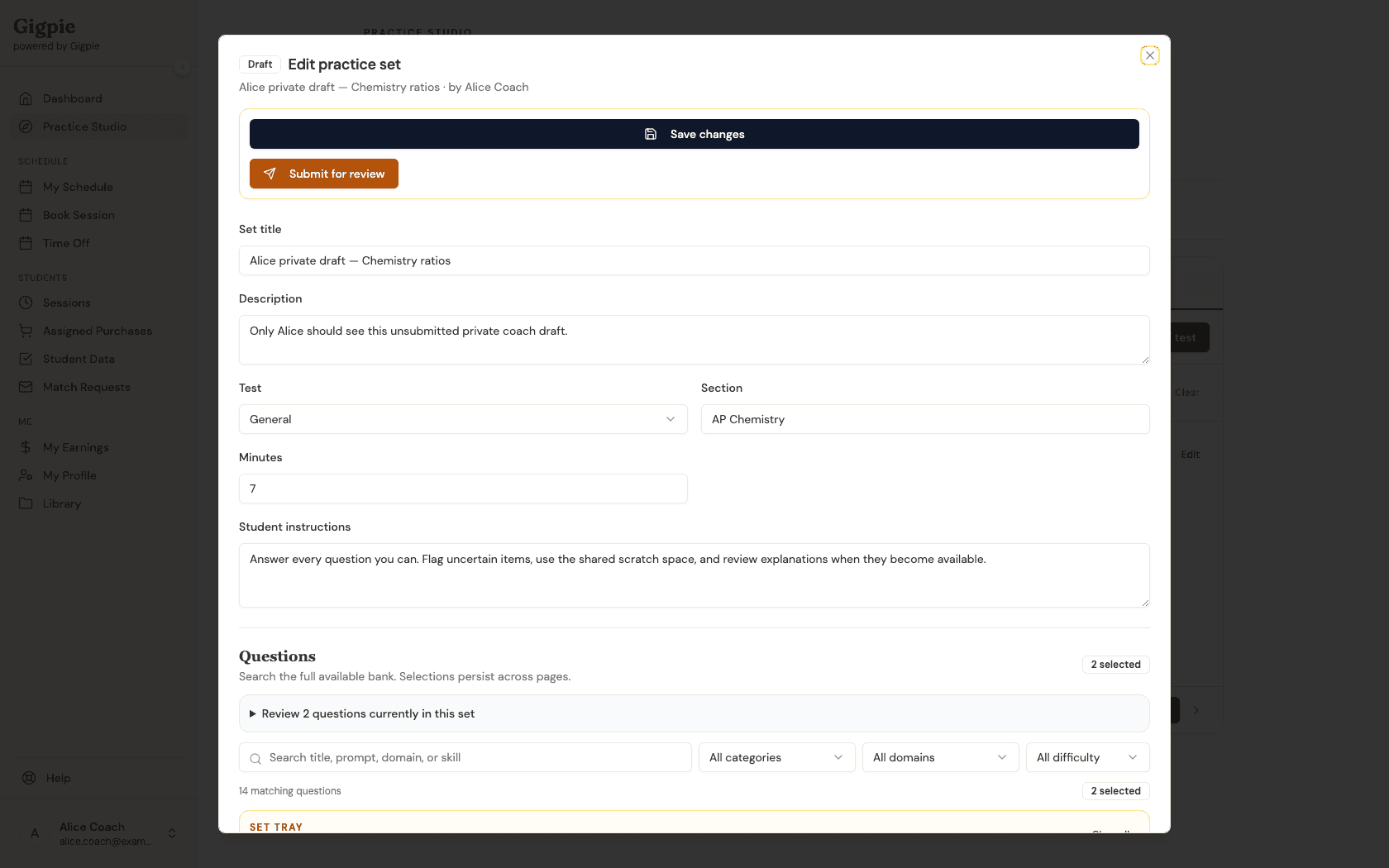
Under My content, open one of your own practice sets to add or remove questions from the picker. When it's ready for the company library, Submit for review sends it to a reviewer — you can keep editing until then.
- 5
Assign a practice set
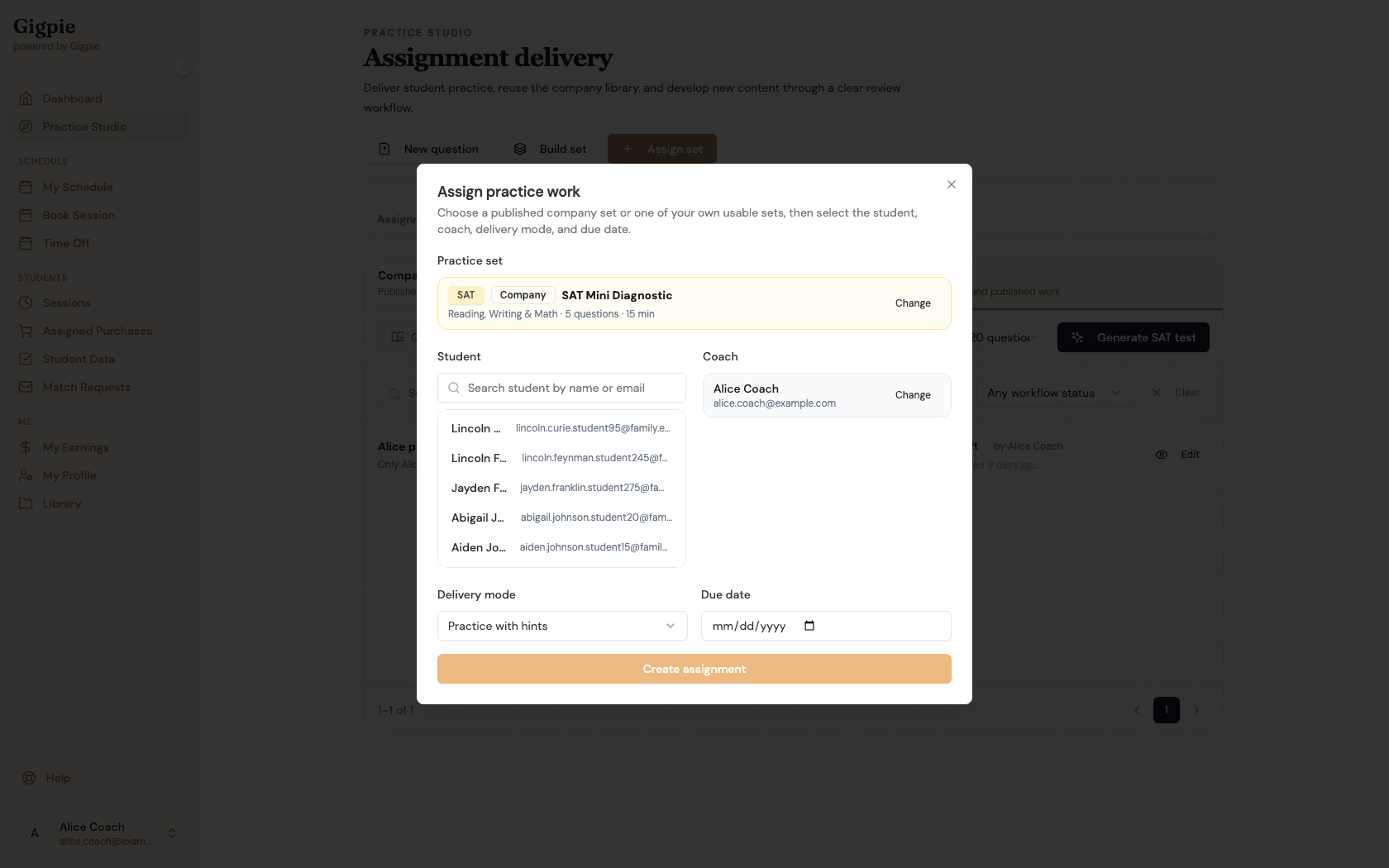
Click Assign set and search for the set you want to deliver — company-published sets and your own usable sets both show up here.
- 6
Choose the student and delivery mode
Pick the student from the search list, then open the delivery mode dropdown to choose how the work should run: Practice with hints, Timed live session, or Timed homework.
- 7
Confirm the assignment
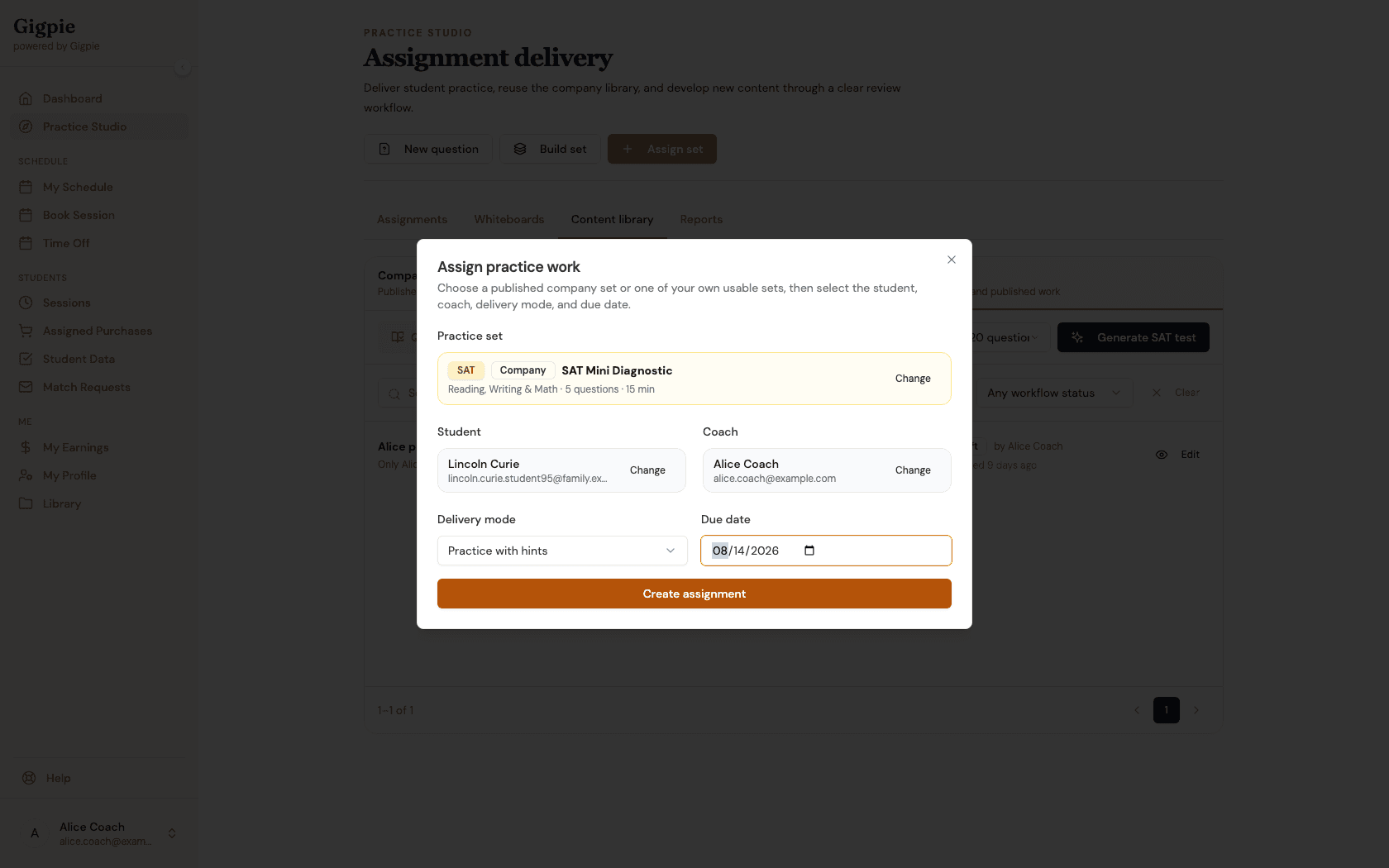
Set a due date if the work isn't due during a live session, review the summary, and click Create assignment to deliver it to the student.
Related Guides
- How to clear the practice review queue and leave feedback - Close the loop once a student submits
- How to use the shared session whiteboard - The collaborative workspace that comes with every assignment
- Practice Studio - The full authoring, review, and grading workflow