
How-To Guide - Coaches
How to review a submitted practice attempt and leave feedback
Clear your Practice Studio review queue: open a submitted attempt, check the score, and leave written feedback for the student.
Updated August 7, 2026
Overview
Once a student submits an assigned practice set, it lands in your Practice Studio queue waiting for review. Reviewing an attempt shows you the score, lets you step through what the student answered, and gives you a place to leave written feedback before the family sees it.
Reading the queue
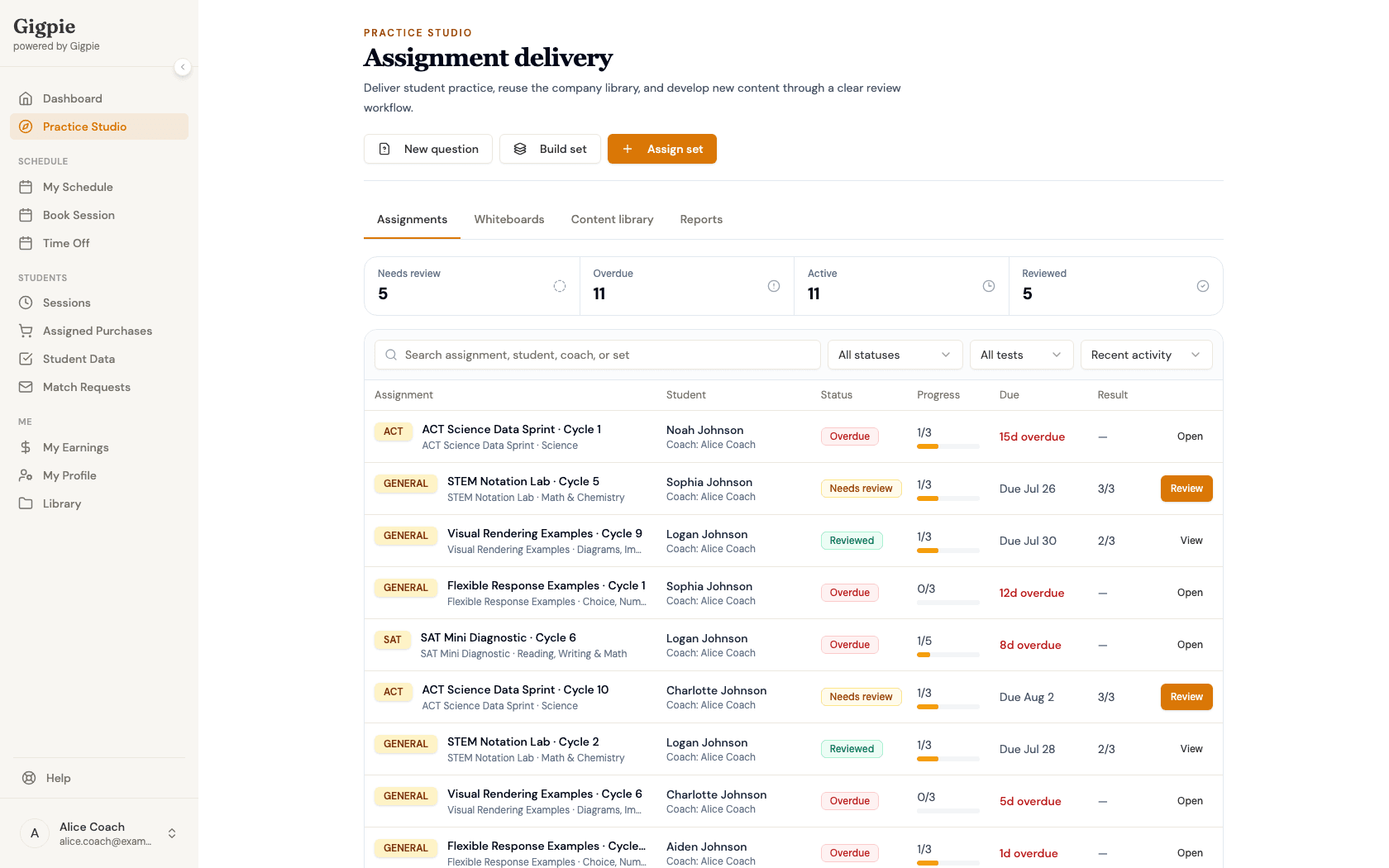
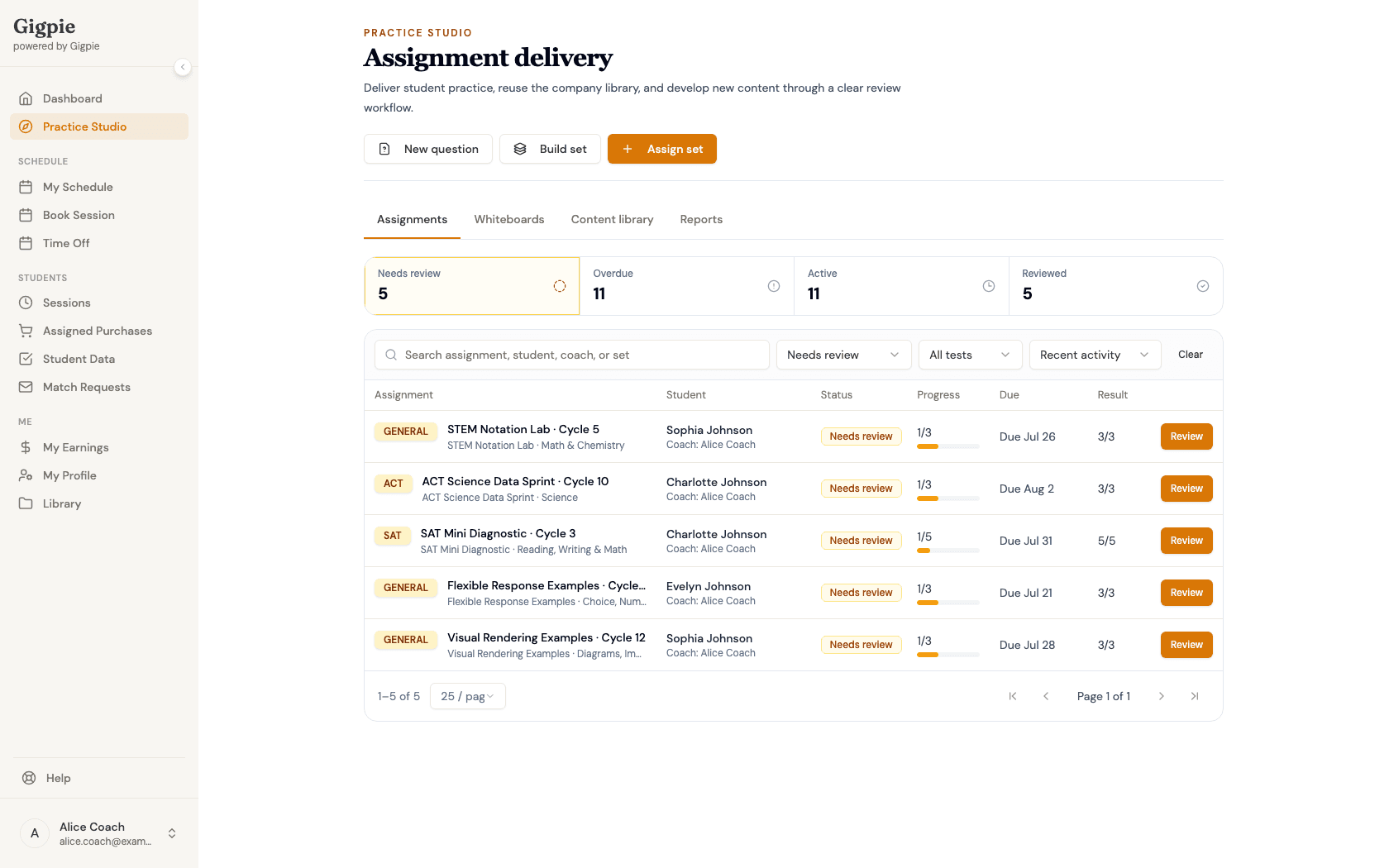
The Assignments tab opens with four counts at the top: Needs review, Overdue, Active, and Reviewed. Click any of them to filter the list instantly — Needs review narrows straight to submitted attempts that are waiting on you.
Leaving feedback
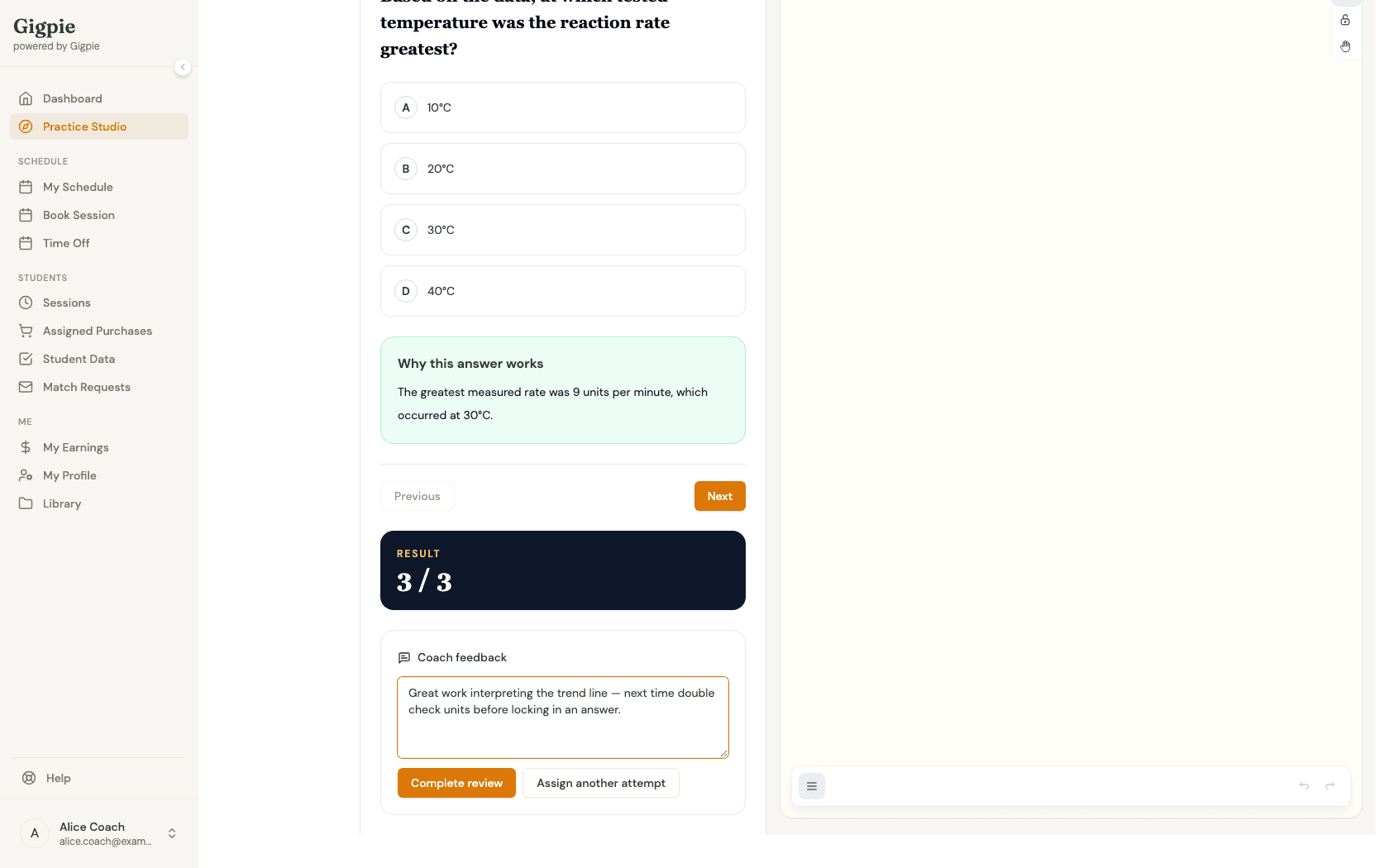
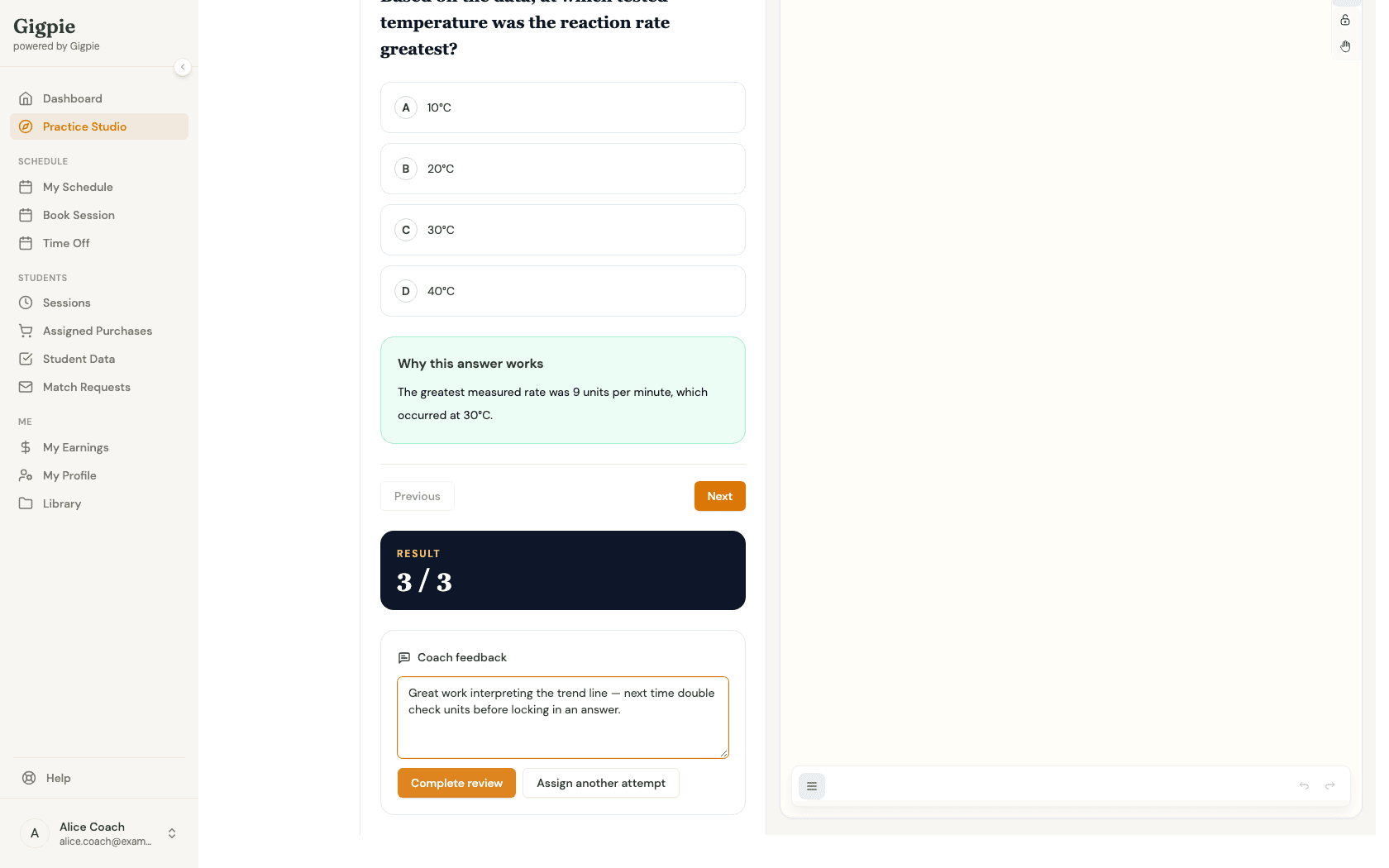
Coach feedback is a single free-text field — write a note on the strategy the student should repeat and what to practice next. There's no separate rubric or skill-by-skill score to fill in; a written note next to the overall result is the whole review. Completing the review makes your feedback visible to the student and their family, so a submitted attempt stays open for review until you do.
Steps
- 1
Open the assignment queue
Click Practice Studio in the navigation menu. The Assignments tab opens on your queue, with Needs review, Overdue, Active, and Reviewed counts across the top.
- 2
Filter to Needs review
Click the Needs review tile to narrow the list to submitted attempts waiting on you.
- 3
Open a submitted attempt
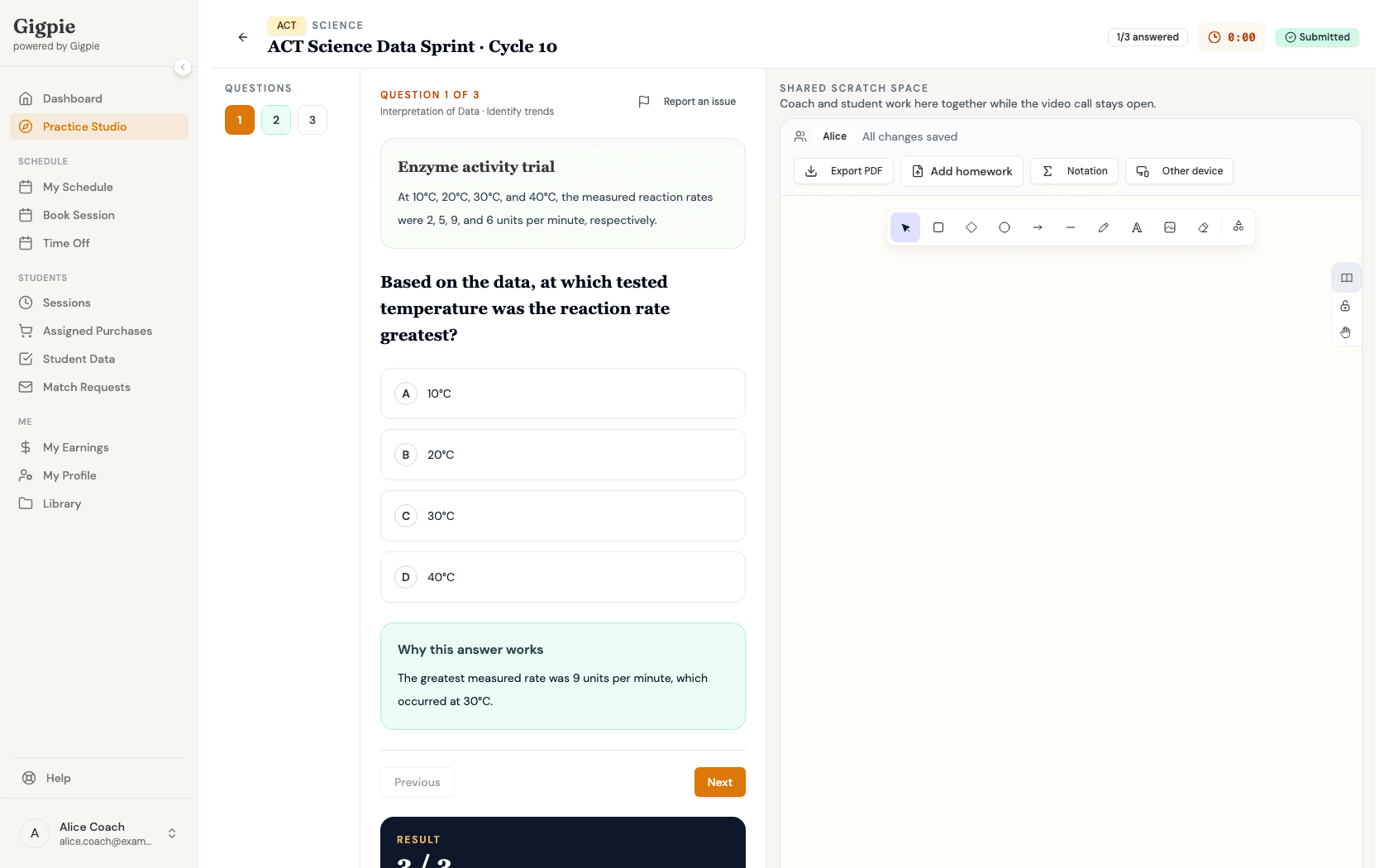
Click Review on a row to open that student's attempt.
- 4
Review the scoring view
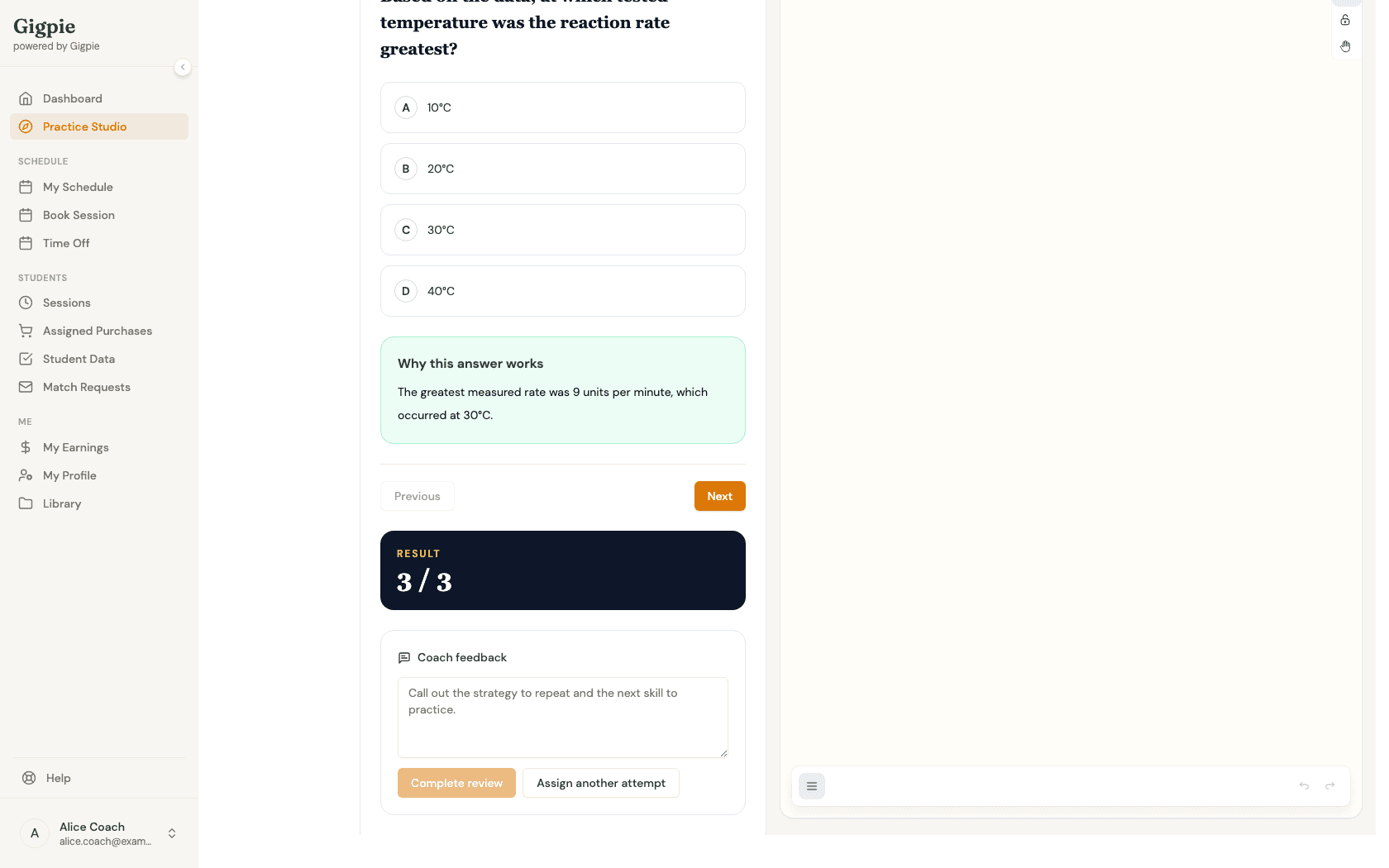
Scroll down to see the overall result and step through each question with Previous and Next — every question's worked explanation is available once the attempt is submitted.
- 5
Leave written feedback
Type a note in the Coach feedback field — call out the strategy to repeat and the next skill to practice.
- 6
Complete the review
Click Complete review to save your feedback and mark the attempt Reviewed — this is what makes your notes and the score visible to the student and family.
Related Guides
- How to author, build, and assign a practice set - Where the assignment you're reviewing came from
- How to use the shared session whiteboard - The same scratch space students use while working through an assignment
- How to mark a session complete and add notes - Another way to close the loop after a session