
How-To Guide - Coaches
How to use the shared session whiteboard
Open the collaborative whiteboard from a session, tour the canvas, and pair a student's tablet by QR code.
Updated August 10, 2026
Overview
Every session comes with a shared whiteboard you and the student can draw, write, and work through problems on together. It's a real collaborative canvas, not a static image — changes from either side show up for the other in real time, and everything you draw is saved automatically so it's still there the next time you open that session.
One whiteboard, wherever you open it
The whiteboard on a session's detail page, the one behind the Whiteboard button inside a native video call, and the scratch space attached to a Practice Studio assignment are all the same system under the hood. Open it from a session and it opens in its own page; open it during a native call and it stays on screen next to the video instead. Either way, it's the same canvas, the same saved work, and the same live updates.
Parents aren't part of this live-session whiteboard — it's built for the coach and student working together in the moment.
Bringing in a second device
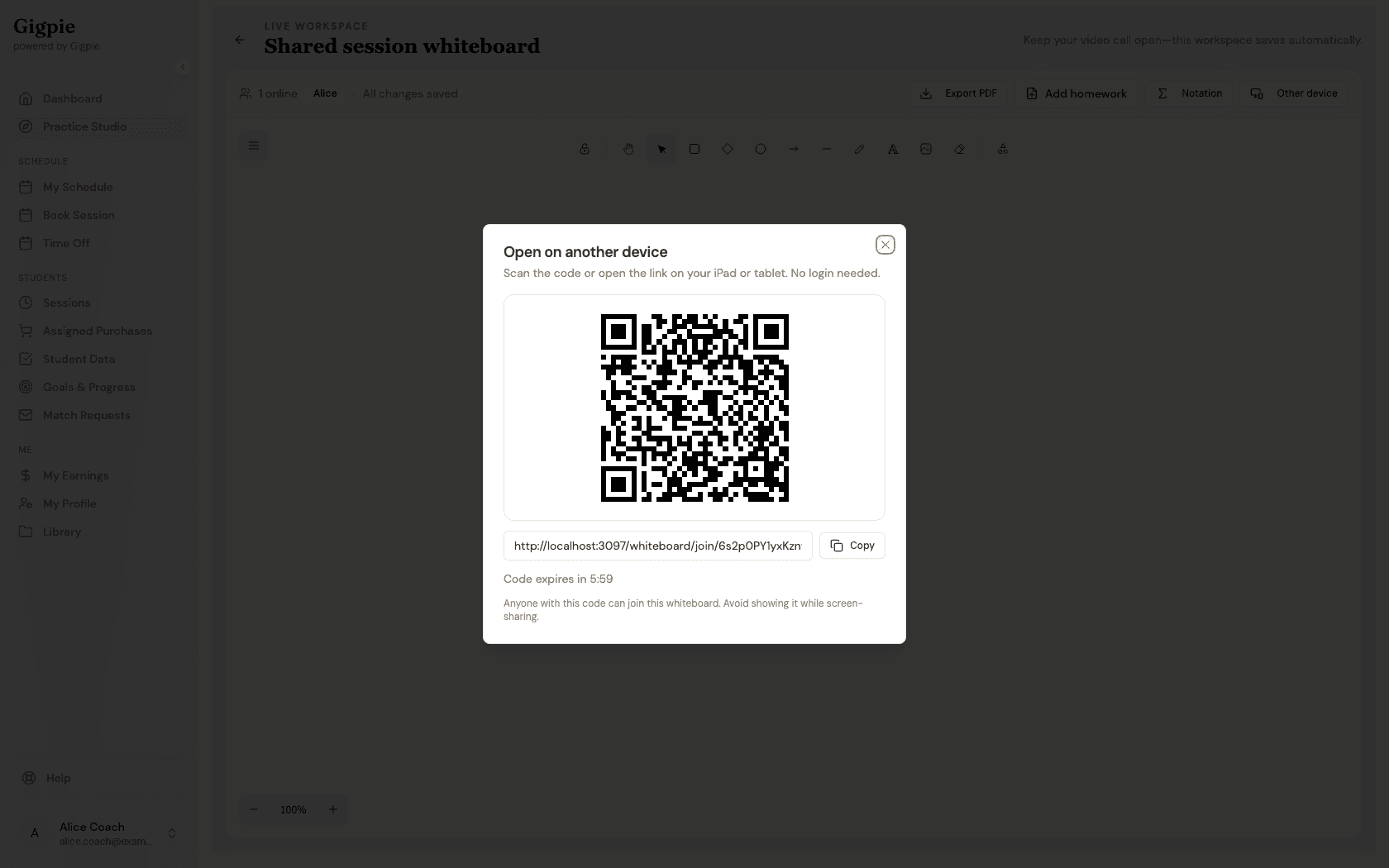
If a student wants to work on a tablet alongside a laptop, Other device shows a QR code that opens the same whiteboard on any second screen — no separate login required. The code is single-use and expires after a few minutes, so it's meant to be scanned right away rather than shared or saved.
Steps
- 1
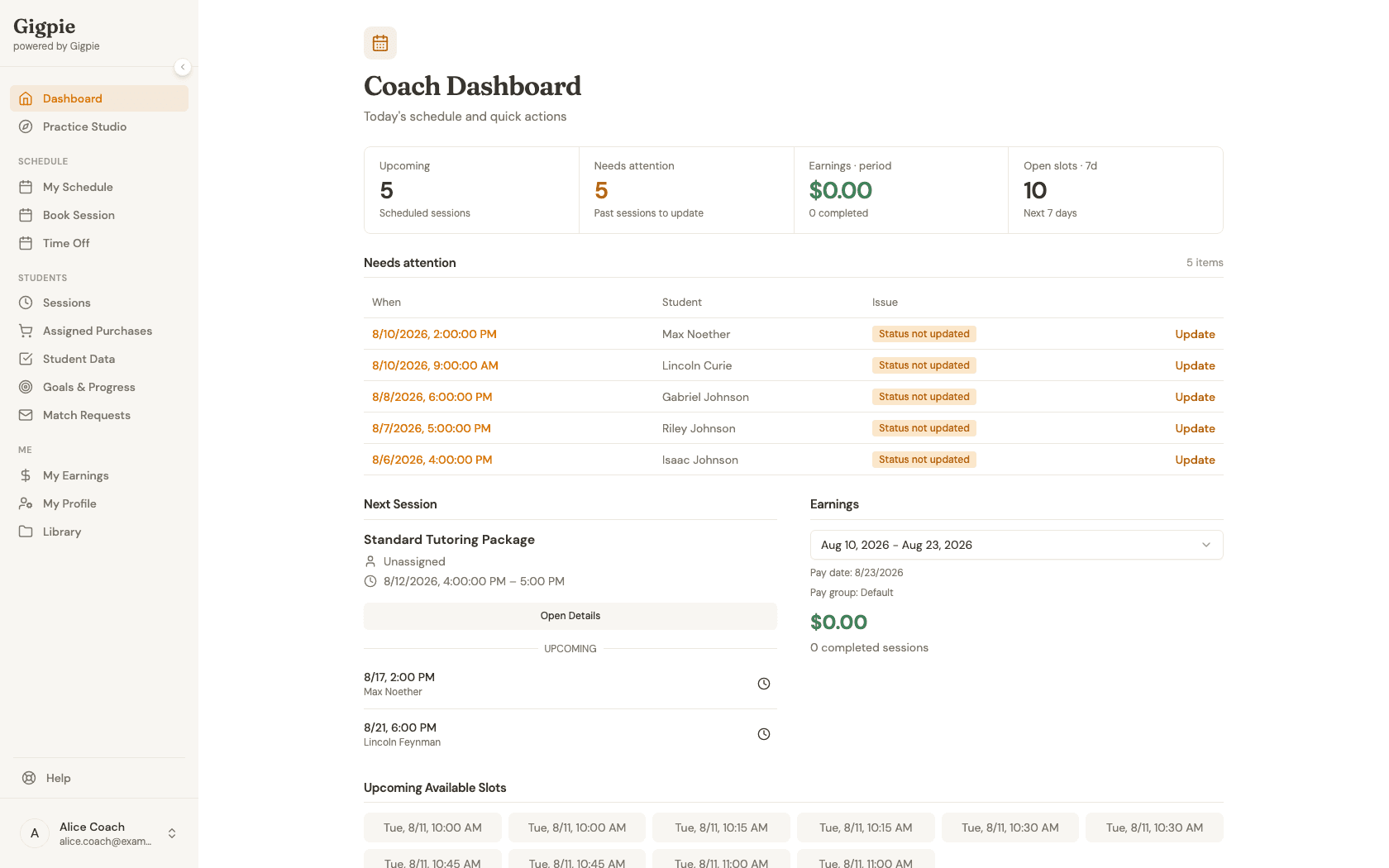
Sign in as a coach
Sign in to see your Coach Dashboard.
- 2
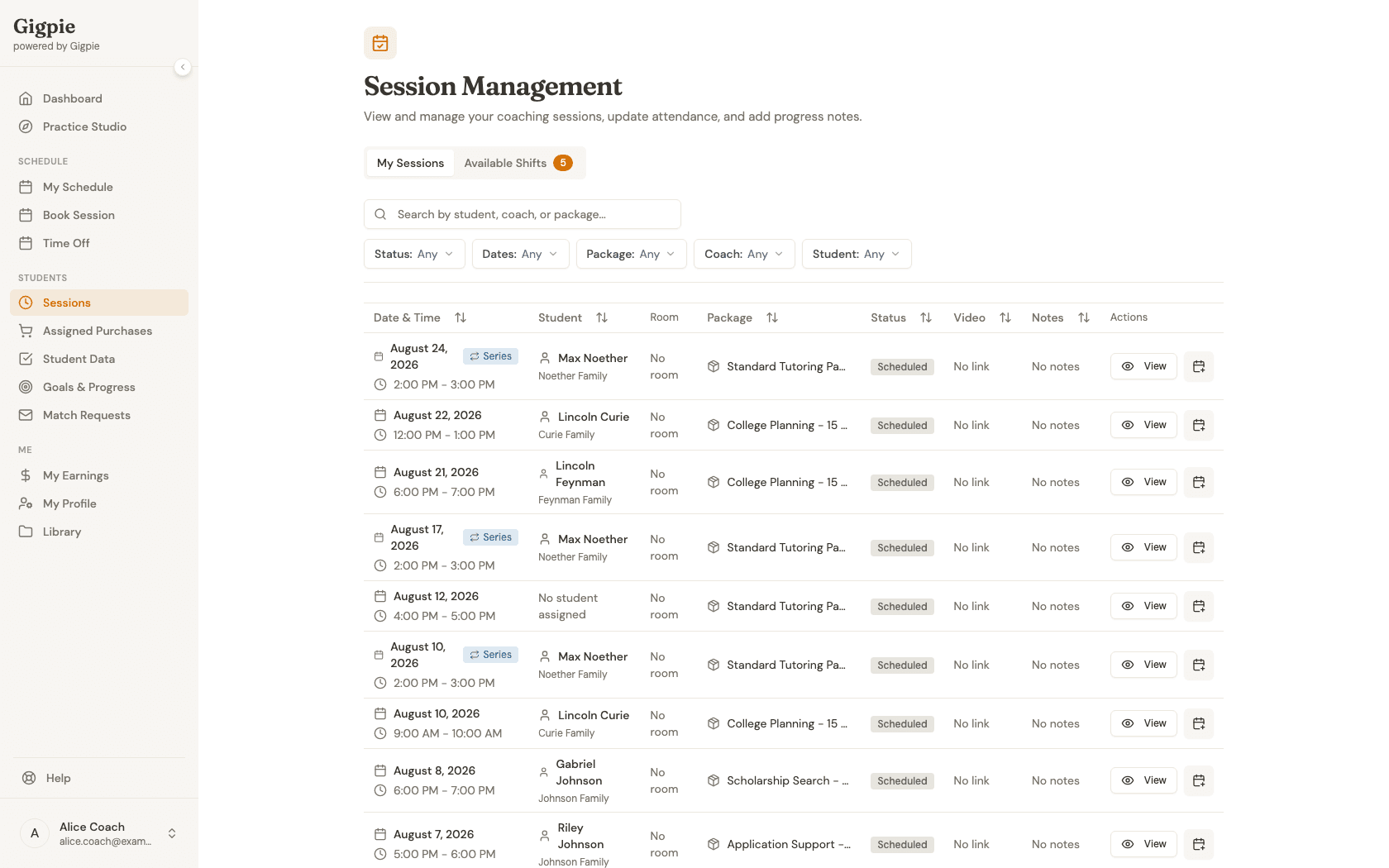
Navigate to Sessions
Click Sessions in the navigation menu to see your full session list.
- 3
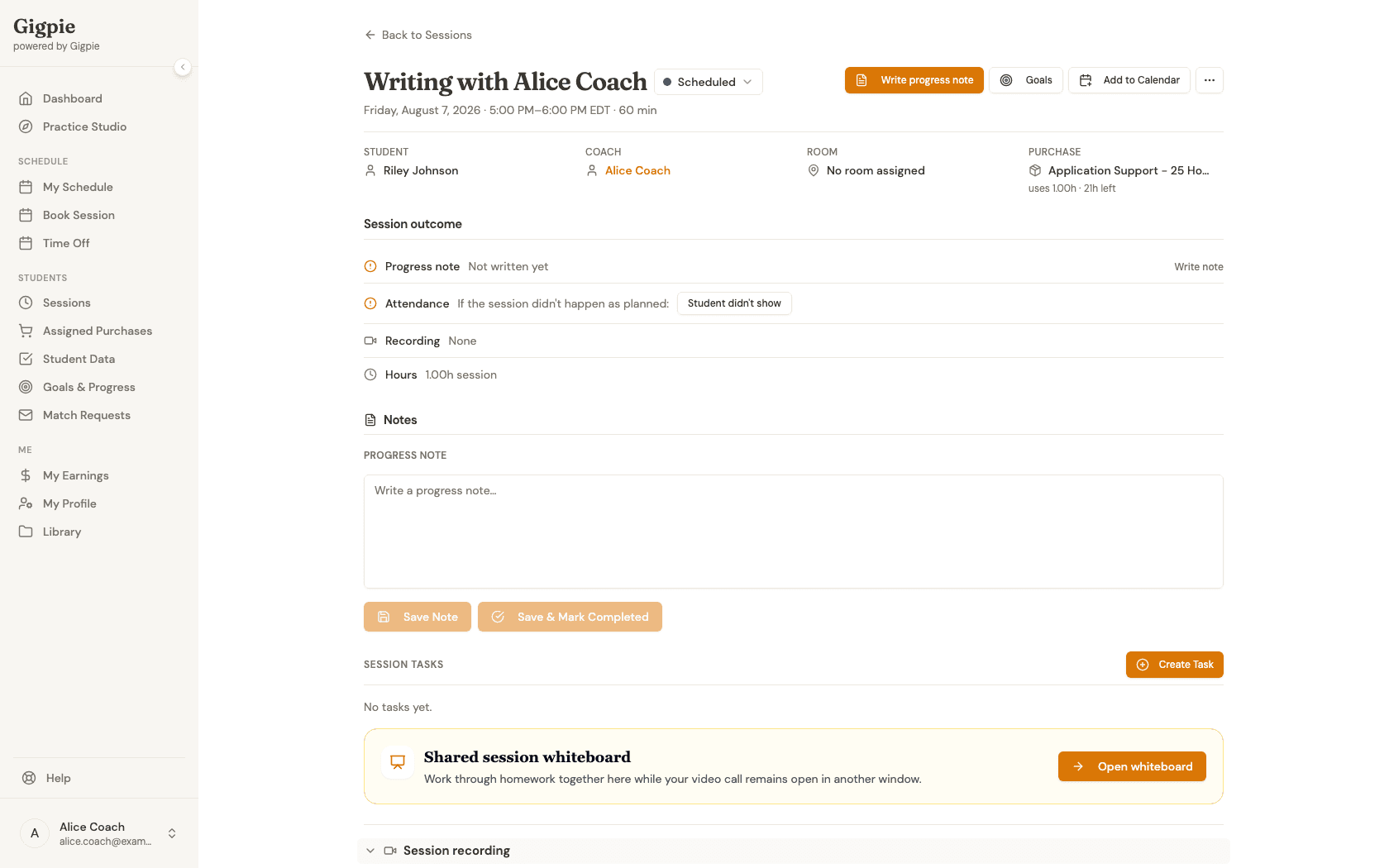
Open the session
Click View on the session you want to work in. Scroll down to the Shared session whiteboard card.
- 4
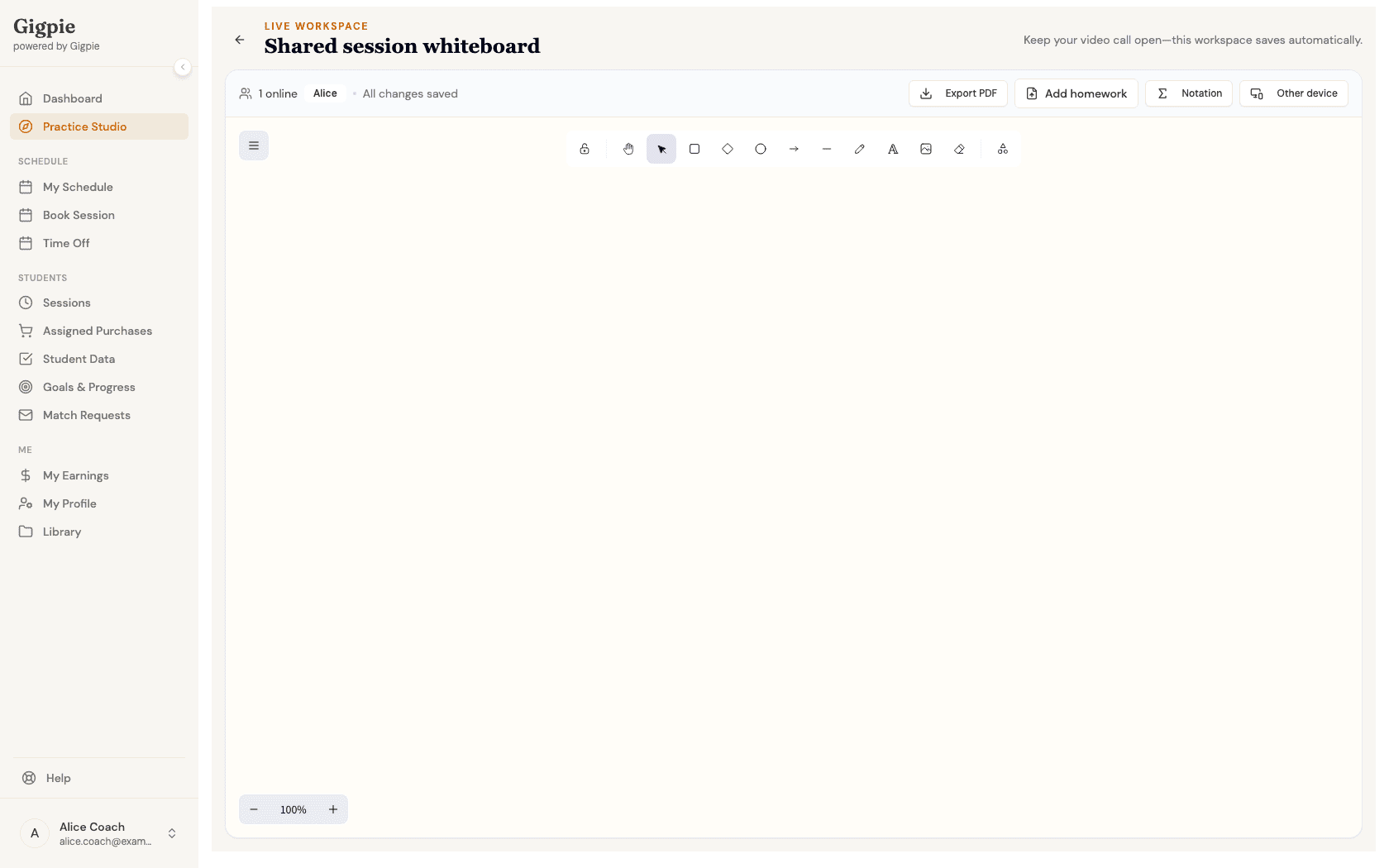
Open the whiteboard
Click Open whiteboard. The canvas opens with a full drawing toolbar, an Export PDF button for saving a copy, and a save-status indicator that confirms every change is captured automatically.
- 5
Pair another device
Click Other device to show a QR code the student can scan to open the same whiteboard on a tablet or second screen — no login needed, and the code expires after a few minutes.
Related Guides
- How to author, build, and assign a practice set - Assignments get this same shared scratch space automatically
- How to review a submitted practice attempt and leave feedback - Where this workspace shows up again during review
- How to join a session - What the same whiteboard looks like from inside a native video call