
How-To Guide - Parents
How to leave feedback after a session
Understand the feedback email you get after a session, what the two-question form asks, and what happens next depending on the rating you leave.
Updated August 7, 2026
Overview
Use this guide to understand the feedback request you get by email after a session, what the form asks, and what a 5-star vs. a lower rating actually triggers.
Before you start
- You had a session that has now been completed.
Where the request comes from
There's no feedback banner waiting for you inside Gigpie — the request arrives entirely by email, roughly 30-35 minutes after a session ends. (It's not instant: a background check for completed sessions runs every minute, and the feedback rule itself adds an explicit 30-minute delay before sending, so the timing is deliberate, not a bug.) The email includes a link straight to a short form — no login required, so you can leave feedback from your phone without signing in. Some feedback emails also include one-click star links that submit a rating the instant you tap them, so only click through if you're sure — there's no confirmation step in between.
What the form actually asks
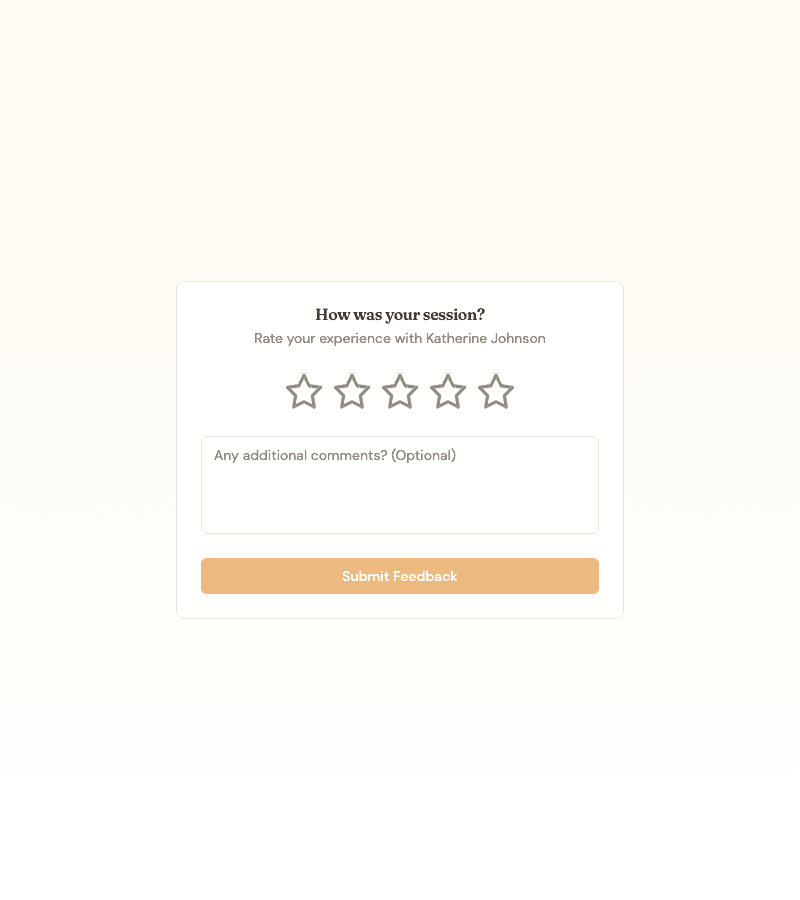
The form is short on purpose: a required 1-5 star rating, and an optional comment. That's it — no categories, no multi-question survey. If you change your mind later, you can revisit the same link and update your rating and comment; submitting again replaces your previous feedback rather than creating a duplicate.
What happens after you submit
A perfect 5-star rating is the only rating that, by default, prompts you to leave a public review on Google, Trustpilot, or Thumbtack (whichever your coordinator has set up) — anything below 4 stars doesn't just get quietly logged, either: it automatically alerts the company's admins with the session, coach, and your comment so they can follow up. Ratings of 4 stars sit in between and are simply recorded.
Steps
- 1
Open the feedback link from your email
Tap the link in the feedback email. It opens directly to a short form — you don't need to log in.
- 2
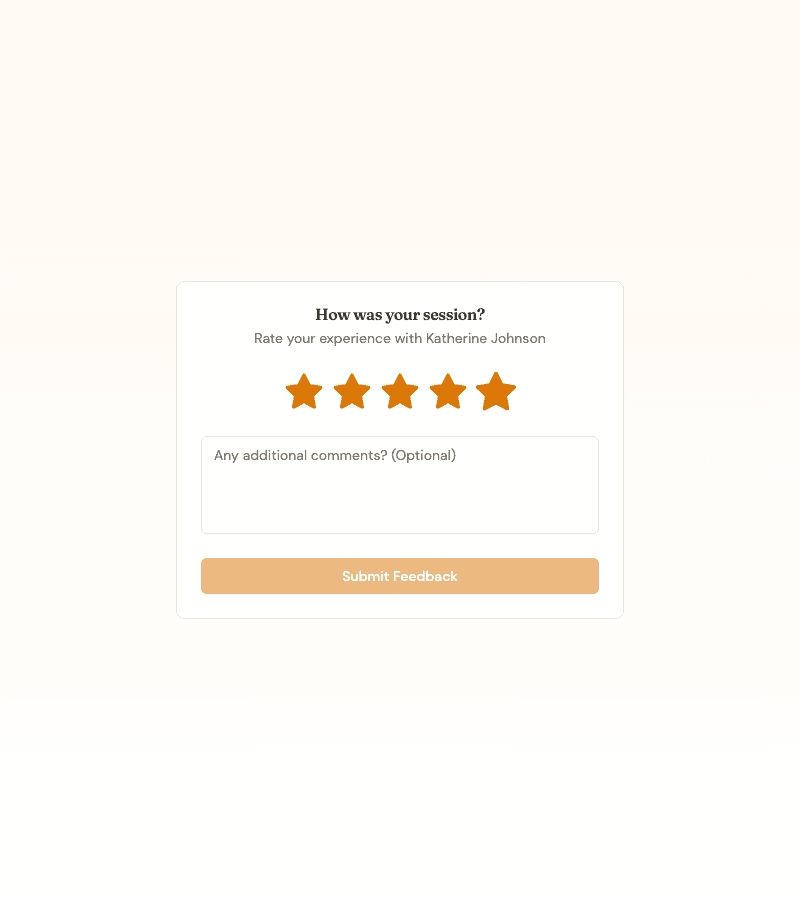
Choose a rating
Tap a star to rate your session from 1 to 5. Hovering or tapping shows a live preview before you commit to a rating.
- 3
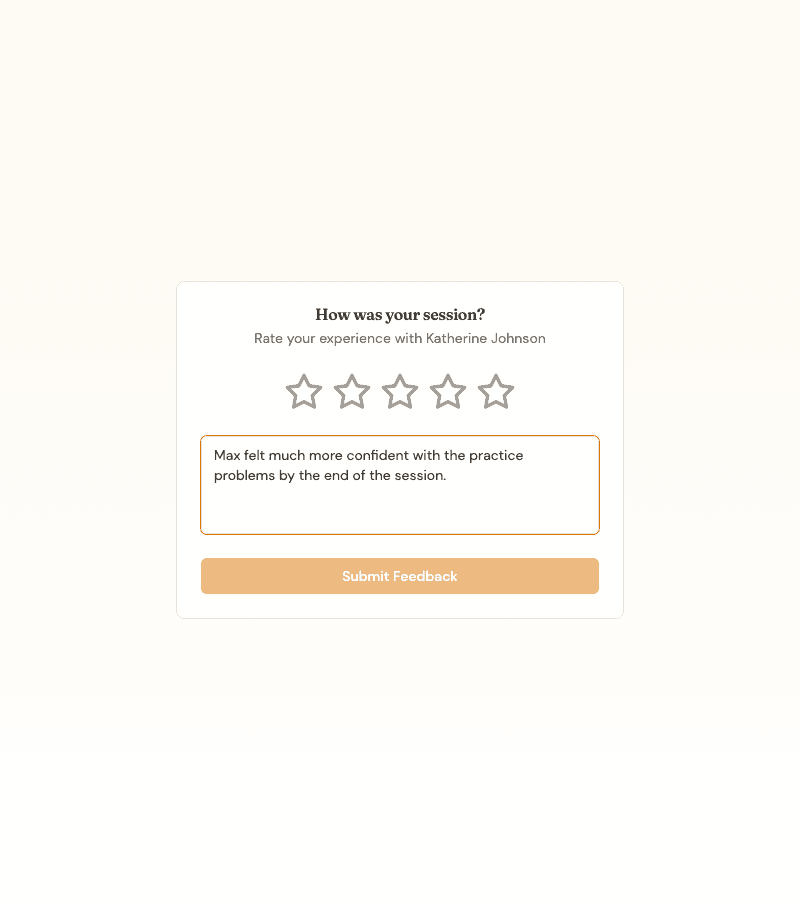
Add an optional comment
Add a comment if you'd like to say more — it's optional, and your coach and coordinator can both see it.
What you'll accomplish
- You know when and how the feedback request reaches you.
- You know the form asks exactly two things: a star rating and an optional comment.
- You understand what happens after you submit, depending on the rating.
Related Guides
- How to mark a session complete and add notes - Completing a session is what starts the ~30-minute countdown to this email
- How to review progress notes - Another place your coach's work on a session shows up
- Reputation & Reviews - How the review-platform funnel and admin alerts work end to end