
How-To Guide - Parents
How to view your student's schedule as a parent
Check upcoming tutoring sessions for all your students. See session times, assigned coaches, subjects, and meeting links in one place.
Updated August 10, 2026
Overview
The family sessions page shows all upcoming sessions for every student in your household. This central view helps you stay organized when managing multiple students or multiple subjects. You can see what's coming up, join sessions when it's time, and take action on individual appointments.
Understanding session information
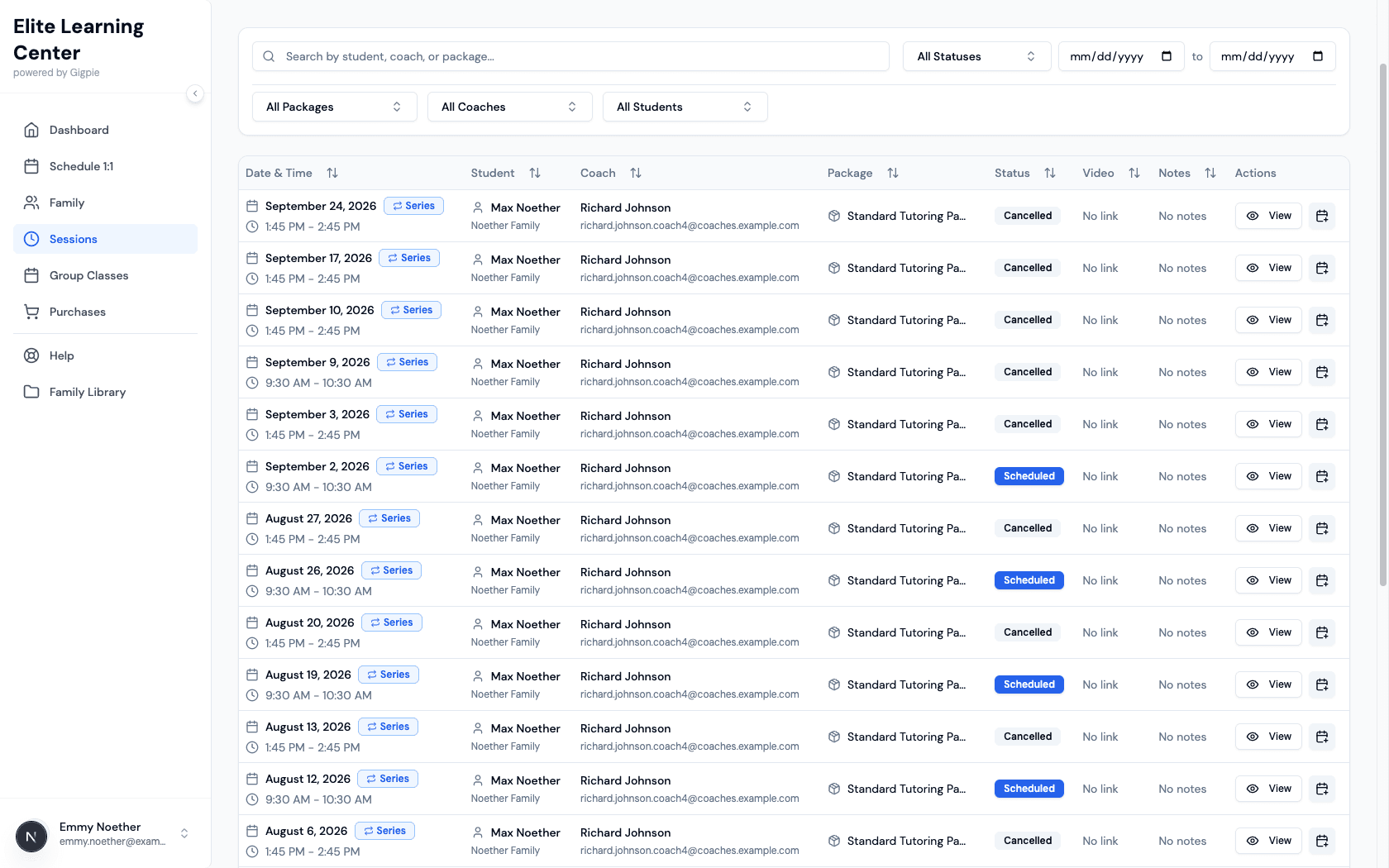
Each session displays the essential details you need: date and time, which student is attending, the coach's name, and the package being used. Recurring sessions show a special "Series" indicator so you know they're part of a sequence. This information helps you prepare students and coordinate family schedules.
What you can do from the schedule
From the session list, you can view full details about any session, join video calls when it's time, reschedule or cancel appointments, and report issues if they arise. This centralized access means you don't need to dig through emails or multiple systems to manage your tutoring schedule.
Tips for staying organized
- Check the schedule regularly to prepare students for upcoming sessions
- Set reminders on your personal calendar for important sessions
- Review session notes after appointments to track progress
- Coordinate with your student's school schedule to avoid conflicts
- Communicate with coaches if you notice scheduling patterns that don't work
Steps
- 1
Sign in and navigate to Sessions
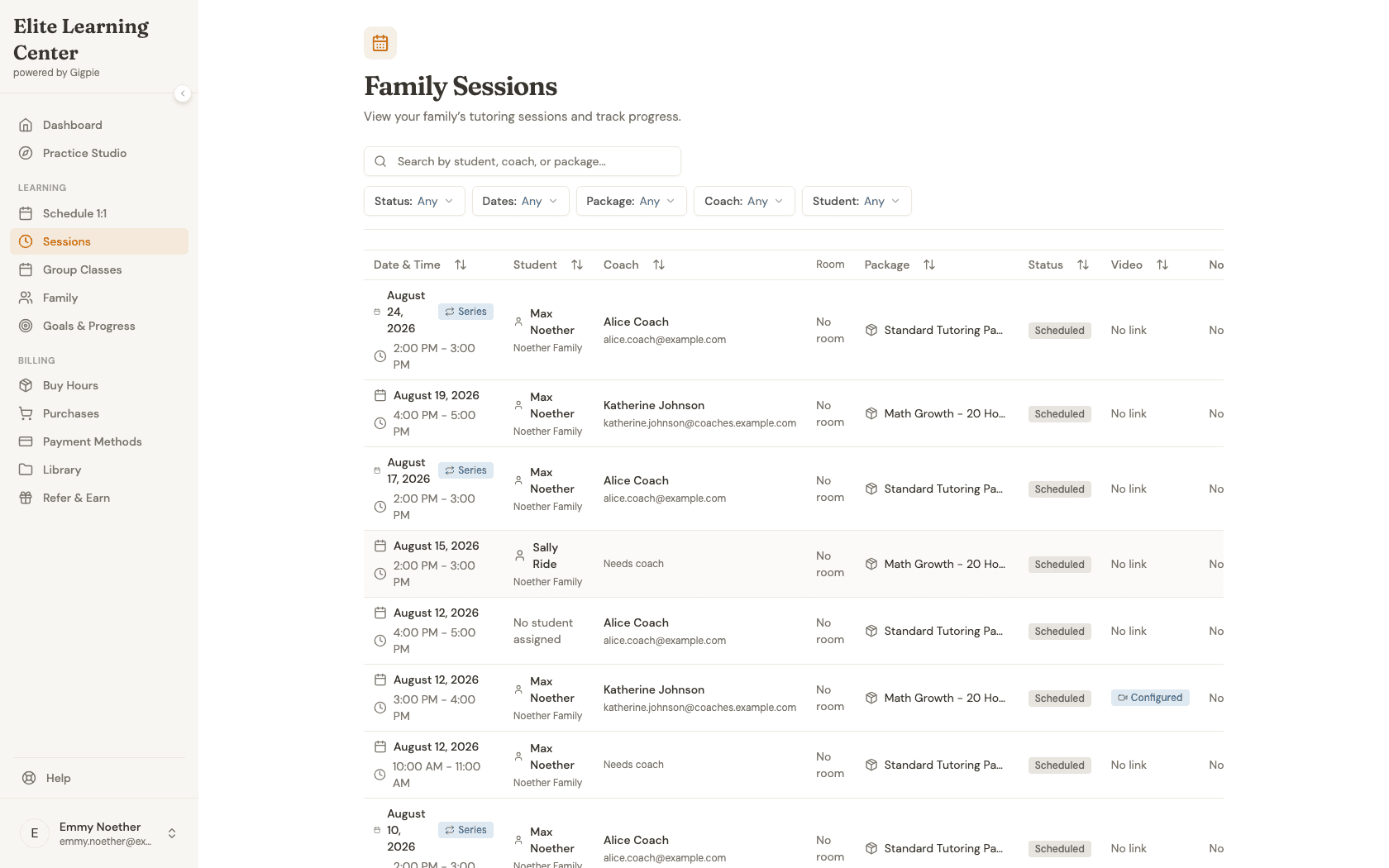
Sign in and click Sessions in the navigation menu to view your students' schedules.
- 2
View the session list
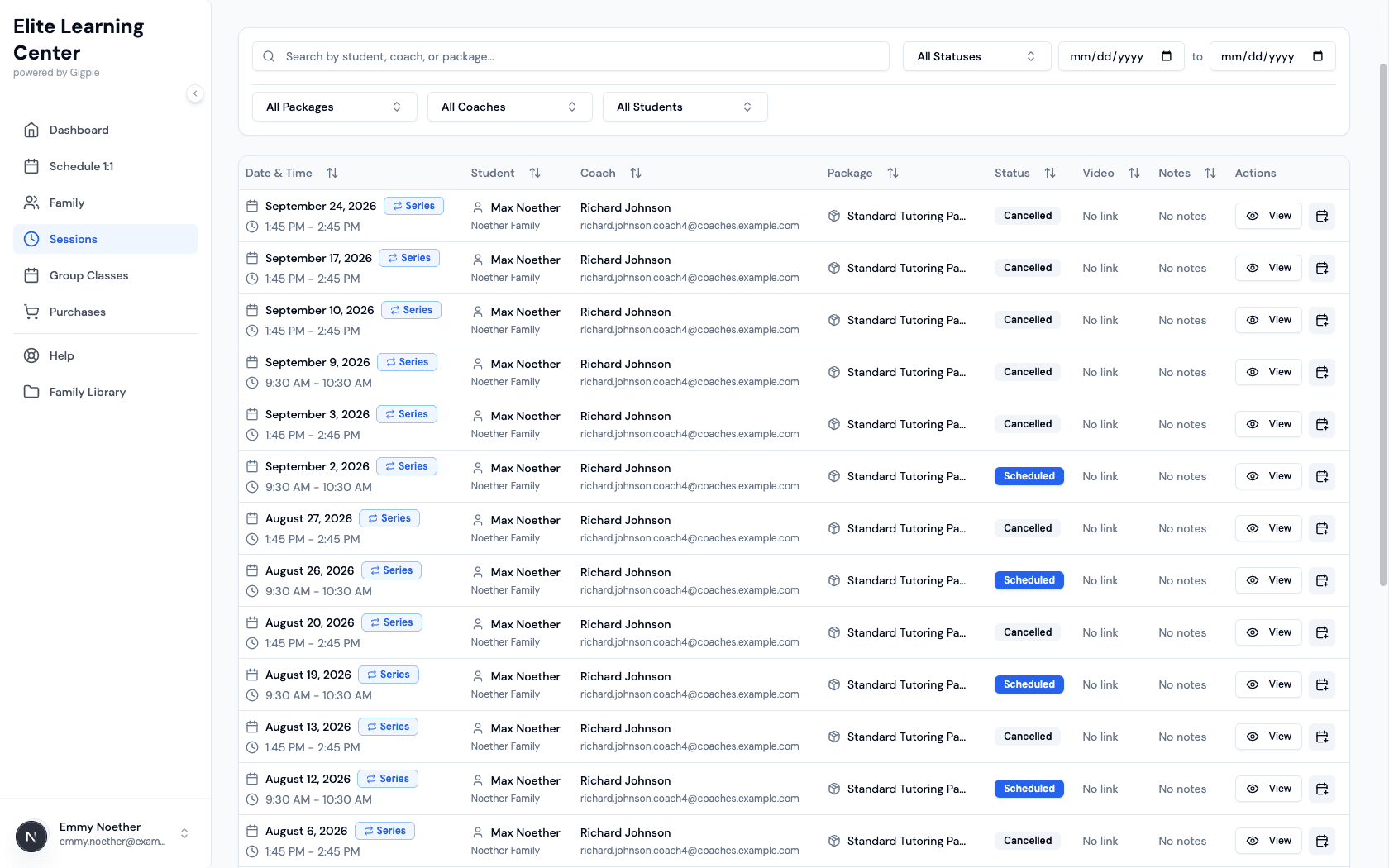
All your students' upcoming sessions are displayed in a sortable list, showing the date, time, student name, coach, and package.
- 3
Understand session information
Each session shows the date, time, student name, coach, and package. Recurring sessions display a "Series" badge.
- 4
Click on a session for details
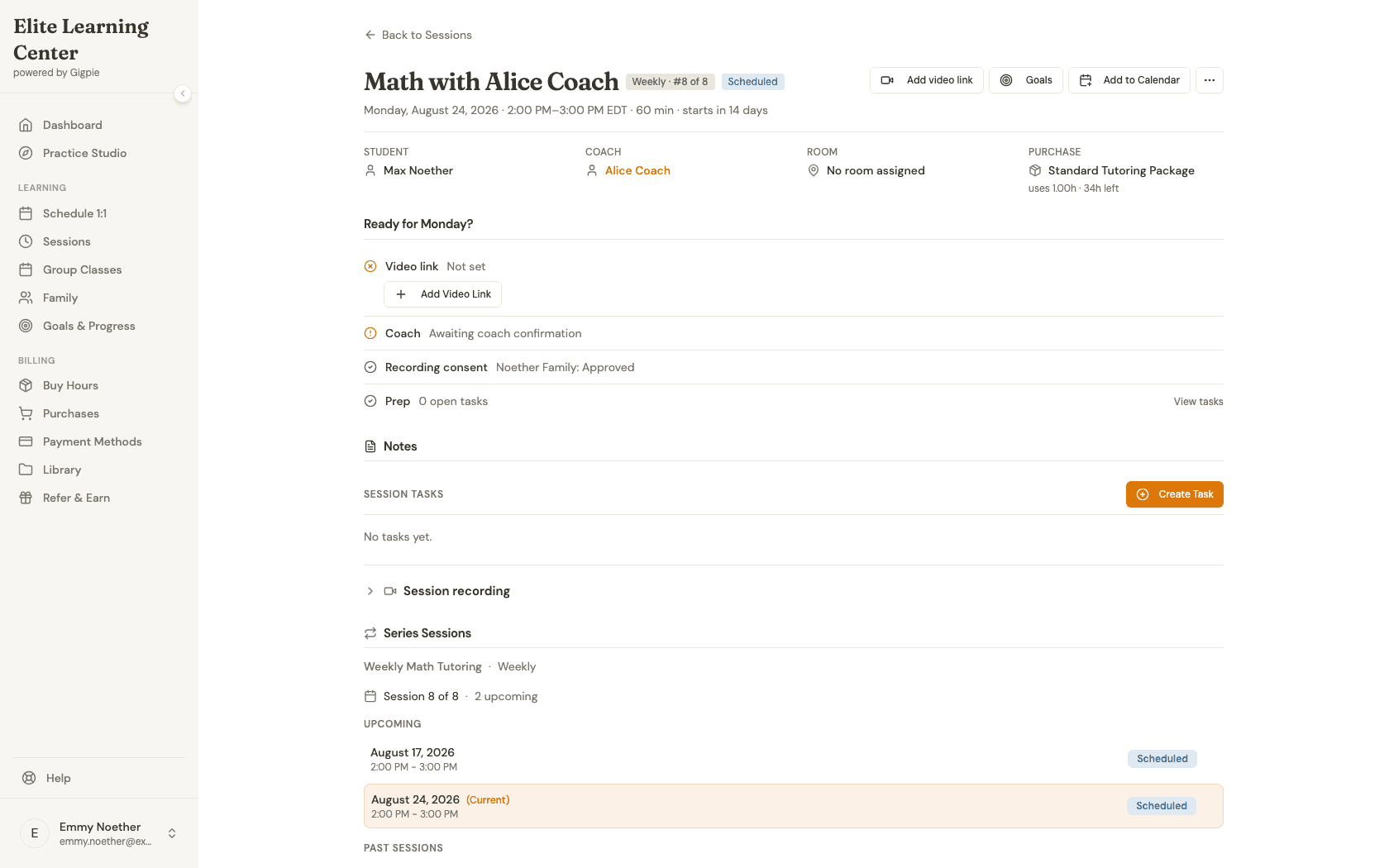
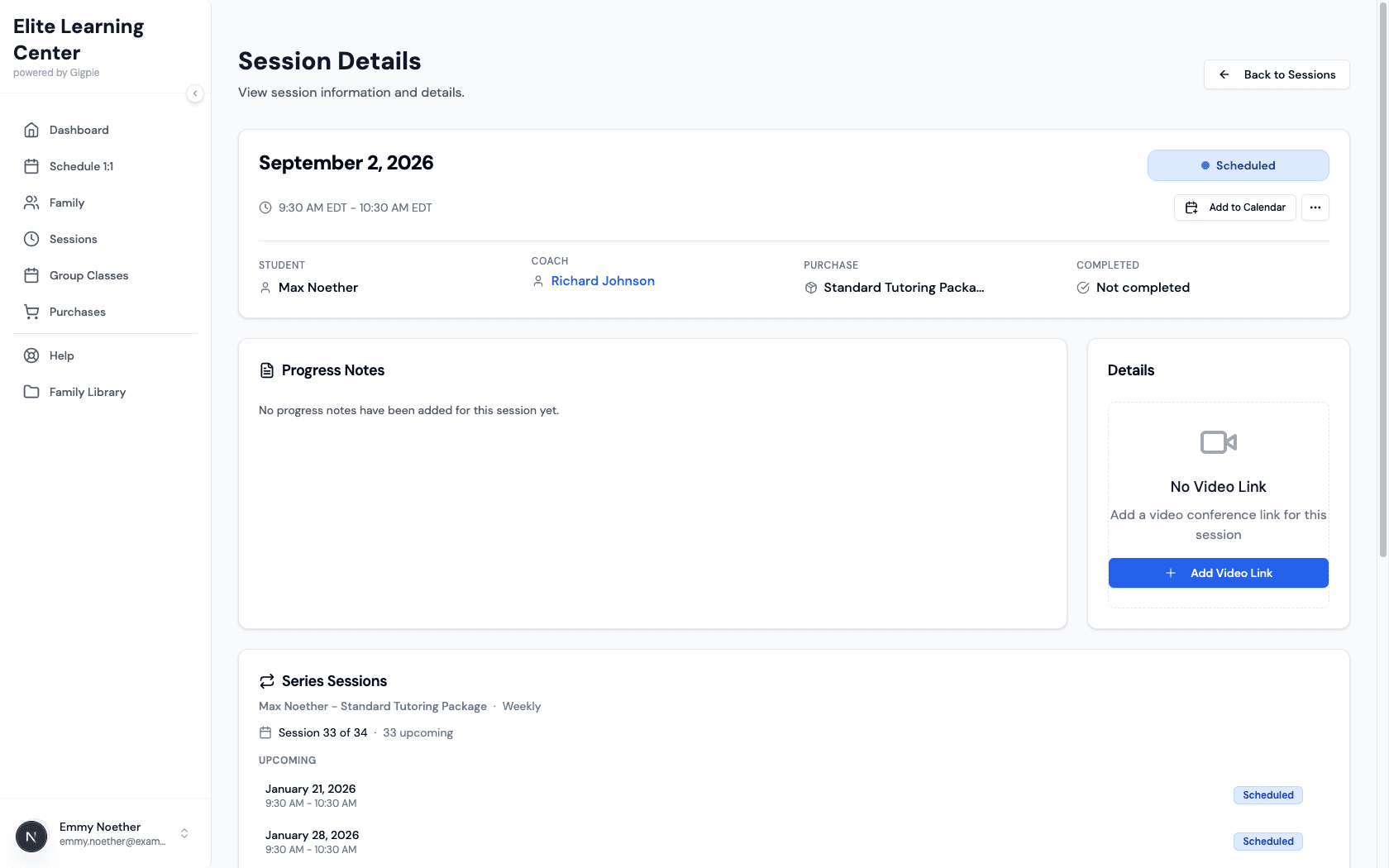
Click any session to see full details including student information, coach, time, package, and meeting link.
- 5
View session actions
Open the session actions menu to see options like Reschedule or Cancel Session. When a video link is set, a Join session button also appears in the header.
Related Guides
- How to schedule an appointment - Book new sessions for your student
- How to review progress notes - See feedback from past sessions
- Family Management Hub - How Gigpie tracks every child in your household