
How-To Guide - Parents
How to schedule an appointment as a parent
Follow this step-by-step guide to schedule a tutoring session as a parent. Choose a package, pick a time, and confirm your student's appointment with a coach.
Updated August 6, 2026
Overview
Use this guide to book a new appointment for your student. You will select an active package, choose a meeting length, pick an available time, and review the details before confirming.
Before you start
- You have an active package with available hours.
- A coach is assigned to the package.
- Your student is linked to your family account.
Choosing the right appointment type
One-time appointments work well for specific needs like test preparation or homework help on a particular topic. Recurring meetings establish a regular routine that helps students progress steadily toward long-term goals. Consider your student's learning objectives when deciding between the two options.
How availability works
The available time slots you see reflect when your assigned coach has marked themselves as available. If you don't see times that work for your schedule, contact your coach or the organization to discuss options. Coaches can sometimes adjust their availability to accommodate regular students.
Package hour management
Each appointment you book deducts from your package's available hours. A 60-minute meeting uses 1 hour from the package. Before booking, check your package balance to ensure you have enough hours remaining. If you're running low, you can purchase additional hours before or after scheduling.
Steps
- 1
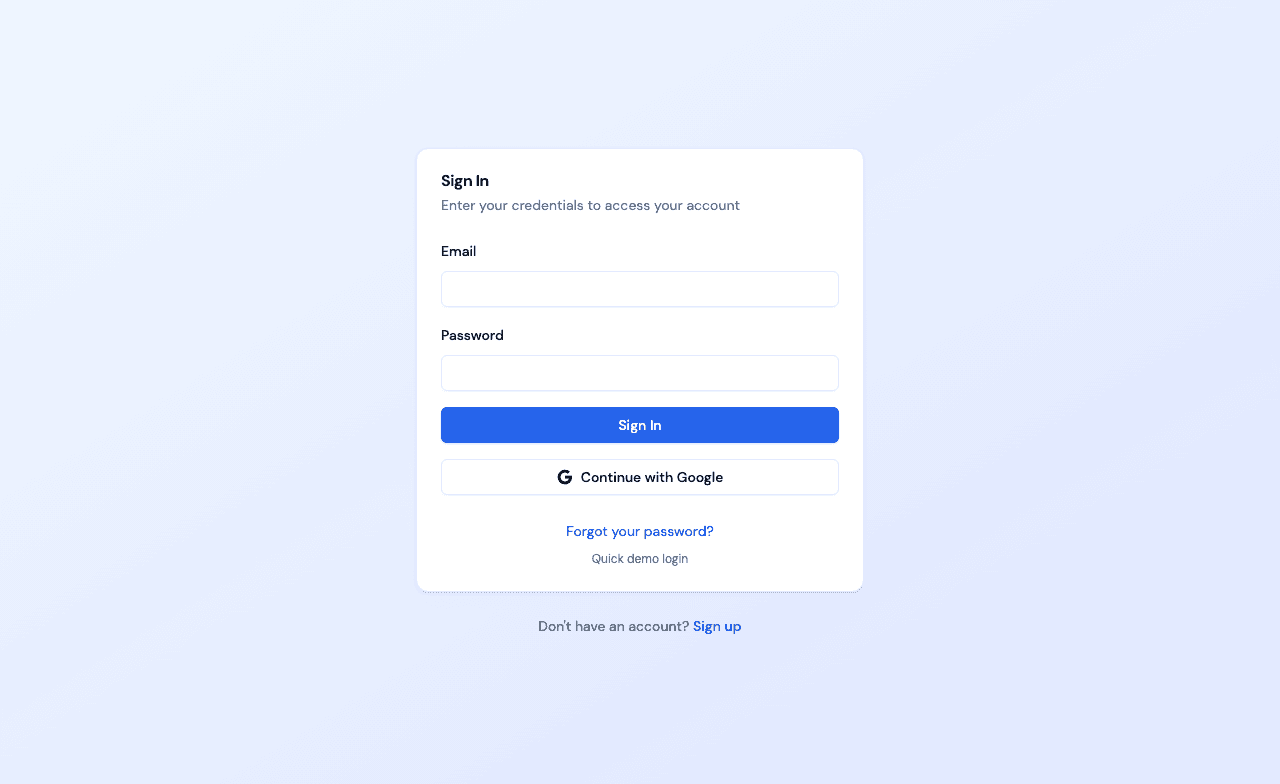
Sign in as a parent
Sign in with your parent account credentials. You'll land on your Family Dashboard, which shows your active packages, upcoming sessions, and anything that needs your attention.
- 2
Open the scheduling page
Click Schedule 1:1 in the sidebar to open the booking page and see your active packages.
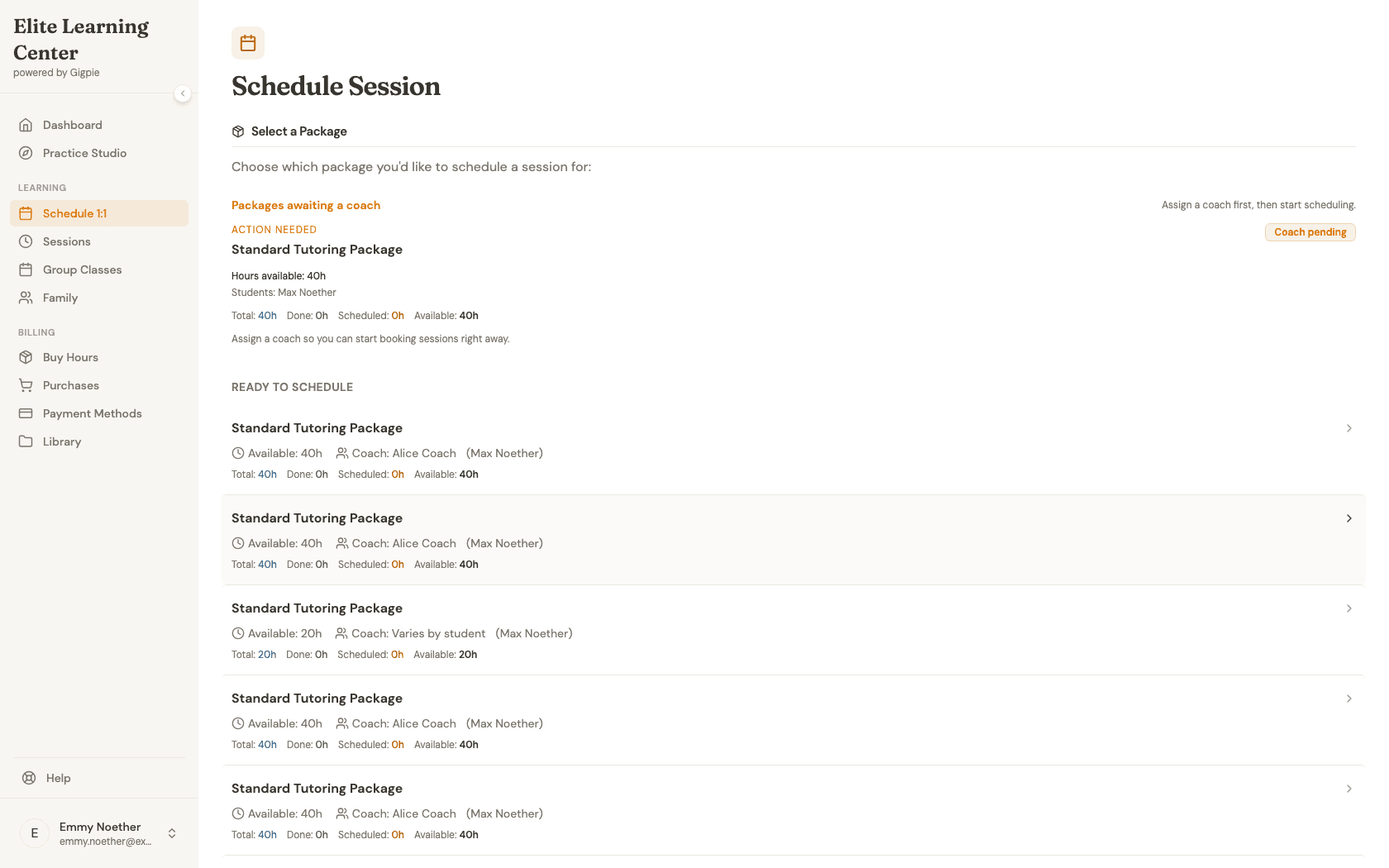
- 3
Choose a package
Select the package with available hours for your student.
- 4
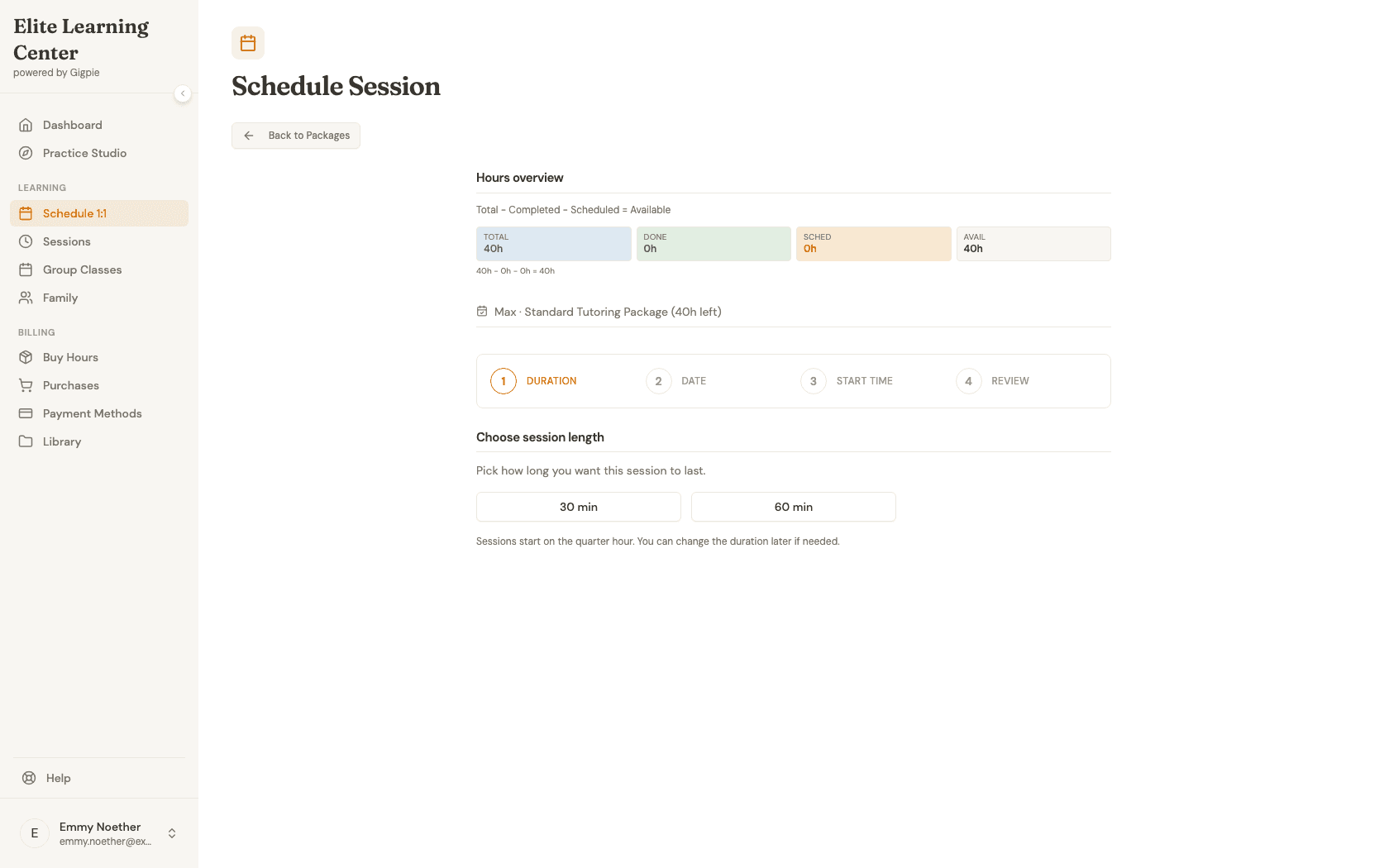
Choose a meeting length
Pick the duration that matches your student's needs. If only one length is available, it will be selected automatically.
- 5
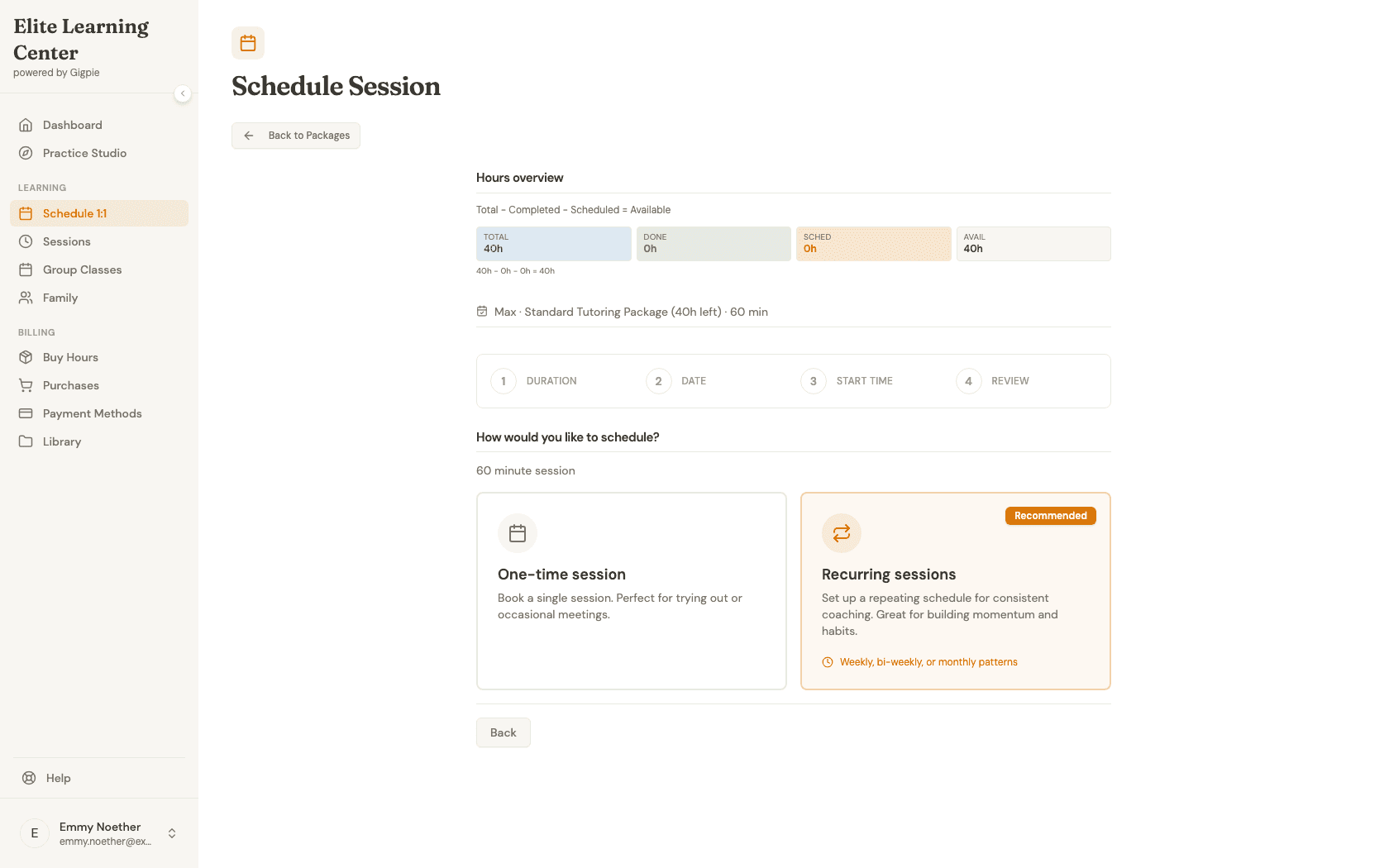
Choose one-time or recurring
Select whether you want a one-time appointment or recurring meetings. Regular appointments are recommended for building consistent habits.
- 6
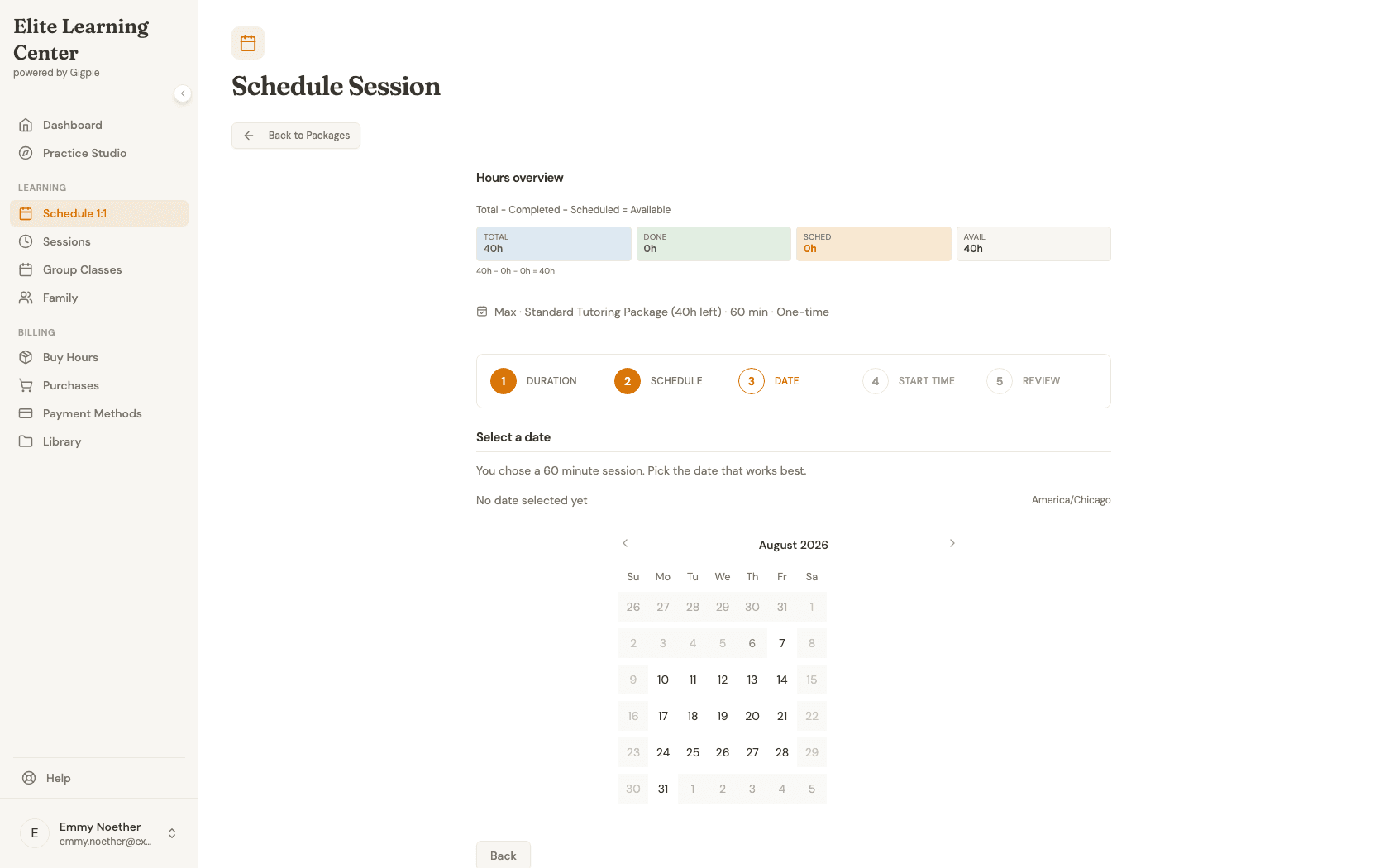
Select a date
Choose the day you want the appointment to take place.
- 7
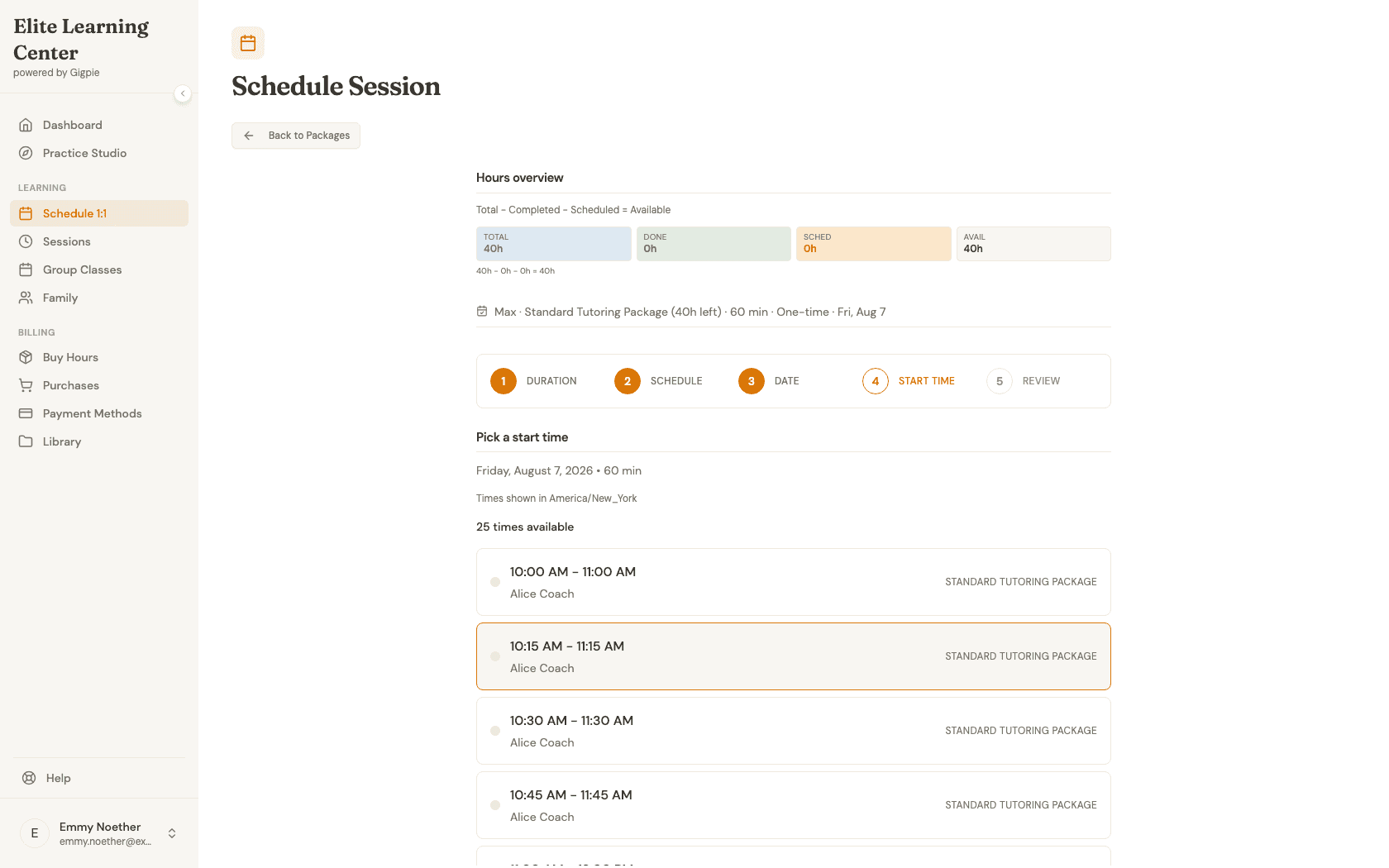
Pick a start time
Select one of the available start times listed for that day.
- 8
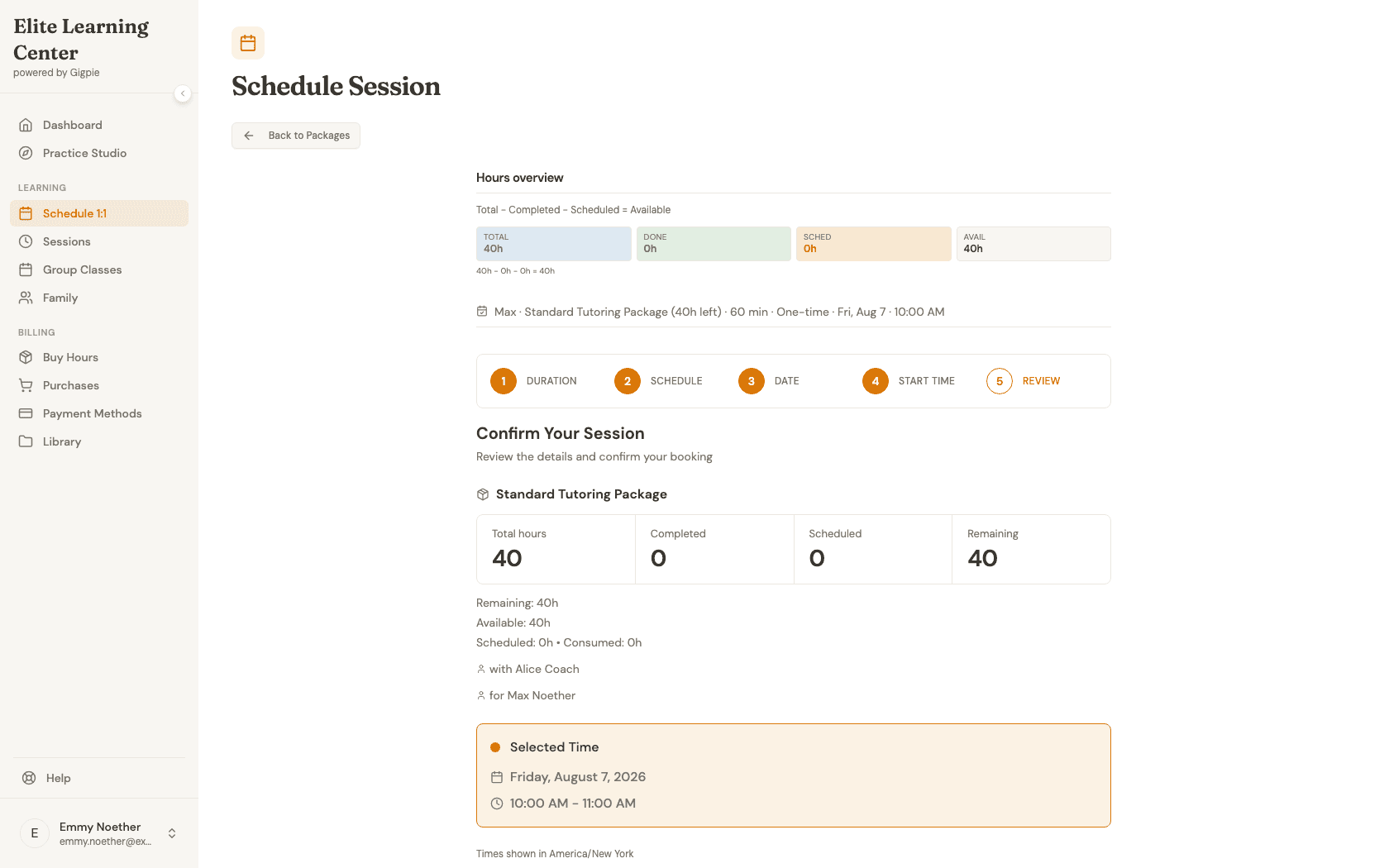
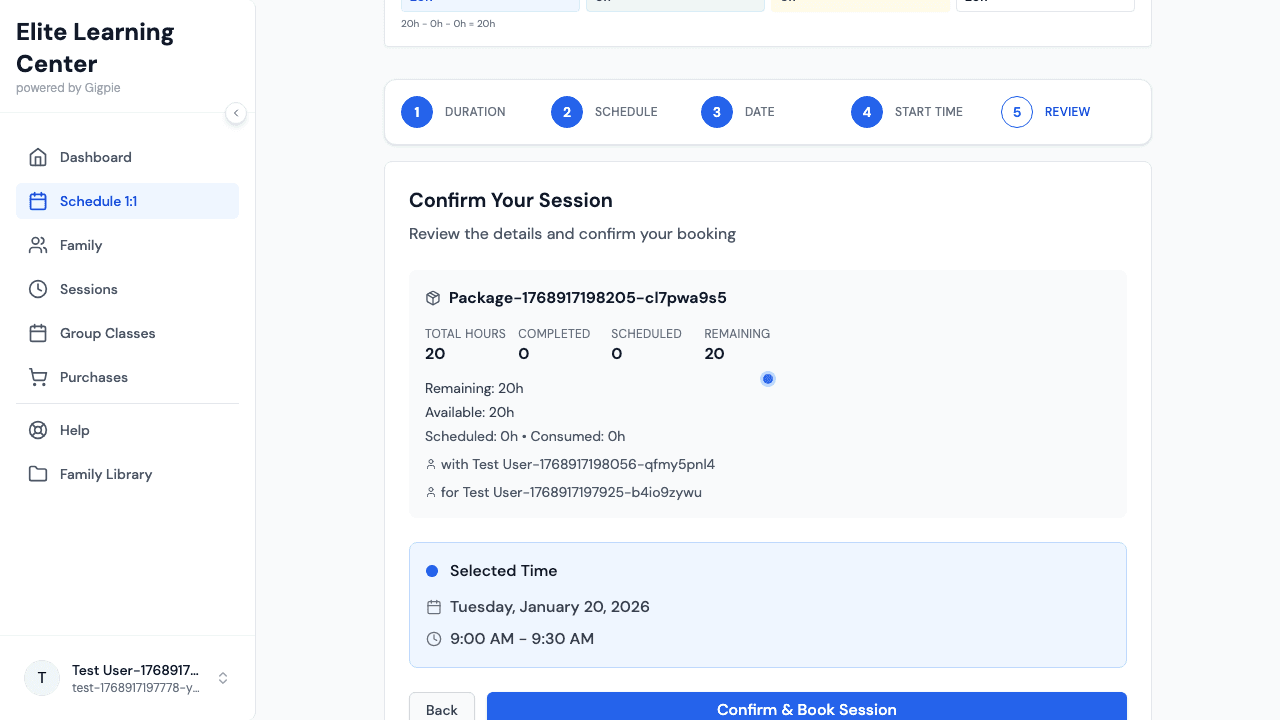
Review the booking details
Confirm the package, coach, student, and time details, then click Confirm & Book Session to finalize.
What you'll accomplish
- Your appointment appears on the schedule for your student.
- You receive a booking confirmation in the app.
Related Guides
- How to purchase a package - Buy hours before scheduling
- How to manage recurring sessions - Set up weekly appointments
- How to join a session - Access your scheduled meetings
- Smart Scheduling - How Gigpie's scheduling engine works