
How-To Guide - Parents
How to manage recurring sessions for your student
View and modify recurring tutoring appointments. Cancel single sessions or end an entire recurring series when your student's schedule changes.
Updated August 10, 2026
Overview
Recurring appointments help your student build consistent learning habits with regular weekly or bi-weekly meetings. These repeat automatically at the same day and time, making it easier to maintain a stable schedule. Understanding how to manage them lets you make changes when needed without disrupting the entire sequence.
Benefits of recurring appointments
Regular meetings at the same time each week help students develop routines and ensure steady progress toward learning goals. They also reduce the need to schedule each individually. Many families find that consistency in timing leads to better preparation and engagement.
How cancellations work
When you cancel a recurring appointment, you can choose to cancel just one occurrence or end the entire sequence. Canceling a single occurrence is useful for one-time conflicts like vacations or school events. Ending the sequence works when the schedule permanently changes or learning objectives are complete.
Important considerations
- Canceling the entire sequence affects all future appointments, not past ones
- Each cancellation follows the organization's cancellation policy
- Rescheduling works similarly: you can modify one occurrence or restructure the whole sequence
- Package hours are only deducted for appointments that actually occur
Steps
- 1
Sign in and navigate to Sessions
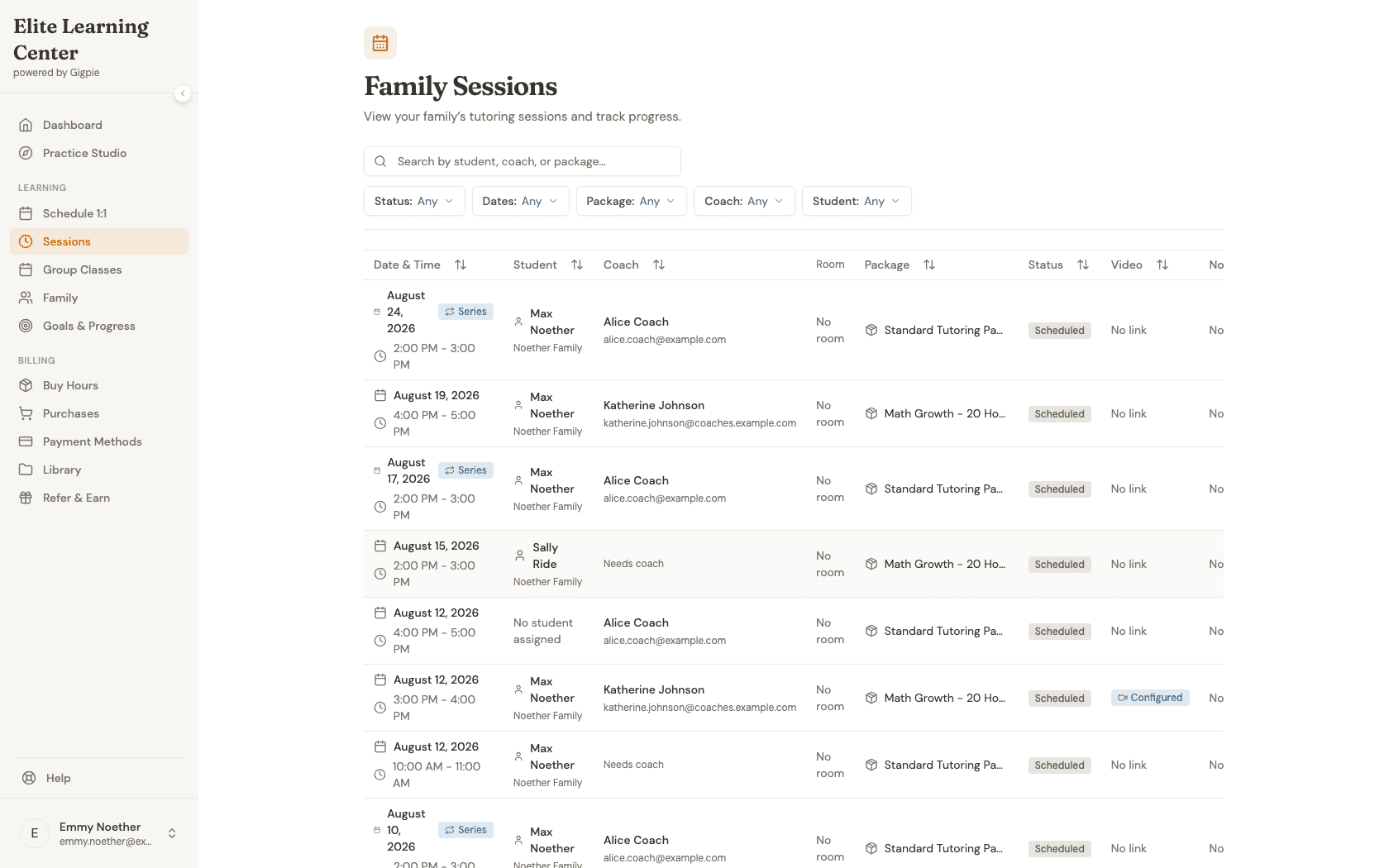
Sign in and go to the Sessions page to view your family's scheduled sessions.
- 2
Identify recurring appointments
Recurring appointments are marked with a repeat icon and a "Series" badge next to the date. These are part of a sequence that repeats on a schedule.

- 3
Click on a recurring appointment
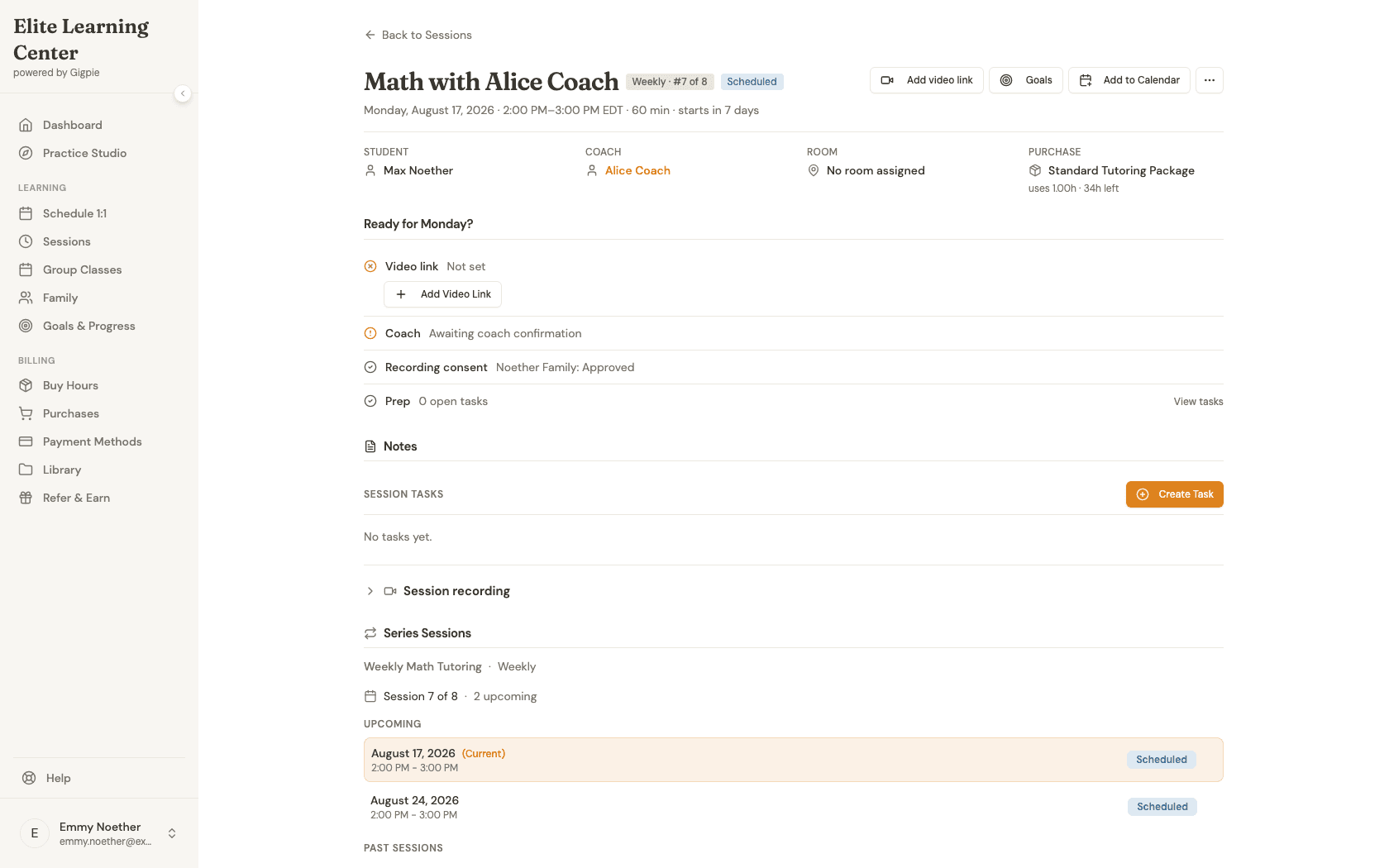
Click on any recurring appointment to view details about the entire sequence.
- 4
View sequence information
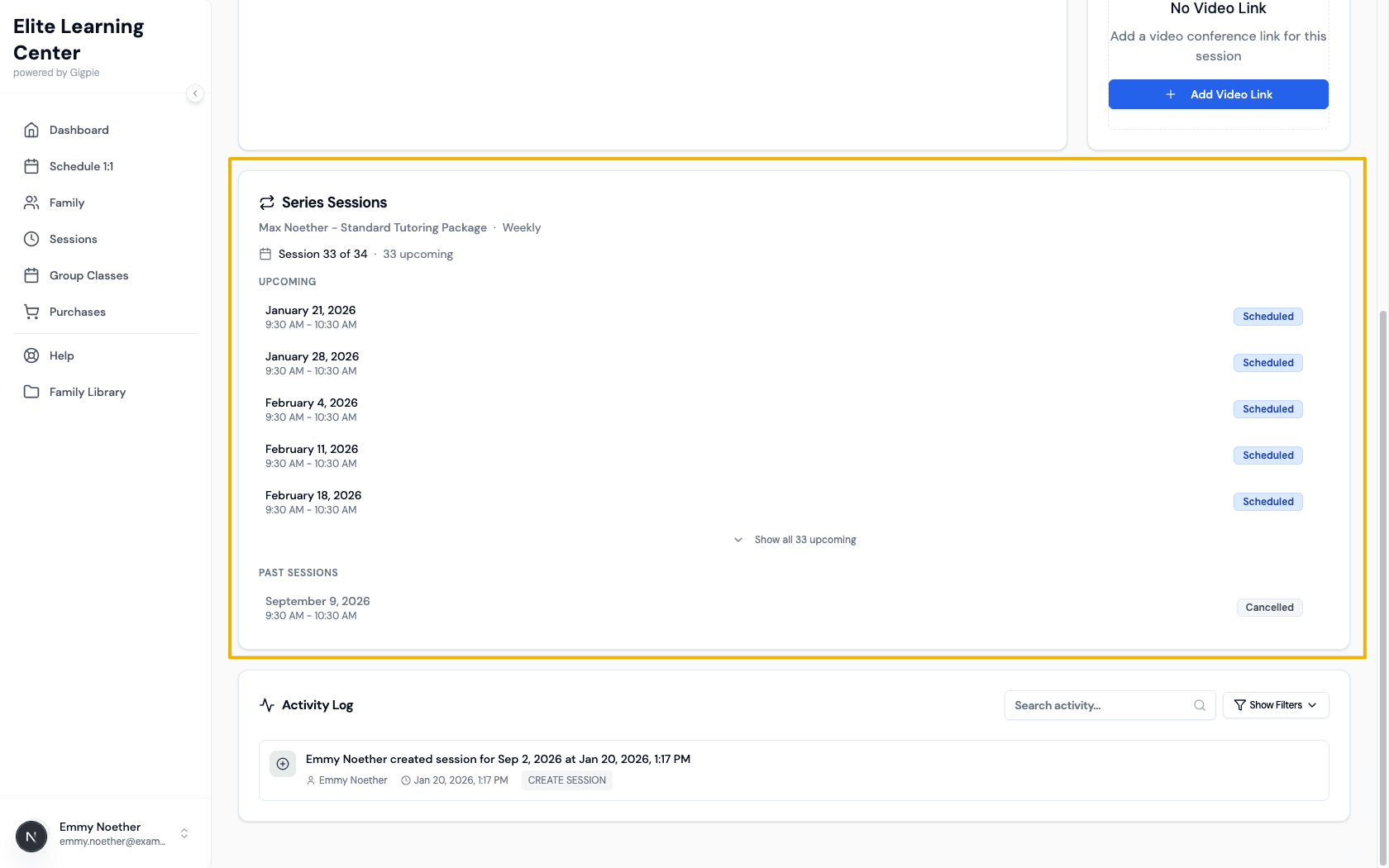
The detail page shows information including the recurrence pattern, total number of occurrences, and upcoming dates.
- 5
Choose cancel option
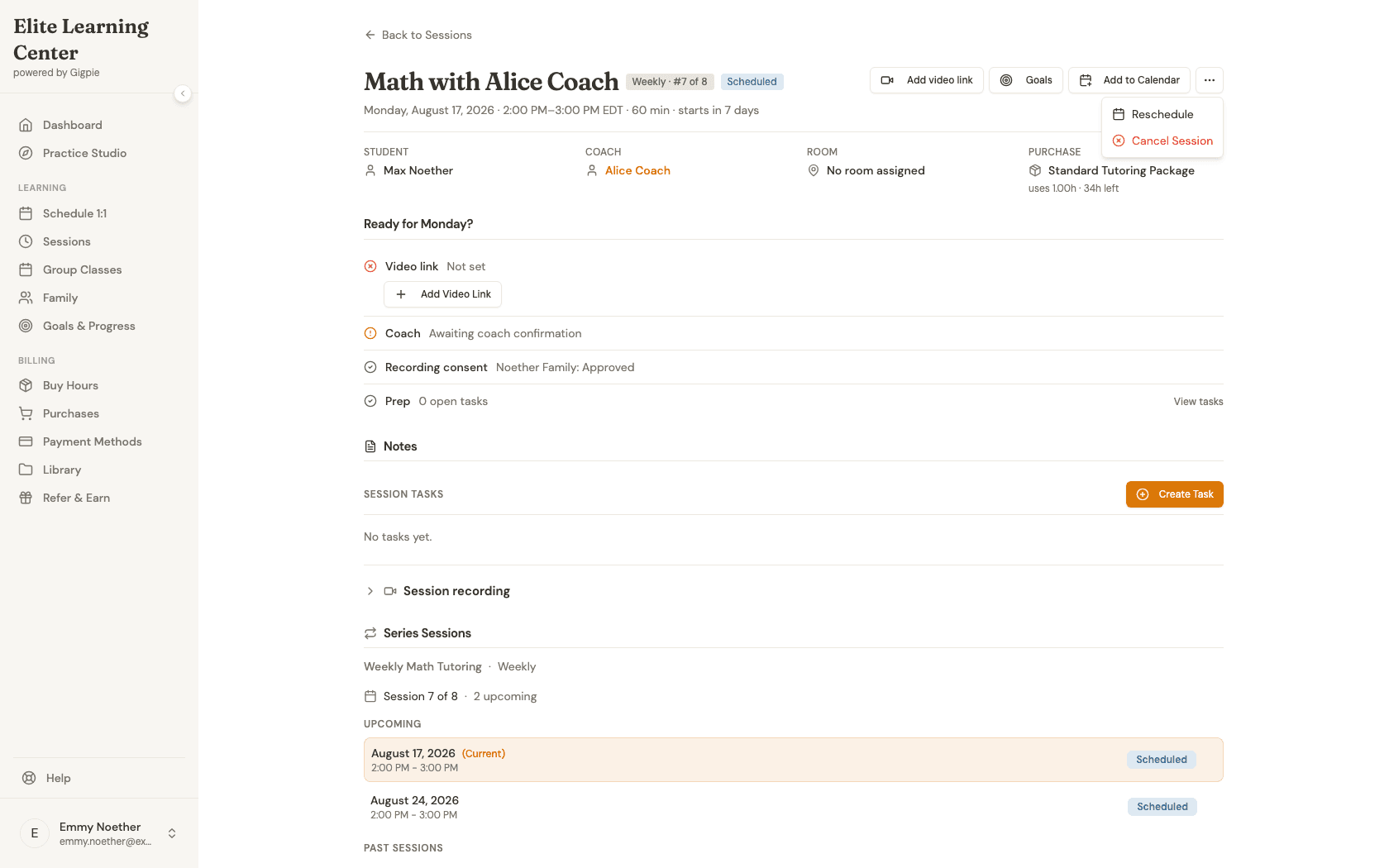
Click the actions menu (...) and select Cancel Session to open the cancellation options.
- 6
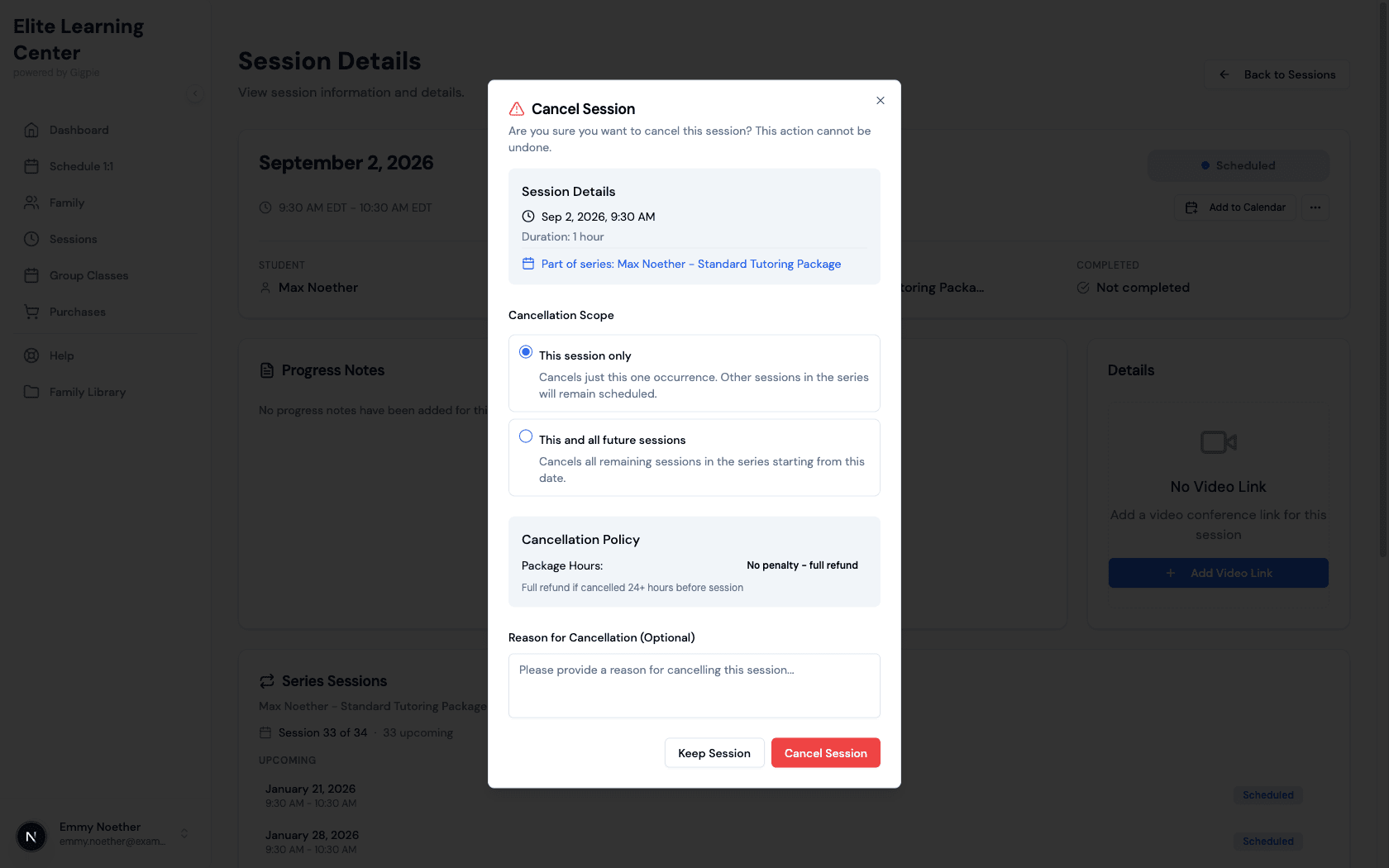
Select single or entire sequence
Choose whether to cancel:
- This session only: Cancels just this one occurrence
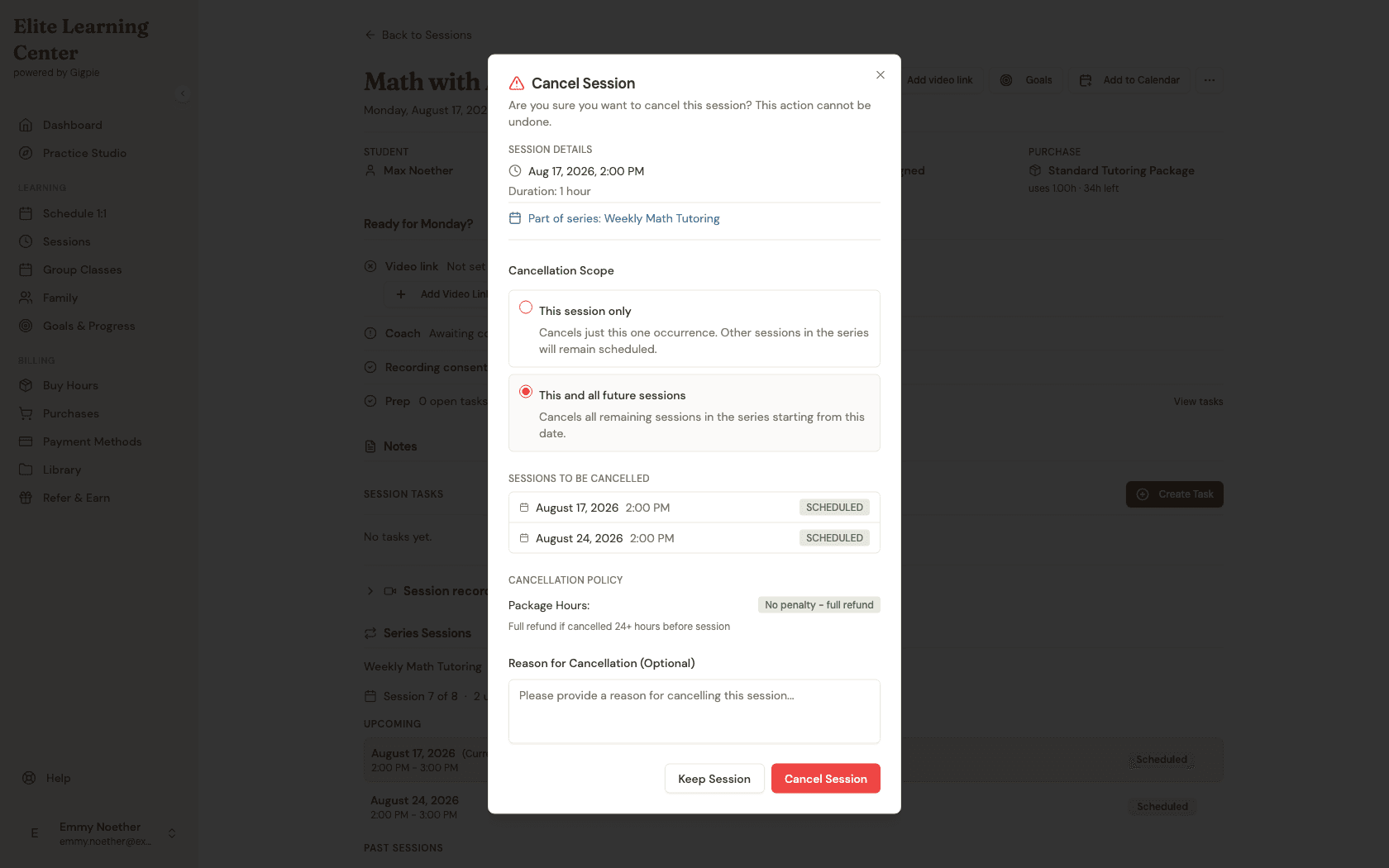
- This and all future sessions: Cancels all remaining occurrences in the sequence
- 7
Review affected appointments
If canceling "This and all future sessions," you'll see a list of every occurrence that will be cancelled.
- 8
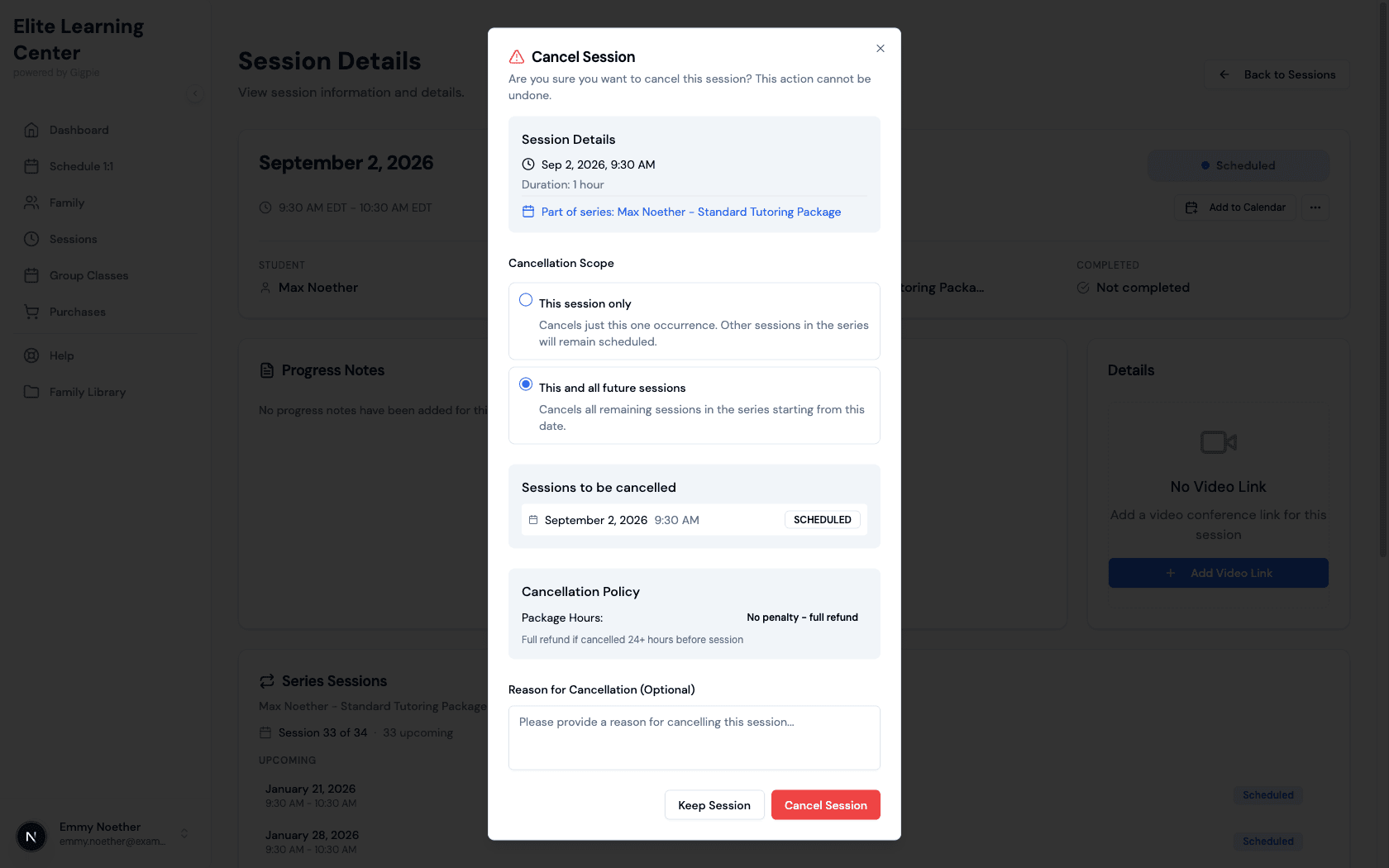
Confirm or go back
Review the cancellation details and click Cancel Session to proceed, or Keep Session to back out without cancelling.
Related Guides
- How to schedule an appointment - Book new sessions for your student
- How to view student schedule - See all upcoming sessions
- Smart Scheduling - How Gigpie's scheduling engine works