
How-To Guide - Parents
How to join a meeting as a parent
Learn how to join an upcoming tutoring appointment using the video call link. Follow this guide to access your student's scheduled meeting on time.
Updated August 10, 2026
Overview
Use this guide to join a scheduled appointment for your student. You will navigate to the meeting details and click the join link to enter the video call.
Before you start
- You have a scheduled appointment for a student in your family.
- Your coach has added a video link to the session (look for a Join session button in the header).
When to join as a parent
Some families prefer to have younger students join independently, while others like to be present, especially for elementary-aged children. Check with your coach about their preference. Many coaches welcome parent observation, particularly at the beginning or end to discuss progress.
Technical preparation
The Join session button appears in the session header as soon as your coach has added a video link — there's no fixed early-join window enforced by Gigpie. Even so, plan to log on a few minutes early so your student's computer or tablet has time to connect: a working camera, microphone, and stable internet connection. Have any materials the coach requested ready beforehand.
What to expect
Clicking the join button opens the video conference in a new window or tab. You'll be directed to the coach's meeting platform (Zoom, Google Meet, etc.), where you may need to allow camera and microphone permissions in your browser. The coach usually starts right at the scheduled time.
Steps
- 1
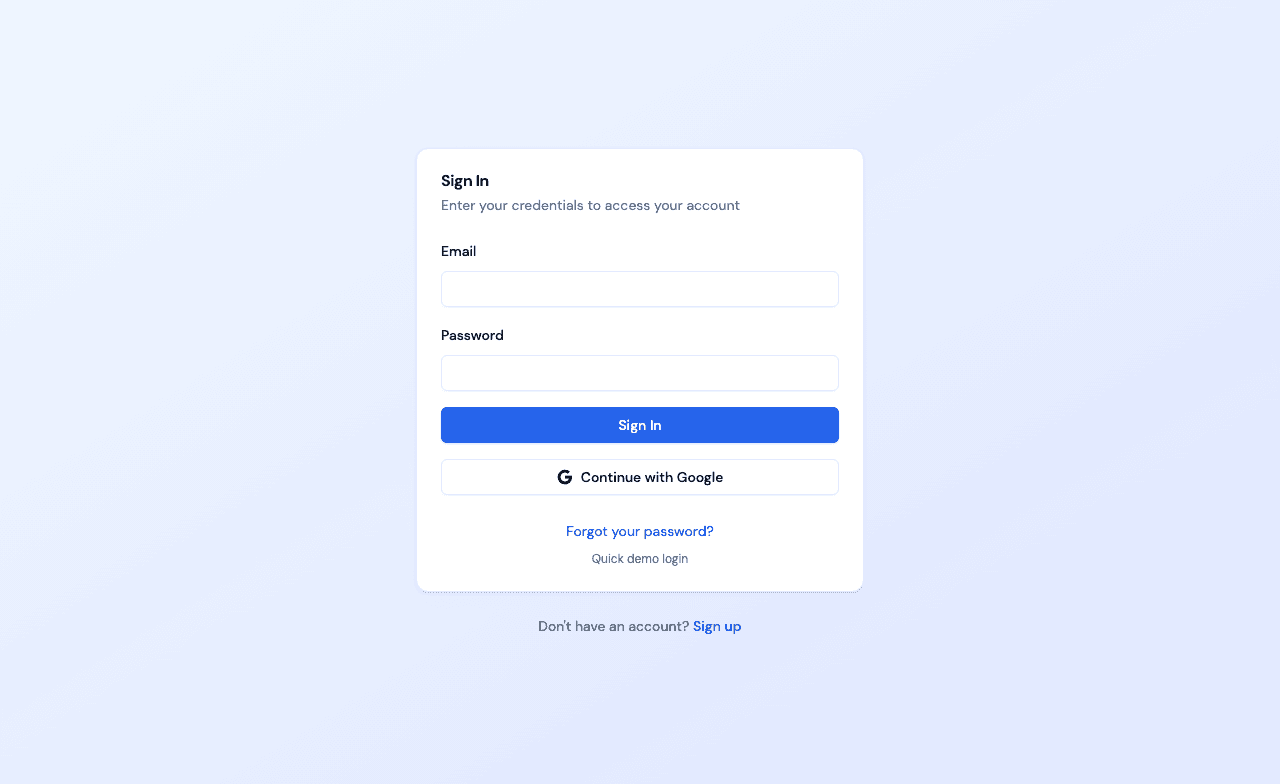
Sign in as a parent
Use your parent account credentials to access the dashboard.
- 2
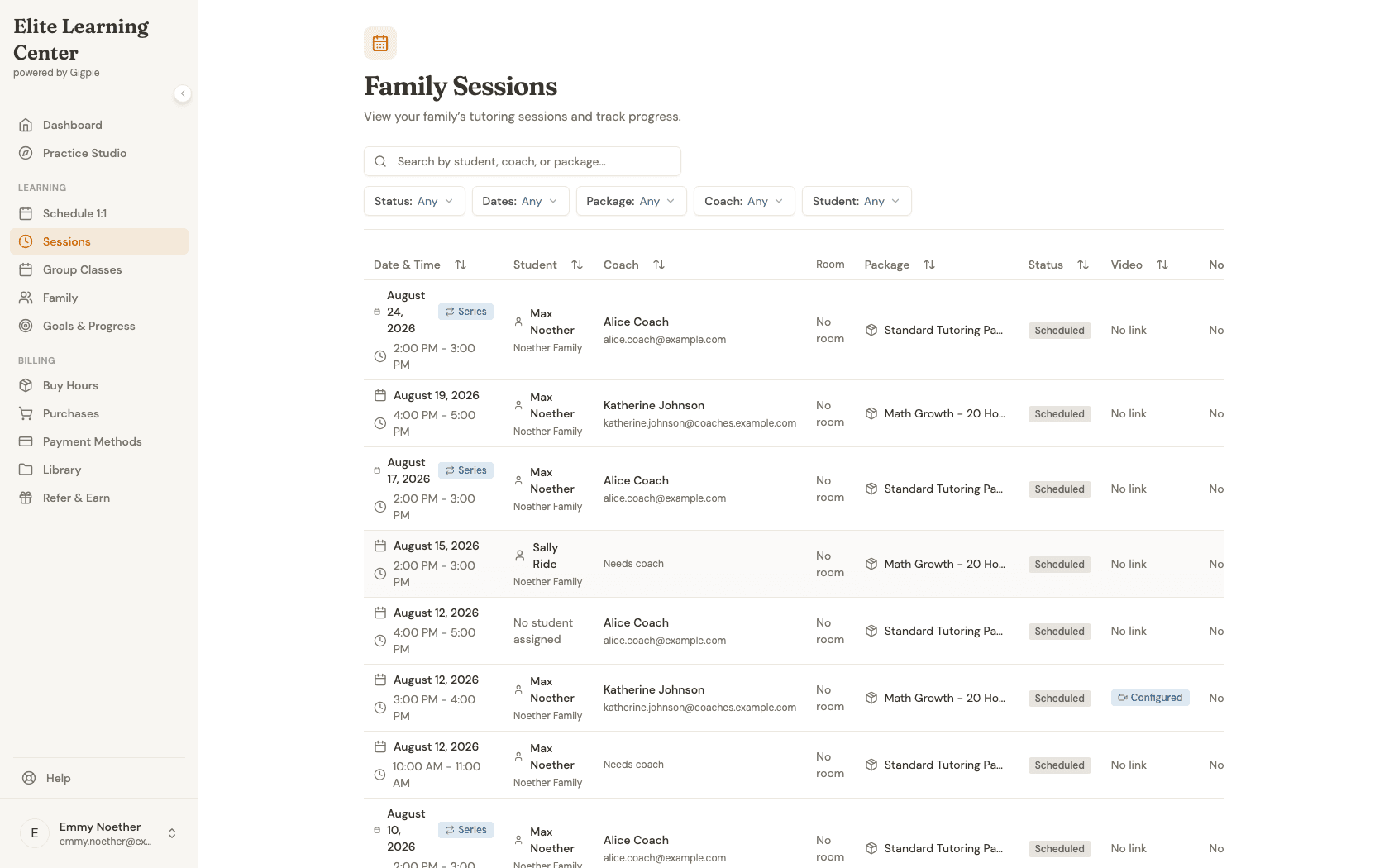
Navigate to Family Sessions
Navigate to the Family Sessions page to see your upcoming appointments.
- 3
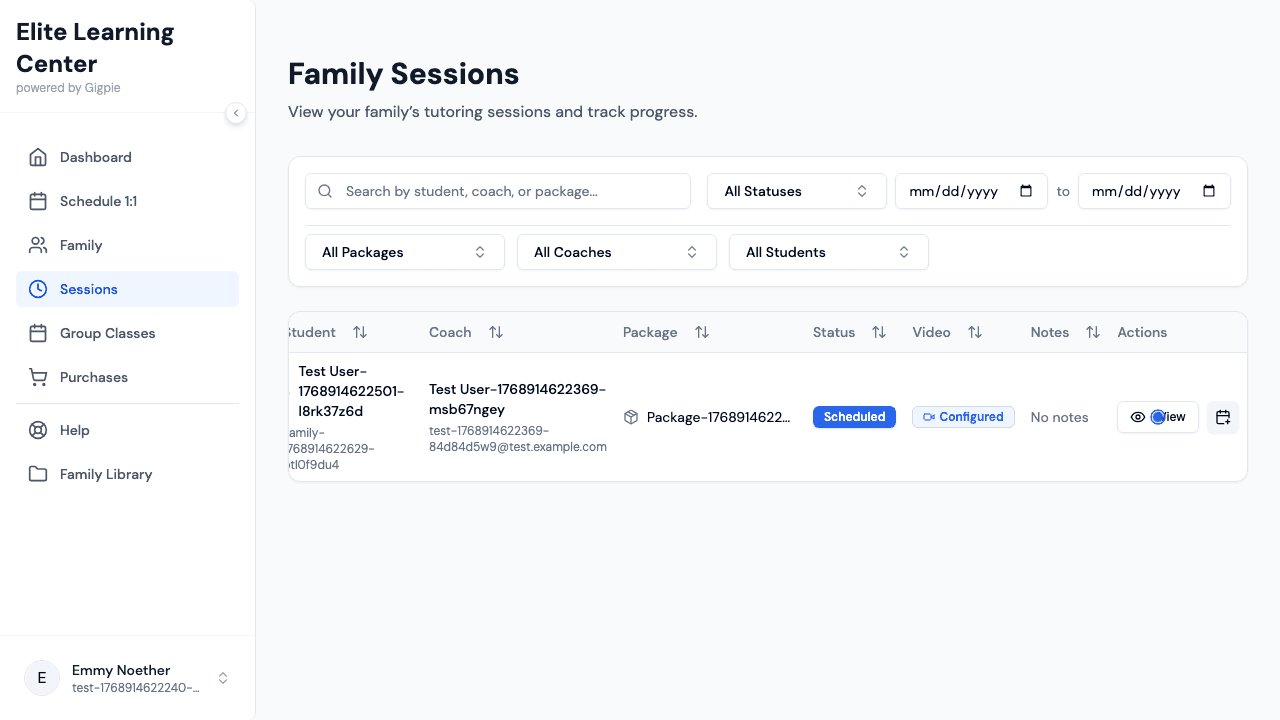
Find the upcoming appointment
Locate the meeting you want to join from the list and click 'View' to open the details. Sessions with a video link already set show a "Configured" tag in the Video column.
- 4
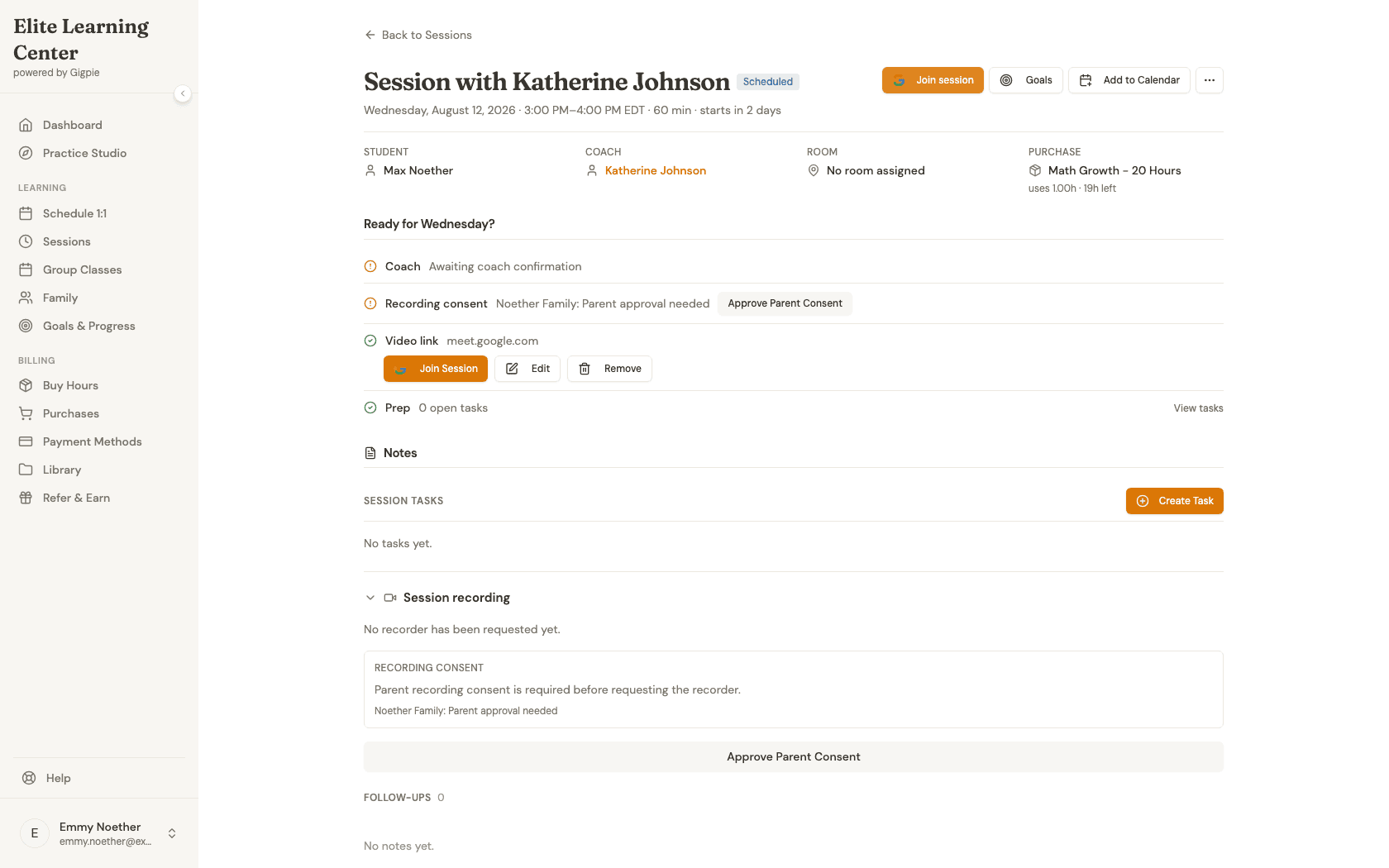
Click the Join button
Click Join session to access the video call link. This opens the meeting in a new tab.
What you'll accomplish
- You successfully join the video call for your student's appointment.
- You can observe or participate in the tutoring meeting.
Related Guides
- How to schedule an appointment - Book new appointments for your student
- How to review progress notes - View feedback from past meetings
- How to report a coach no-show - Handle when coaches don't attend
- Video Conferencing - How automatic meeting links work