
How-To Guide - Parents
How to report a coach no-show
Learn how to report when a coach doesn't show up for a scheduled session and notify the platform to request appropriate action and credit hours back.
Updated August 10, 2026
Overview
Use this guide when a coach fails to join a scheduled session. You will navigate to the session details and use the reporting feature to document the no-show.
Before you start
- You have a scheduled session that has passed its start time.
- The coach did not join the session within the expected timeframe.
When to report a no-show
Wait at least 10-15 minutes past the scheduled start time before reporting a no-show. Coaches sometimes run a few minutes late due to technical issues or a previous session running over. If you haven't heard from the coach by 15 minutes past start time, reporting the no-show is appropriate.
What happens when you report
Your report immediately notifies the tutoring organization's administrators. They'll investigate what happened and take appropriate action, which may include rescheduling the session, crediting the hours back to your package, or following up with the coach. You should receive a response from the admin team within one business day.
How this protects you
Reporting no-shows ensures you don't lose package hours when a coach doesn't fulfill their commitment. It also helps the organization identify and address reliability issues with coaches. Your feedback is valuable for maintaining quality standards and ensuring all families receive the service they're paying for.
Steps
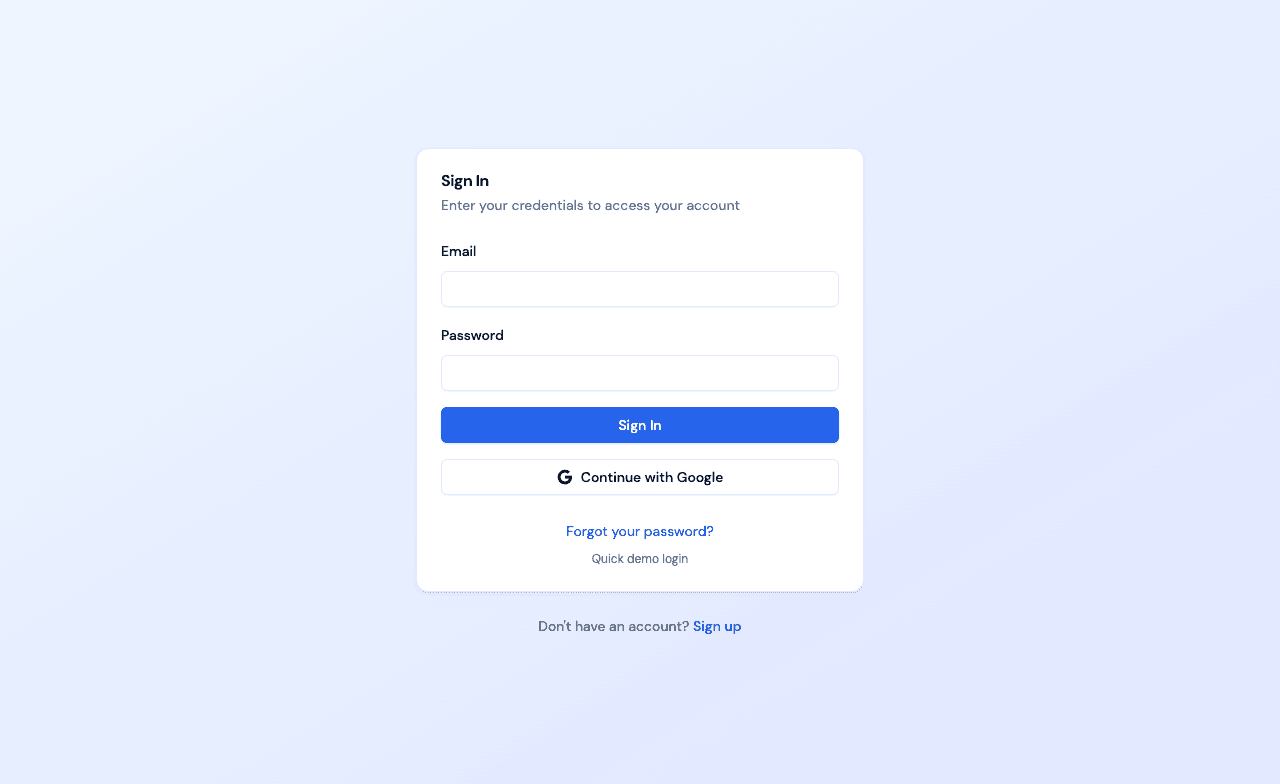
- 1Go to login
Sign in as a parent
Use your parent account credentials to access the dashboard.
- 2
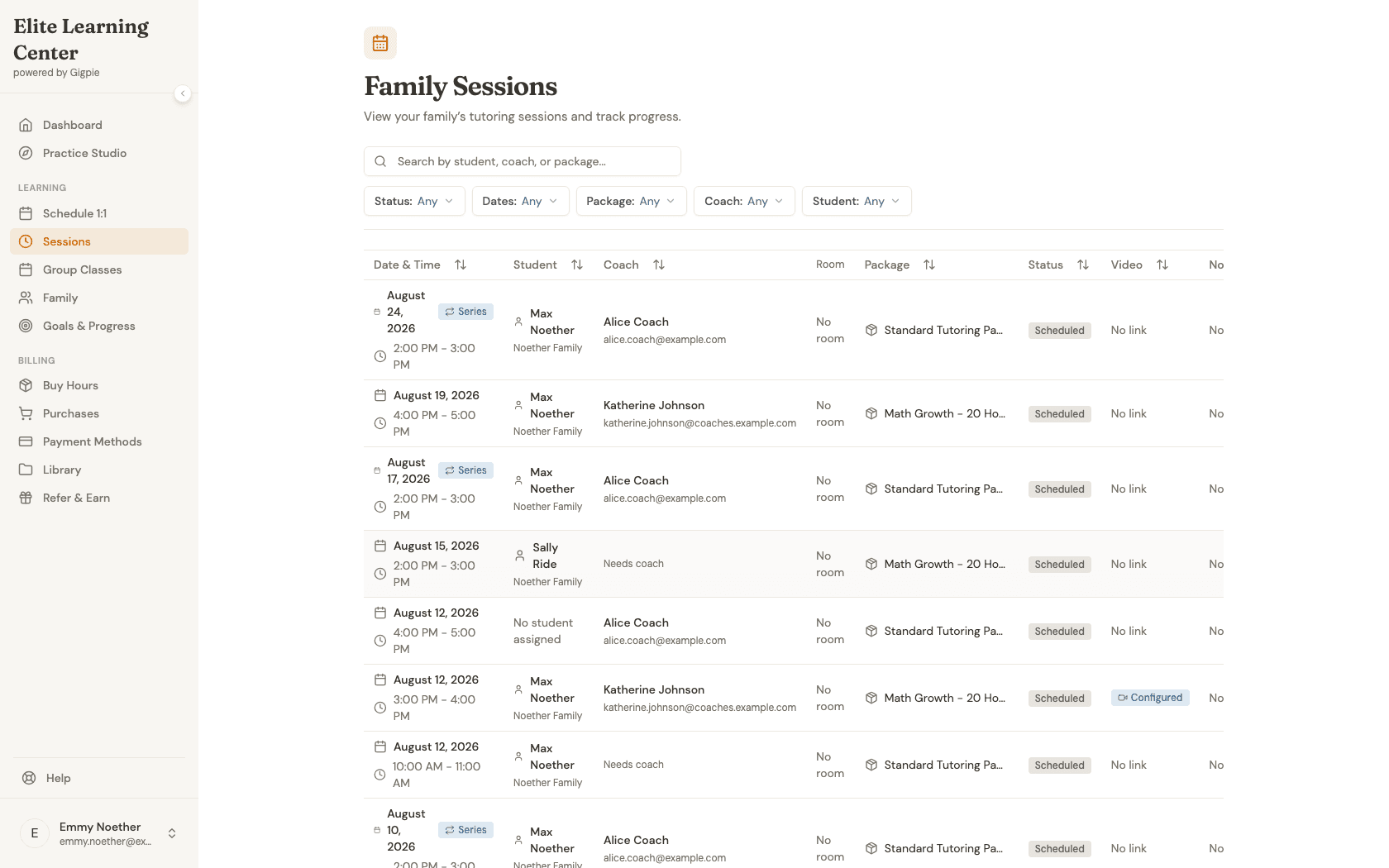
Navigate to Family Sessions
Navigate to the Family Sessions page to find the session where the coach didn't show up.
- 3
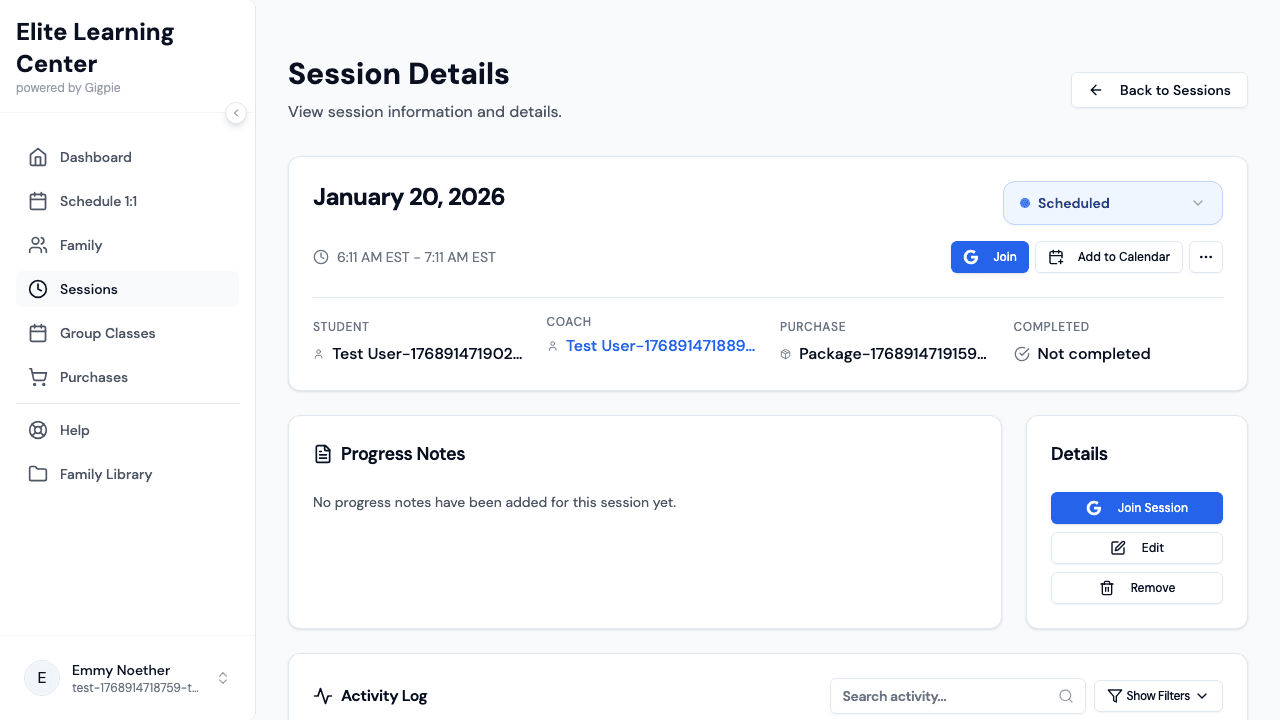
Find the affected session
Filter by status to find the session where the coach didn't show up — a session still shows as Scheduled even after its start time has passed, since nothing marks it Completed automatically.
- 4
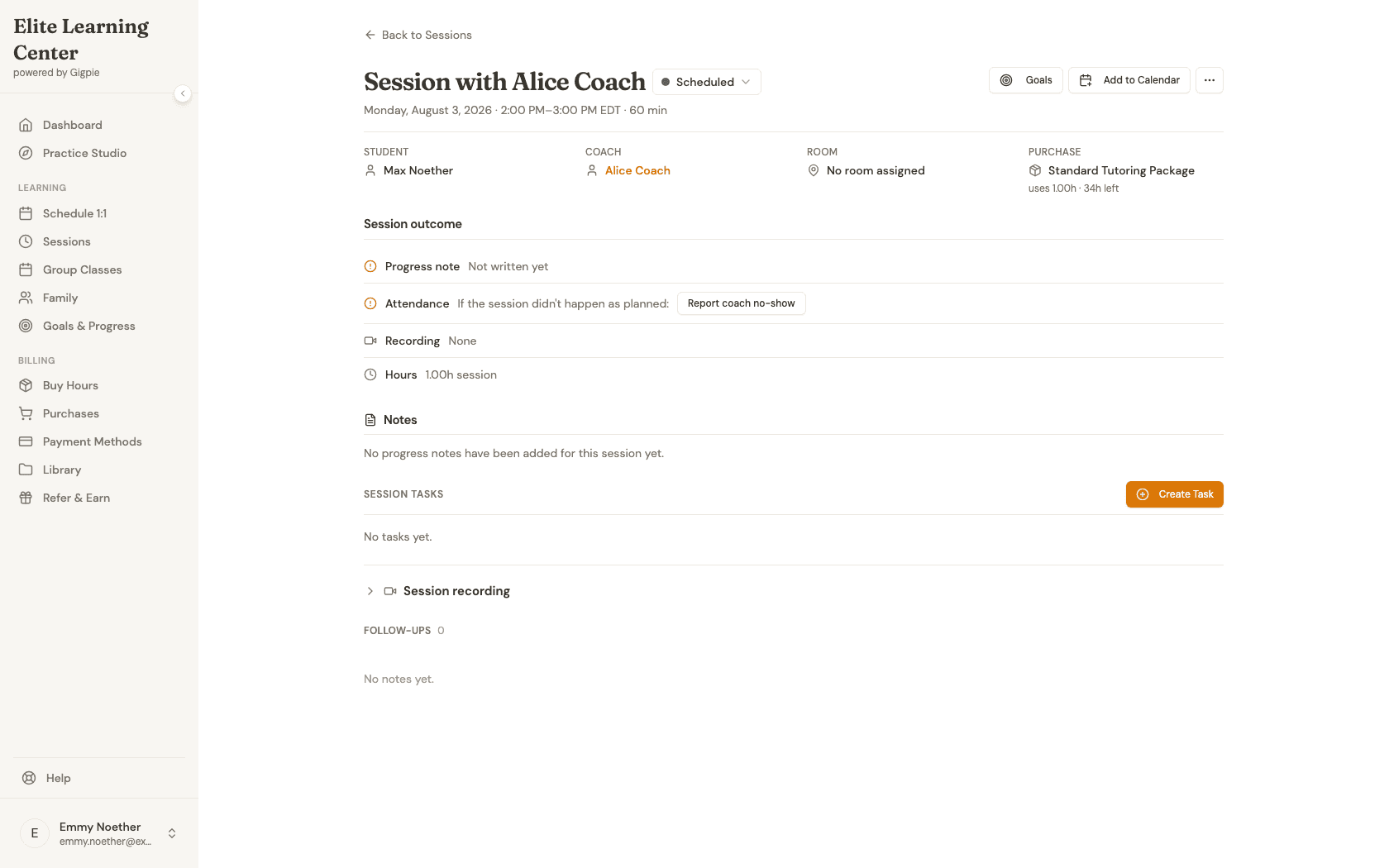
Open the session details
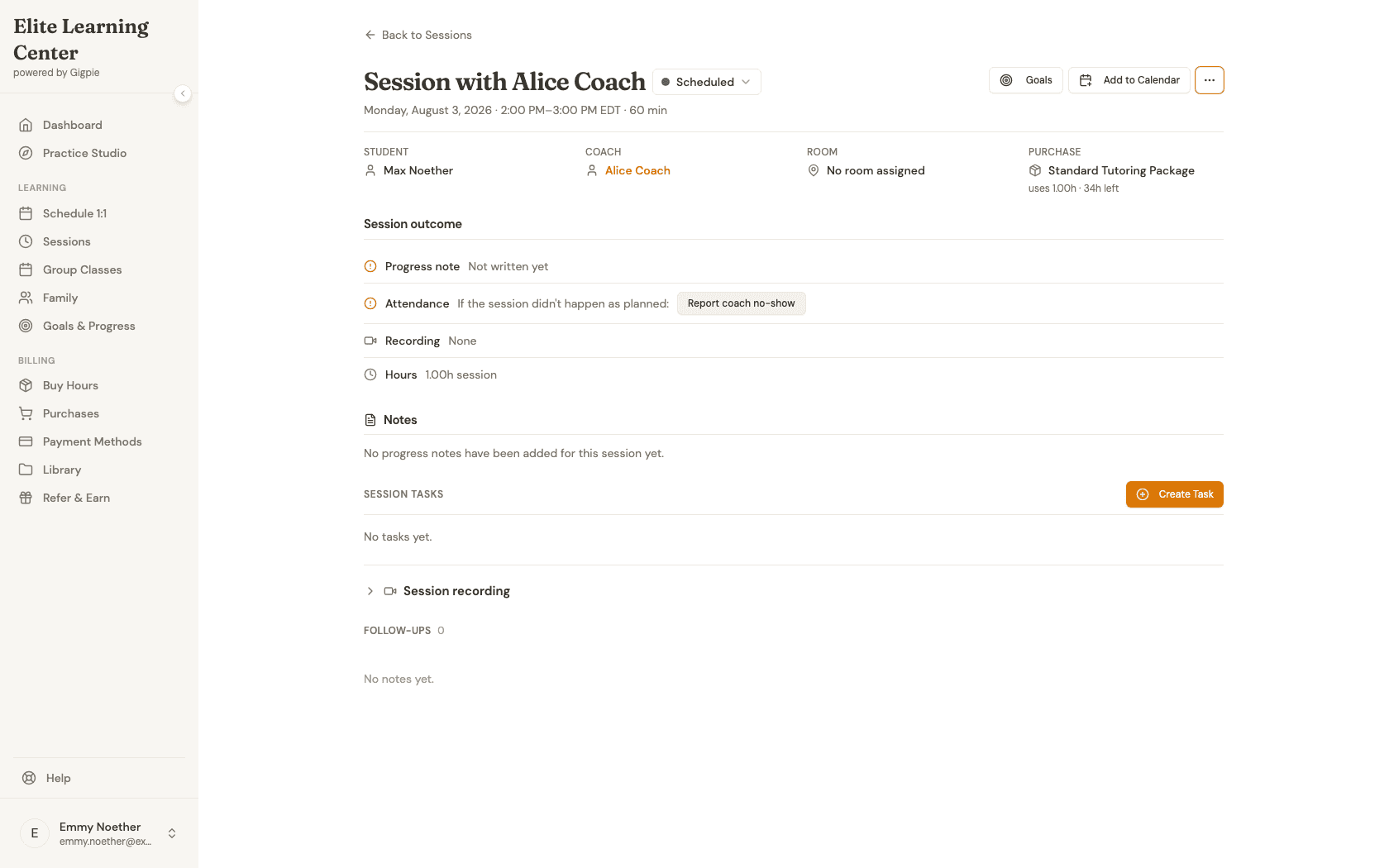
Click on the session to open its details page. Once a session's scheduled time has passed, an Attendance prompt appears with a direct "Report coach no-show" button.
- 5
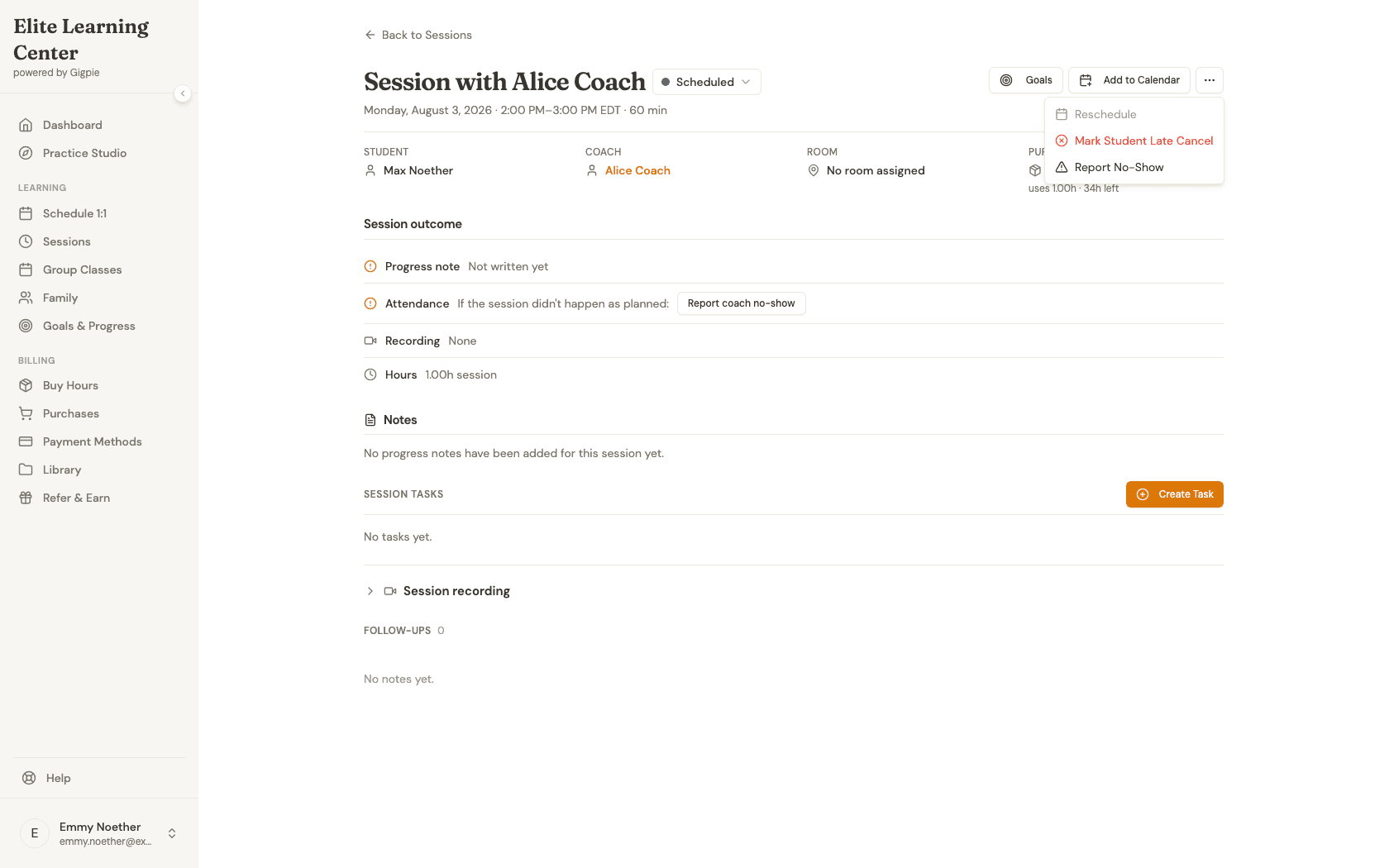
Open the actions menu
You can also reach the same report from the "..." actions menu in the top right of the session page.
- 6
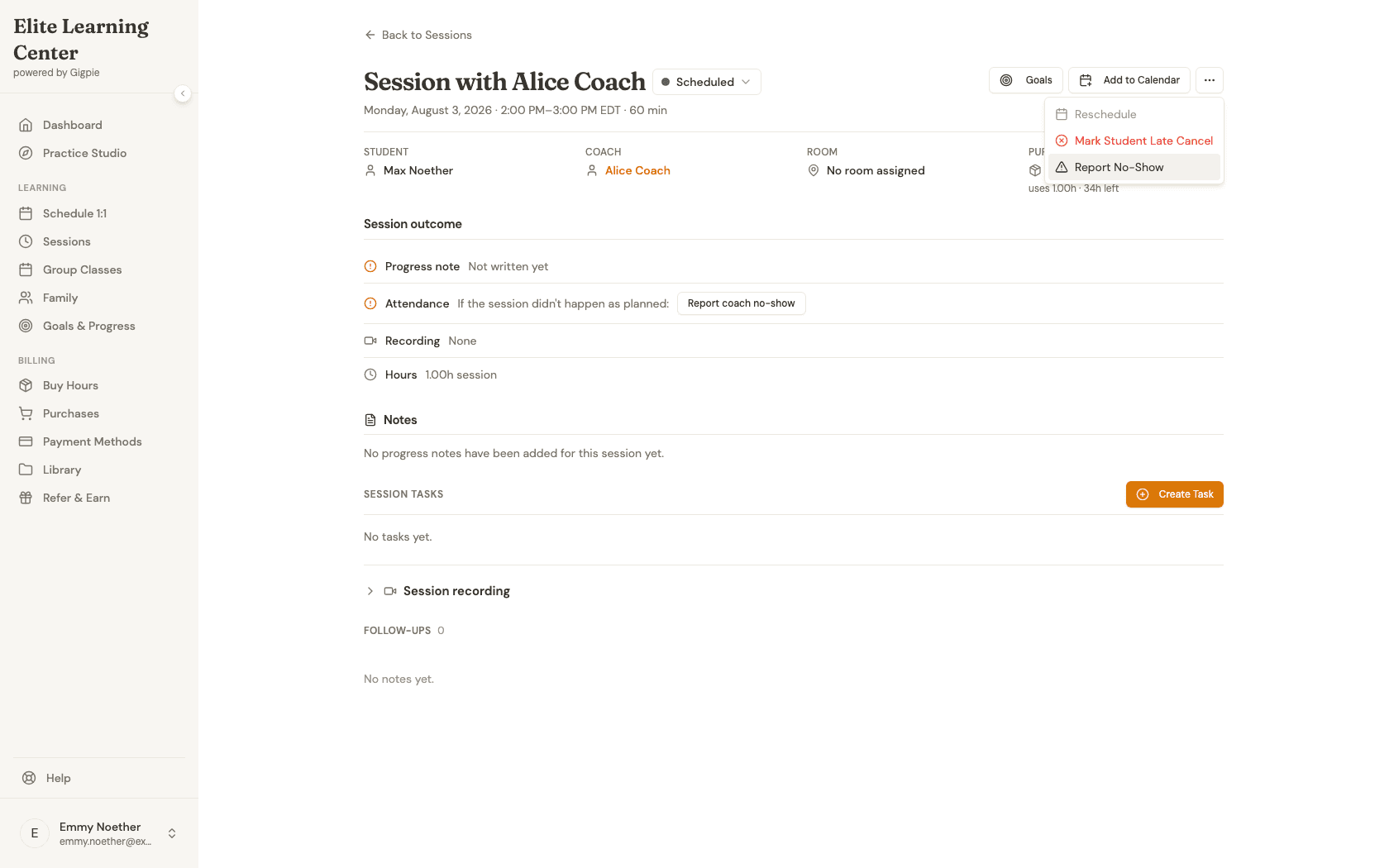
Select Report No-Show
Click "Report No-Show" to submit your report. There's no separate confirmation screen — clicking it immediately marks the session as a coach no-show, so make sure you have the right session open first.
- 7
Or report directly from the session page
The "Report coach no-show" button in the Attendance row does exactly the same thing as the menu option, without needing to open a menu first — either one submits your report the moment you click it.
What you'll accomplish
- You successfully submit a no-show report for the session.
- The platform team is notified and can take appropriate action.
- Your session hours may be credited back to your package.
Related Guides
- How to reschedule or cancel a session - Change session times when needed
- How to join a session - Access scheduled sessions
- How to review progress notes - View feedback from completed sessions
- Parent Portal - Everything else you can do from your account