
How-To Guide - Parents
Reschedule or cancel a session
Learn how to reschedule a tutoring session to a new time or cancel it entirely when plans change using your Family Sessions page on Gigpie.
Updated August 10, 2026
Overview
Use your Family Sessions page to adjust or cancel upcoming tutoring sessions.
Before you start
- You have a scheduled session for a student in your family.
- Your session is far enough in the future to meet the reschedule or cancellation policy.
Understanding cancellation policies
Most tutoring organizations require 24-48 hours notice for cancellations or rescheduling. Late cancellations may result in session hours being deducted from your package even though the session didn't occur. Check your organization's specific policy to understand the requirements and any exceptions for emergencies.
When to reschedule vs. cancel
Reschedule when your student is sick, has a conflict, or needs to change the time but still wants the instruction. Cancel when you want to skip the session entirely. Rescheduling maintains your student's learning continuity and ensures you use the package hours you purchased.
Best practices
Try to provide as much notice as possible when you need to make changes. This helps the coach adjust their schedule and potentially fill the time slot with another student. If you need to reschedule regularly, consider working with your coach to adjust your standing weekly appointment time.
Steps
- 1
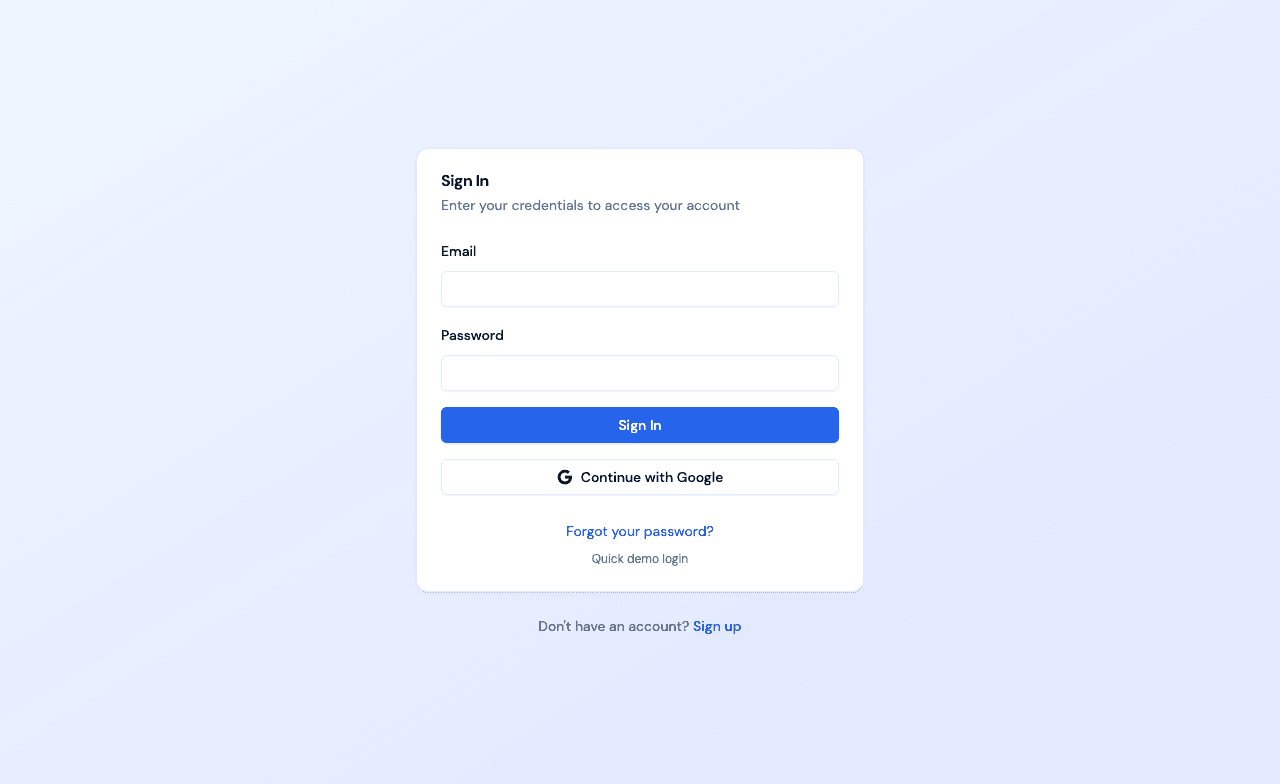
Sign in as a parent
Log in with your parent account. You'll land on your Family Dashboard, where upcoming sessions are just a click away.
- 2
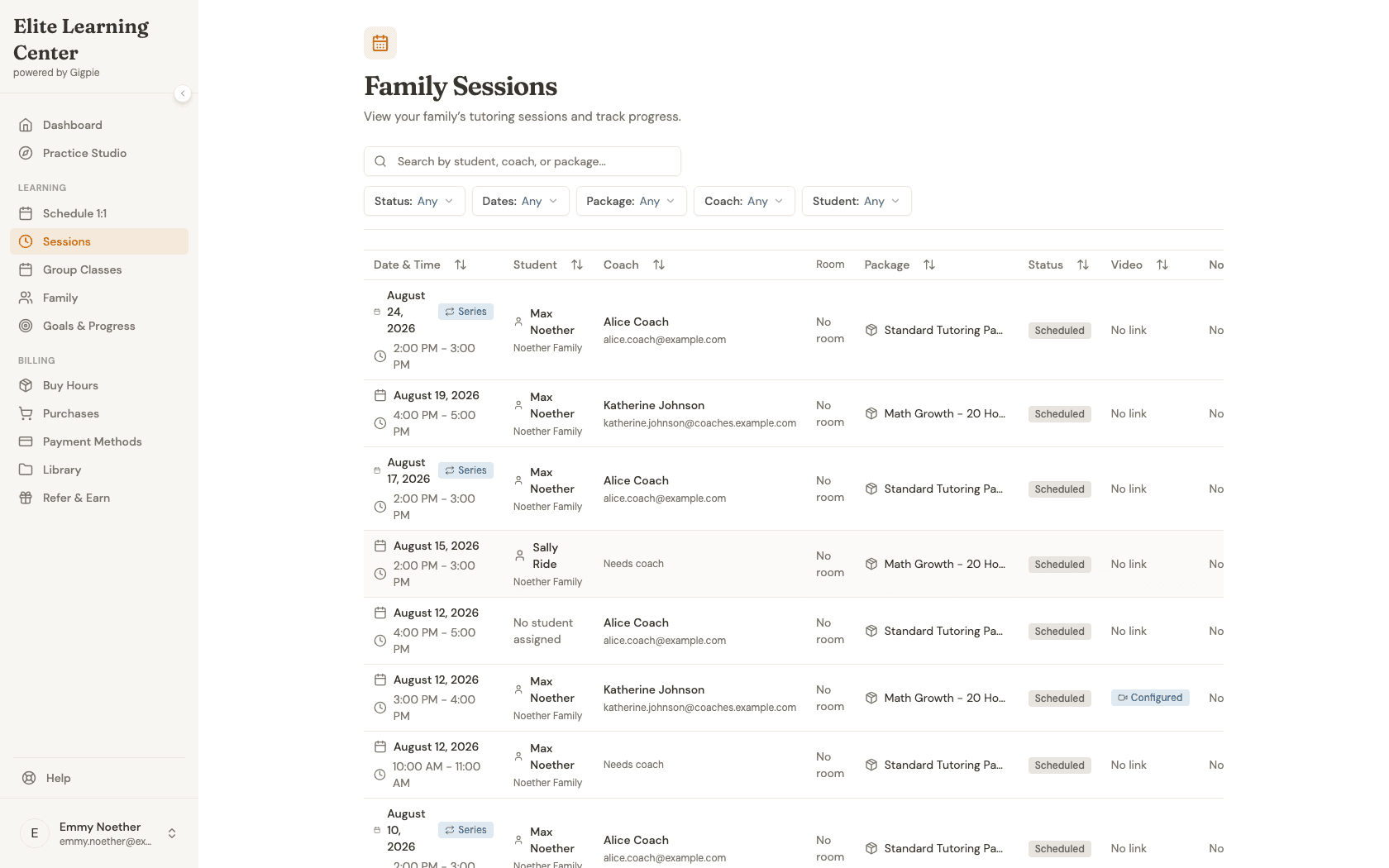
Open Family Sessions
Open the sessions list to find the appointment you want to change.
- 3
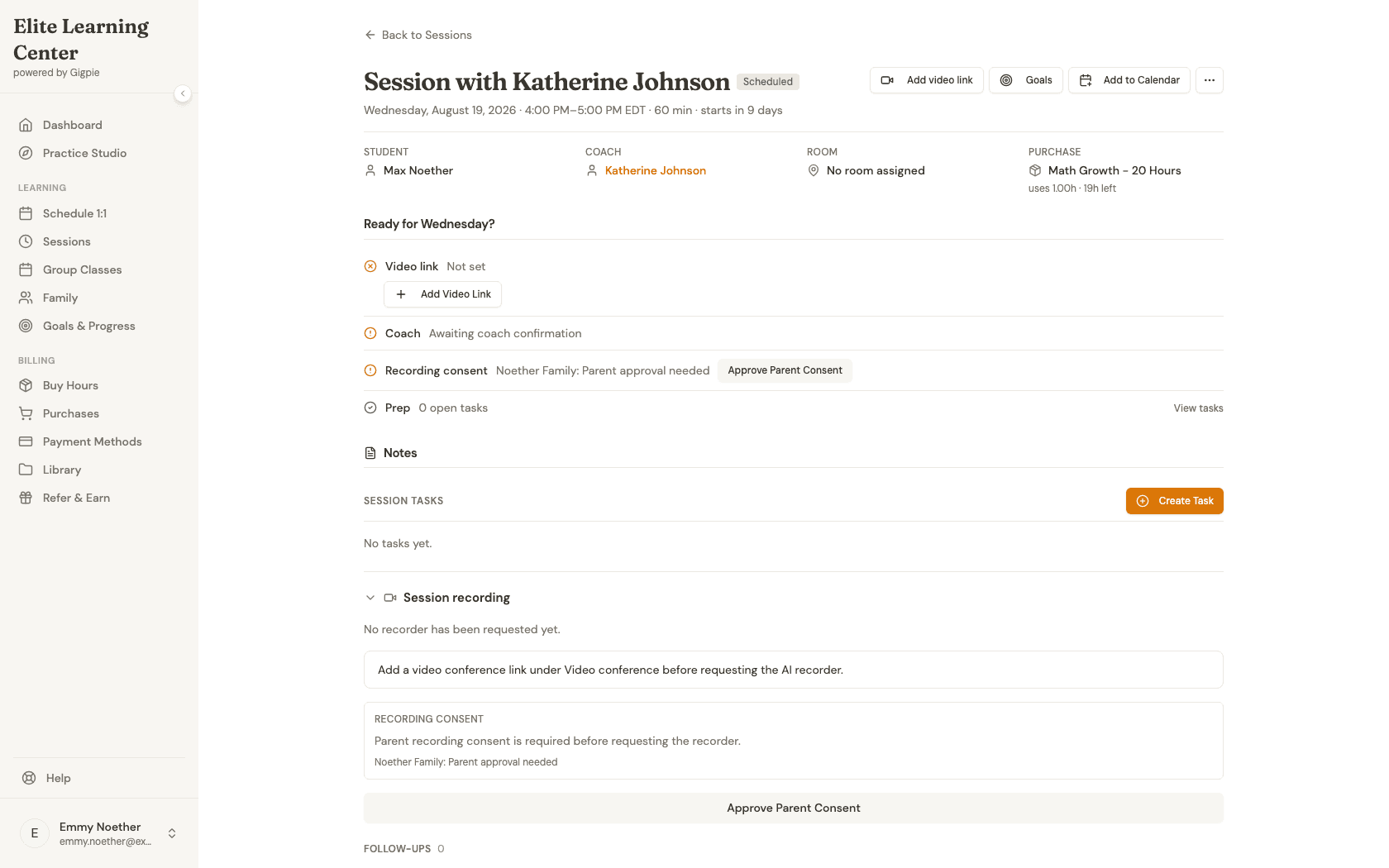
Open a scheduled session
Select a session from the list to view its details.
- 4
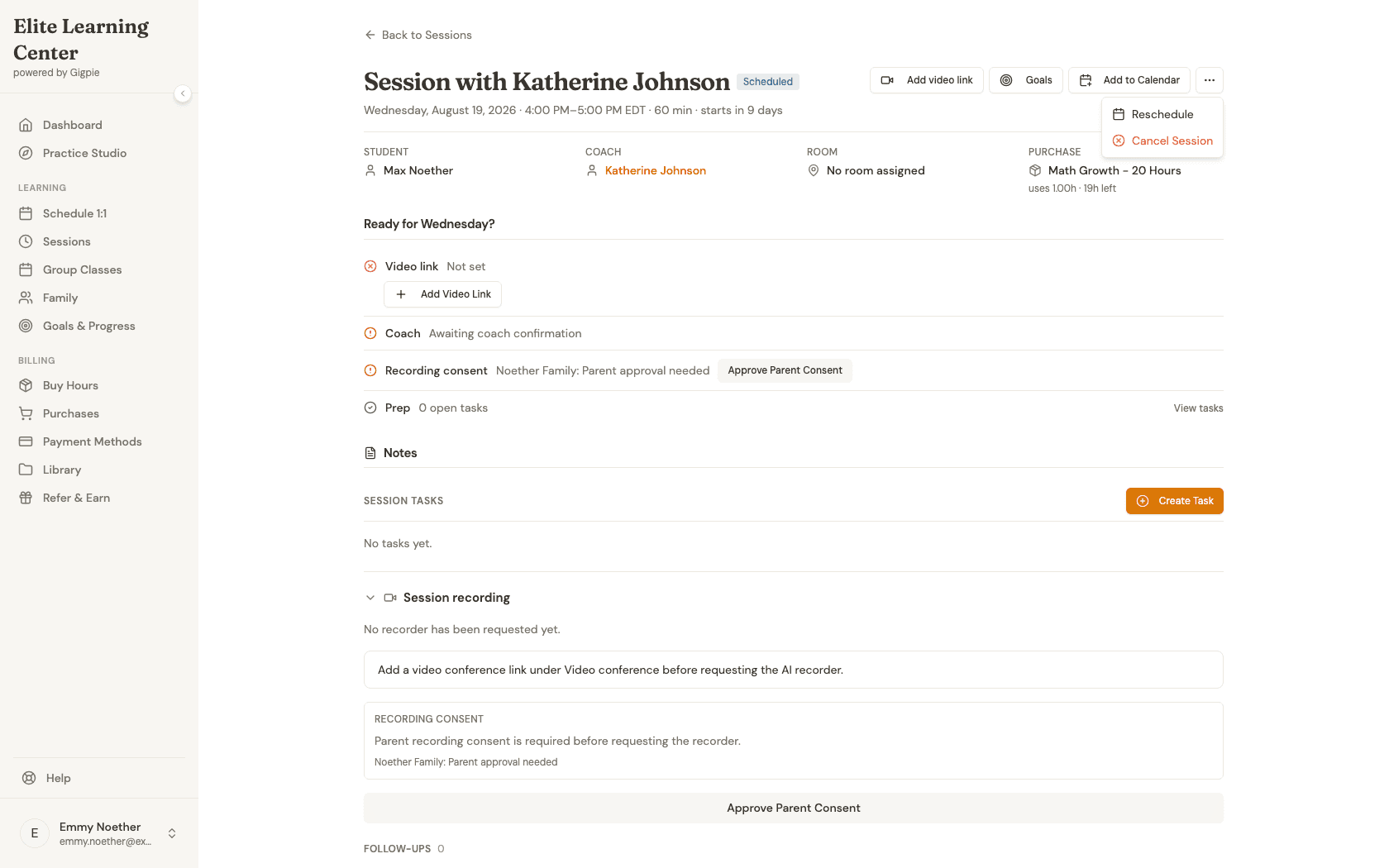
Open session actions
Use the session actions menu to reschedule or cancel the session.
- 5
Choose Reschedule
Select Reschedule (or choose Cancel Session if you need to cancel).
- 6
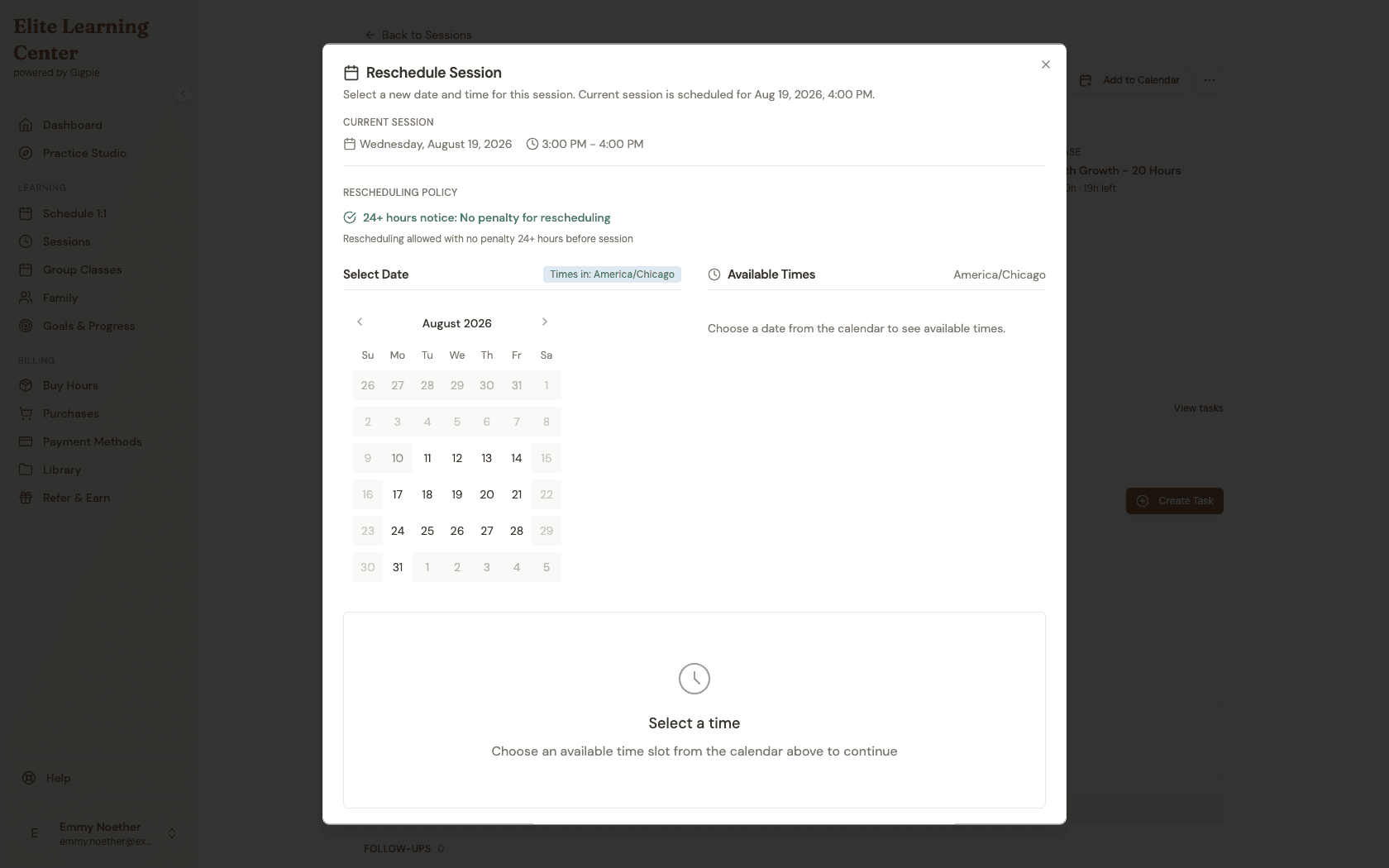
Pick a new date
Choose a new date from the availability calendar.
- 7
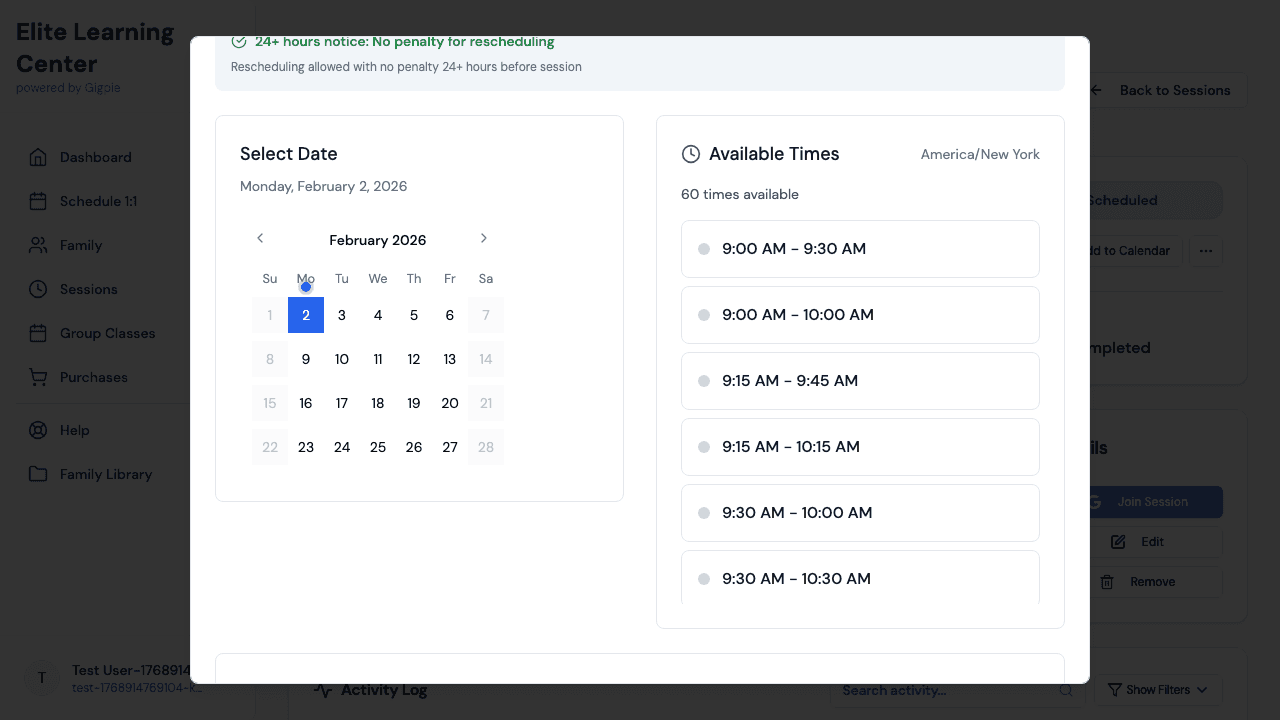
Select a new time
Pick an available time slot for the new session.
- 8
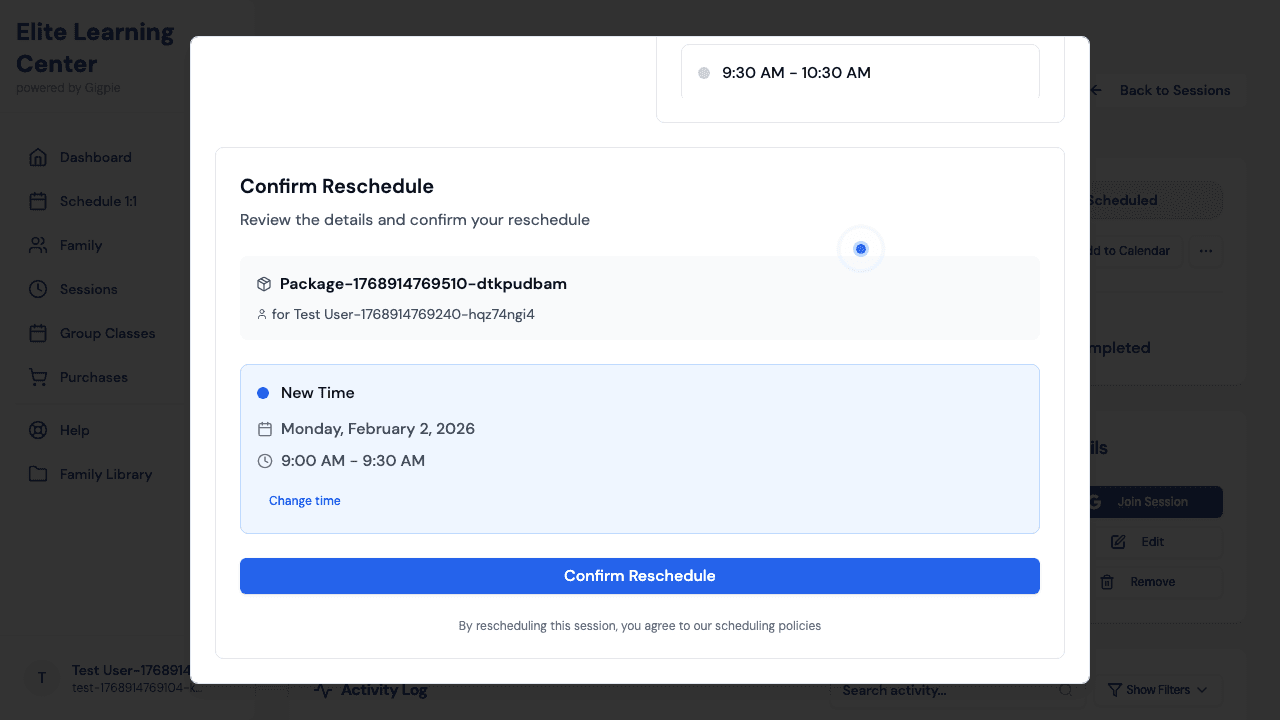
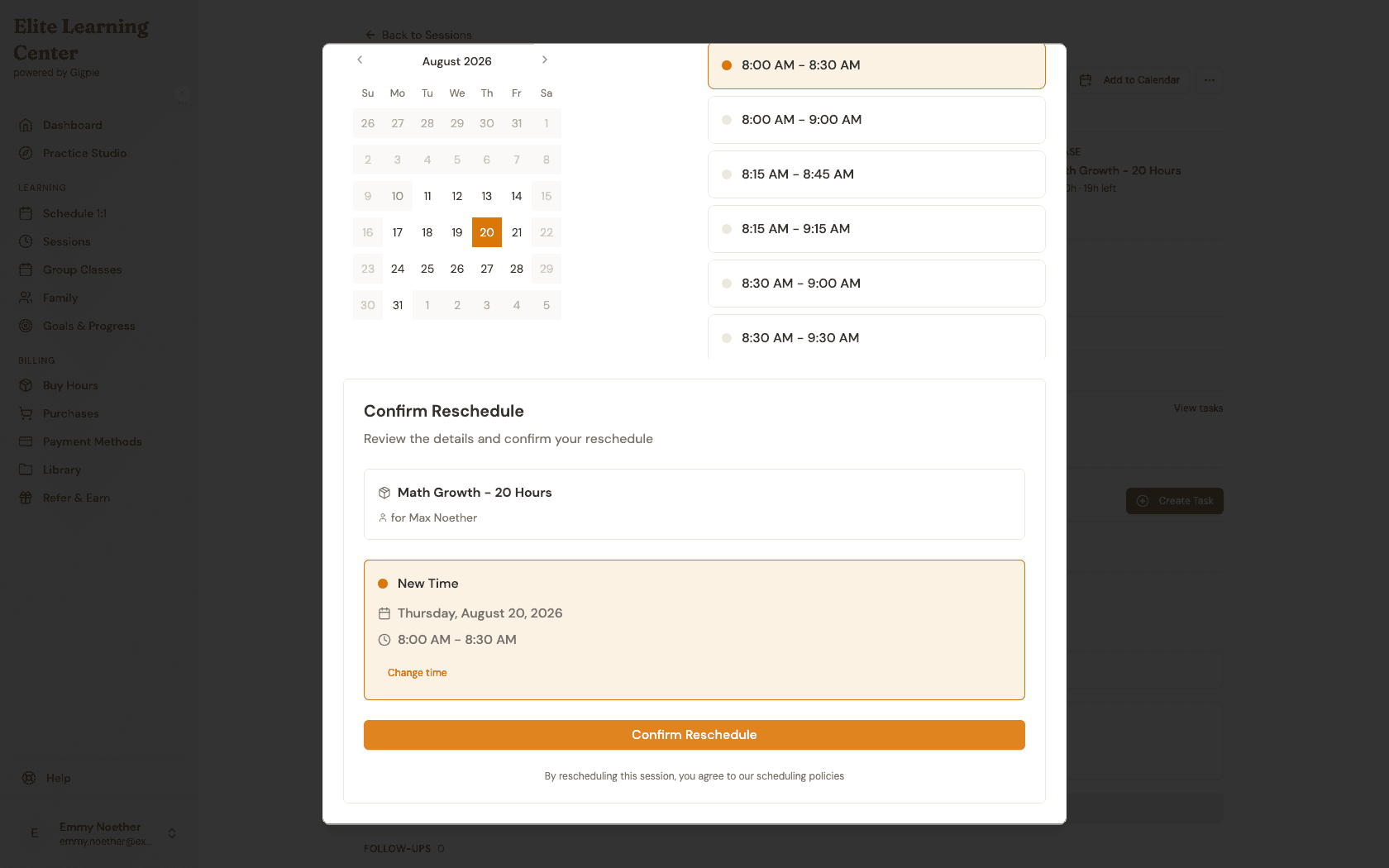
Confirm the reschedule
Review the new date and time, then click Confirm Reschedule to finalize.
What you'll accomplish
- You open an upcoming session and reschedule it to a new time.
- You know where to cancel a session if plans change.
Related Guides
- How to schedule an appointment - Book new sessions for your student
- How to view student schedule - See all upcoming sessions
- How to manage recurring sessions - Adjust regular weekly sessions
- Smart Scheduling - How Gigpie's scheduling engine works