
How-To Guide - Parents
How to purchase coaching hours
Learn how to purchase coaching hours through the public checkout flow. Enter your email, verify your identity, and review the secure Stripe checkout.
Updated August 6, 2026
Overview
Use this guide to purchase coaching hours. You will enter your email, verify your identity with a code, choose a payment plan, and reach the secure checkout.
Before you start
- You have received a purchase link from a coach or company.
- You have a valid email address to receive verification codes.
- You have a payment method ready for checkout.
Understanding hour bundles
Tutoring bundles typically offer a set number of hours at a fixed total price. Some organizations offer payment plans that let you pay in installments rather than all at once. Review the details carefully to understand what's included: total hours, activation rule, and pricing.
Payment plan considerations
If payment plans are available, you'll see options to pay in full or split the cost across multiple payments. Paying in full is often discounted; installment plans split the balance into equal payments on a regular schedule, with the first payment due today. If your organization requires you to accept specific terms before checkout, a consent checklist appears here too — otherwise you'll go straight to entering your email.
What happens after purchase
Once payment is complete, the hours appear in your account and you can immediately start scheduling appointments. You'll receive a confirmation email with details and next steps. Some organizations assign a coach automatically, while others let you choose from available coaches.
Steps
- 1
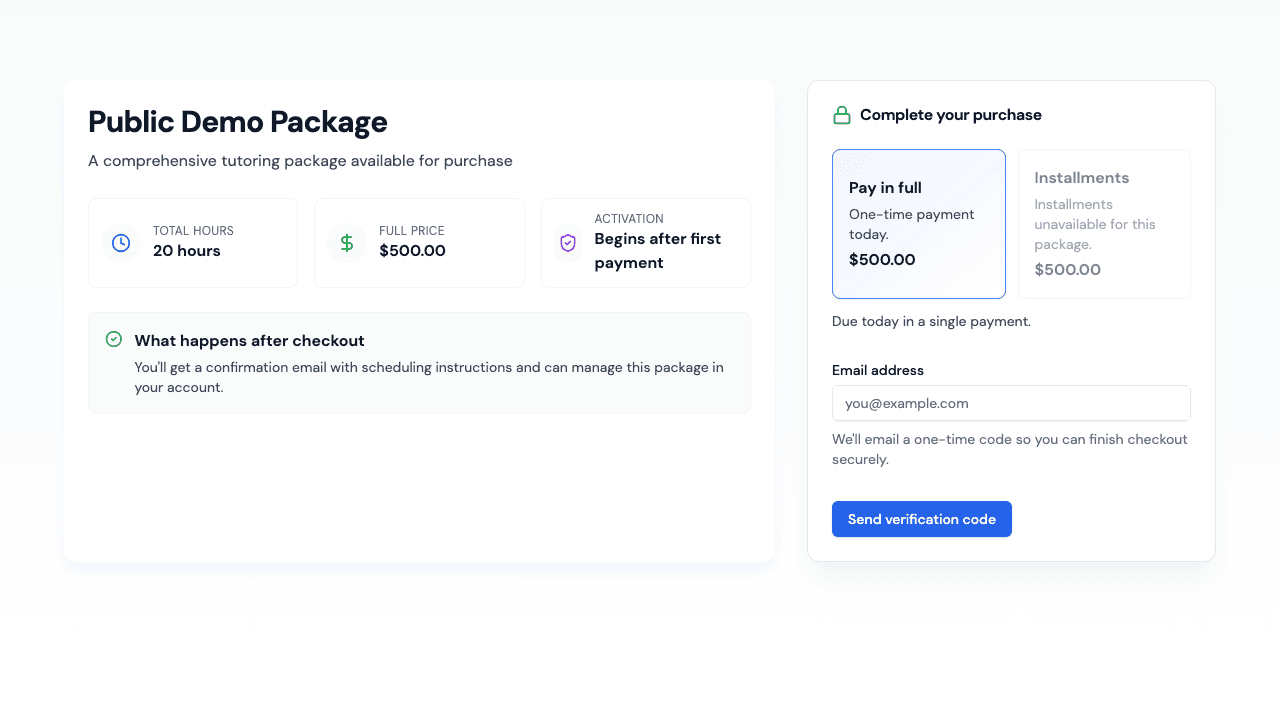
Open the purchase page
Visit the link shared by your coach or company to see the details and pricing.
- 2
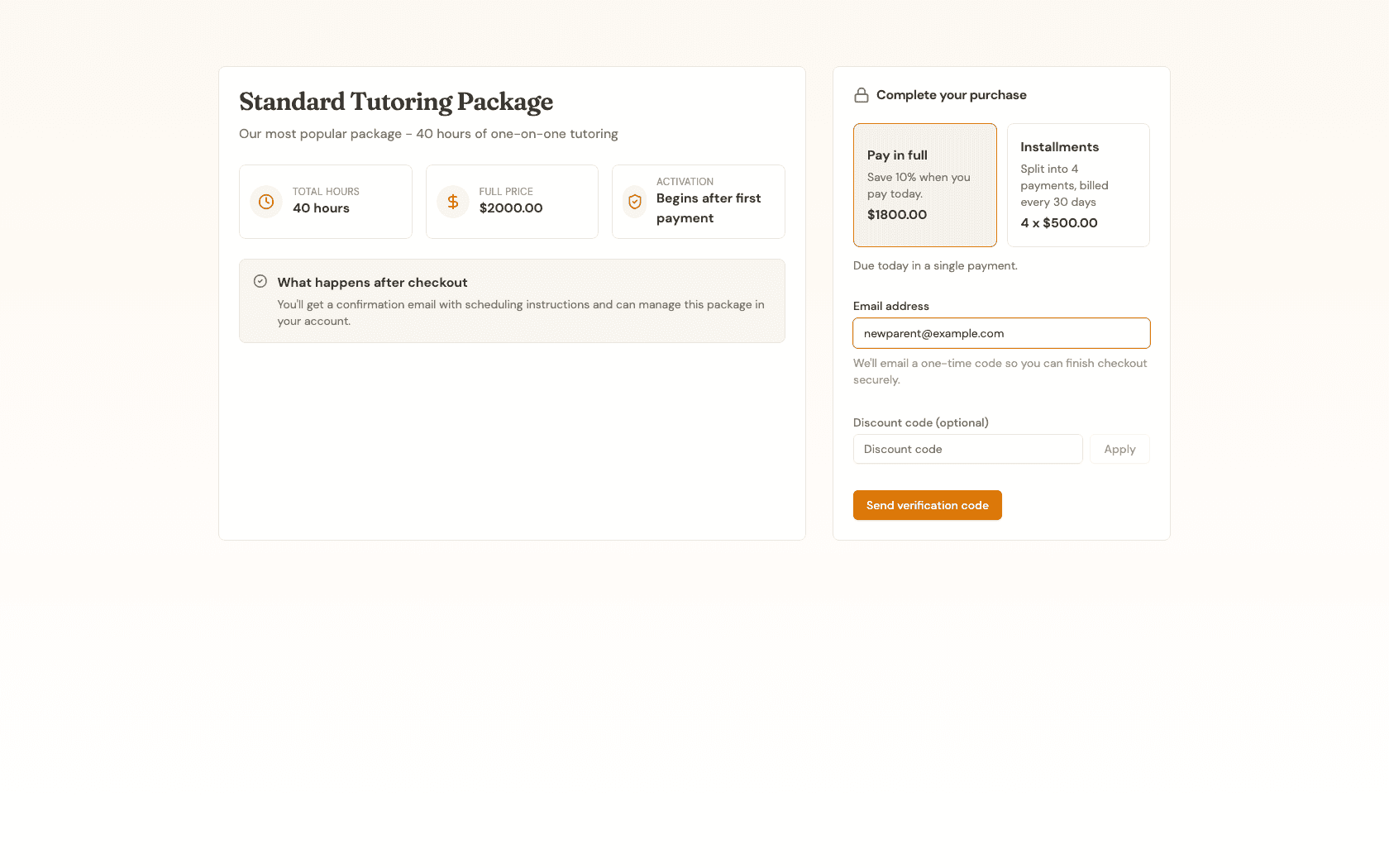
Enter your email address
Provide your email address to receive a verification code and continue with the purchase.
- 3
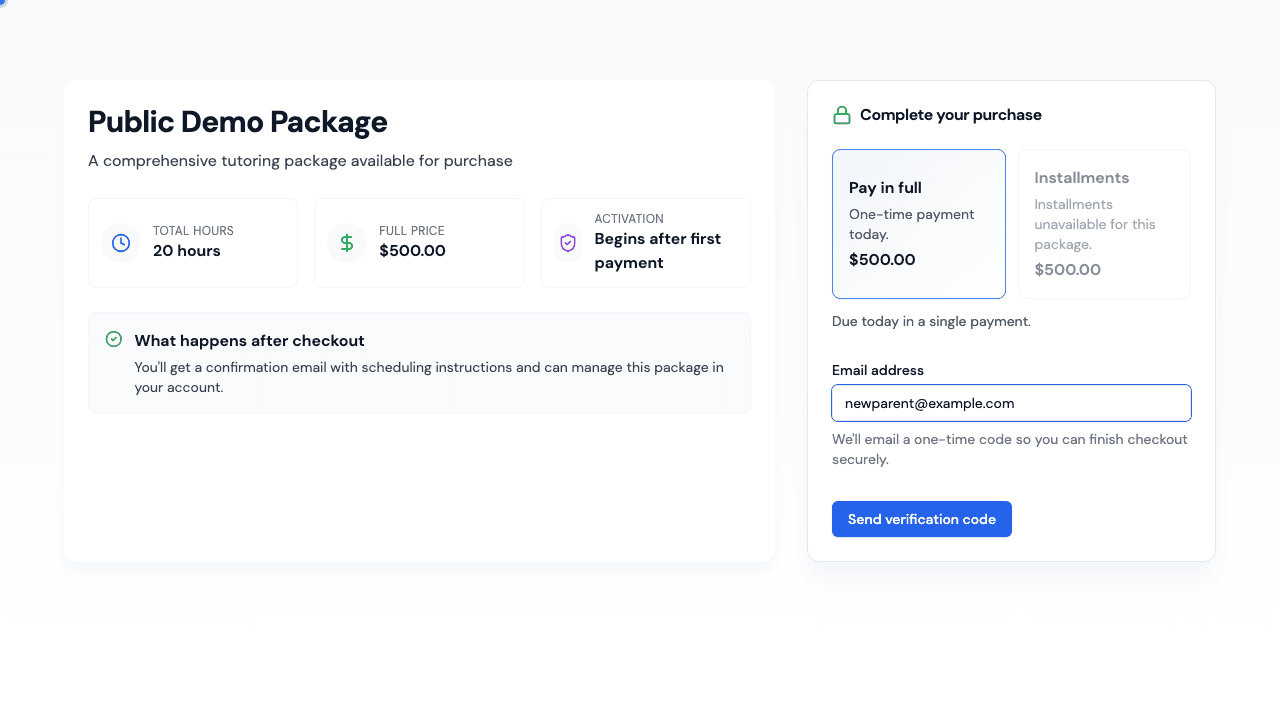
Review details and payment options
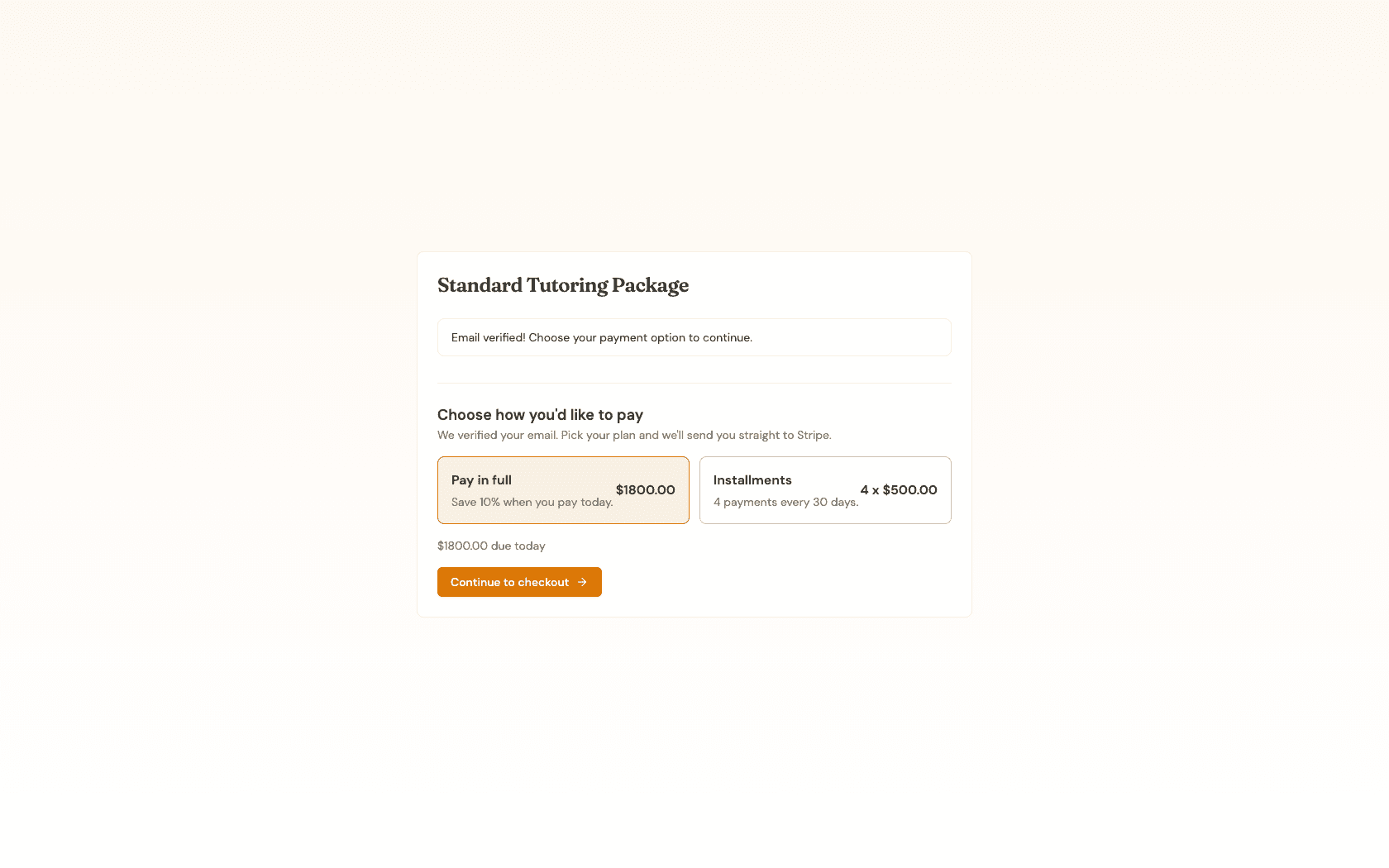
Review the hour bundle details and choose Pay in full or Installments. Full price and installment amounts update automatically based on your selection.
- 4
Click to continue
Click "Send verification code" to have a 6-digit code emailed to you.
- 5
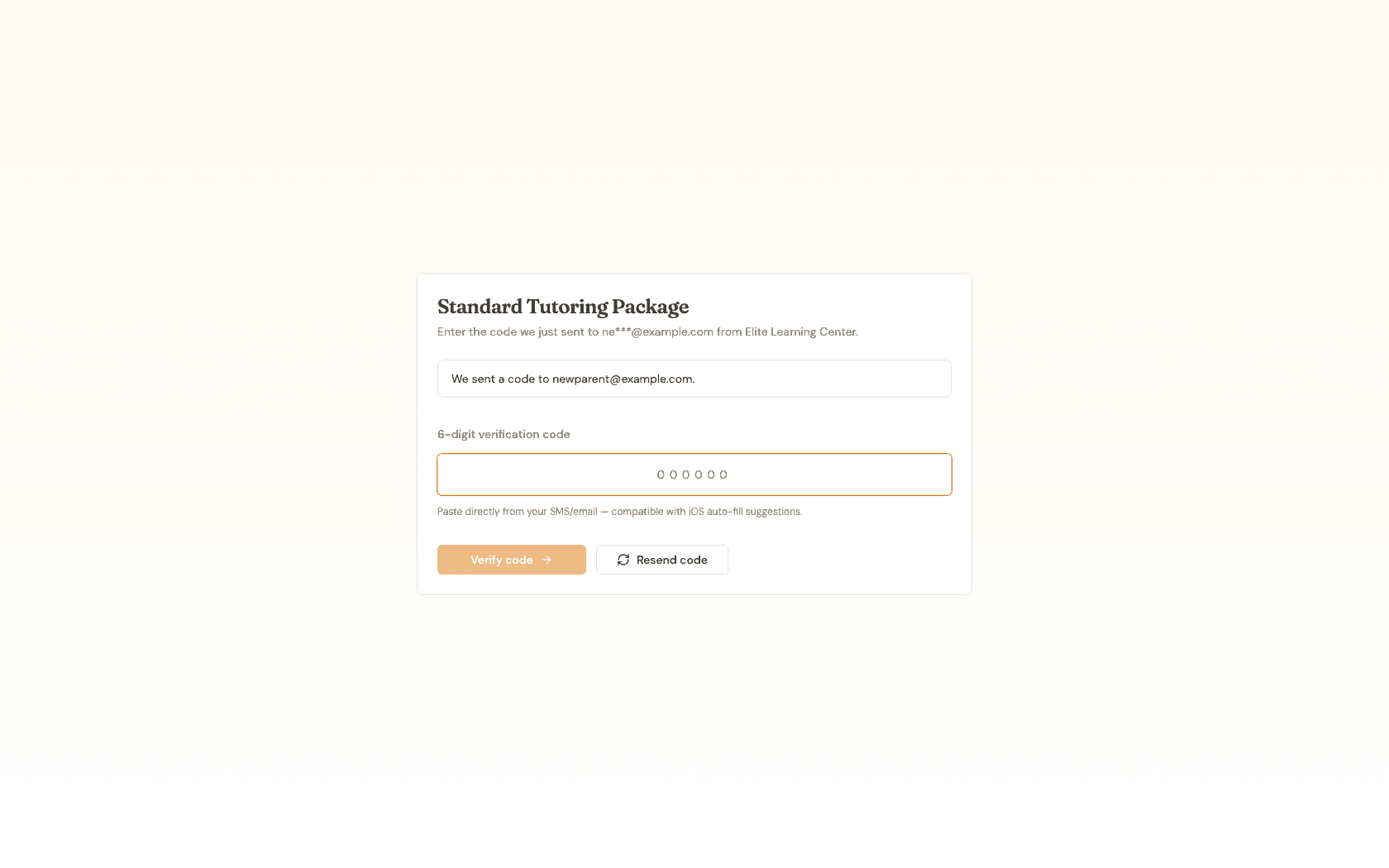
Enter verification code
Enter the 6-digit verification code that was sent to your email address. The code verifies automatically once all 6 digits are entered.
- 6
Continue to secure checkout
Confirm your payment plan and click "Continue to checkout" to move to the secure Stripe payment form.
- 7
Complete the secure checkout
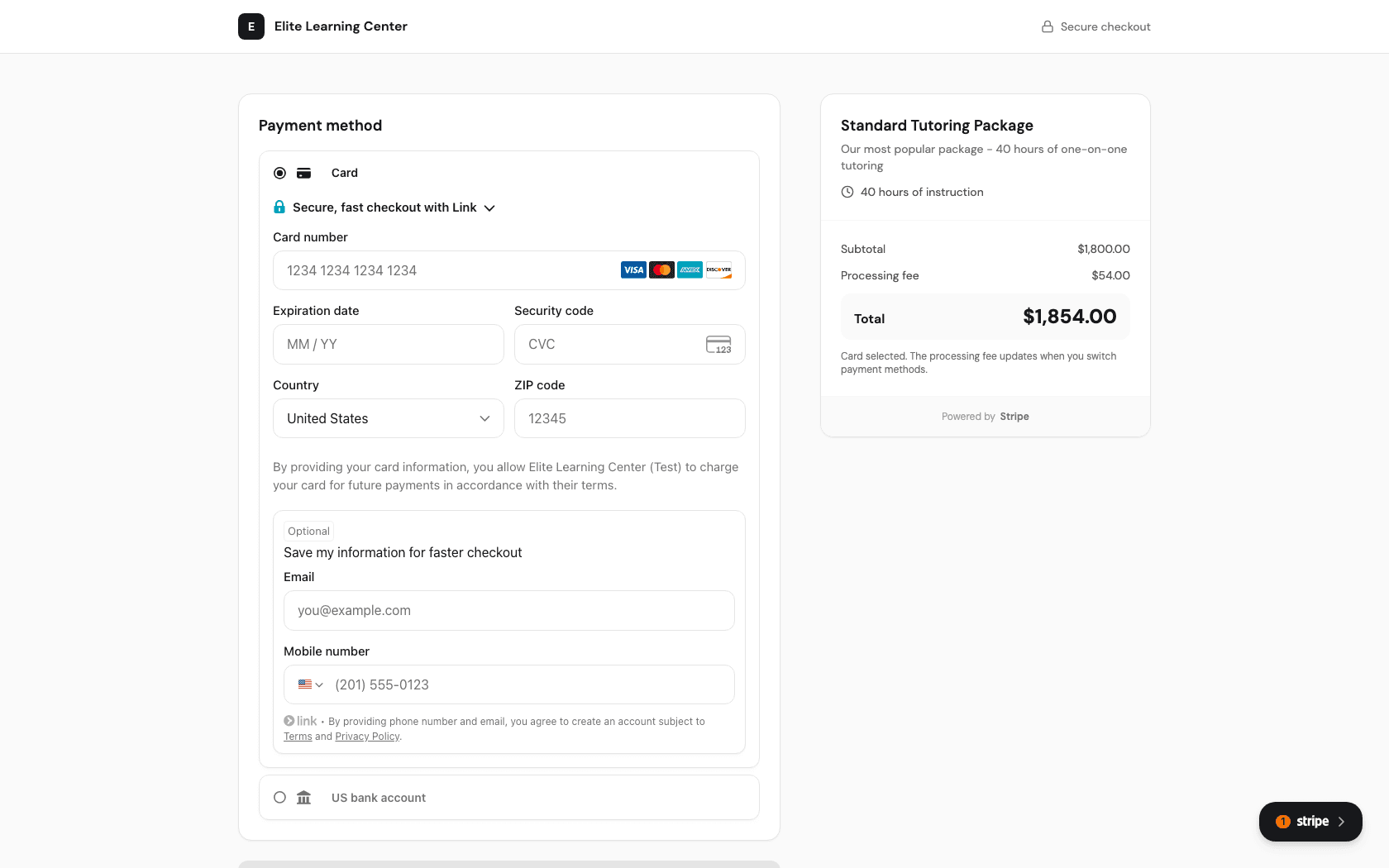
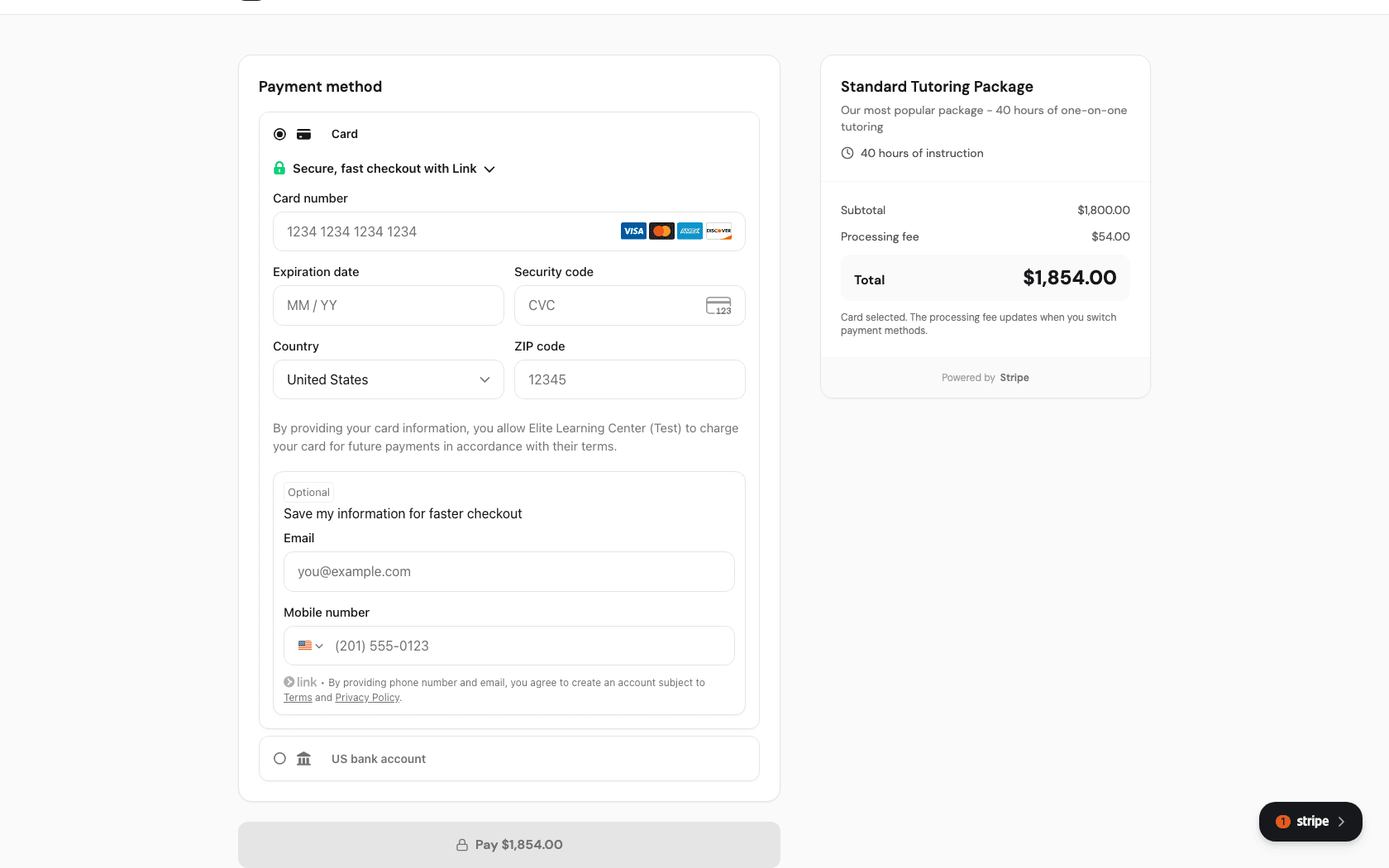
Enter your card or bank account details in the secure Stripe checkout form, review the order total, and click "Pay" to complete your purchase.
What you'll accomplish
- Your purchase is confirmed and hours appear in your account.
- You receive a confirmation email with details.
- You can schedule appointments using your newly purchased hours.
Related Guides
- How to schedule an appointment - Book your first appointment after purchasing
- How to view student schedule - See all upcoming appointments
- How to manage recurring sessions - Set up regular weekly meetings
- Billing & Payments - How package pricing and billing work