
How-To Guide - Parents
How to enroll your student in a group class
Learn how to browse available group classes, view schedules and details, and enroll using a package or drop-in payment method.
Updated August 6, 2026
Overview
Use this guide to enroll in a group class. You'll browse available classes, view the schedule and details, and choose your enrollment method.
Before you start
- You are logged in as a parent.
- Your student is added to your family account.
- You have an active package or payment method for drop-in.
Steps
- 1Go to login
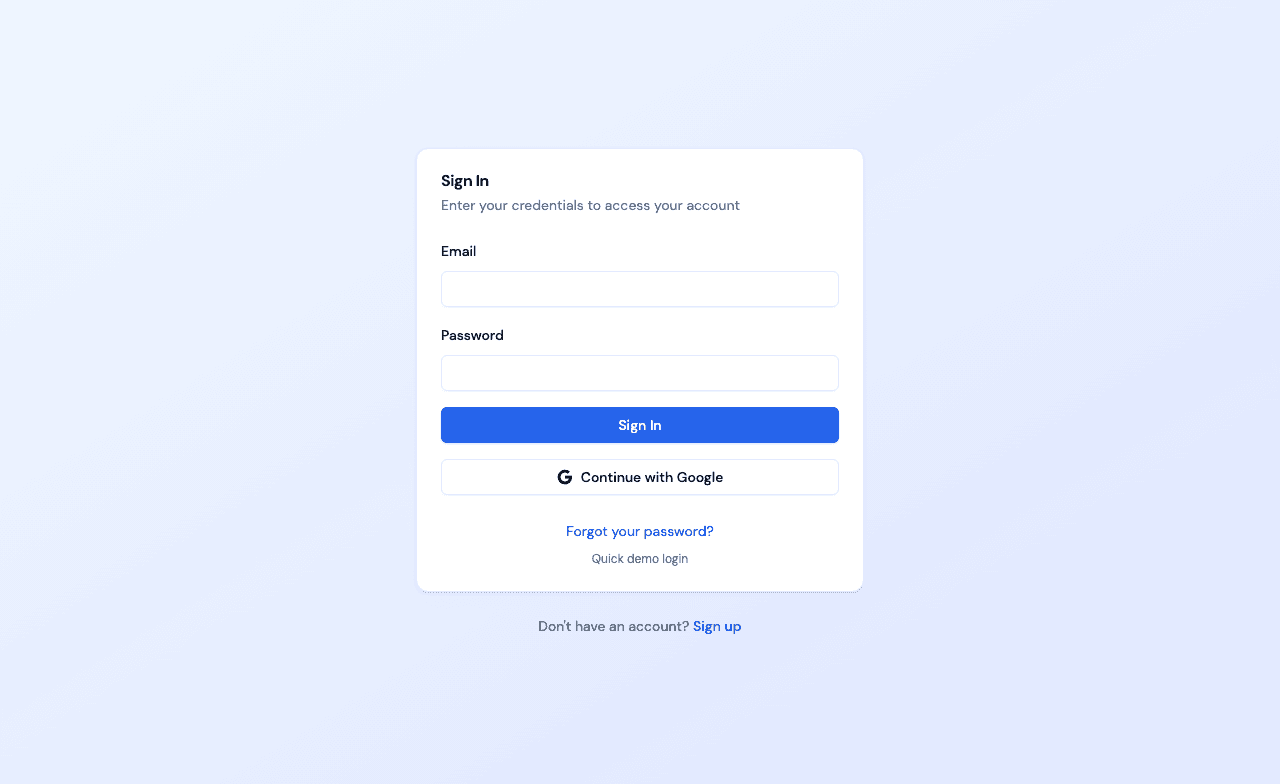
Sign in as a parent
Use your parent account credentials to access the dashboard.
- 2
Navigate to Group Classes
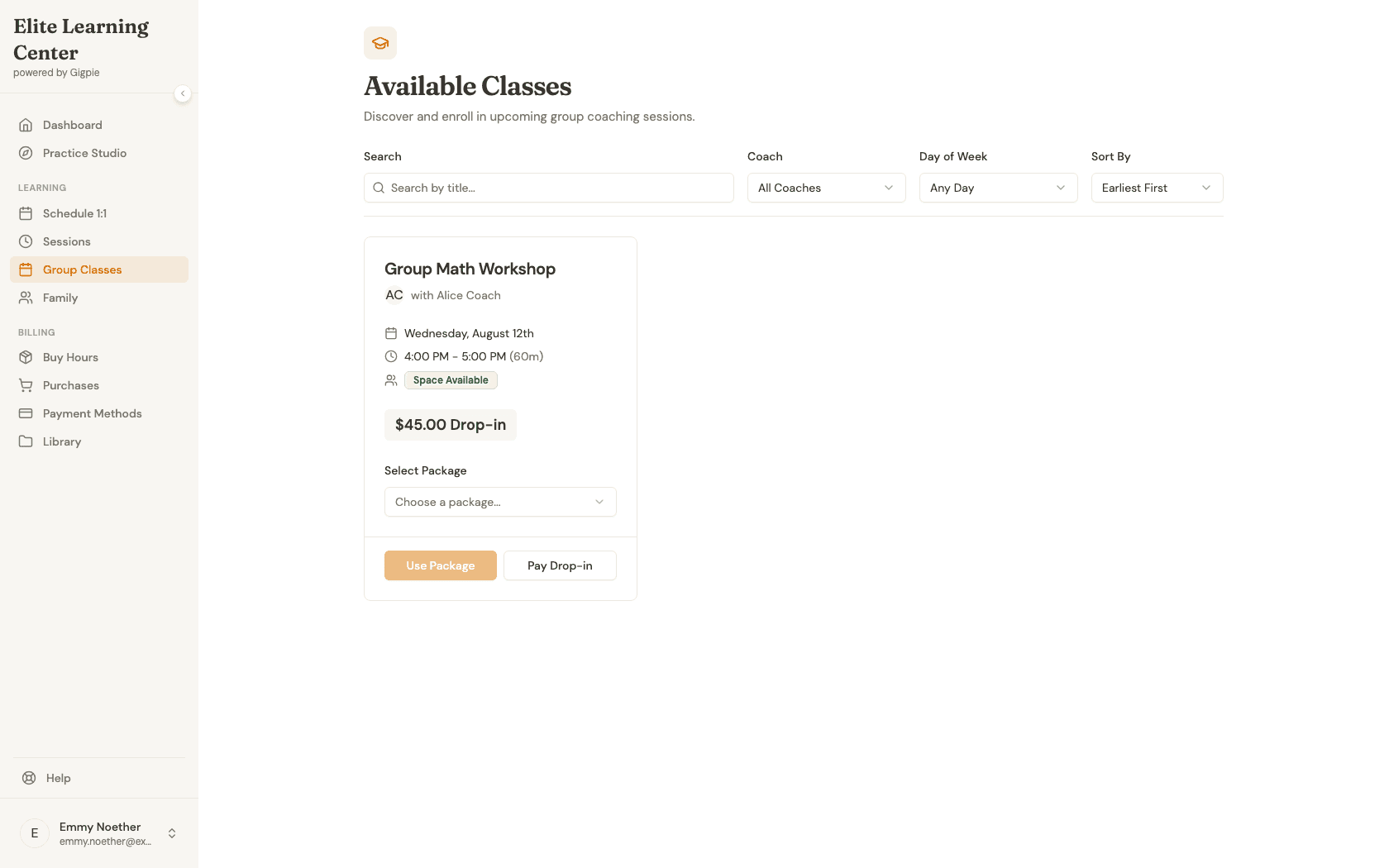
Click Group Classes in the navigation menu to see all available group sessions and classes.
- 3
Browse available classes
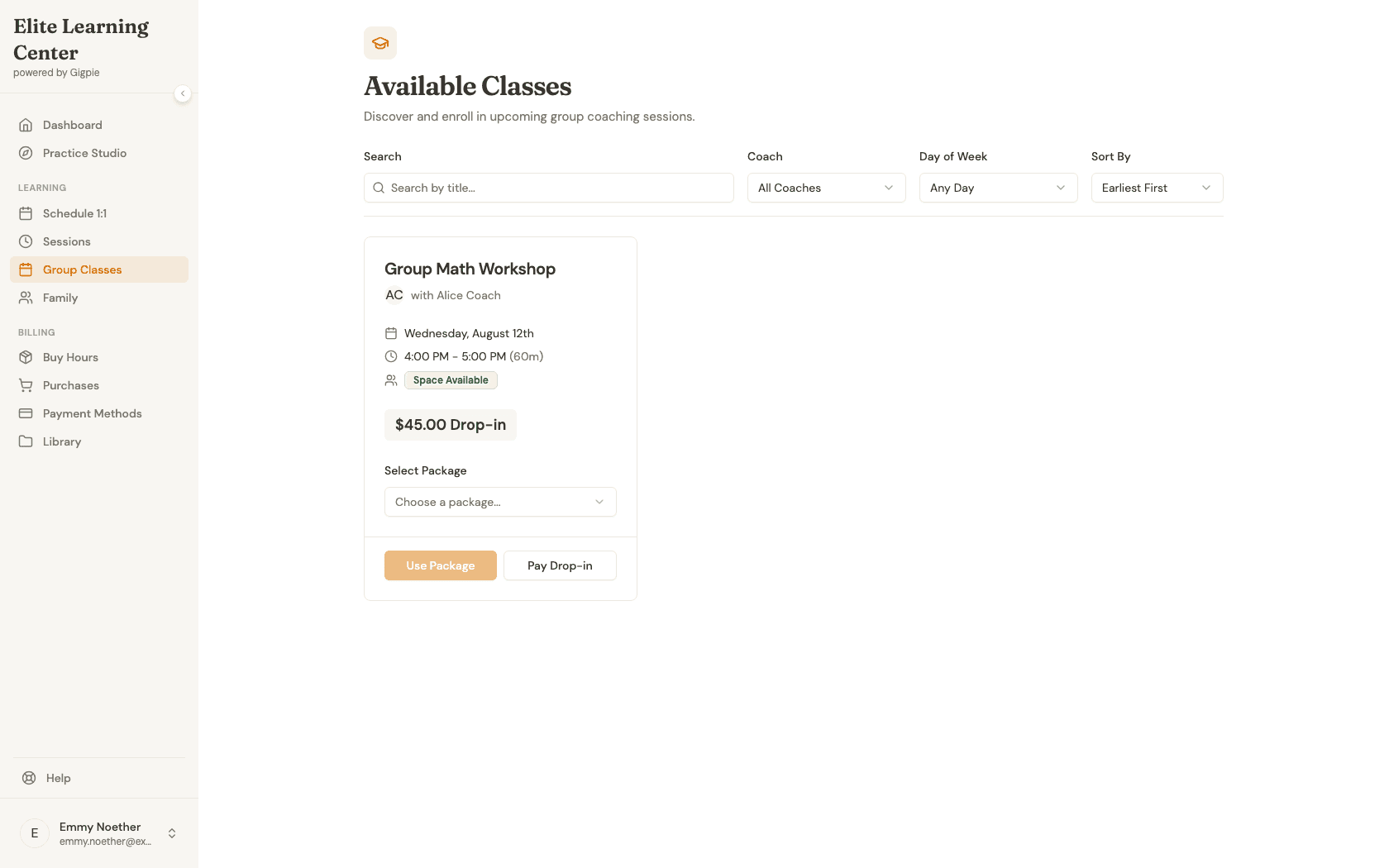
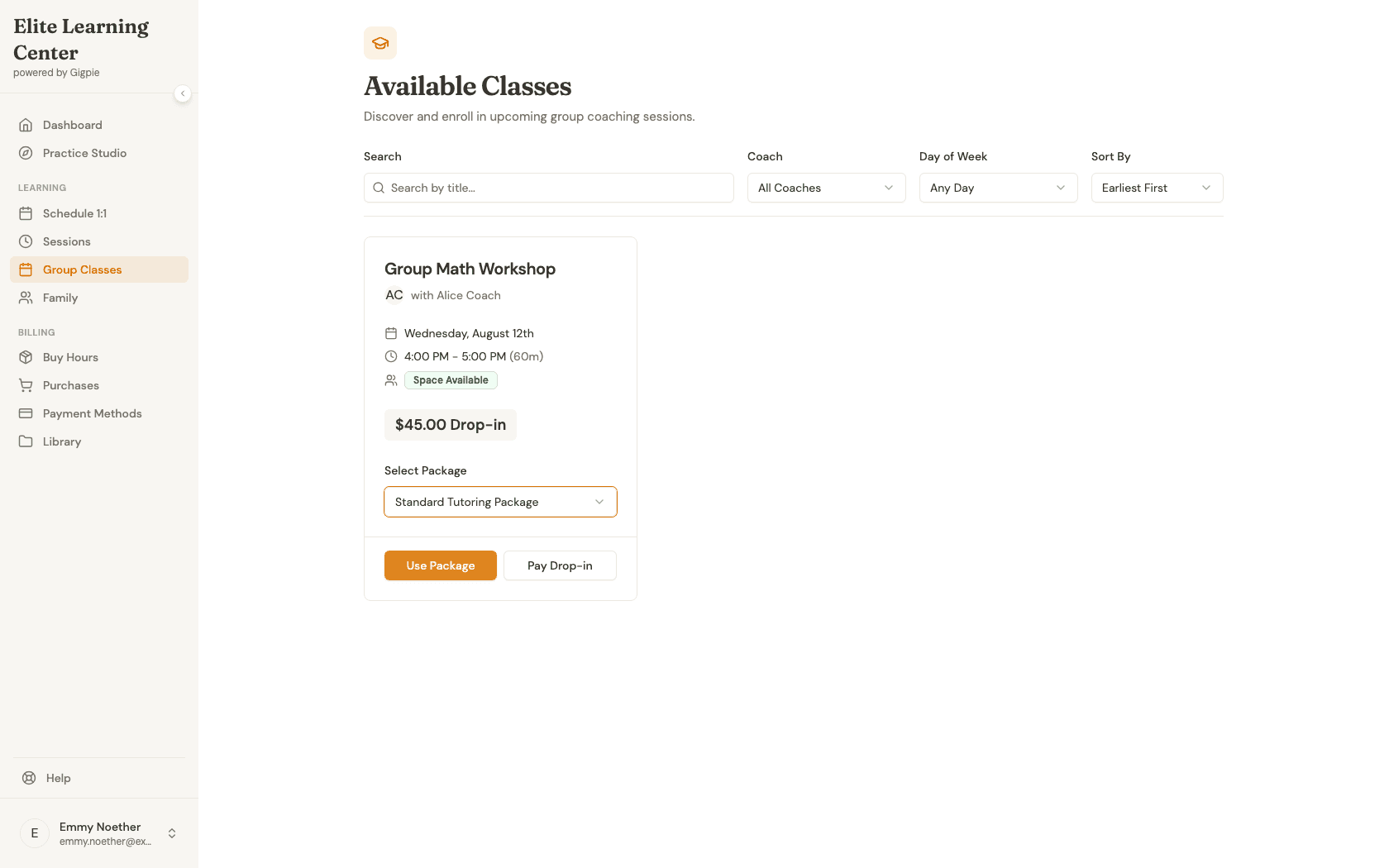
Each card shows the class title, coach, date and time, remaining capacity, and price. Use the search box or the Coach, Day of Week, and Sort By filters to narrow the list.
- 4
View class details and choose a package
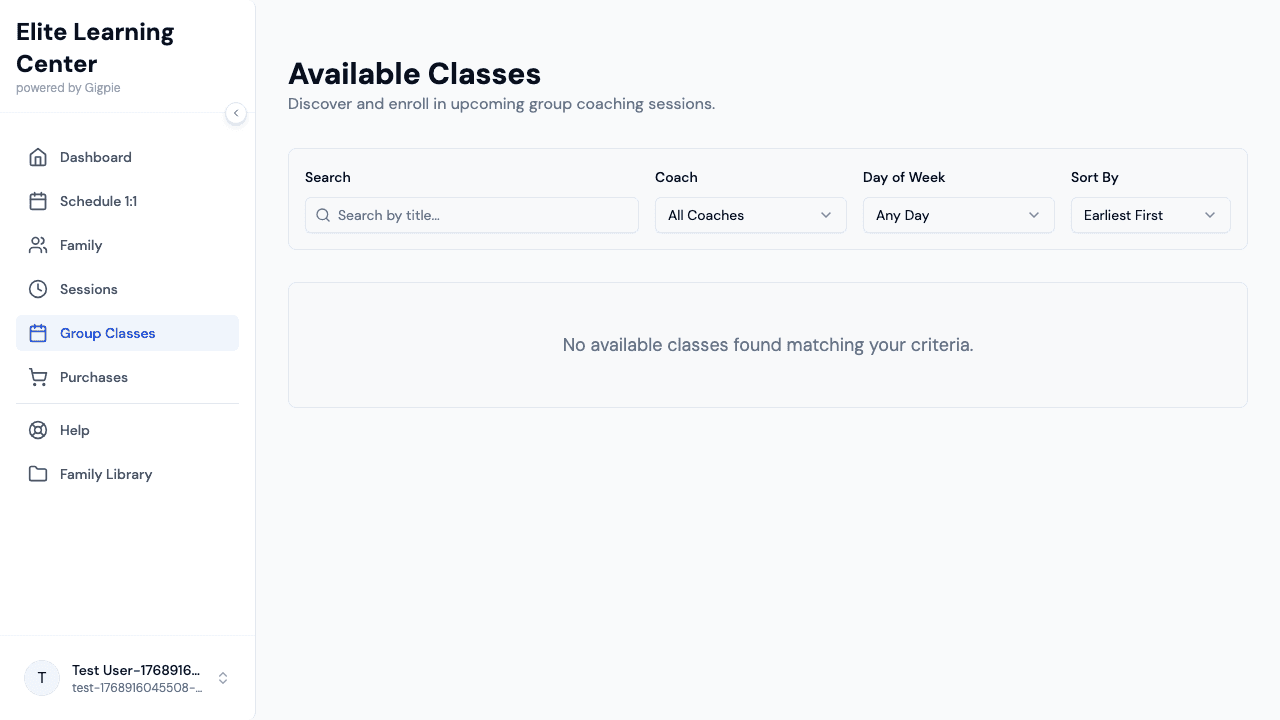
A class card shows everything you need: schedule, coach, capacity, and (if the coach offers it) a drop-in price. If you have an active package that's eligible for this class, pick it from the Select Package dropdown — Gigpie checks eligibility automatically and only lets you proceed with the "Use Package" button once a valid package is selected.
- 5
Enroll using your package
Click "Use Package" to enroll with the package you selected. This submits right away — there's no separate review or confirmation screen, so double-check the class and package before clicking. Since the button doesn't show a per-child picker, it enrolls using your own parent account; check your family's Sessions list afterward to confirm the class was added correctly, and contact your coach or admin if it needs to be moved to your student's record.
- 6
Or pay drop-in instead
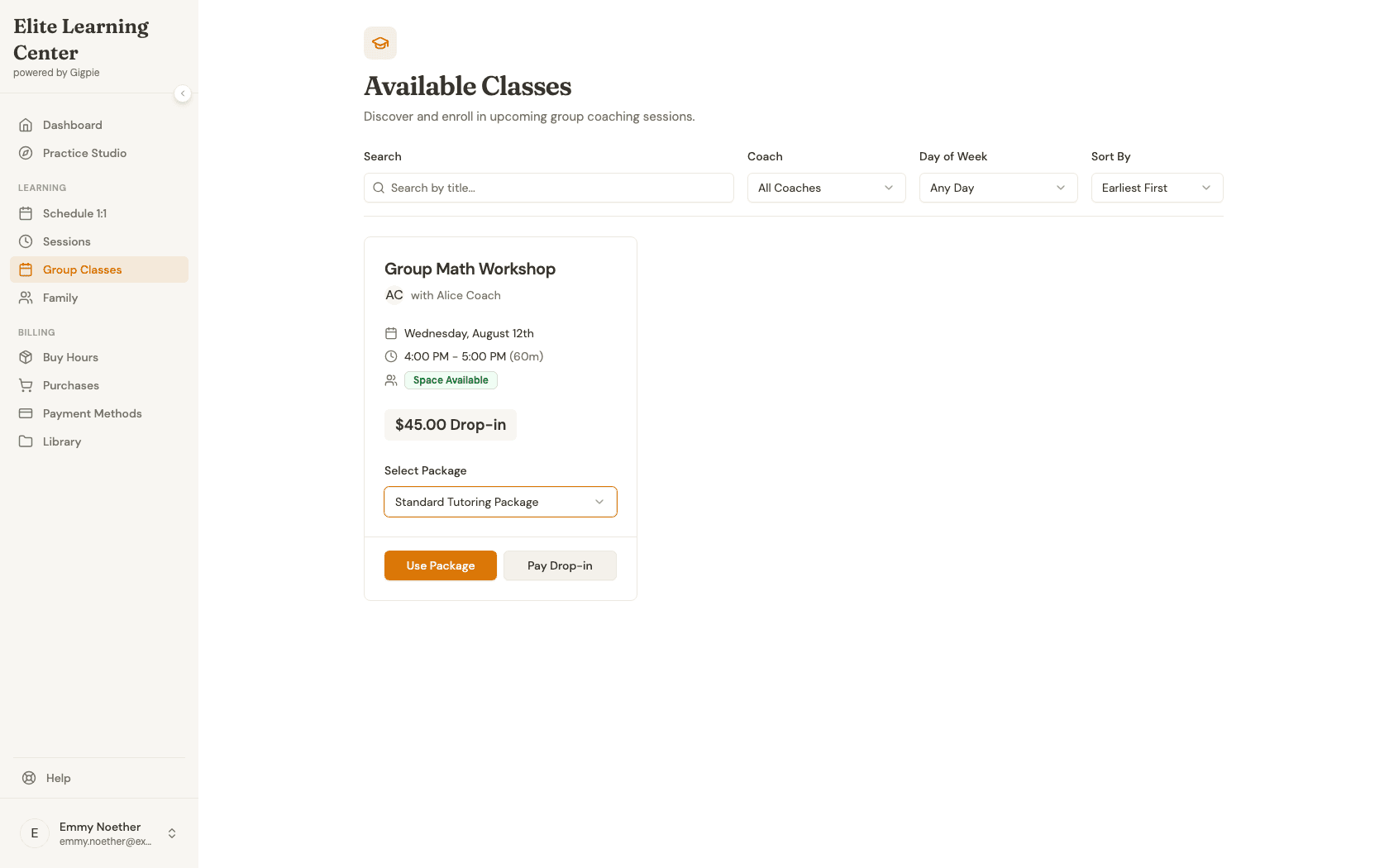
If the coach has enabled drop-in pricing for this class, "Pay Drop-in" is available whether or not you have an eligible package. It also submits immediately on click, with no separate confirmation step.
What you'll accomplish
- You're enrolled in the group class.
- The class sessions appear on your family's schedule.
Related Guides
- How to purchase a package - Buy hours before enrolling
- How to view student schedule - See all upcoming classes
- Enrichment Program Solutions - How Gigpie supports group classes and programs