
How-To Guide - Parents
How to view and pay your payment plans
Read your installment schedule, understand what Paid, Overdue, and Due mean, pay an installment yourself, and know how a status changes when your coordinator marks one paid or waives it.
Updated August 10, 2026
Overview
Use this guide to read your payment plan's installment schedule, pay an installment when it's your turn, and understand what each status means.
Before you start
- You have a package on an installment payment plan.
Reading your installment schedule
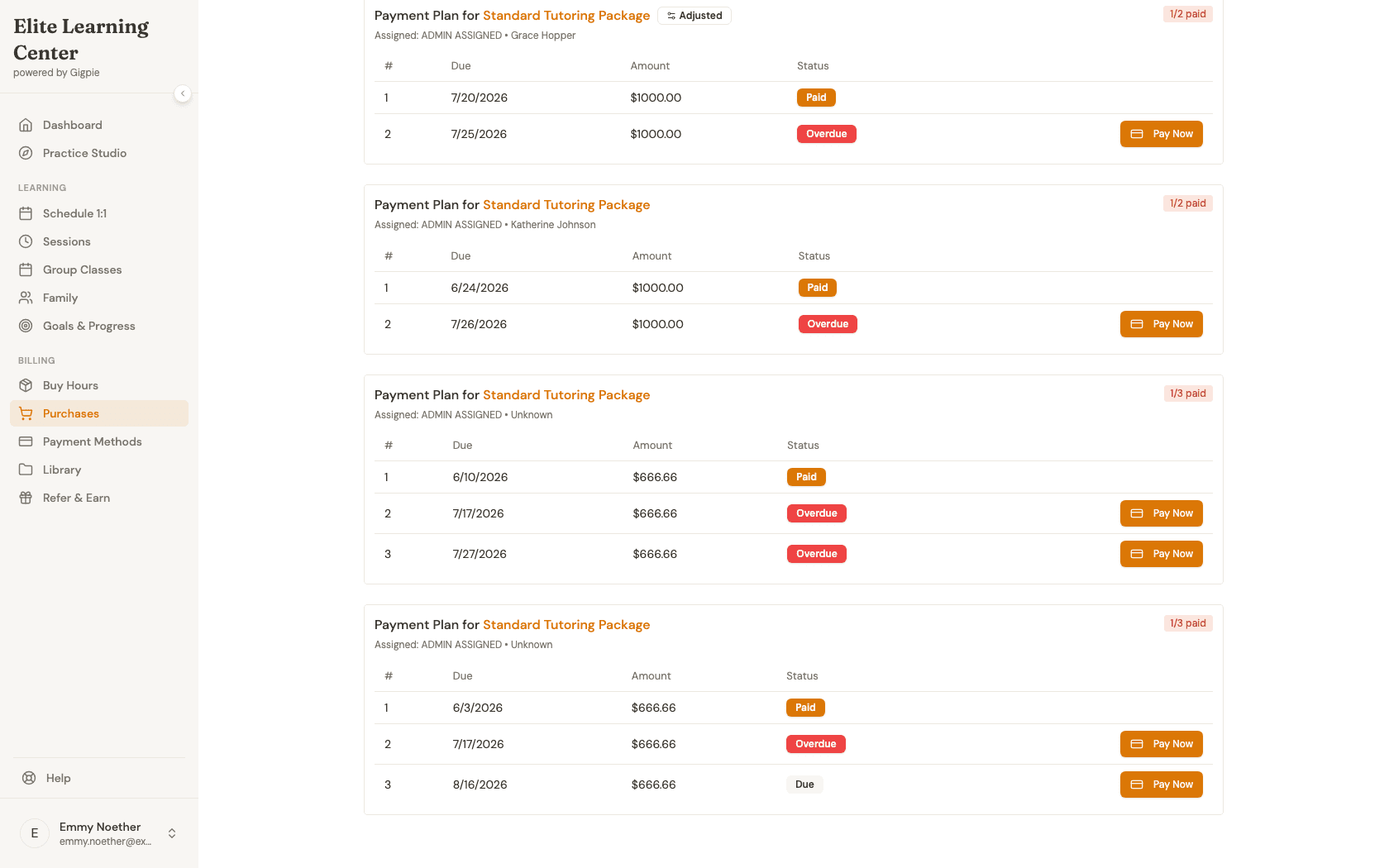
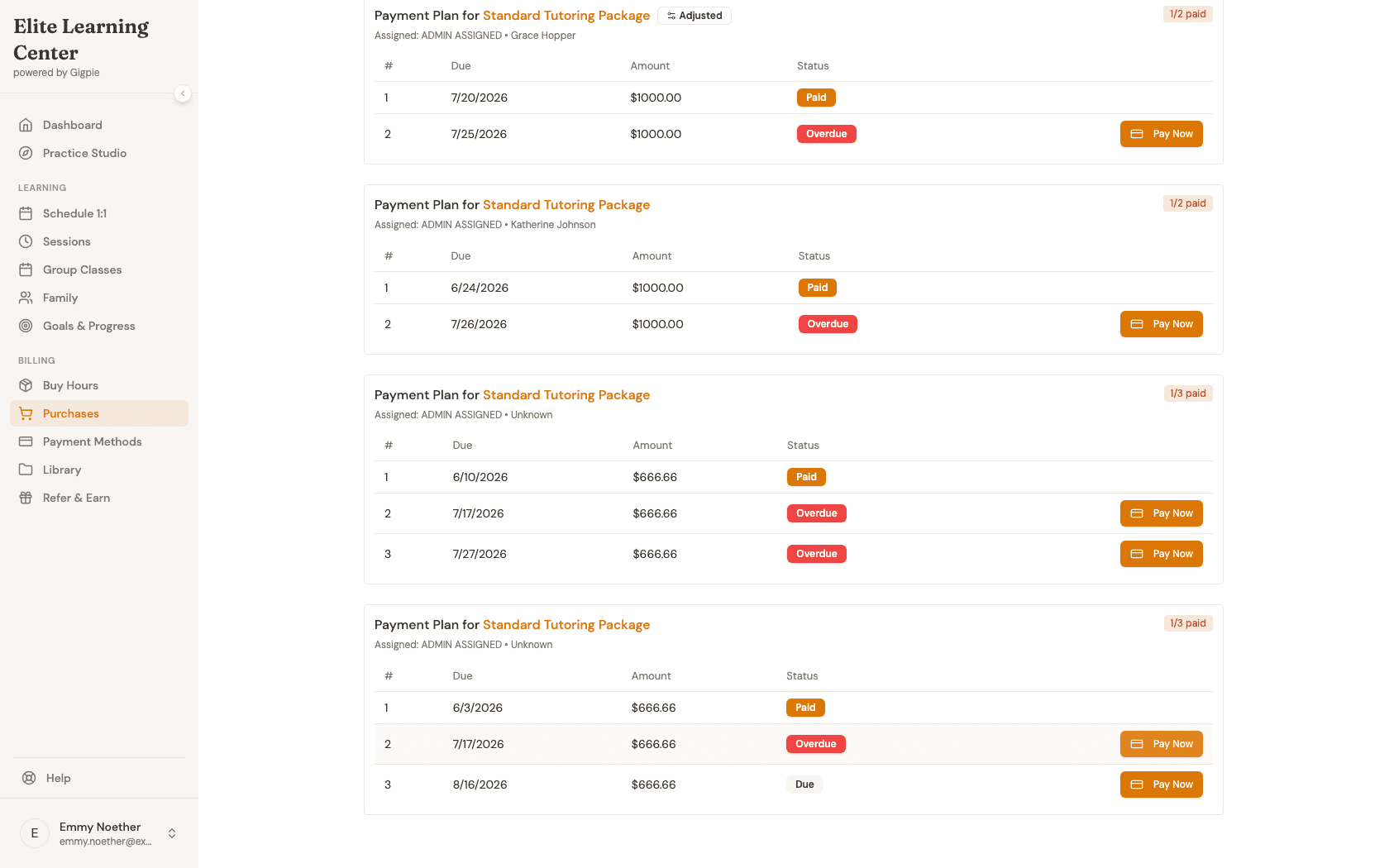
Every payment plan shows its installments in order — number, due date, amount, and a status badge. Paid means the installment cleared. Overdue means the due date has passed without a successful payment. A not-yet-due installment shows Due with its scheduled date. If a charge is a bank transfer that's still clearing, you'll briefly see a processing status instead of Paid or Overdue while it settles.
Paying, marking paid, and waiving — who does what
You can pay any open installment yourself with "Pay Now." If you're on autopay, most installments are charged automatically and you'll simply see them turn to Paid on their own. Two other things can change an installment's status that aren't buttons you'll see here: your coordinator can mark an installment paid manually — for a cash or check payment collected outside the app, for example — or waive one entirely. Either way, the status updates on this page the same as if you'd paid by card; you won't see a "mark paid" or "waive" control yourself, since those are staff-side actions on their end.
Where your receipts are
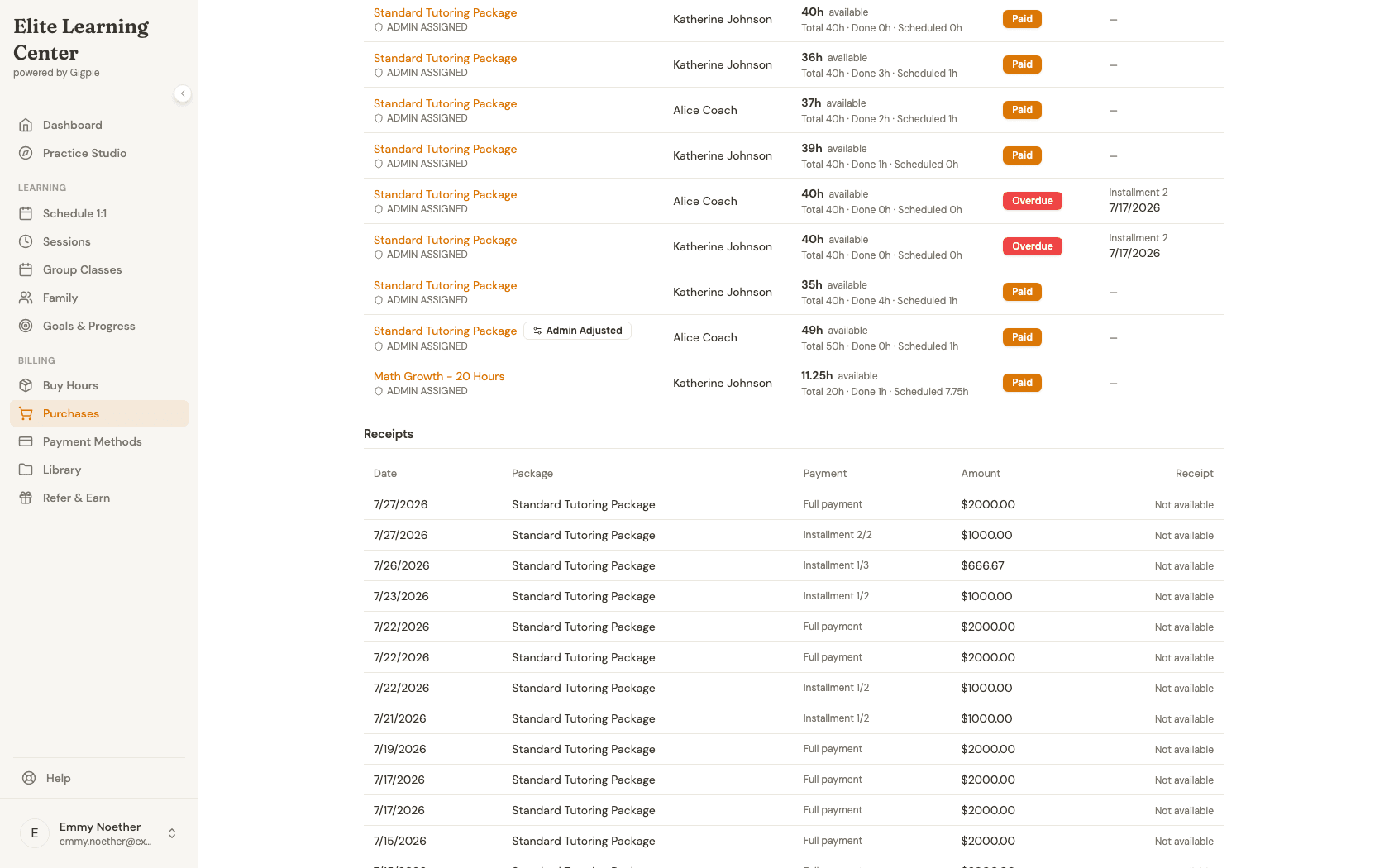
Purchases & Payment Plans has its own Receipts section, between your purchases and your payment plans. It lists every paid installment and every full payment, newest first: the date, the package, the amount, and a link to that payment's Stripe-hosted receipt. That list includes payments made before this section existed, so older charges show up too.
You'll also find a receipt link in Gigpie's payment confirmation email each time a charge goes through, and Stripe sends its own separate receipt email to the address on file. Whichever one you check, the receipt is there.
Steps
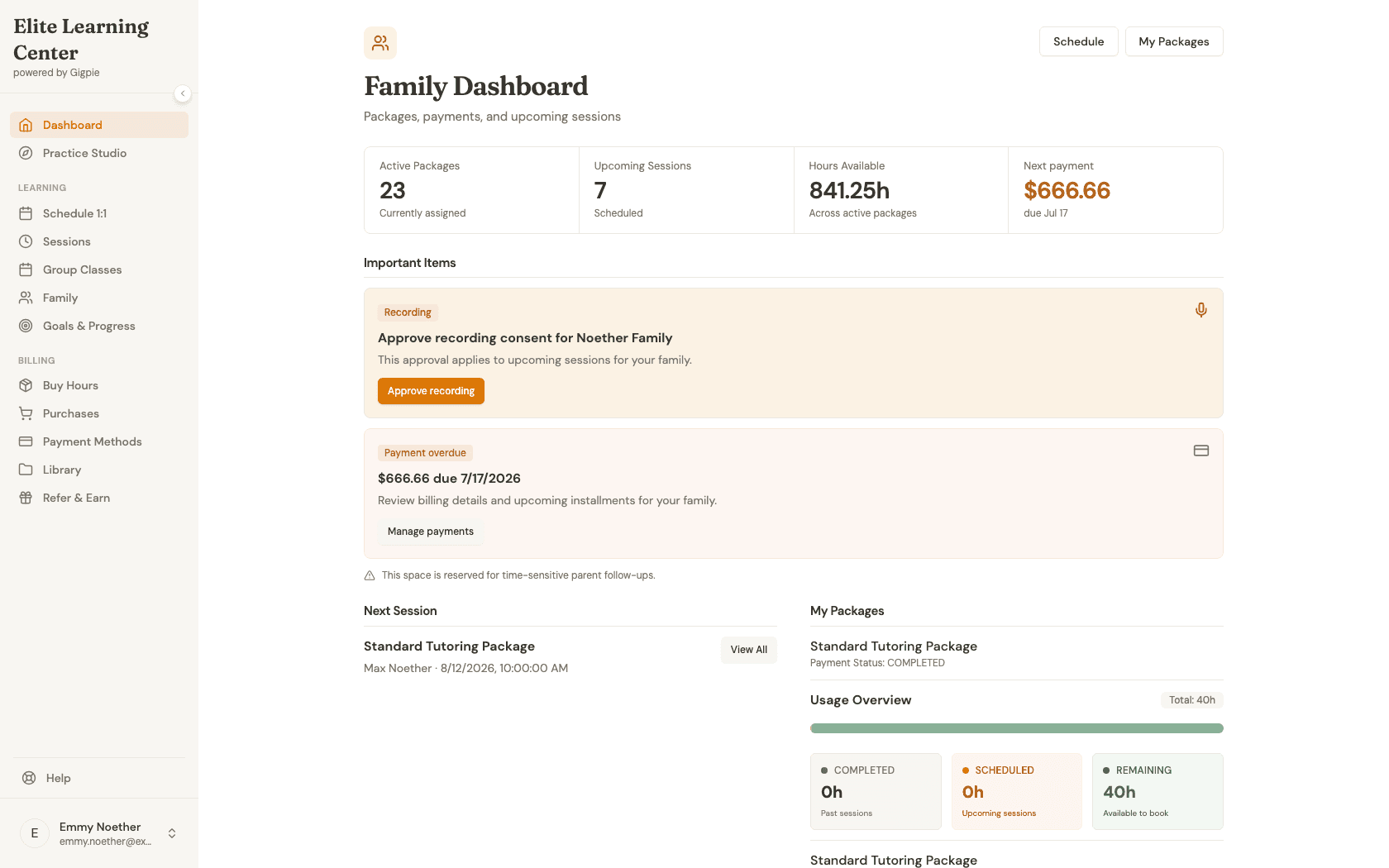
- 1Go to login
Sign in as a parent
Use your parent account credentials to access the family dashboard.
- 2
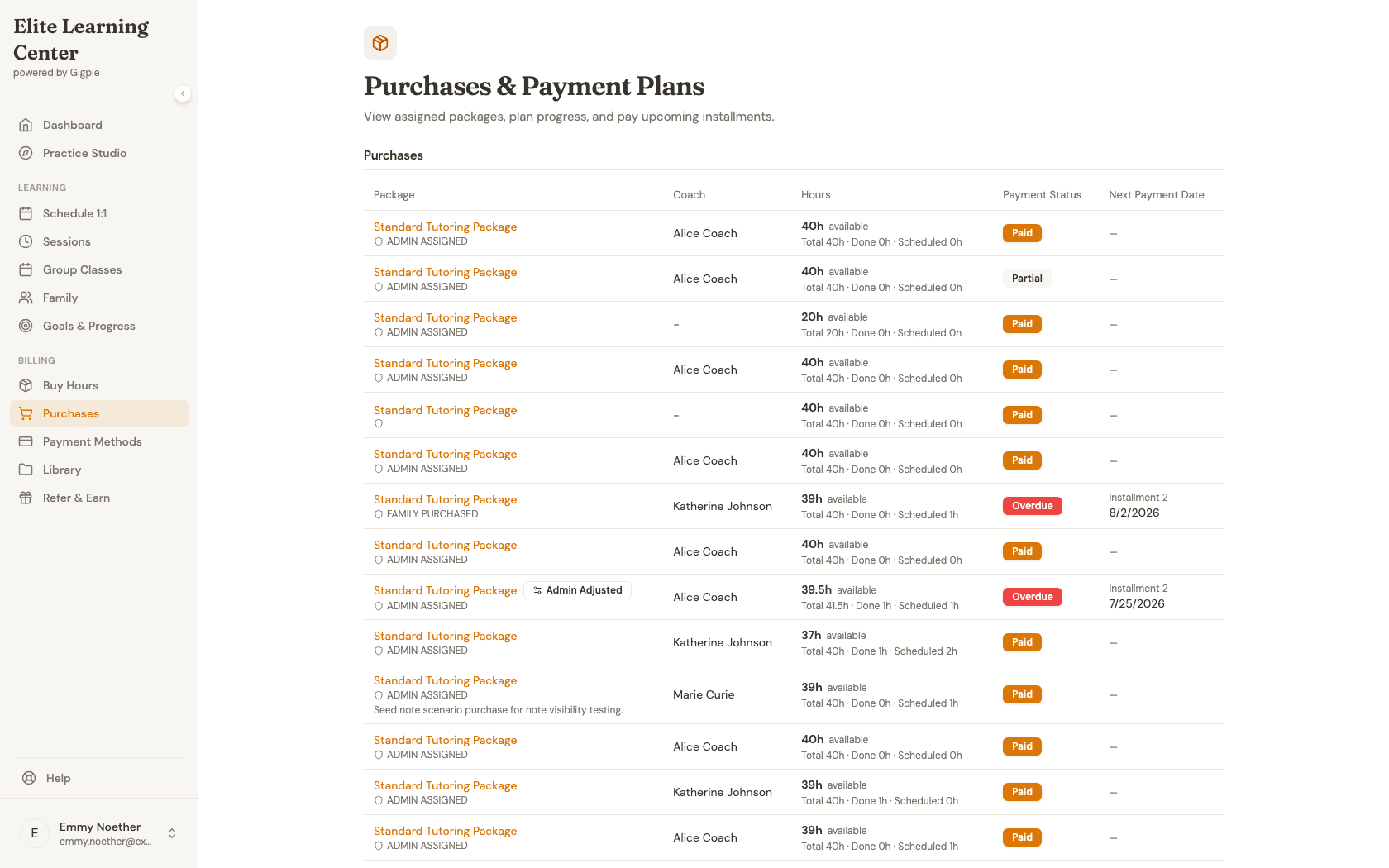
Open Purchases
Click Purchases under Billing in the sidebar to see your assigned packages and payment plans.
- 3
View your receipts
Scroll down to Receipts to see every paid installment and full payment, newest first, with a link to that payment's receipt. A payment with no Stripe receipt on file, a cash or check payment your coordinator recorded manually, for example, shows "Not available" in the Receipt column instead of a link. That's this family's own payment history, not a placeholder.
- 4
View your installment schedule
Scroll down to Payment Plans to see the full installment schedule for a package — this one shows one installment already Paid, one Overdue, and one not yet Due.
- 5
Pay an installment
Click "Pay Now" next to any open installment to pay it. This takes you to a secure Stripe checkout for that installment's amount.
What you'll accomplish
- You can find your installment schedule and read what each status means.
- You can pay an installment yourself when one is due.
- You understand who can mark an installment paid or waive it, and where to find a receipt for any card or bank payment.
Related Guides
- How autopay works on a payment plan - What happens once your first installment is paid
- How to purchase coaching hours - Where a payment plan starts
- Billing & Payments - How installments, autopay, and pay-by-bank work end to end