
How-To Guide - Parents
How autopay works on a payment plan
See where to add a saved card or bank account, and understand how autopay turns on automatically after your first installment payment — there's no separate switch to find.
Updated August 10, 2026
Overview
Use this guide to understand how autopay works on an installment plan: where to add a card or bank account, and what happens automatically once your first payment goes through.
Before you start
- You are on a payment plan with one or more installments remaining.
- You have a card or bank account you're ready to save.
There's no autopay switch to find — and that's by design
If you've gone looking for an "enable autopay" toggle, stop looking — there isn't one. Autopay turns on by itself the moment your first installment on a plan is paid successfully by card. From that point on, future installments on that plan are charged automatically as they come due, on a real schedule that checks for due installments every two hours. You never opt in and you never need to remember to turn it on for a new plan.
What autopay actually does
Once it's running, autopay charges your saved card or bank account on each installment's due date. If a charge fails — an expired card, insufficient funds — it retries automatically rather than leaving the installment stuck, and retries are idempotent, so you're never at risk of being double-charged for the same installment. If you pay by bank account (ACH) instead of a card, Gigpie gives the transfer its normal clearing time instead of treating it as failed on day one; you may briefly see an installment marked as processing, alongside Stripe's expected clear date, while the transfer clears.
Steps
- 1Go to login
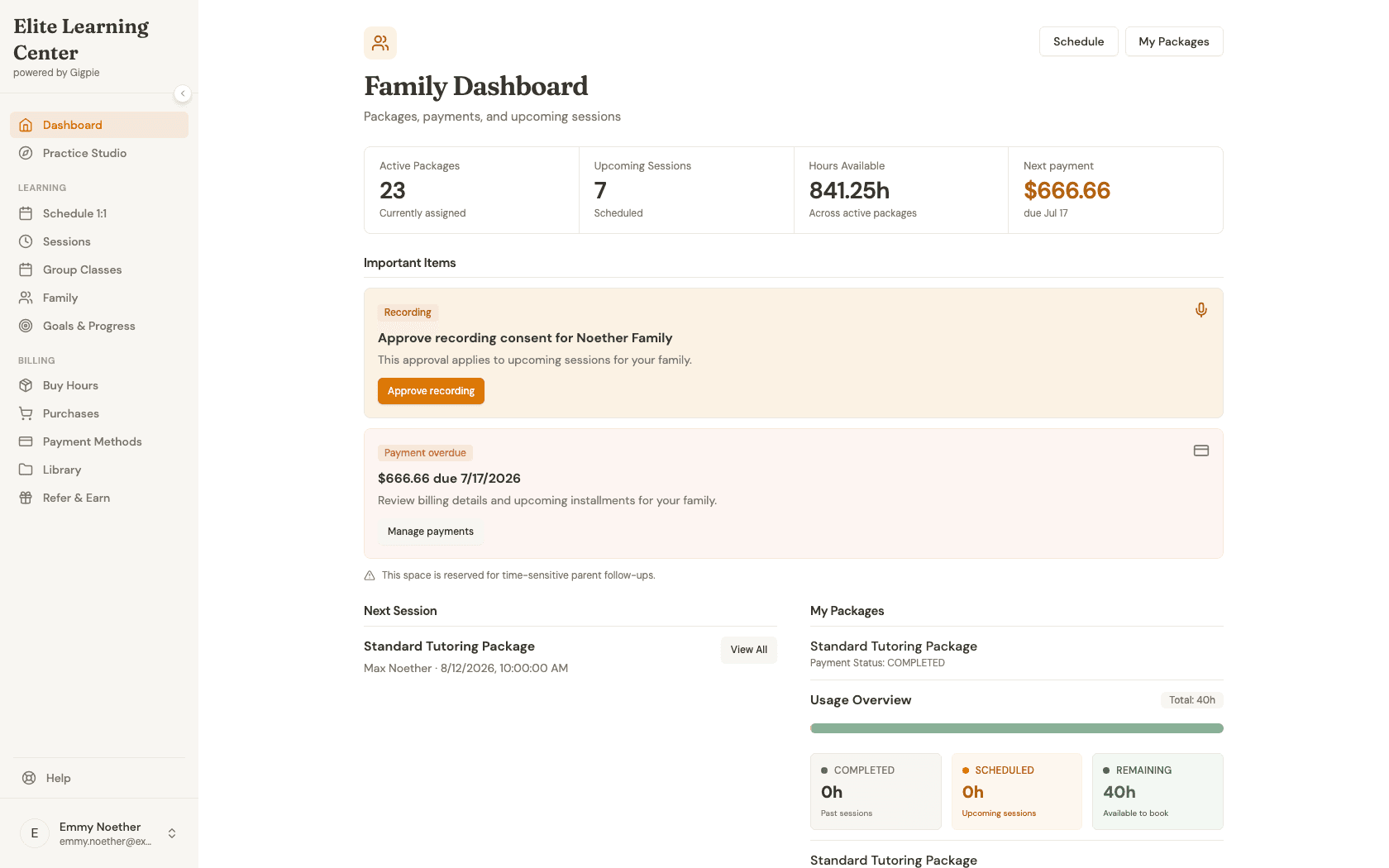
Sign in as a parent
Use your parent account credentials to access the family dashboard.
- 2
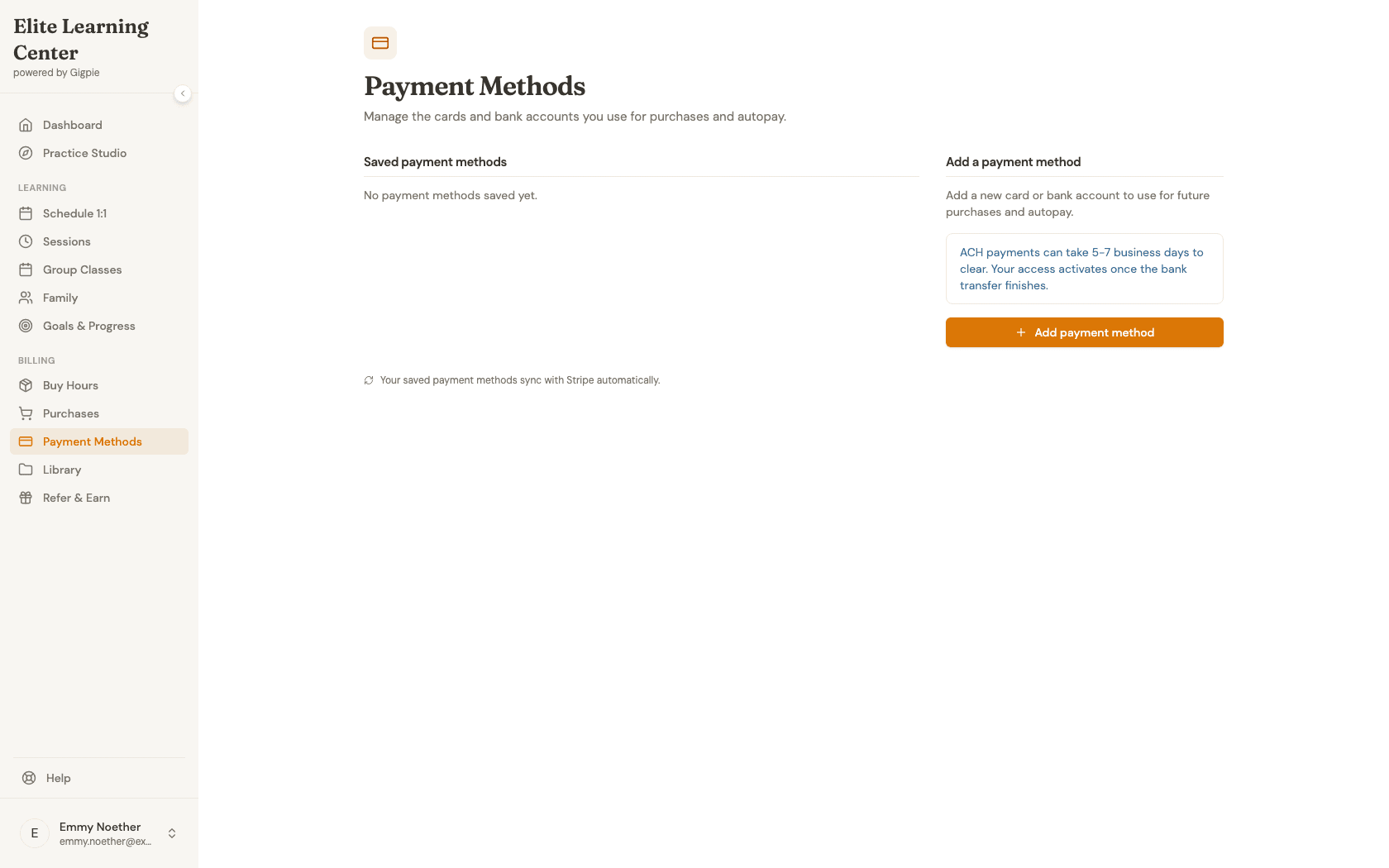
Open Payment Methods
Click Payment Methods under Billing in the sidebar. This is where every card or bank account you save for purchases and autopay lives.
- 3
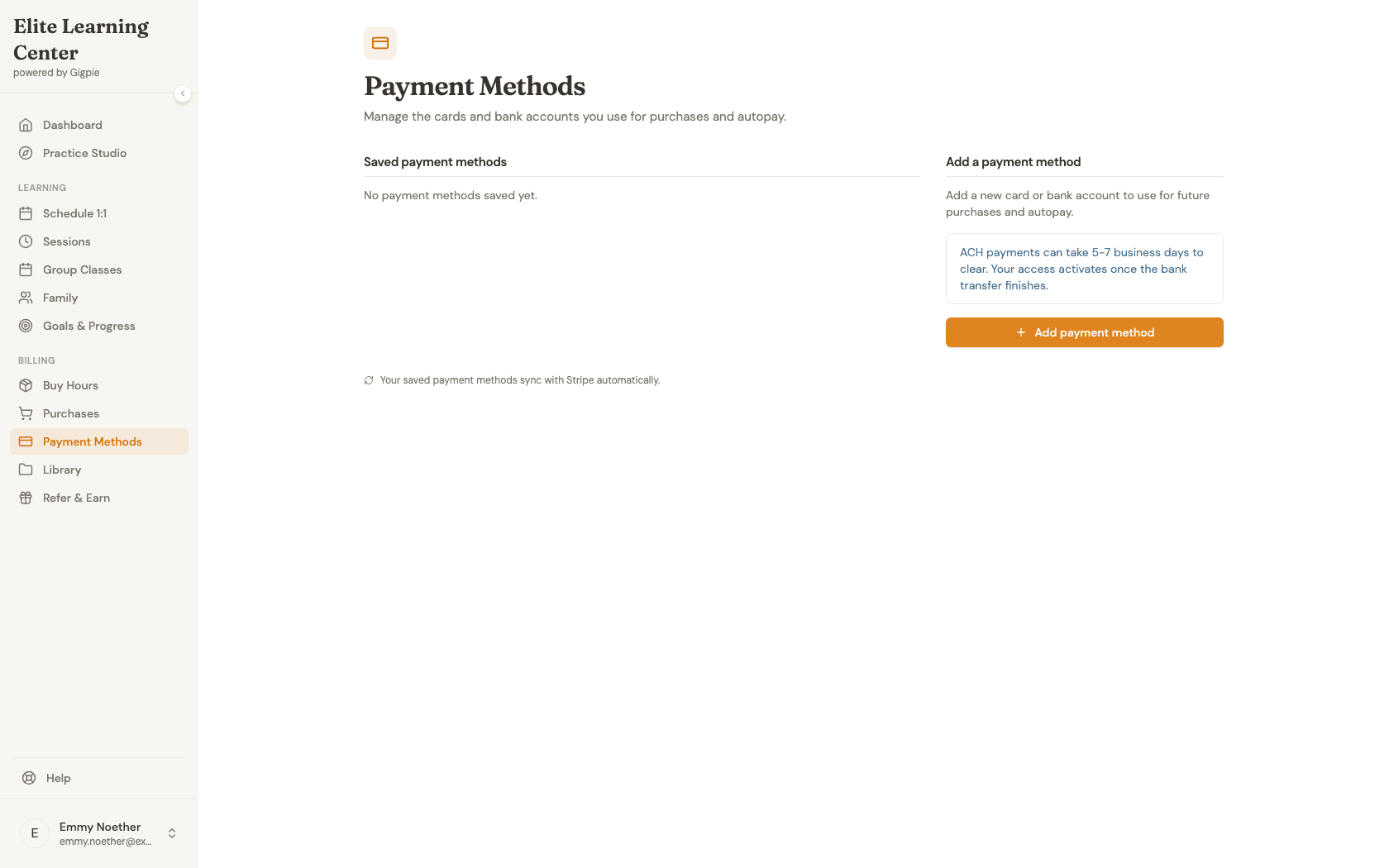
Add a card or bank account
Click "Add payment method" to open Stripe's secure form and save a card or bank account. This is the only step that matters for autopay — saving a payment method here is the prerequisite; autopay itself needs no further setup from you.
- 4
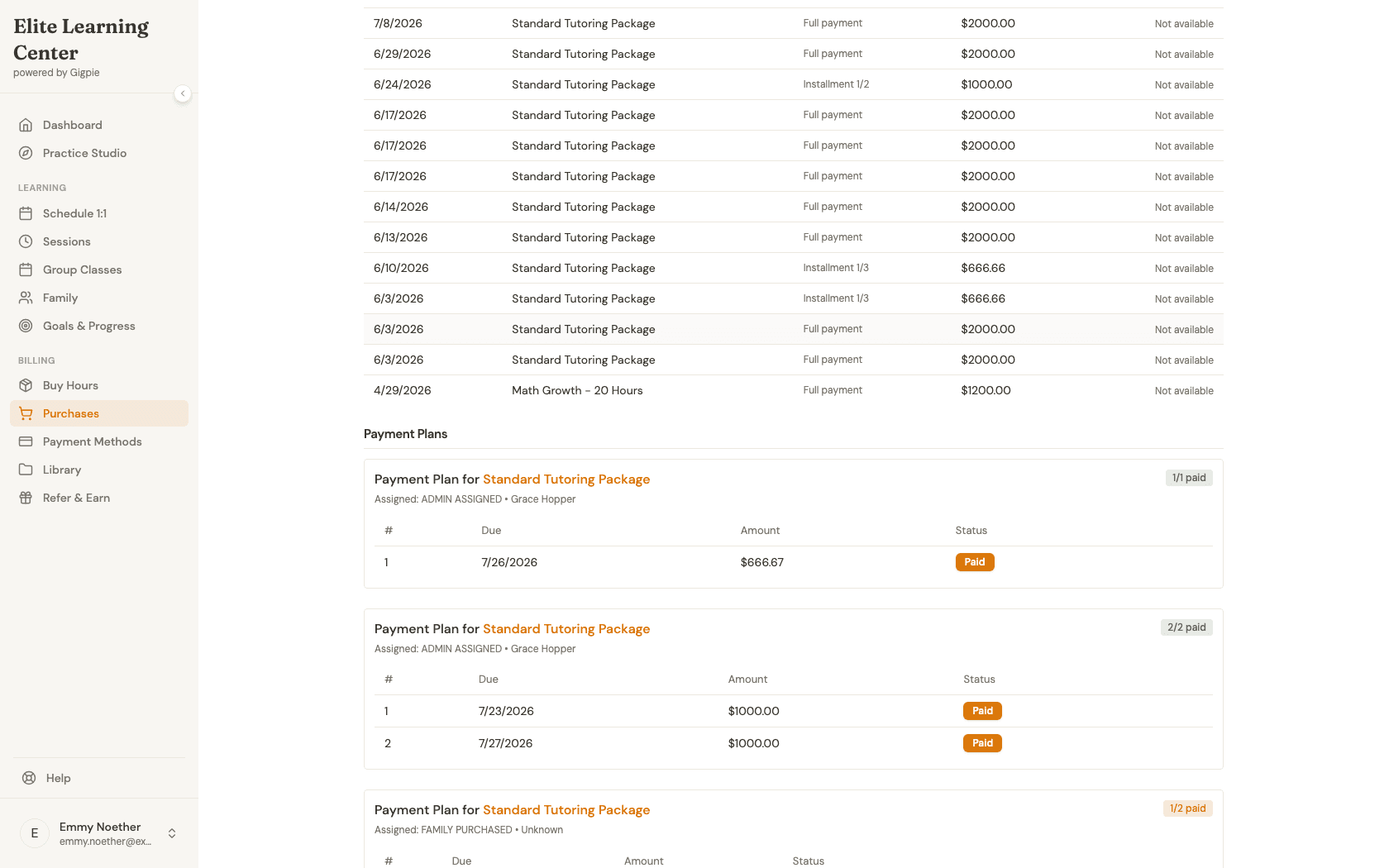
See what autopay will do for your plan
Open Purchases to see your payment plans. Once autopay is running on a plan, installments show as Paid automatically around their due dates instead of you having to remember to pay them one by one.
What you'll accomplish
- You know where to add or manage saved payment methods.
- You understand that autopay turns on automatically after your first successful card payment — it isn't a switch you flip yourself.
- You know what to expect from ACH clearing times and retrying failed charges.
Related Guides
- How to view and pay your payment plans - The installment schedule autopay works against
- How to purchase coaching hours - Where a payment plan starts
- Billing & Payments - How installments, autopay, and pay-by-bank work end to end